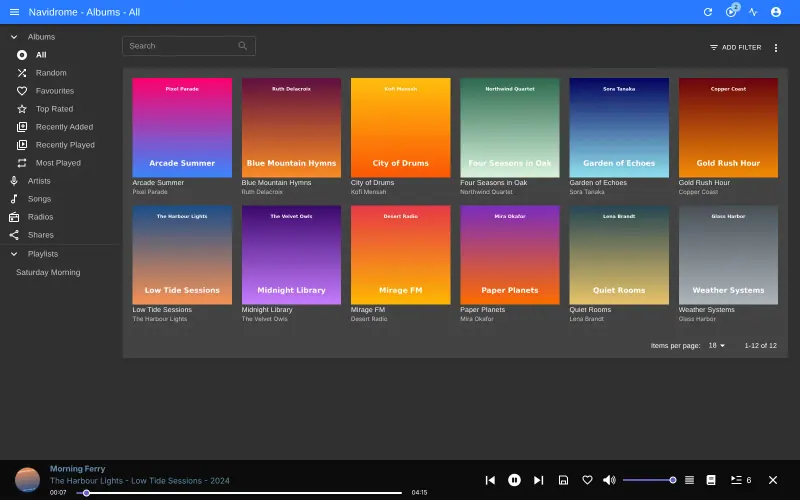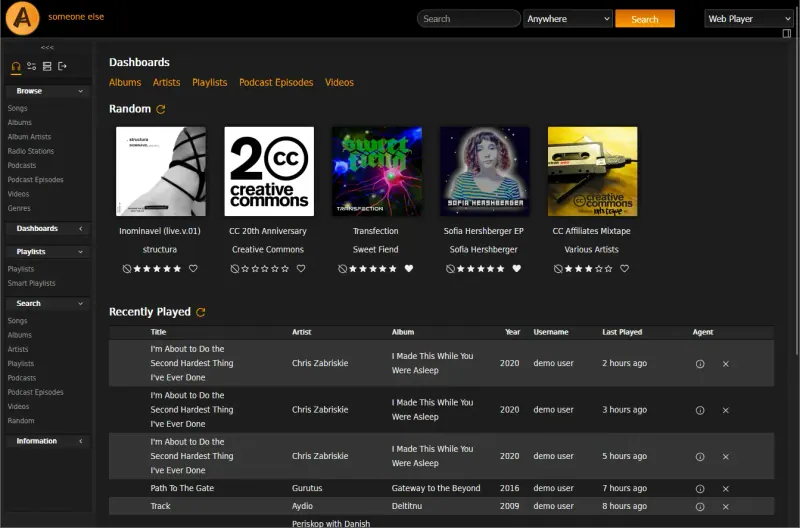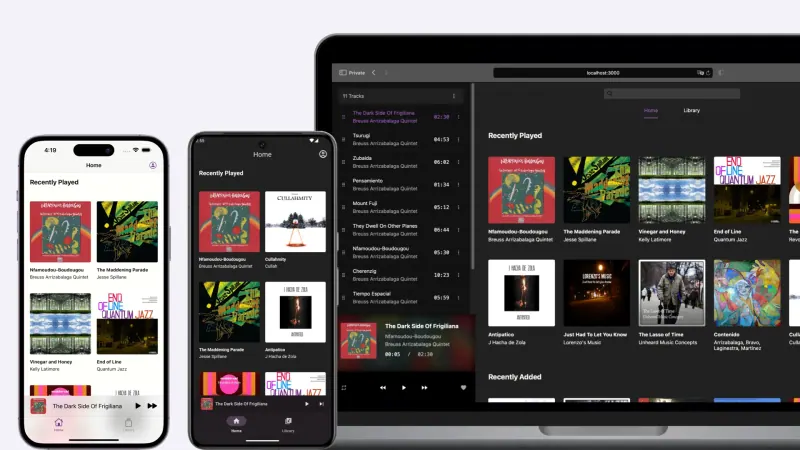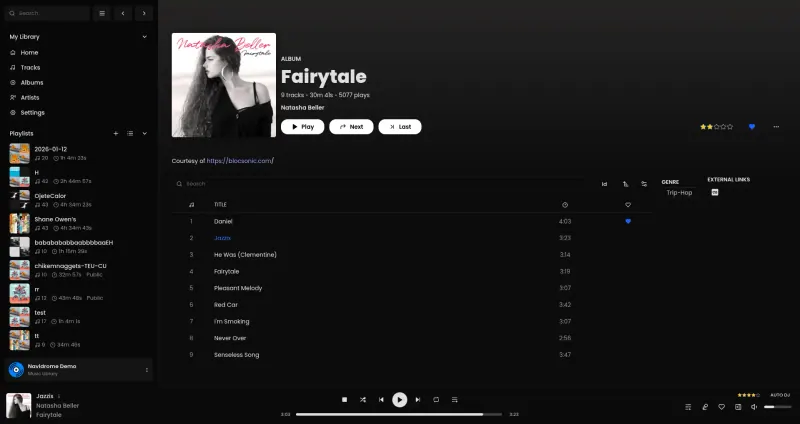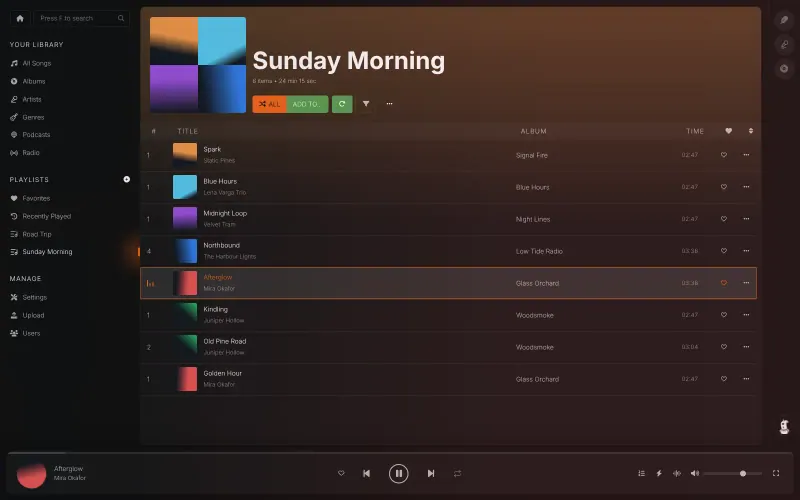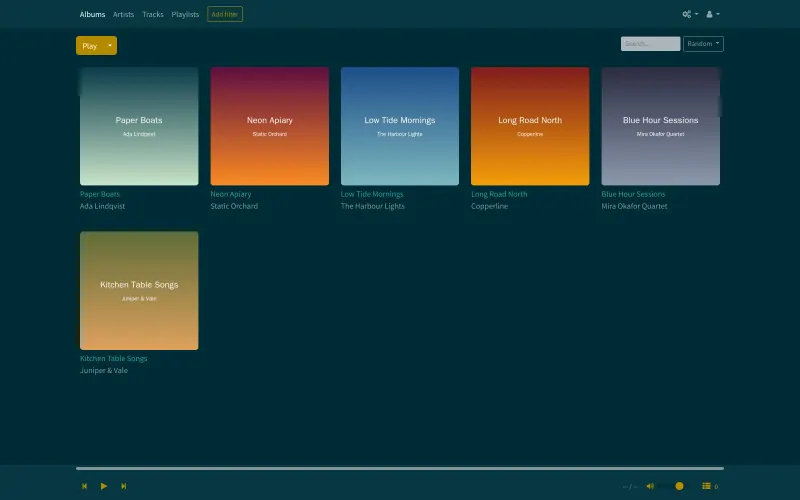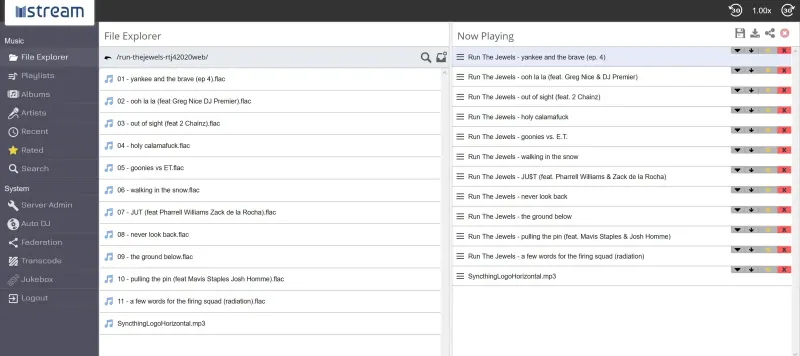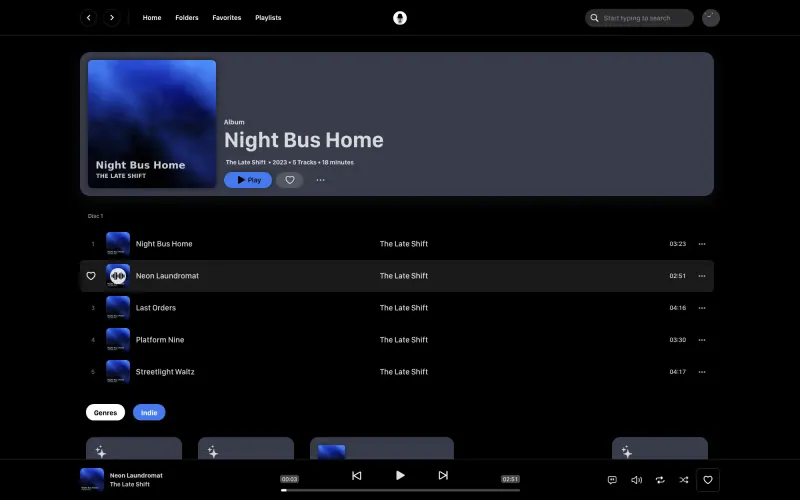







Navidrome, Koel, Black Candy, mStream and Ampache play music files, so start with the ones you have: ripped CDs, downloads you bought, or a family collection. For Navidrome, upload them through the File Browser address Cloudgate sets up, in folders such as Artist/Album, and Navidrome adds them by itself; in Koel, drag files or whole folders onto its Upload screen. Spotify playlists can't be exported as files, so rebuild your favourites by hand; Navidrome can also import .m3u playlists exported from iTunes or Apple Music. For Black Candy, upload the files at the File Browser address Cloudgate sets up, then press Sync in Black Candy's Settings so it adds them. Then install a Subsonic-compatible app on each phone and sign in with your Navidrome username and password, or with your email and Koel's Subsonic key; for Black Candy, install its free app for iPhone or Android and sign in with your server's address. In mStream, sign in as admin, upload files or whole folders in its File Explorer, and scan its Quick Connect QR code with the mStream app on each phone. In Ampache, add songs on its Upload page, and import playlist files such as .m3u from its Playlist menu once their songs are in the library.
For Swing Music, upload your files at the File Browser address Cloudgate sets up, then run a scan from Swing Music's settings so it adds them. On Android, install its app and pair it by scanning the QR code in Swing Music's settings; on an iPhone, use the web player in the browser.
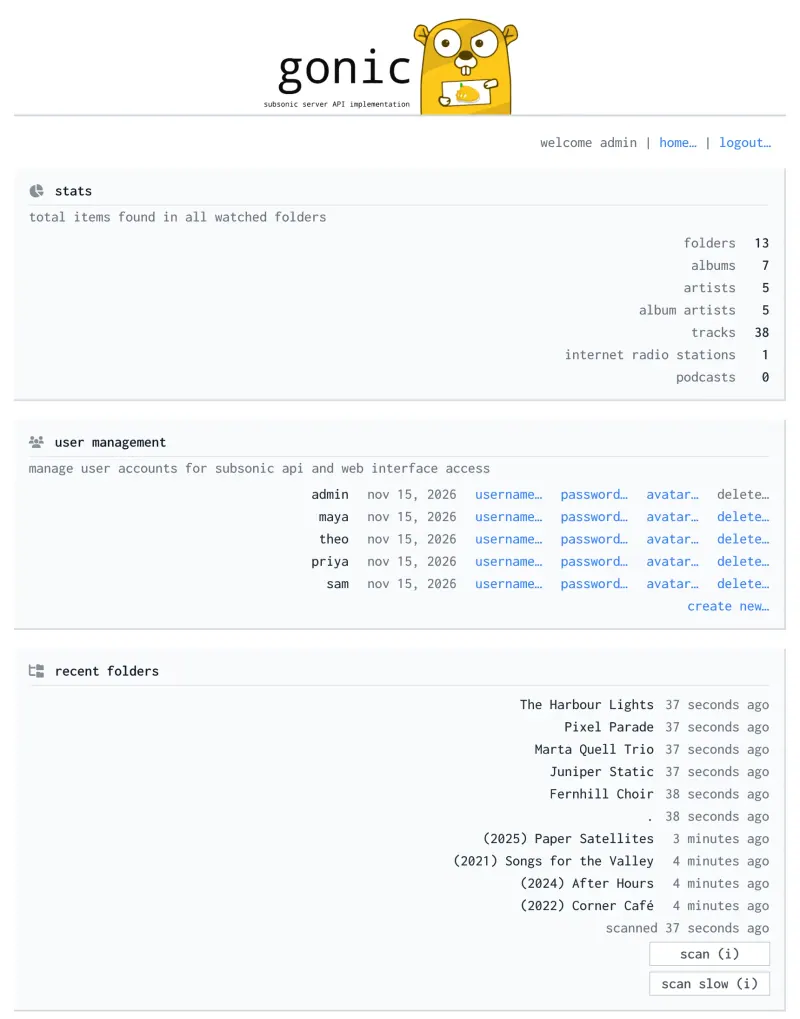
For gonic, upload your music at its second, File Browser address, keeping one album per folder such as Artist/Album, and gonic adds new files by itself. Rebuild your playlists in your Subsonic app, then sign in from each phone or computer with gonic's address, your username and password.
Feishin is a player rather than a server: set up Navidrome or Jellyfin with your music first, then open Feishin, add that server's address and sign in with your account there.
For LMS, upload your files through the File Browser address Cloudgate sets up, add the music folder as a library and run the first scan; it reads .m3u playlist files you put in the music folder. Sign in from a Subsonic-compatible app with an API key you create in LMS's settings.
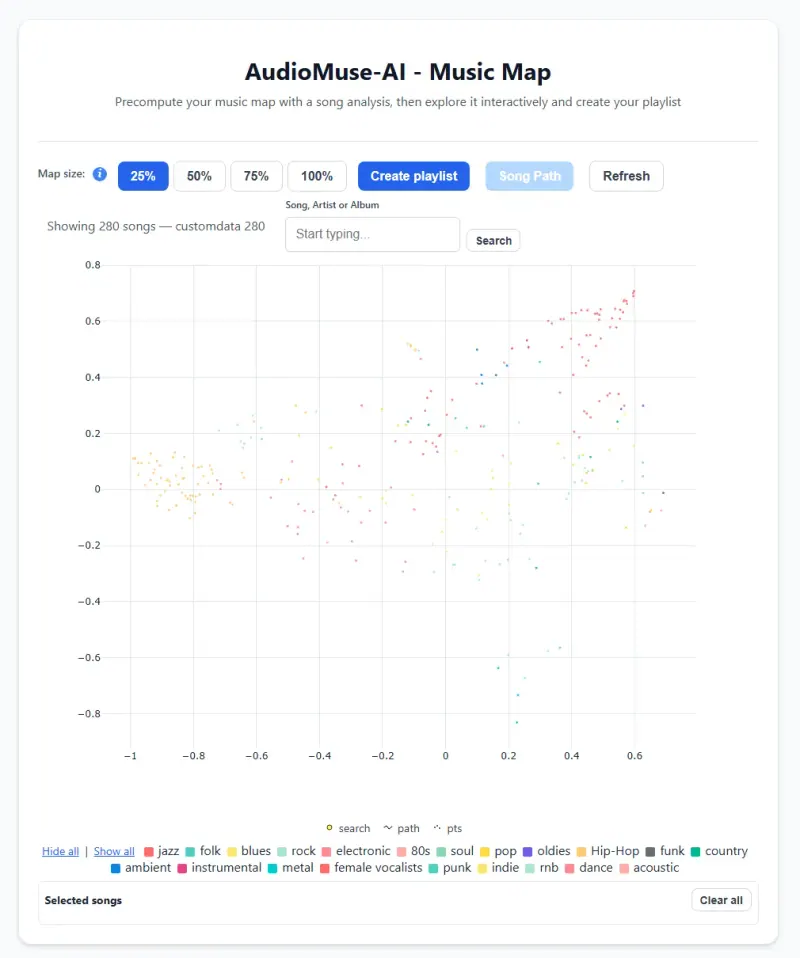
AudioMuse-AI is an add-on rather than a server: set up Navidrome or another supported music server with your files first, then connect AudioMuse-AI to it in its setup wizard and run the first analysis, which can take hours to days for a large library. Its playlists are saved to your music server, so you play them in the apps you already use.