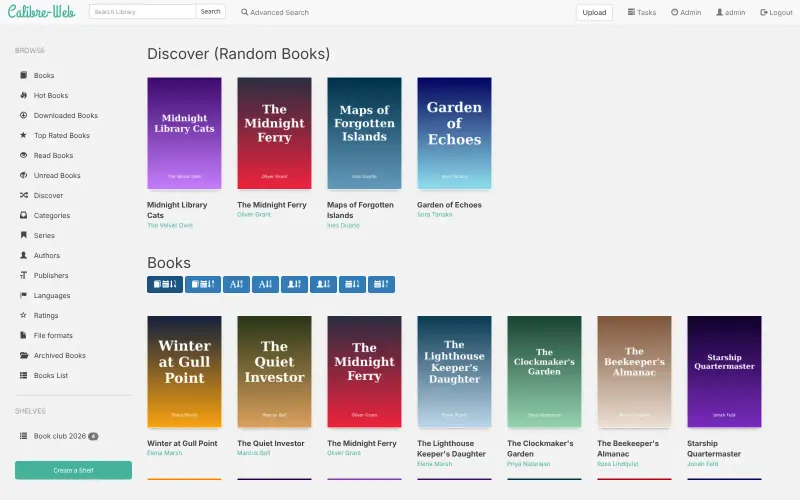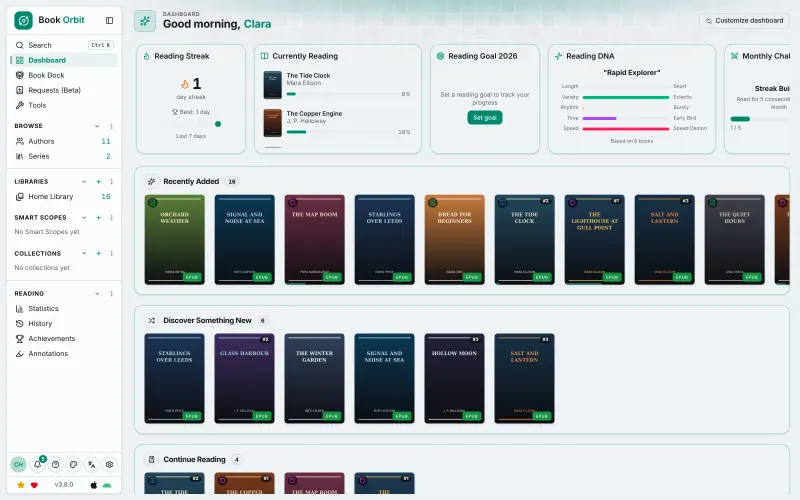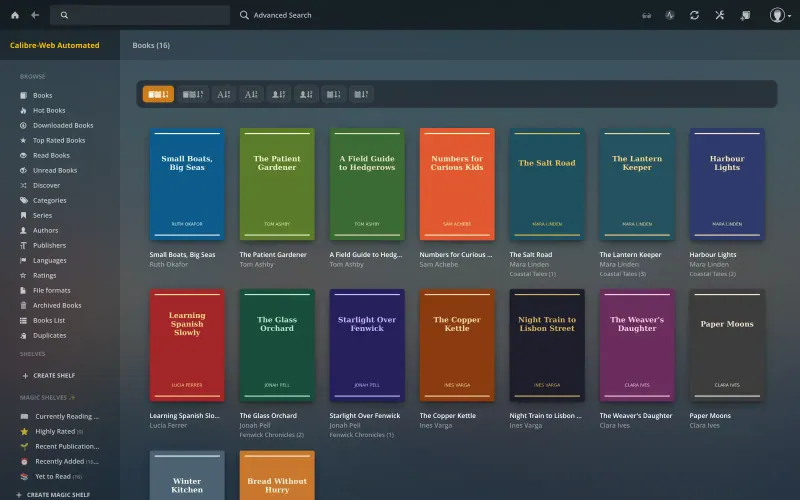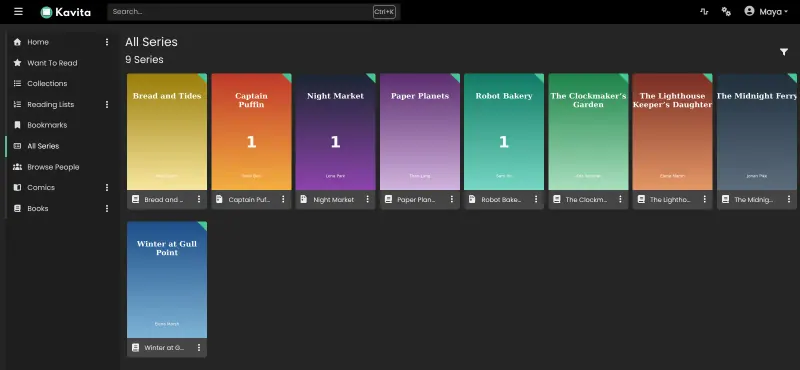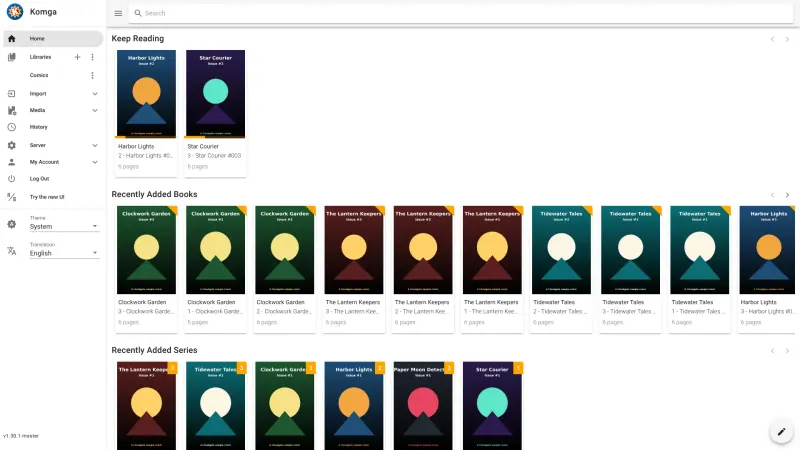

Gather the e-books you have as DRM-free files, such as EPUB, PDF and MOBI books from shops that sell them without copy protection, free public-domain books, and your own documents, and upload them in Calibre-Web's browser page. If you already keep your books in the Calibre desktop app, you can copy that whole library to the server instead. Books bought in the Kindle store stay in your Amazon account. To keep reading on a Kindle, add your email server's settings to Calibre-Web, allow its sending address in your Amazon account's Send to Kindle settings, and use the send button on each book. Calibre-Web Automated works like Calibre-Web: upload books in its browser page and it converts and tidies each one as it comes in, then add your email settings to send them to a Kindle. Kavita works the same way for DRM-free files: put each series or author in its own folder, upload them through the file manager address the template adds, and create a library; it can send books to a Kindle by email once you add your email settings. BookOrbit works the same way: upload your DRM-free books in its browser page or point a library at a folder of them, and it can also email books to your Kindle once its email settings are filled in. For comics and manga in Komga, upload your files at the File Browser address Cloudgate gives it, one folder per series, then add a library in Komga and scan it. Stump is similar: create the owner account on your first visit, add a library, upload your books from the browser, and add an email sender in its settings to send books to a Kindle.
With calibre, sign in with the user name calibre and the password Cloudgate created, finish its welcome wizard with the default library location, then drag your DRM-free books into the window or use the web desktop's upload panel. To read on a Kindle, convert books to EPUB in calibre if needed, download them and send them with Amazon's Send to Kindle.
Grimmory works the same way for DRM-free files: upload your books or drop them into its BookDrop folder, review the details it finds, and use the send button on a book's page to email it to your Kindle once its email settings are filled in.
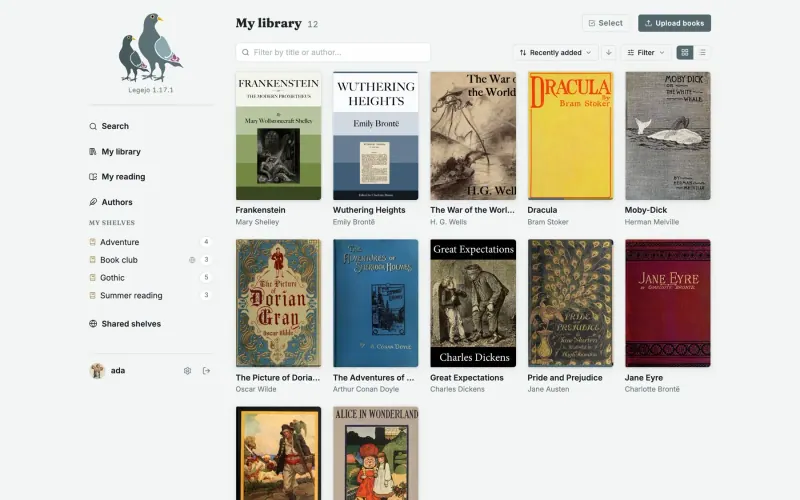
Legejo keeps its own copy of each book, so upload your DRM-free EPUBs and PDFs in its browser page rather than pointing it at a folder; it checks and repairs each EPUB as it arrives. Then connect your Kobo or KOReader for sync, and add your email settings to send books to a Kindle.