
Calibre-Web
A self-hosted e-book library to browse, read and send your books.
No server needed to start: Cloudgate can provide one. What happens when you click Deploy
What is Calibre-Web?
Calibre-Web is a self-hosted e-book library: upload your books, read them in the browser, send them to a Kindle or sync a Kobo.
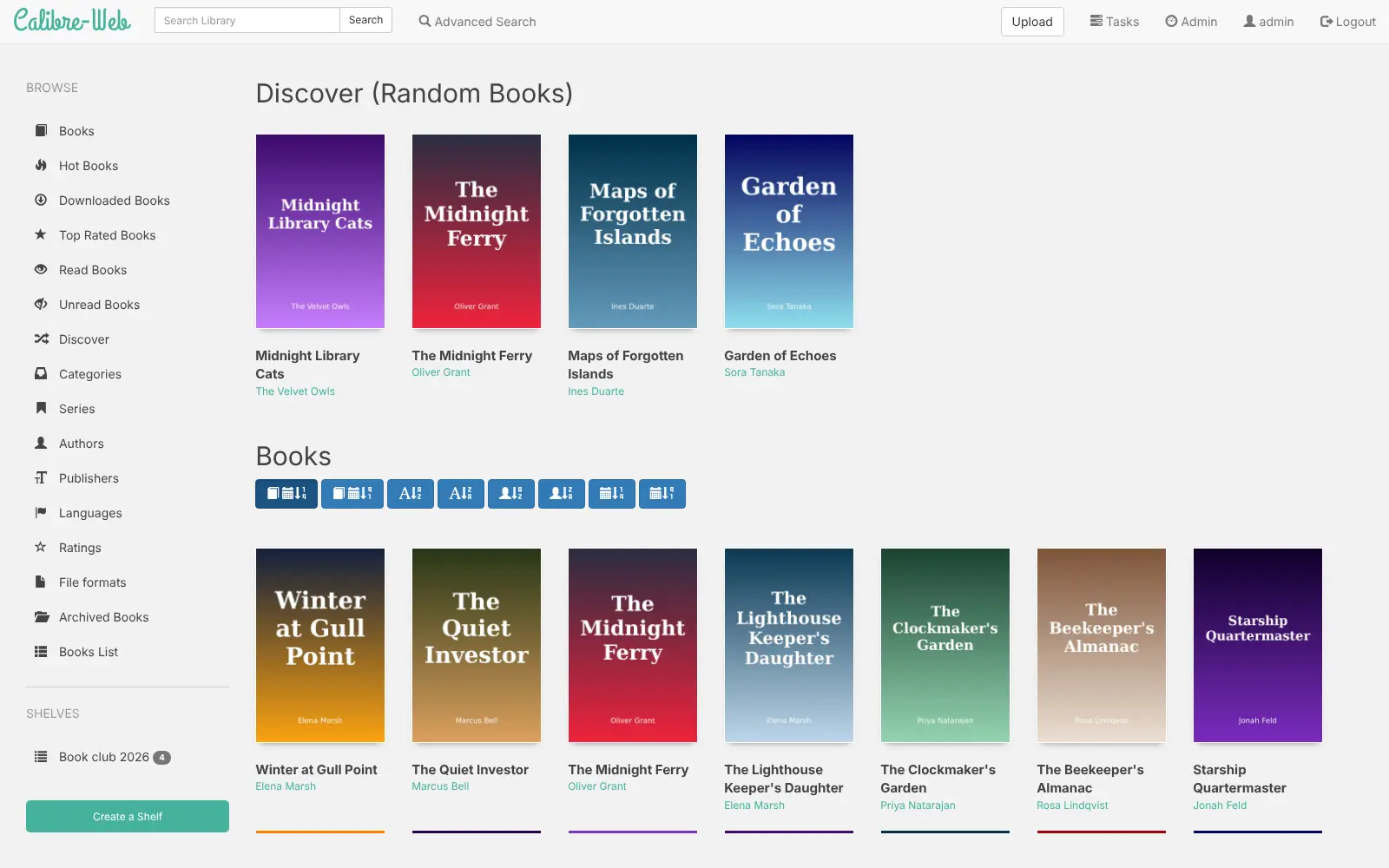
Calibre-Web is a free, open-source, self-hosted e-book library: it puts your e-books on a private website where you can browse, read, download and send them from any device, instead of keeping them in a store's cloud such as Amazon's Kindle library. It works with libraries made by Calibre, the desktop e-book manager.
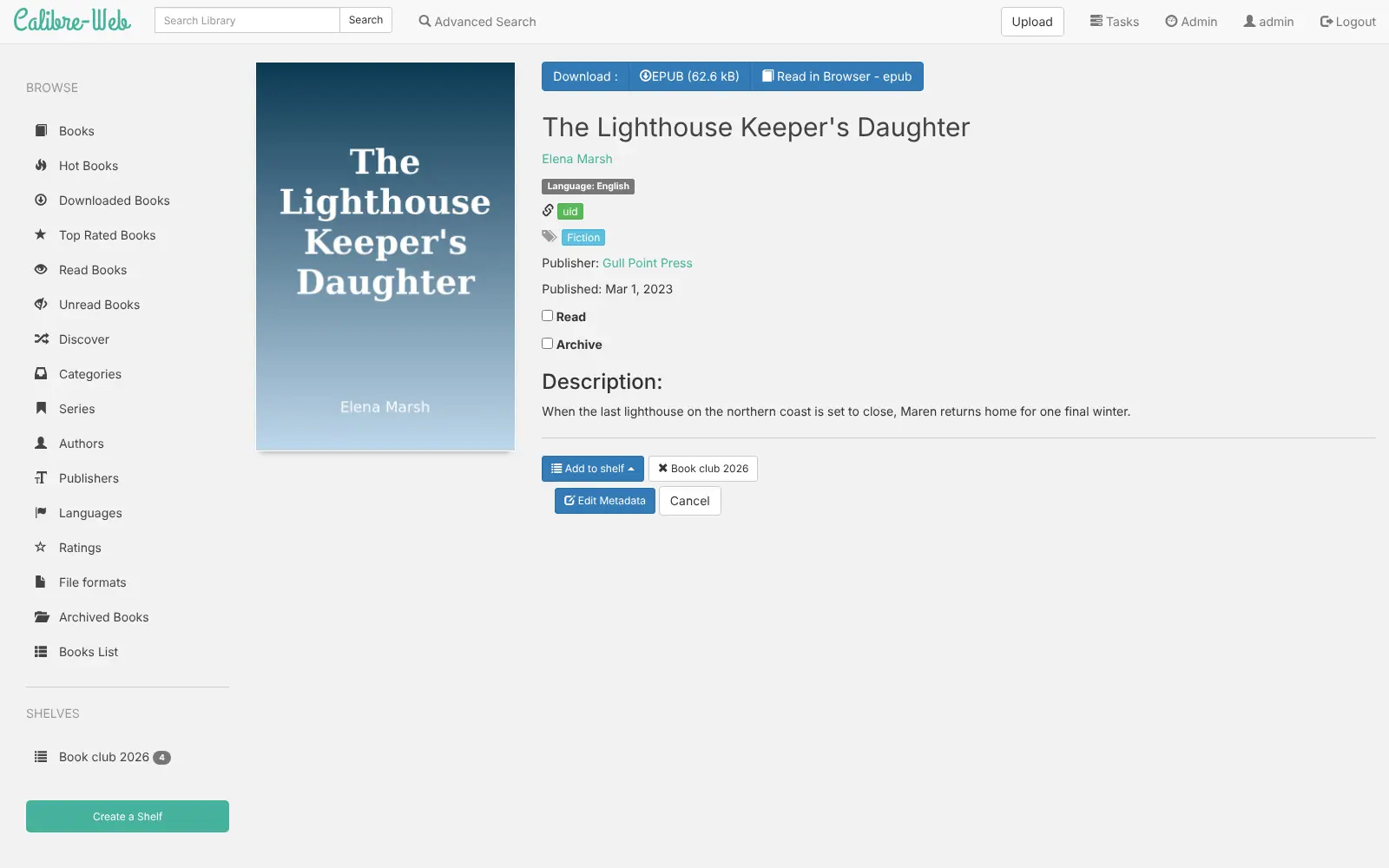
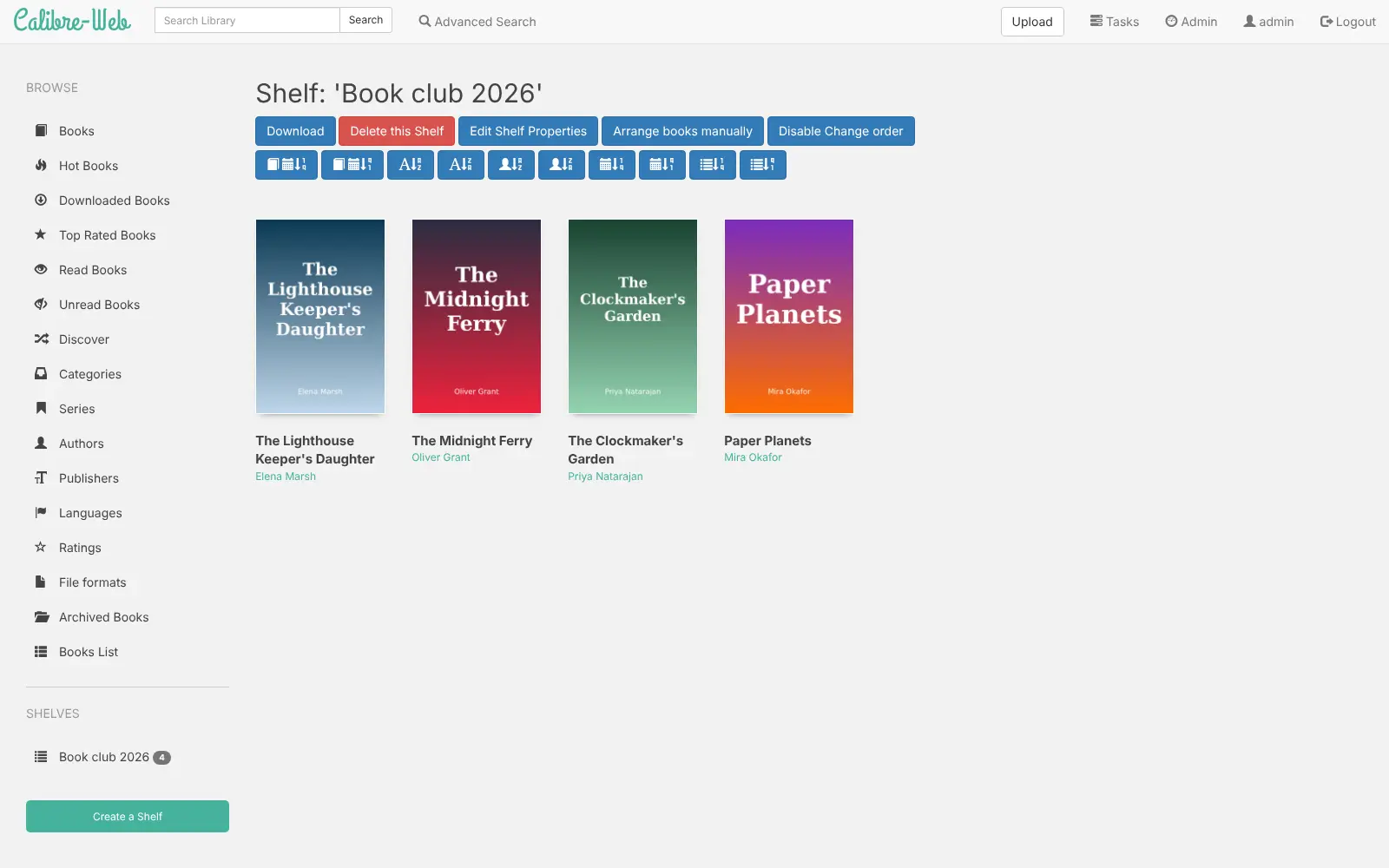
You upload EPUB, PDF, MOBI and comic files in the browser, and Calibre-Web lists them with covers, authors, series and tags. You can read a book in the web page, download it, email it to a Kindle, or sync it to a Kobo e-reader. A book club, for example, could keep the year's reading list on a shared shelf, so every member downloads the next book to their own e-reader.
Each person gets their own account and permissions, and reading apps can open the library through its OPDS catalogue. There is no store: you bring your own DRM-free e-books. Converting between formats needs the Calibre program, which isn't included, and sending by email needs your email server's settings.
Cloudgate installs Calibre-Web on a server Cloudgate provides or one you connect and gives it a secure web address. Sign in as admin with the password Cloudgate shows; the library starts empty, with uploads turned on.
What you can do with Calibre-Web
- Browse and search your books Find books by author, series, tag, publisher, language, rating or format, or let Discover pick something at random.
- Read in the browser Open EPUB, PDF and comic files right in the web page, and mark books as read or archived.
- Upload and edit Add e-books in the browser, fix their titles, authors and covers, or fetch details from online sources.
- Send to your e-reader Email a book to a Kindle or another e-reader in one click, once you add your email server settings.
- Sync a Kobo Connect a Kobo e-reader and sync books from your library to it.
- Shelves for any purpose Group books on public or private shelves, such as a reading list for a book club.
- Reading apps and accounts An OPDS catalogue lets e-reader apps open your library, and each person gets their own account and permissions.
Replaces Kindle
Calibre-Web does the same job as Kindle. Here is what changes when you switch.
- Your e-books from any shop or source in one private library, with no subscription
- Family members or a reading group share the same books, each with their own account
- Books stay on your server as ordinary files you can download at any time
- There is no store; you bring your own DRM-free e-books, and Kindle purchases can't be imported
- Converting between formats such as EPUB and MOBI needs the Calibre program, which isn't included
- Sending to a Kindle needs an email server set up in the admin settings
- The interface looks older and plainer than a store's reading app
What happens when you click Deploy?
You do not need a server or any technical knowledge. Four steps, and Calibre-Web is running at its own web address.
- Step 1 Click Deploy and create your account
Deploy takes you to Cloudgate. Create an account, or log in if you have one. Calibre-Web itself is free.
- Step 2 Choose a server
No server? Get one from Cloudgate: pick a size and a country, and Cloudgate gets it ready. Already have one? Connect it instead.
- Step 3 Cloudgate sets up Calibre-Web
It prepares the server, makes the passwords the app needs and starts it. There is nothing to install and nothing to write down.
- Step 4 Open your app and sign in
Your app gets a free web address to start, without https. Add your own domain, like app.yourshop.com, and Cloudgate secures it with https for you.
New to Cloudgate? See what Cloudgate is
Run Cloudgate yourself? Deploy from your own console
In your Cloudgate console, open Templates and choose Calibre-Web.
Questions
Is Calibre-Web free?
Yes. Calibre-Web is free, open-source software under the GPL-3.0-or-later licence, with no paid edition. You pay only for your server and its storage.
What is the difference between Calibre and Calibre-Web?
Calibre is a desktop app for managing e-books; Calibre-Web is a separate project that puts a Calibre library on a website you can open from any device. This template starts with a new, empty library, and you can copy in an existing Calibre library instead.
How do I sign in to Calibre-Web the first time?
Sign in with the username admin and the password Cloudgate shows for this app. The template replaces Calibre-Web's well-known default password, admin123, on the first start, so that password does not work.
Can Calibre-Web send books to my Kindle?
Yes. Once the admin enters email server settings, each book has a button that emails it to a Kindle or another e-reader. Kobo e-readers can sync with Calibre-Web directly, without email.
Can I import my Kindle books into Calibre-Web?
Only DRM-free ones. Calibre-Web takes EPUB, PDF, MOBI and other files you upload, but books bought in the Kindle store are copy-protected and can't be added as they are.
Can Calibre-Web convert e-books to other formats?
Not in this template. Calibre-Web needs the separate Calibre program to convert formats, and this template doesn't include it; reading, downloading, sending to an e-reader, Kobo sync and OPDS all work without it.
What server size do I need for Calibre-Web?
A small server with 1 GB of memory is enough to run Calibre-Web. Plan the disk for the size of your e-book collection.
Do I need technical skills to run Calibre-Web?
No. Click Deploy, create your Cloudgate account and choose a server, and Cloudgate sets up Calibre-Web and gives it a web address. You use it in your browser like any other online tool.
Do I need my own server for Calibre-Web?
No. When you deploy Calibre-Web, hosted Cloudgate can provide a server. If you already rent one, you can connect it instead.
Related apps
A self-hosted library to read and listen, synced to Kobo and iPhone.
A self-hosted e-book library that converts and tidies your books.
A self-hosted library for your e-books, comics and audiobooks.

A self-hosted e-book library that syncs with Kobo and KOReader.