
Taiga
Scrum sprints, backlogs and Kanban boards for agile teams.
No server needed to start: Cloudgate can provide one. What happens when you click Deploy
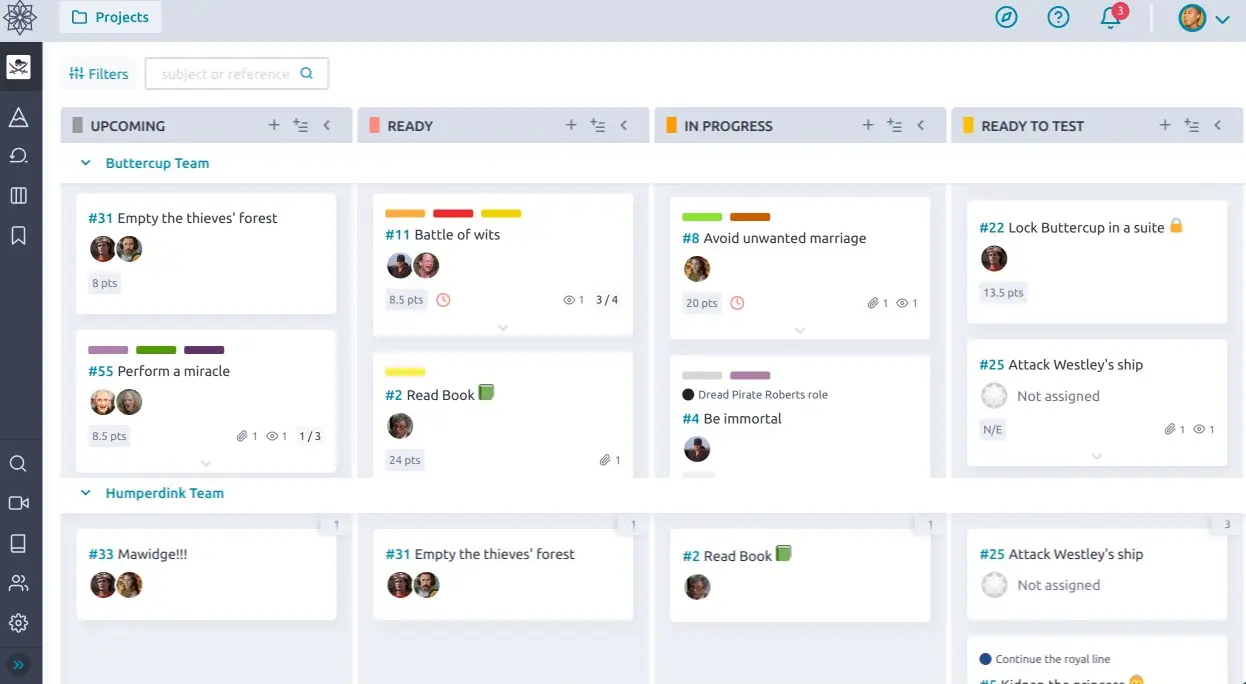
What is Taiga?
Self-hosted Taiga is open-source agile project management: a user story backlog, Scrum sprints with burn-down charts, Kanban boards, epics and a bug tracker.
Self-hosted Taiga is a free, open-source agile project management tool, an alternative to Jira and Pivotal Tracker for teams that plan their work in Scrum sprints or on Kanban boards. Every feature is included, with no limit on users.
You keep a backlog of user stories with point estimates, plan them into sprints, work through each sprint's tasks on a board and follow progress on a burn-down chart. Teams that prefer a continuous flow use a Kanban board with swimlanes and work-in-progress limits instead. Epics group larger features, the issue tracker collects bugs and requests, and each project has its own wiki. A small web agency, for example, could run a two-week sprint for each client, log the client's bug reports as issues and pull the urgent ones into the current sprint.
Taiga works in any web browser, including on a phone; there is no official phone app. It sends updates to Slack, links commits from GitHub, GitLab and Bitbucket, and has an API and webhooks. Be aware that development is slow: recent releases are mostly fixes.
Cloudgate installs Taiga on a server Cloudgate provides or one you connect, gives it a secure web address and creates the admin account for you.
What you can do with Taiga
- Keep a backlog of user stories Write user stories, estimate them in points and drag them into order of priority.
- Plan and run sprints Move stories into a sprint, work through their tasks on a sprint board and follow a burn-down chart.
- Work on a Kanban board Move cards through your own columns, split the board into swimlanes and set a limit on work in progress.
- Group work into epics Collect related user stories under an epic to follow a larger feature from start to finish.
- Track bugs and requests Log issues with a type, priority and severity, add them to a sprint or turn them into a user story.
- Keep notes in a wiki Each project has a wiki for specs, how-tos and meeting notes, next to the work.
- Set roles and custom fields Decide what each role can see and change, and add your own statuses, tags and fields.
- Connect your other tools Send updates to Slack, link commits from GitHub, GitLab or Bitbucket, and use the API and webhooks.
Replaces Jira and Pivotal Tracker
Taiga does the same job as Jira and Pivotal Tracker. Here is what changes when you switch.
- No per-user fee, and every feature is included; nothing is held back for a paid edition
- Backlog, sprints, burn-down charts, Kanban and epics, without Jira's setup and admin work
- Your projects, files and history stay on your own server
- Development is slow, with one or two small maintenance releases a year
- No Gantt chart or timeline view, and no app marketplace like Jira's
- No official phone app; Taiga is used in a web browser, including on a phone
- The Jira and Trello importers are not turned on, so your Jira history does not move across in a few clicks
What happens when you click Deploy?
You do not need a server or any technical knowledge. Four steps, and Taiga is running at its own web address.
- Step 1 Click Deploy and create your account
Deploy takes you to Cloudgate. Create an account, or log in if you have one. Taiga itself is free.
- Step 2 Choose a server
No server? Get one from Cloudgate: pick a size and a country, and Cloudgate gets it ready. Already have one? Connect it instead.
- Step 3 Cloudgate sets up Taiga
It prepares the server, makes the passwords the app needs and starts it. There is nothing to install and nothing to write down.
- Step 4 Open your app and sign in
Your app gets a free web address to start, without https. Add your own domain, like app.yourshop.com, and Cloudgate secures it with https for you.
New to Cloudgate? See what Cloudgate is
Run Cloudgate yourself? Deploy from your own console
In your Cloudgate console, open Templates and choose Taiga.
Questions
Is Taiga free?
Yes, Taiga is free and open source, with no limit on users or projects and no paid edition of the software. The web app is licensed under AGPL-3.0 and the server under MPL-2.0; Taiga's makers earn money from their hosted cloud plans and support, not from features.
Is Taiga a good alternative to Jira?
Yes, for teams that work in Scrum or Kanban and mainly need a backlog, sprints, burn-down charts, boards, epics and a bug tracker. Taiga is simpler than Jira but has no Gantt chart, no app marketplace and no workflow automation, and it changes slowly.
Is Taiga a good replacement for Pivotal Tracker?
Yes, for many former Pivotal Tracker teams, because Taiga also works from a prioritised backlog of user stories with point estimates, planned into sprints. Pivotal Tracker closed on 30 April 2025, and its projects cannot be imported into Taiga from the web app.
Is Taiga still maintained?
Yes, but slowly. Taiga Cloud Services has looked after Taiga since 2024 and still publishes fixes, with versions 6.10.0 to 6.10.2 released in 2026, but recent releases add few new features. Tenzu, the next-generation tool that grew out of the planned "Taiga Next", is a separate product.
Can Taiga import my projects from Jira or Trello?
Partly. Taiga includes importers for Jira, Trello and GitHub, but they need connection keys from those services and are not turned on in this template. A project exported from another Taiga, such as Taiga's own cloud, can be imported straight away.
How do I sign in to Taiga the first time?
Sign in to Taiga with the username admin, or the email you entered during setup, and the password Cloudgate shows on the app's page after setup. There is no public sign-up page, so the admin invites teammates from a project's Members settings, which sends invitations once an email server is set up.
Does Taiga have a phone app?
No, Taiga has no official phone app. The web app works in a phone's browser, and a few unofficial apps made by other people can connect to your own Taiga.
Do I need technical skills to run Taiga?
No. Click Deploy, create your Cloudgate account and choose a server, and Cloudgate sets up Taiga and gives it a web address. You use it in your browser like any other online tool.
Do I need my own server for Taiga?
No. When you deploy Taiga, hosted Cloudgate can provide a server. If you already rent one, you can connect it instead.
Related apps

Project tracking with sprints, boards and timelines.

Linear-style issue tracking, with AI agents as teammates.

Simple self-hosted project boards, lists and Gantt charts for teams.

Gantt charts, agile boards and time tracking for projects.