
Plane
Project tracking with sprints, boards and timelines.
No server needed to start: Cloudgate can provide one. What happens when you click Deploy
What is Plane?
Self-hosted Plane Community Edition: an open-source Jira and Linear alternative to plan sprints and track work items on boards, lists and timelines.
Plane is an open-source project management tool you can self-host, a free alternative to Jira and Linear for planning sprints and tracking your team's work. This template installs the open-source Plane Community Edition, with no limit on users.
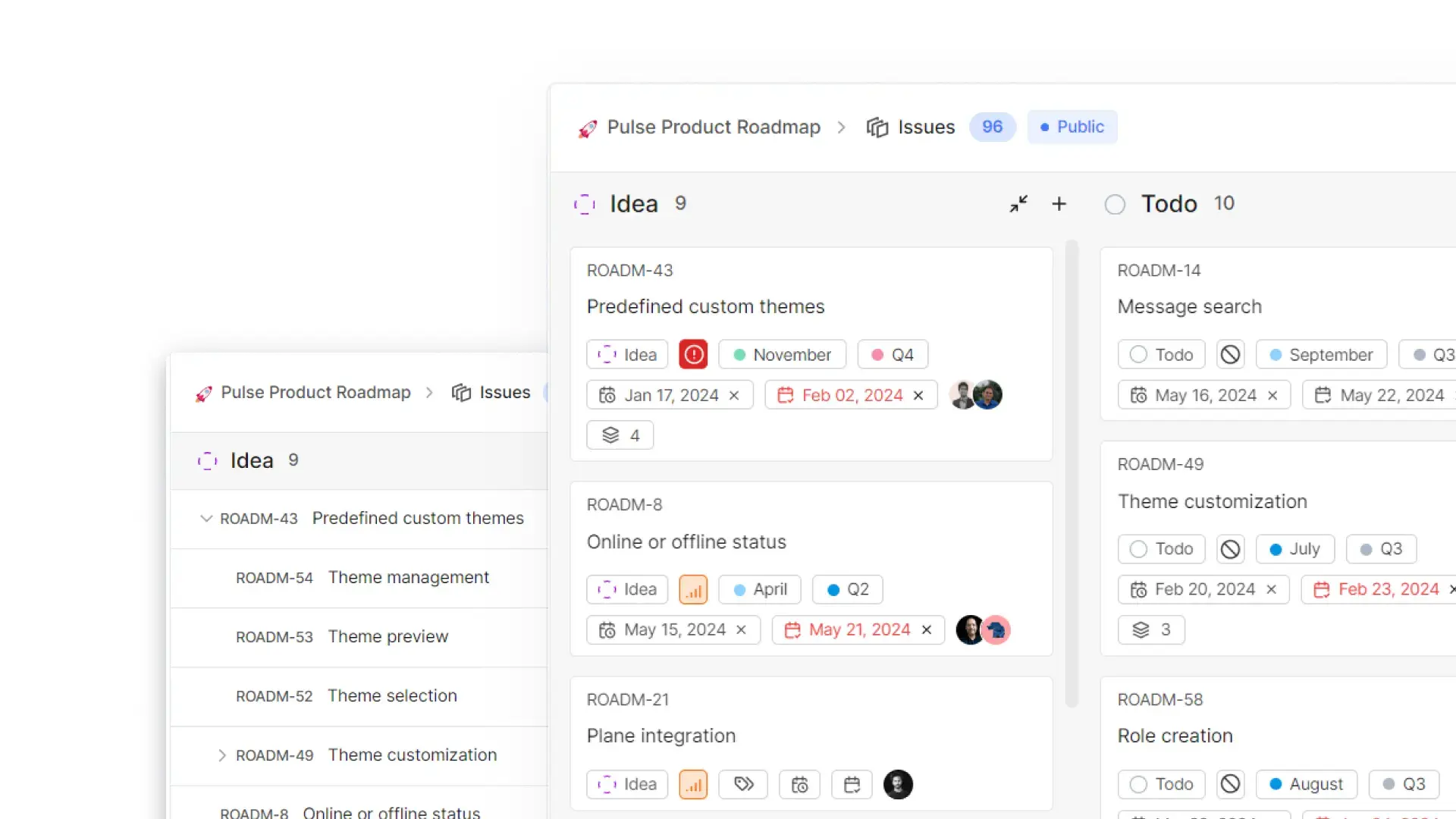
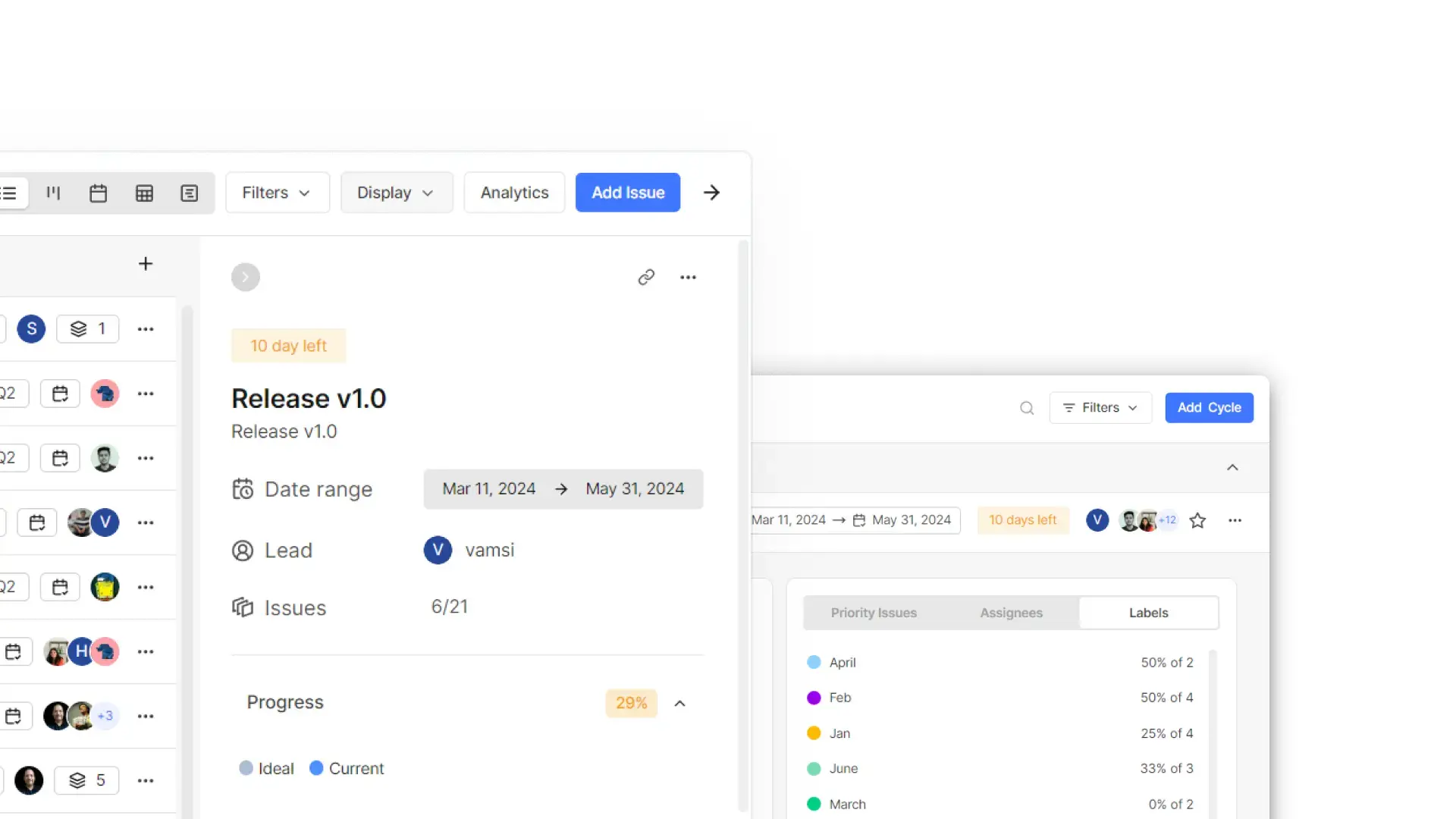
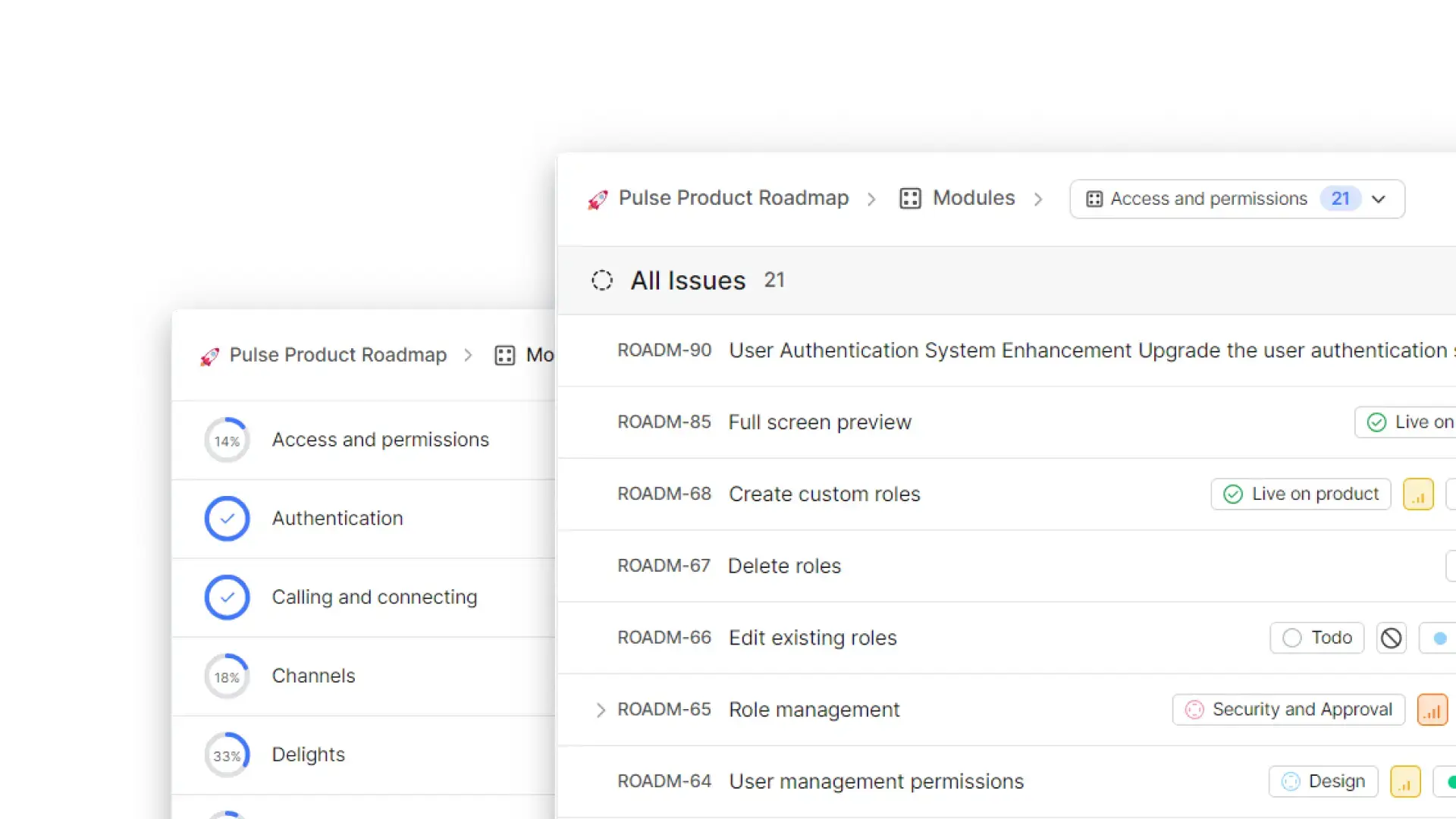
Each task is a work item with files, labels, a priority and a due date. You can see the same work as a list, a board, a calendar, a spreadsheet or a timeline, plan sprints (Plane calls them cycles) with a burn-down chart, and split a big project into modules. Project docs live in Pages, next to the work they describe. A small app studio, for example, could plan each release as a cycle, keep the spec in a page, and let a client's requests arrive through Intake before anyone commits to them.
Plane works in any web browser, including on a phone; its phone apps do not work with the Community Edition. It has a REST API and webhooks, and you can export work items to a spreadsheet. This edition has no importer, so a Jira or Linear history does not come across.
Cloudgate installs Plane on a server Cloudgate provides or one you connect and gives it a secure web address. The first person to open its admin page creates the admin account, so do that right after setup.
What you can do with Plane
- Track every piece of work Work items have descriptions, files, sub-items, labels, priorities, due dates and links to related work.
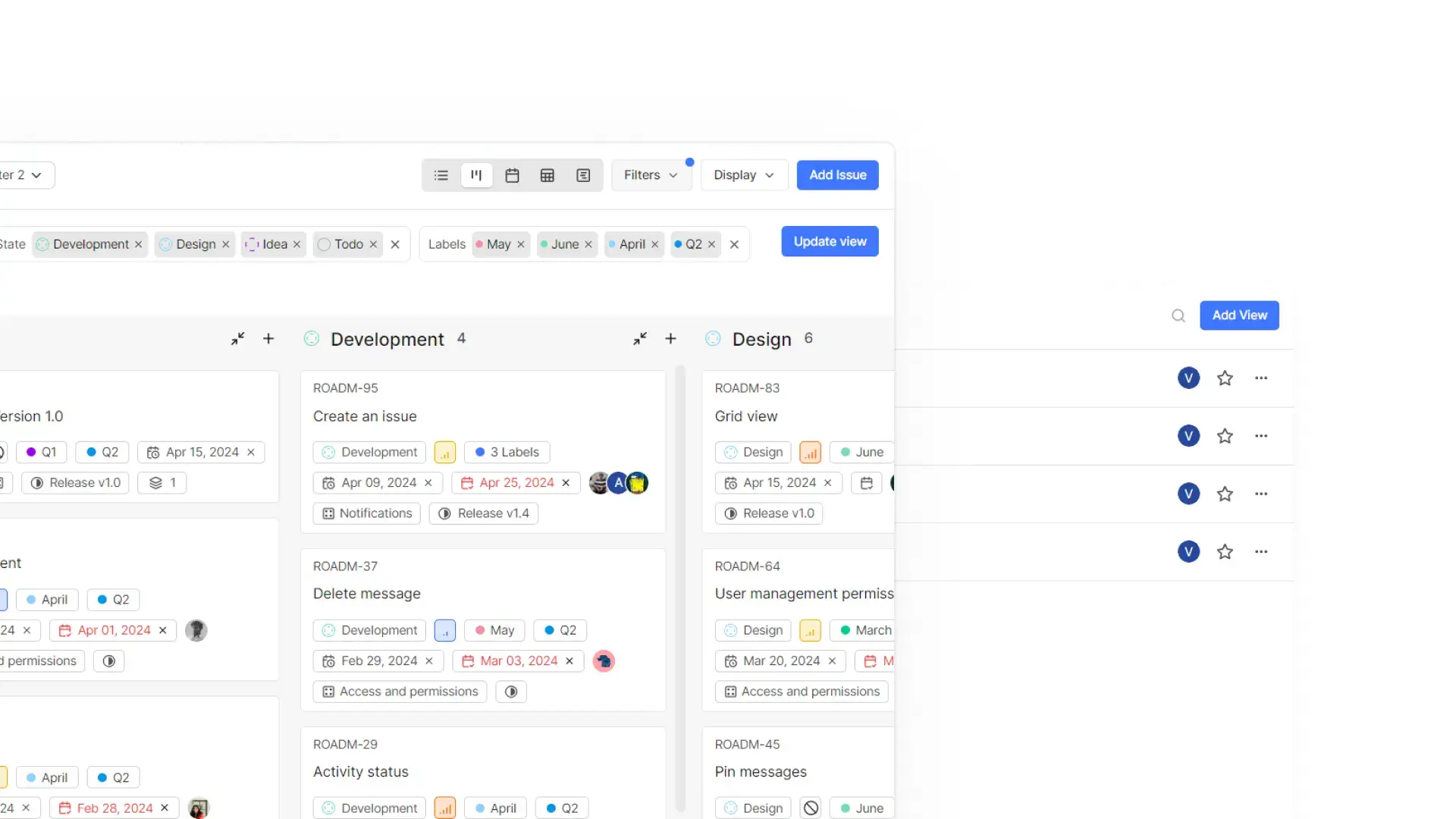
- Switch between five layouts See the same work as a list, a board, a calendar, a spreadsheet or a timeline (Gantt chart).
- Plan sprints with cycles Group work into time-boxed cycles and follow a burn-down chart to see if you will finish on time.
- Split big projects into modules Break a project into smaller parts, such as a feature or a release, each with its own progress.
- Save the views you use Save a set of filters as a view and share it, so everyone sees the same list.
- Write project docs next to the work Keep specs and meeting notes in Pages, and turn a line of notes into a work item.
- Take in requests Intake collects requests from inside Plane into one queue, where someone reviews them before work starts.
- Connect your own tools A REST API and webhooks let you link Plane to other software or script your own updates.
Replaces Jira, Linear, Asana and monday.com
Plane does the same job as Jira, Linear, Asana and monday.com. Here is what changes when you switch.
- No per-user fee in the Community Edition, however many people join
- Your projects, docs and files stay on your own server
- A simpler, faster setup than Jira, with sprints, boards and timelines built in
- No importer in the Community Edition, so Jira, Linear and Asana work does not move across in a few clicks
- No phone app works with the Community Edition; use Plane in a phone's browser
- No workflows, epics, custom work item types or single sign-on (SAML or OIDC), which are in Plane's paid Commercial Edition
- Plane shows prompts to upgrade to its paid edition in places
What happens when you click Deploy?
You do not need a server or any technical knowledge. Four steps, and Plane is running at its own web address.
- Step 1 Click Deploy and create your account
Deploy takes you to Cloudgate. Create an account, or log in if you have one. Plane itself is free.
- Step 2 Choose a server
No server? Get one from Cloudgate: pick a size and a country, and Cloudgate gets it ready. Already have one? Connect it instead.
- Step 3 Cloudgate sets up Plane
It prepares the server, makes the passwords the app needs and starts it. There is nothing to install and nothing to write down.
- Step 4 Open your app and sign in
Your app gets a free web address to start, without https. Add your own domain, like app.yourshop.com, and Cloudgate secures it with https for you.
New to Cloudgate? See what Cloudgate is
Run Cloudgate yourself? Deploy from your own console
In your Cloudgate console, open Templates and choose Plane.
Questions
Is Plane free?
Yes, Plane Community Edition is free and open source under the AGPL-3.0 licence, with no limit on users or projects. Plane also sells a separate, paid Commercial Edition with extra features such as epics, single sign-on and importers; this template installs the free Community Edition.
Is Plane a good alternative to Jira?
Yes, for teams that need the core of Jira, namely work items, sprints, boards, backlog lists and a timeline, without the per-user fee. Plane Community Edition has no app marketplace, workflows, custom work item types, epics or single sign-on, so large teams that rely on those may miss them.
Is Plane a good alternative to Linear?
Yes, if you want Linear's way of working, with cycles for sprints and a fast, keyboard-friendly design, on your own server. Linear is more polished and has phone apps and GitHub and Slack links, which Plane Community Edition does not.
Can I import my projects from Jira, Linear or Asana?
No, Plane Community Edition has no importers. The Jira, Linear, Asana and ClickUp importers are part of Plane's Commercial Edition; on the Community Edition, moving work across means re-creating it or using a script built on Plane's API.
Does Plane have a phone app?
No, not for the Community Edition. Plane's iPhone and Android apps only work with its cloud service and Commercial Edition, but the self-hosted Plane works in a phone's web browser.
How do I sign in to Plane the first time?
There is no default password. Right after setup, open your Plane web address followed by /god-mode and create the admin account; that person sets the sign-in options and email settings, then creates a workspace and invites the team.
What server size do I need for Plane?
Plane asks for at least 2 CPU cores and 4 GB of memory, and 8 GB for a team that uses it every day, so Cloudgate asks for a large server. The first start takes a few minutes while Plane prepares its database.
Do I need technical skills to run Plane?
No. Click Deploy, create your Cloudgate account and choose a server, and Cloudgate sets up Plane and gives it a web address. You use it in your browser like any other online tool.
Do I need my own server for Plane?
No. When you deploy Plane, hosted Cloudgate can provide a server. If you already rent one, you can connect it instead.
Related apps

Gantt charts, agile boards and time tracking for projects.

Linear-style issue tracking, with AI agents as teammates.

Simple self-hosted project boards, lists and Gantt charts for teams.

A free, self-hosted task manager with issues, sprints and docs.