
Stirling PDF
PDF editor to merge, convert, sign and OCR your files.
No server needed to start: Cloudgate can provide one. What happens when you click Deploy
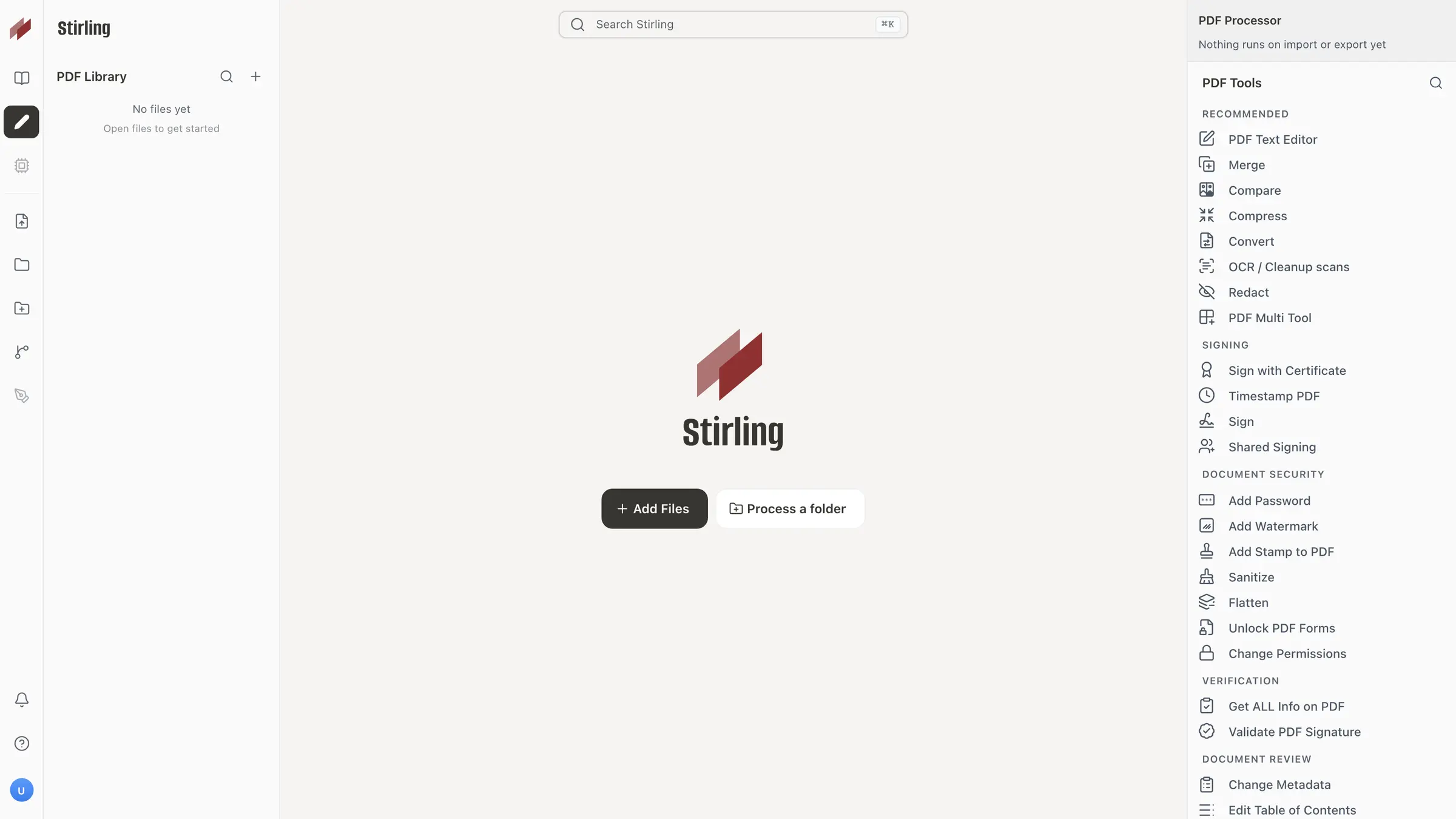

What is Stirling PDF?
Self-hosted Stirling PDF: edit, merge, convert, sign and OCR PDFs in your browser, on your own server, without uploading documents to a third-party website.
Stirling PDF is a self-hosted PDF editor and toolbox that handles the everyday jobs people use Adobe Acrobat, Smallpdf or iLovePDF for. In one browser workspace you can merge and split files, edit text, convert Office documents and images, make scans searchable with OCR, redact, sign, watermark and password-protect PDFs.
Because files are processed on your server, contracts, invoices and ID documents never go to a third-party website. An accountancy firm, for example, could merge a client's scanned receipts into one searchable PDF, black out bank details and add a password before emailing it, without paying for Acrobat seats.
Stirling PDF is open core: its PDF tools are open source under the MIT licence, while sign-in, user accounts and team features are proprietary code that is free for up to 5 users. Desktop apps for Windows, Mac and Linux can connect to your server; there is no phone app, but a phone can send photos of pages to it as a PDF.
Cloudgate installs Stirling PDF on a server Cloudgate provides or one you connect and gives it a secure web address, on a large server with about 4 GB of memory. You sign in with the admin username you chose and the password Cloudgate shows you.
What you can do with Stirling PDF
- Merge, split and tidy pages Combine files, pull pages out, rotate, reorder, crop, number pages and compress large PDFs.
- Edit text in a PDF Change existing text and images in a PDF without going back to the original document.
- Convert to and from PDF Turn Word, Excel and PowerPoint files, images, web pages and ebooks into PDFs, and PDFs back into other formats.
- Make scans searchable Read the text in scanned pages with OCR, clean up crooked or grey scans and rotate them automatically.
- Protect and redact Black out sensitive details, add passwords and permissions, watermark or stamp pages, and strip hidden content.
- Sign documents Add a drawn, typed or image signature, or a certificate-based digital signature with a timestamp.
- Fill forms and compare files Fill in and edit PDF forms, add notes, and see what changed between two versions of a document.
- Automate repeated jobs Save a chain of steps, such as OCR then compress then watermark, and run it on any batch of files.
Replaces Adobe Acrobat, Smallpdf and iLovePDF
Stirling PDF does the same job as Adobe Acrobat, Smallpdf and iLovePDF. Here is what changes when you switch.
- Documents are processed on your own server, not uploaded to someone else's website
- No per-person subscription for up to 5 people
- No daily limit on how many files you can work on by hand
- Dozens of everyday PDF tools in one place, in the browser
- The free plan covers up to 5 user accounts; more people need Stirling's paid Team plan
- Acrobat is more polished and has a stronger form designer
- No phone apps, though a phone can send photos of pages to it as a PDF
- It needs a fairly large server, because conversion and OCR use a lot of memory
What happens when you click Deploy?
You do not need a server or any technical knowledge. Four steps, and Stirling PDF is running at its own web address.
- Step 1 Click Deploy and create your account
Deploy takes you to Cloudgate. Create an account, or log in if you have one. Stirling PDF itself is free.
- Step 2 Choose a server
No server? Get one from Cloudgate: pick a size and a country, and Cloudgate gets it ready. Already have one? Connect it instead.
- Step 3 Cloudgate sets up Stirling PDF
It prepares the server, makes the passwords the app needs and starts it. There is nothing to install and nothing to write down.
- Step 4 Open your app and sign in
Your app gets a free web address to start, without https. Add your own domain, like app.yourshop.com, and Cloudgate secures it with https for you.
New to Cloudgate? See what Cloudgate is
Run Cloudgate yourself? Deploy from your own console
In your Cloudgate console, open Templates and choose Stirling PDF.
Questions
Is Stirling PDF free?
Yes, Stirling PDF is free for up to 5 users. It is open core: its PDF tools are open source under the MIT licence, while sign-in, user accounts and team features are proprietary code covered by the Free plan. More users, and extras such as SAML sign-in and audit logs, need a paid plan. You also pay for your server.
Is Stirling PDF a good alternative to Adobe Acrobat?
Yes, for everyday Acrobat Pro jobs such as editing text, merging, converting, OCR, redacting, signing and filling forms, with no fee per seat. Acrobat is more polished and has a stronger form designer. There is nothing to migrate, because Stirling PDF opens the same PDF files you already have.
Is Stirling PDF a good alternative to iLovePDF or Smallpdf?
Yes. Stirling PDF works the same way as iLovePDF and Smallpdf (pick a tool, drop in a file) and covers merging, splitting, compressing, converting, OCR, watermarks and signatures. The difference is that your files stay on your own server and there are no daily task limits for work done by hand; iLovePDF and Smallpdf need no server and have phone apps.
How do I sign in to Stirling PDF the first time?
You sign in to Stirling PDF with the admin username you chose when you set it up in Cloudgate and the strong password Cloudgate created for it, shown on the app's variables page. The app then asks whether to share anonymous usage data, and you can invite colleagues from the settings.
Is my data private with Stirling PDF?
Yes. With Stirling PDF your files are processed on your own server and are not sent to a third-party website. The only thing the app asks about is anonymous usage data, which the admin can decline on first sign-in.
What server size do I need for Stirling PDF?
Stirling PDF needs about 4 GB of memory, so Cloudgate asks for a large server. Converting Office files and reading scans with OCR are the heaviest jobs, so give it more if many people use it at once.
Do I need technical skills to run Stirling PDF?
No. Click Deploy, create your Cloudgate account and choose a server, and Cloudgate sets up Stirling PDF and gives it a web address. You use it in your browser like any other online tool.
Do I need my own server for Stirling PDF?
No. When you deploy Stirling PDF, hosted Cloudgate can provide a server. If you already rent one, you can connect it instead.
Can I move my data from Adobe Acrobat to Stirling PDF?
Most people export from Adobe Acrobat and import into Stirling PDF. The official guides at docs.stirlingpdf.com walk through it.
Related apps

PDF tools that run in your browser, so files never upload.

Online tools for PDFs, images, video, text and data.

File tools for images, PDFs, video, audio and documents.

Online office for Word, Excel and PowerPoint files.