
BentoPDF
PDF tools that run in your browser, so files never upload.
No server needed to start: Cloudgate can provide one. What happens when you click Deploy
What is BentoPDF?
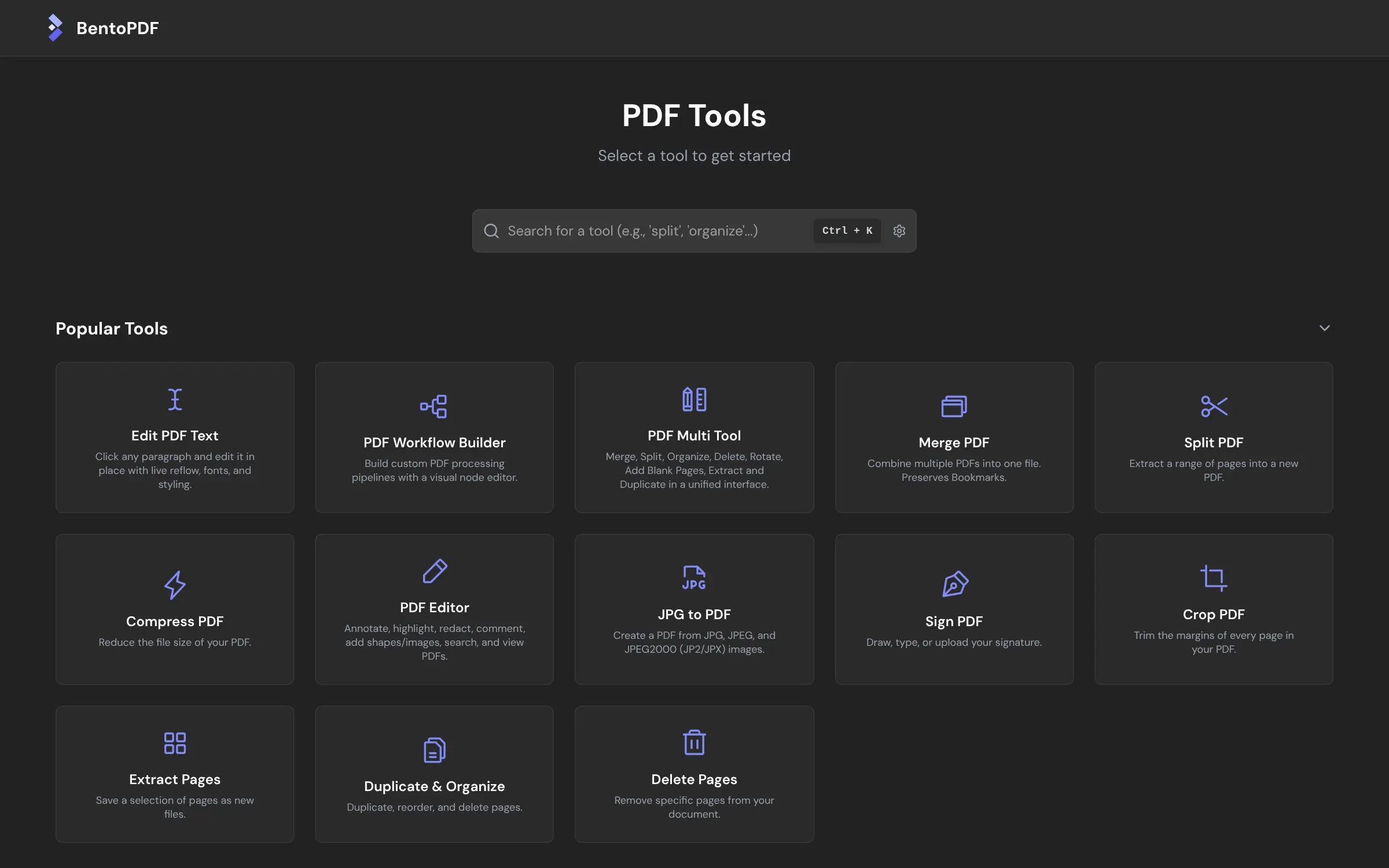
Self-hosted BentoPDF merges, splits, compresses, converts, edits and signs PDFs right in your browser, so your files are never uploaded to a server.
BentoPDF is a self-hosted PDF toolkit that does the everyday jobs people use iLovePDF, Smallpdf or Adobe Acrobat online for, without uploading a single file. Dozens of tools, from merge, split and compress to convert, edit, OCR, sign, redact and fill forms, run inside your web browser, so each document stays on the computer it came from.
A small accountancy practice, for example, could combine a client's scanned receipts into one searchable PDF, compress it for email and black out bank details, without the files ever leaving the accountant's laptop or passing through someone else's website. There are no accounts, task limits or per-person fees, so everyone in the office can use it.
BentoPDF is open source under the AGPL-3.0 licence. It is lighter than Stirling PDF, which also has a Cloudgate template: the server only delivers the app, while the work uses each person's computer. There is no phone or desktop app, and no API.
Cloudgate installs BentoPDF on a small server Cloudgate provides or one you connect and gives it a secure web address. There is nothing to configure: open the address and pick a tool.
What you can do with BentoPDF
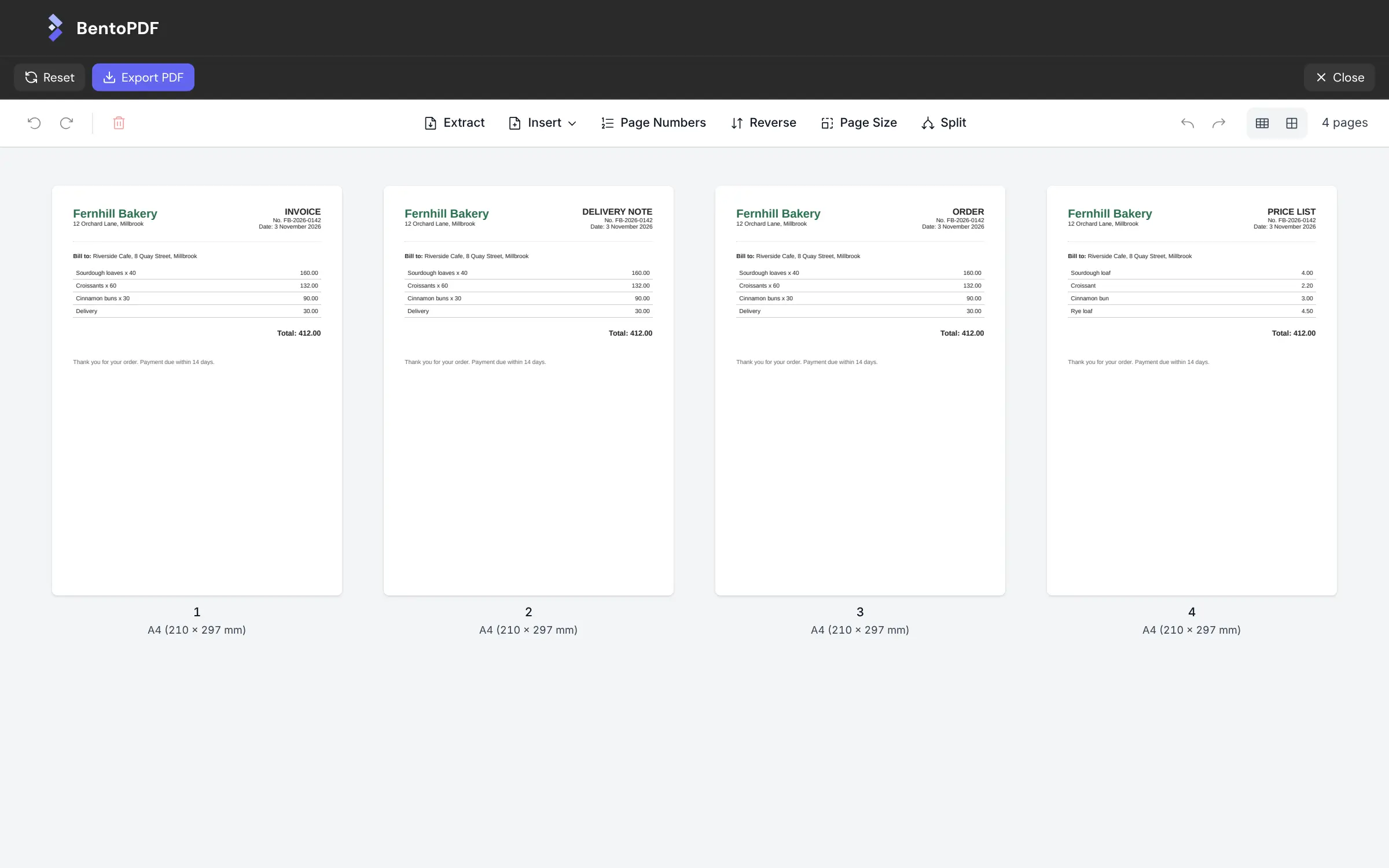
- Merge, split and reorder pages Combine files, pull pages out, delete, rotate and reorder them, all in one page view if you like.
- Compress and convert Shrink large PDFs, turn Word, Excel, PowerPoint and image files into PDFs, and turn PDFs back into images, text, tables or Word.
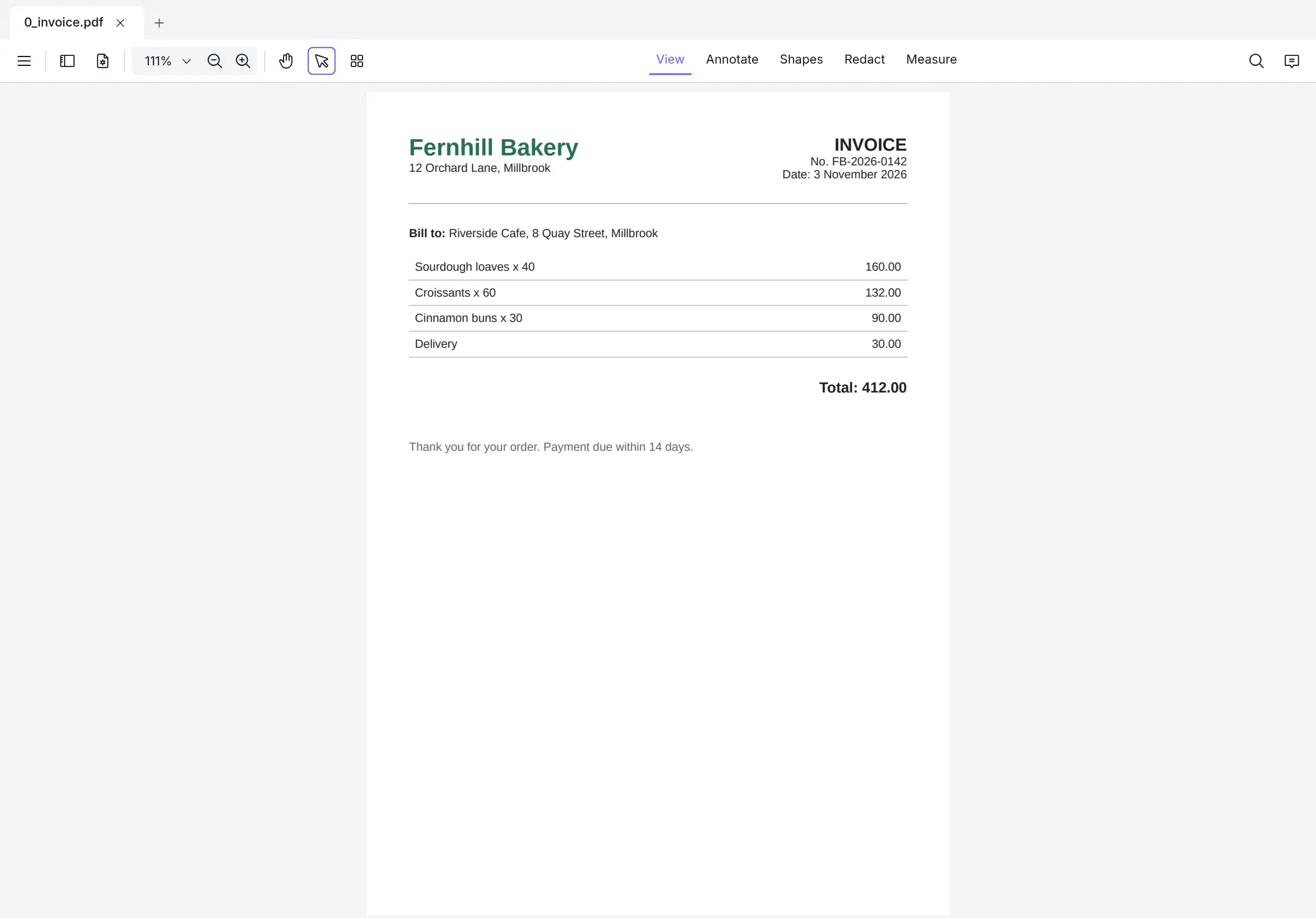
- Edit and annotate Change existing text in place, highlight, comment, add shapes and images, and add page numbers or watermarks.
- Make scans searchable Read the text in scanned pages with OCR and straighten tilted scans.
- Sign, protect and redact Draw or type a signature or add a certificate-based one, black out details, and add or remove passwords.
- Fill and create forms Fill in PDF forms in the browser, or build your own fillable form with text boxes, checkboxes and signature fields.
- Chain repeated jobs Build a workflow, such as convert then compress then watermark, and run it on new files in one go.
Replaces iLovePDF, Smallpdf and Adobe Acrobat
BentoPDF does the same job as iLovePDF, Smallpdf and Adobe Acrobat. Here is what changes when you switch.
- Files are processed on each person's own computer and never sent to any server
- No daily task limits, file caps or per-person subscription
- No accounts to manage, so the whole team can use it from day one
- A very small server is enough, because the server only delivers the app
- Big files and heavy jobs, such as Office conversion and OCR, are only as fast as the computer they run on
- There are no accounts, saved files or history; you download each result
- No phone or desktop apps, and no way to send a document to others for signature
- Some tools fetch their processing engines from a public download service the first time, so the computer needs internet access
What happens when you click Deploy?
You do not need a server or any technical knowledge. Four steps, and BentoPDF is running at its own web address.
- Step 1 Click Deploy and create your account
Deploy takes you to Cloudgate. Create an account, or log in if you have one. BentoPDF itself is free.
- Step 2 Choose a server
No server? Get one from Cloudgate: pick a size and a country, and Cloudgate gets it ready. Already have one? Connect it instead.
- Step 3 Cloudgate sets up BentoPDF
It prepares the server, makes the passwords the app needs and starts it. There is nothing to install and nothing to write down.
- Step 4 Open your app and sign in
Your app gets a free web address to start, without https. Add your own domain, like app.yourshop.com, and Cloudgate secures it with https for you.
New to Cloudgate? See what Cloudgate is
Run Cloudgate yourself? Deploy from your own console
In your Cloudgate console, open Templates and choose BentoPDF.
Questions
Is BentoPDF free?
Yes, BentoPDF is free and open source under the AGPL-3.0 licence, and the self-hosted version has every tool, with no premium-only features or usage limits. A paid commercial licence exists only for companies that build BentoPDF into their own closed-source products. You pay for your server.
Is BentoPDF a good alternative to iLovePDF or Smallpdf?
Yes, if you mostly merge, split, compress, convert and sign PDFs. BentoPDF works the same way, pick a tool and drop in a file, but the work happens in your own browser, so documents are not uploaded and there are no task or file limits. iLovePDF and Smallpdf need no server and have phone apps.
Are my files uploaded anywhere with BentoPDF?
No. BentoPDF processes every file inside the browser on your own computer, so documents never reach a server, not even the one BentoPDF runs on. Some tools download their processing engines from a public download service the first time you use them; your files stay on your computer.
How is BentoPDF different from Stirling PDF?
BentoPDF does the work in each person's browser, while Stirling PDF does it on your server. That makes BentoPDF lighter to host and keeps files off every server, with no accounts or user limit. Stirling PDF has user accounts, an API and server-side automation, and does heavy jobs without relying on each person's computer.
How do I sign in to BentoPDF the first time?
You don't need to. BentoPDF has no accounts and no admin, so anyone with its web address opens it and picks a tool. Nothing is stored on the server, so there are no documents there to protect.
What server size do I need for BentoPDF?
The smallest server is enough for BentoPDF, because the server only delivers the app and the PDF work happens on each person's computer. For large files or Office conversion, a recent computer with plenty of memory makes the biggest difference.
Do I need technical skills to run BentoPDF?
No. Click Deploy, create your Cloudgate account and choose a server, and Cloudgate sets up BentoPDF and gives it a web address. You use it in your browser like any other online tool.
Do I need my own server for BentoPDF?
No. When you deploy BentoPDF, hosted Cloudgate can provide a server. If you already rent one, you can connect it instead.
Can I move my data from iLovePDF to BentoPDF?
Most people export from iLovePDF and import into BentoPDF. The official guides at www.bentopdf.com walk through it.
Related apps

PDF editor to merge, convert, sign and OCR your files.

Online tools for PDFs, images, video, text and data.

File tools for images, PDFs, video, audio and documents.

Online office for Word, Excel and PowerPoint files.