
SnapOtter
File tools for images, PDFs, video, audio and documents.
No server needed to start: Cloudgate can provide one. What happens when you click Deploy



What is SnapOtter?
Self-hosted SnapOtter converts, compresses and edits images, PDFs, video, audio and office files on your own server, with local AI tools and batch pipelines.
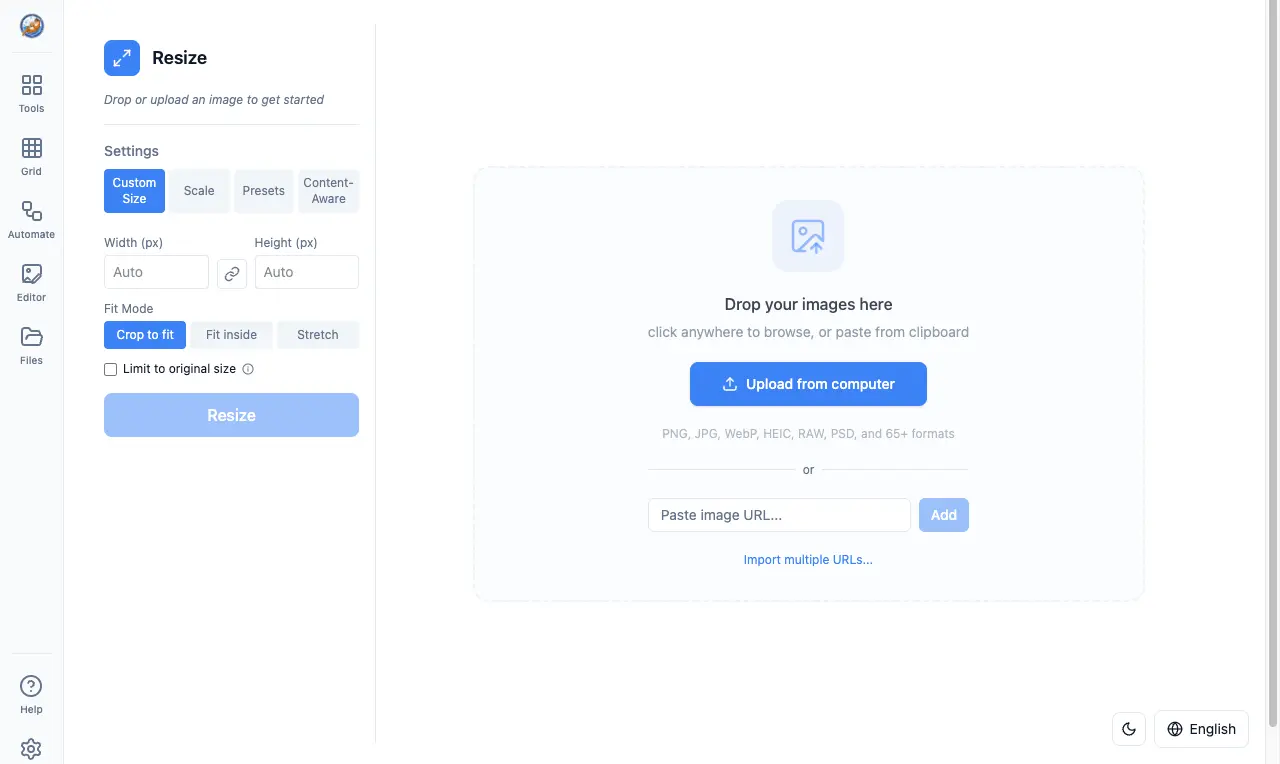
SnapOtter is a free, open-source set of file tools you can self-host, used in place of CloudConvert, Smallpdf or TinyPNG to convert, compress and edit images, PDFs, video, audio and office files. Your files are processed on your own server instead of being uploaded to a website.
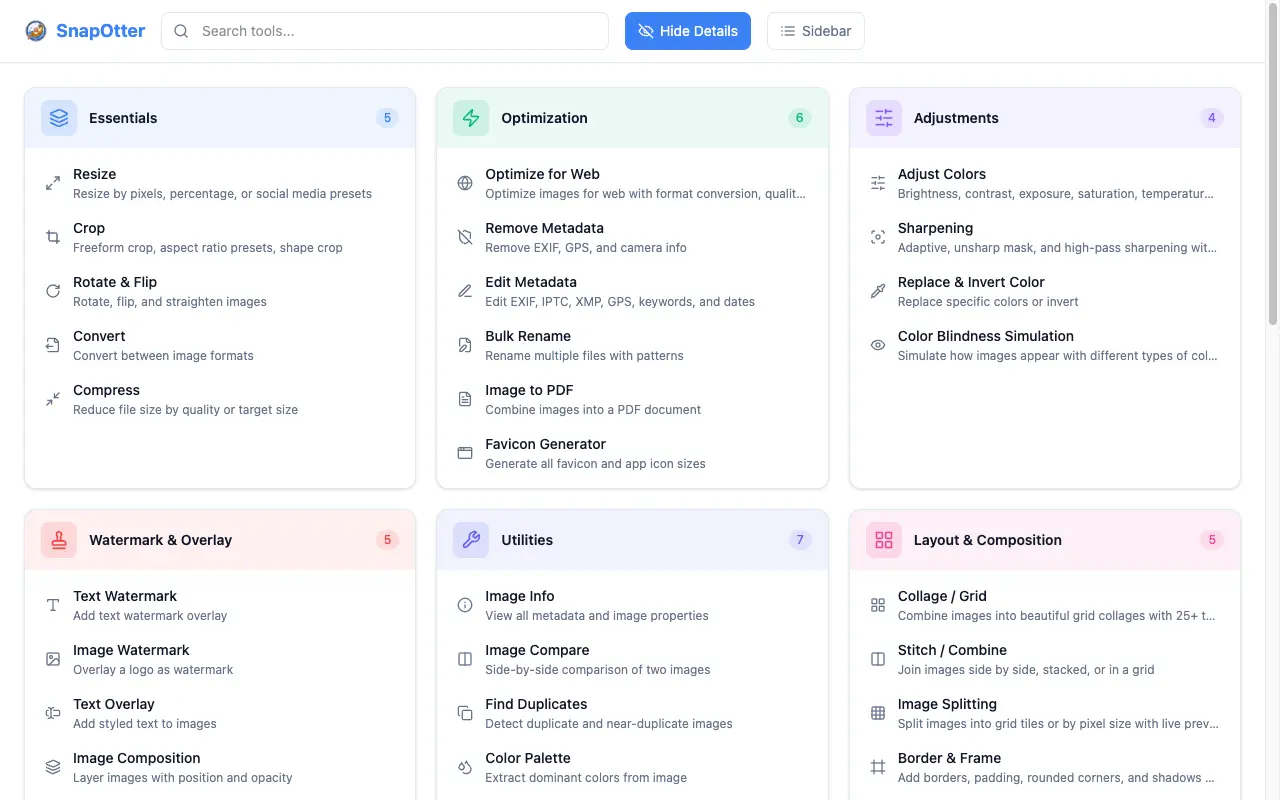
It brings more than 200 tools into one web app: resize and compress photos, merge and sign PDFs, make scanned documents searchable, trim videos, convert audio, and turn Word or Excel files into PDF. AI tools for removing backgrounds, restoring photos, reading text and transcribing recordings also run on your server. A small estate agency, for example, could resize and watermark a batch of property photos, then merge the floor plans into one PDF, without sending either to a site it doesn't know.
You can save a series of steps as a pipeline and run it on many files at once, and every tool can also be used through an API. Each person on the team has their own account.
Cloudgate installs SnapOtter on a server Cloudgate provides or one you connect and gives it a secure web address. You sign in as the admin with the password Cloudgate shows you.
What you can do with SnapOtter
- More than 200 tools in one place Search one list of tools for images, PDFs, video, audio and office or data files, instead of a different website for each job.
- Resize, compress and convert images Shrink photos for the web or to a target size, turn iPhone HEIC and camera RAW photos into JPEG, add watermarks and remove location data.
- Work with PDFs Merge, split, compress, password-protect, redact, sign and number pages, make scanned PDFs searchable, and turn PDFs into Word or images.
- Convert video, audio and office files Trim and compress videos, make GIFs, pull the sound out of a clip, convert audio, and turn Word, Excel and PowerPoint files into PDF.
- AI tools that run on your server Remove backgrounds, upscale and restore photos, blur faces, read text from images and transcribe recordings, with no AI service or key.
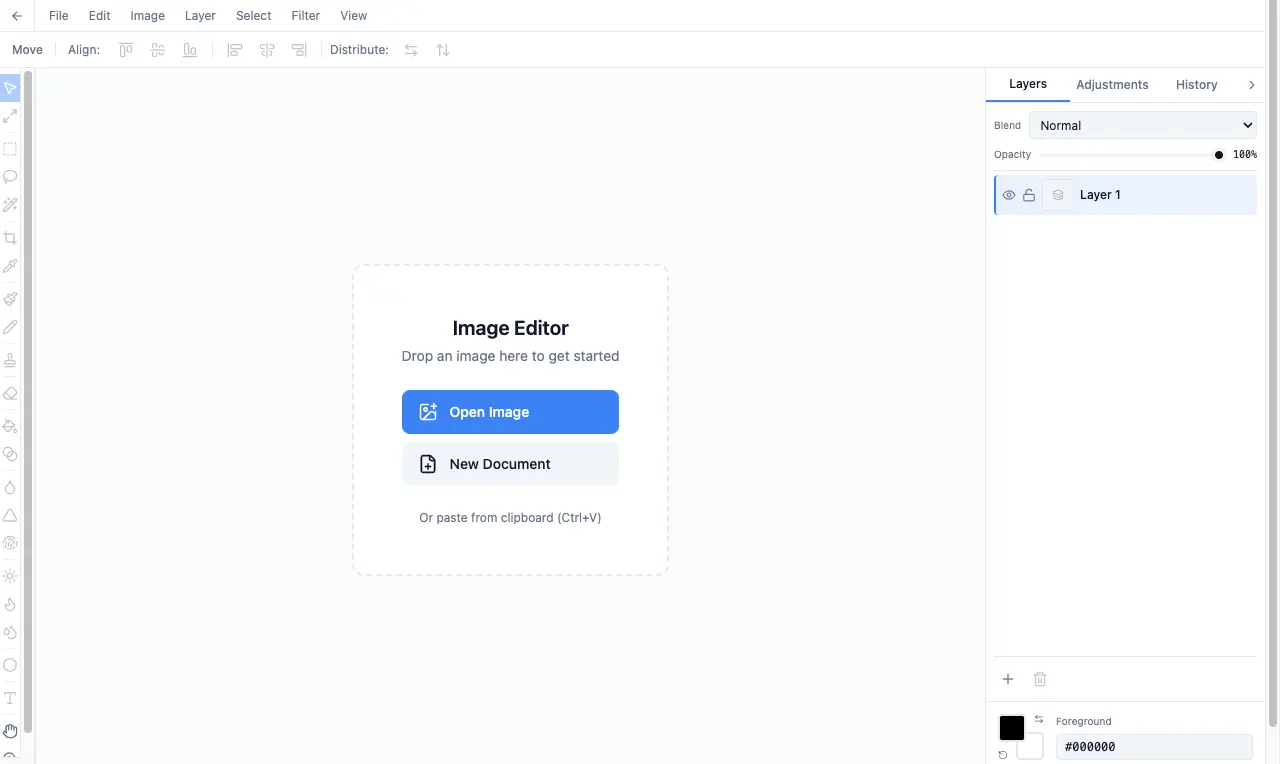
- Edit pictures in the browser A layer-based image editor with brushes, shapes, filters and adjustments.
- Repeat a job on many files Run a tool on a batch of files, or chain several steps into a saved pipeline, such as resize, watermark and compress.
- Accounts and sign-in for a team Give each person an account with an admin, editor or user role, or let them sign in with Google, Okta or another OpenID Connect provider.
Replaces CloudConvert, Smallpdf, TinyPNG and iLoveIMG
SnapOtter does the same job as CloudConvert, Smallpdf, TinyPNG and iLoveIMG. Here is what changes when you switch.
- Your files are processed on your own server, not uploaded to a converter or PDF website
- No daily limits, credits or file caps set by a plan
- Images, PDFs, video, audio and office files in one app, with the same tools for the whole team
- Nothing to pay for the free edition beyond your server
- Some business features, such as SAML single sign-on, two-step login and audit export, need a paid SnapOtter licence
- It needs a bigger server than a single-purpose tool, and AI tools and video are slow on a server without a graphics card
- Stirling-PDF goes further on PDF editing and ConvertX converts more formats; SnapOtter covers more kinds of file
- Anonymous usage statistics are on until an admin turns them off
What happens when you click Deploy?
You do not need a server or any technical knowledge. Four steps, and SnapOtter is running at its own web address.
- Step 1 Click Deploy and create your account
Deploy takes you to Cloudgate. Create an account, or log in if you have one. SnapOtter itself is free.
- Step 2 Choose a server
No server? Get one from Cloudgate: pick a size and a country, and Cloudgate gets it ready. Already have one? Connect it instead.
- Step 3 Cloudgate sets up SnapOtter
It prepares the server, makes the passwords the app needs and starts it. There is nothing to install and nothing to write down.
- Step 4 Open your app and sign in
Your app gets a free web address to start, without https. Add your own domain, like app.yourshop.com, and Cloudgate secures it with https for you.
New to Cloudgate? See what Cloudgate is
Run Cloudgate yourself? Deploy from your own console
In your Cloudgate console, open Templates and choose SnapOtter.
Questions
Is SnapOtter free?
Yes, SnapOtter is free and open source under the AGPL-3.0 licence, and all its tools, batches, pipelines and the API work without a licence key. Business features such as SAML single sign-on, two-step login, audit export and webhooks need a paid commercial licence. You pay only for your server.
Is SnapOtter a good alternative to CloudConvert, Smallpdf or TinyPNG?
Yes, if you want one private place to convert, compress and edit files by hand or in batches. SnapOtter has no credits or file limits and keeps files on your server, but you look after the server, and its AI tools need a large one.
How is SnapOtter different from Stirling-PDF and ConvertX?
SnapOtter covers images, video, audio, PDFs and office files in one app, with AI tools and saved pipelines. Stirling-PDF focuses on PDFs and goes further there, and ConvertX focuses on converting between more than a thousand formats.
How do I sign in to SnapOtter the first time?
Sign in with the admin username you chose during setup and the password Cloudgate shows you; SnapOtter then asks you to set a new password. As admin, you add accounts for your colleagues in the app's admin settings.
Do SnapOtter's AI tools send my files to an AI company?
No. SnapOtter's background removal, upscaling, text recognition and transcription run on your own server with no AI service or API key. Each AI tool is a separate download you install from the settings, and it needs disk space and memory.
Is my data private with SnapOtter?
Yes, your files are processed on your own server and are not sent to an outside website. SnapOtter sends anonymous usage statistics, never file names or contents, until an admin turns them off in the privacy settings.
What server size do I need for SnapOtter?
SnapOtter needs a large server; Cloudgate uses its xlarge size with 4 CPUs and 8 GB of memory, so the AI tools have room. The app is a large download, so the first install takes a while, and each AI tool you add takes several more gigabytes of disk.
Do I need technical skills to run SnapOtter?
No. Click Deploy, create your Cloudgate account and choose a server, and Cloudgate sets up SnapOtter and gives it a web address. You use it in your browser like any other online tool.
Do I need my own server for SnapOtter?
No. When you deploy SnapOtter, hosted Cloudgate can provide a server. If you already rent one, you can connect it instead.
Can I move my data from CloudConvert to SnapOtter?
Most people export from CloudConvert and import into SnapOtter. The official guides at docs.snapotter.com walk through it.
Related apps

Shrink and convert images in your browser, with no uploads.

Online tools for PDFs, images, video, text and data.
Convert images, video, documents and e-books on your own server.

PDF editor to merge, convert, sign and OCR your files.