SFTPGo
Exchange files with clients and partners, each in their own folder.
No server needed to start: Cloudgate can provide one. What happens when you click Deploy
What is SFTPGo?
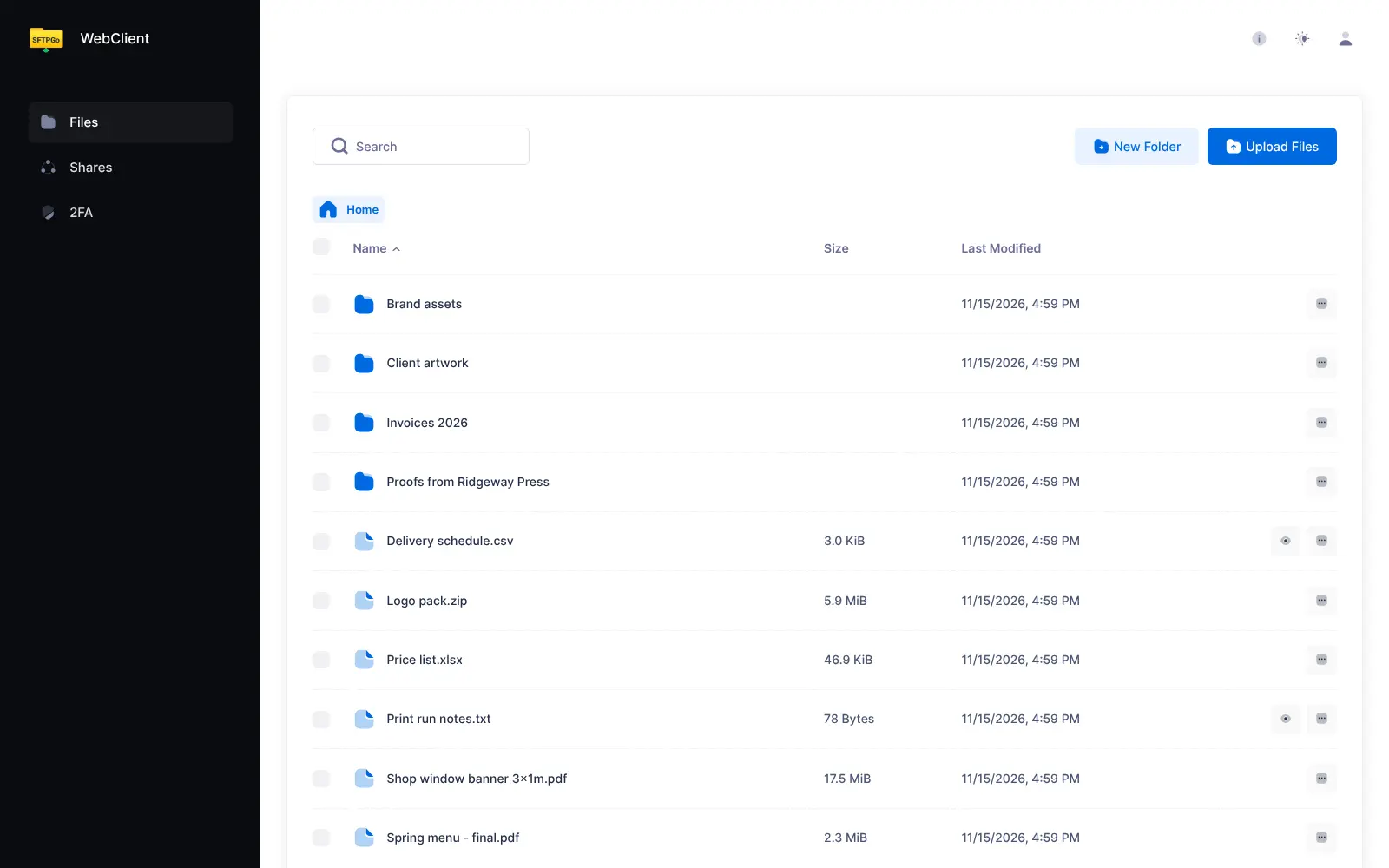
SFTPGo is a self-hosted file transfer server: give clients and partners their own accounts, folders and upload links to swap files in the browser.
SFTPGo is a self-hosted file transfer server and an open-source alternative to ShareFile and Box for client file exchange: you give each client, partner and colleague their own account and folder, and they upload, download and share files in a web browser. You run it on your own server, so there is no fee per user.
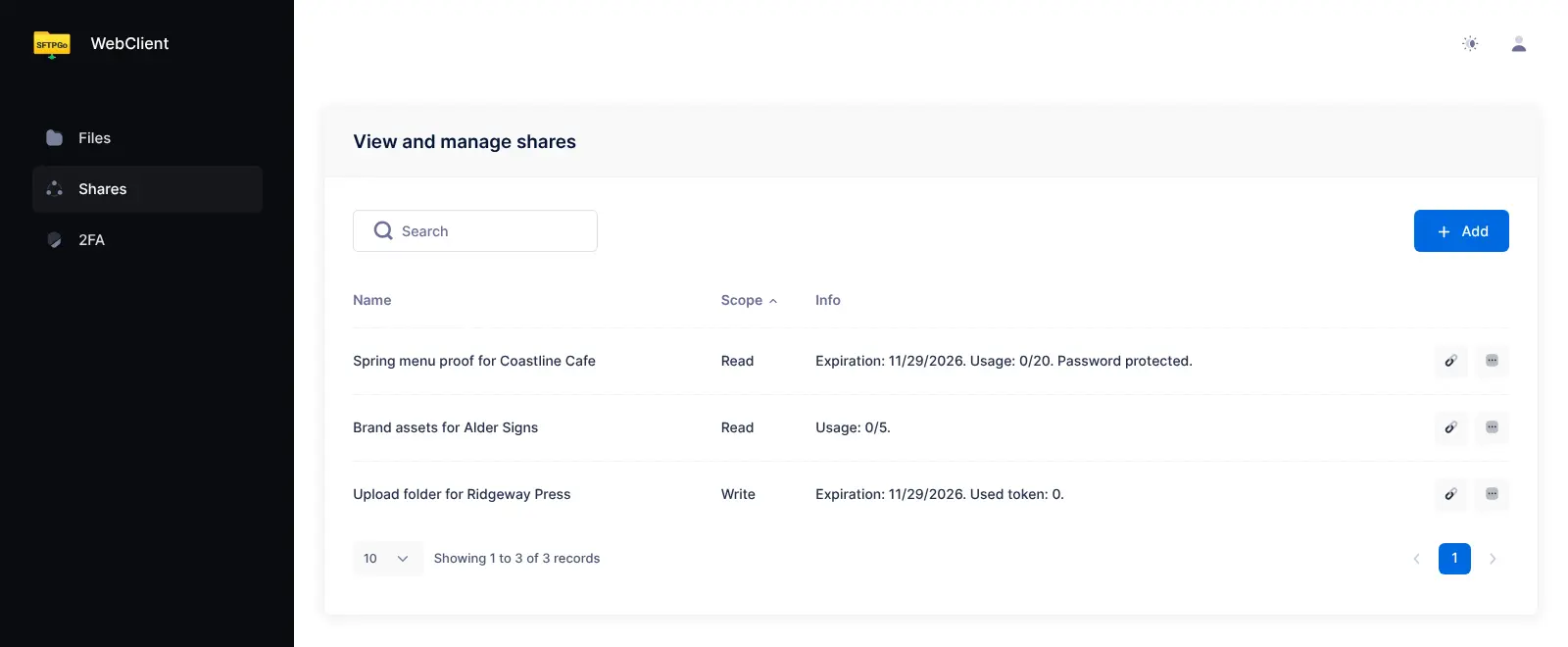
A print studio, for example, could give each printer an account to drop finished proofs into, send a client a password-protected link to their menu artwork that expires in two weeks, and, once email is set up, get a message whenever a new file arrives. Share links can also be upload-only, so a customer can send you large files without signing up for anything.
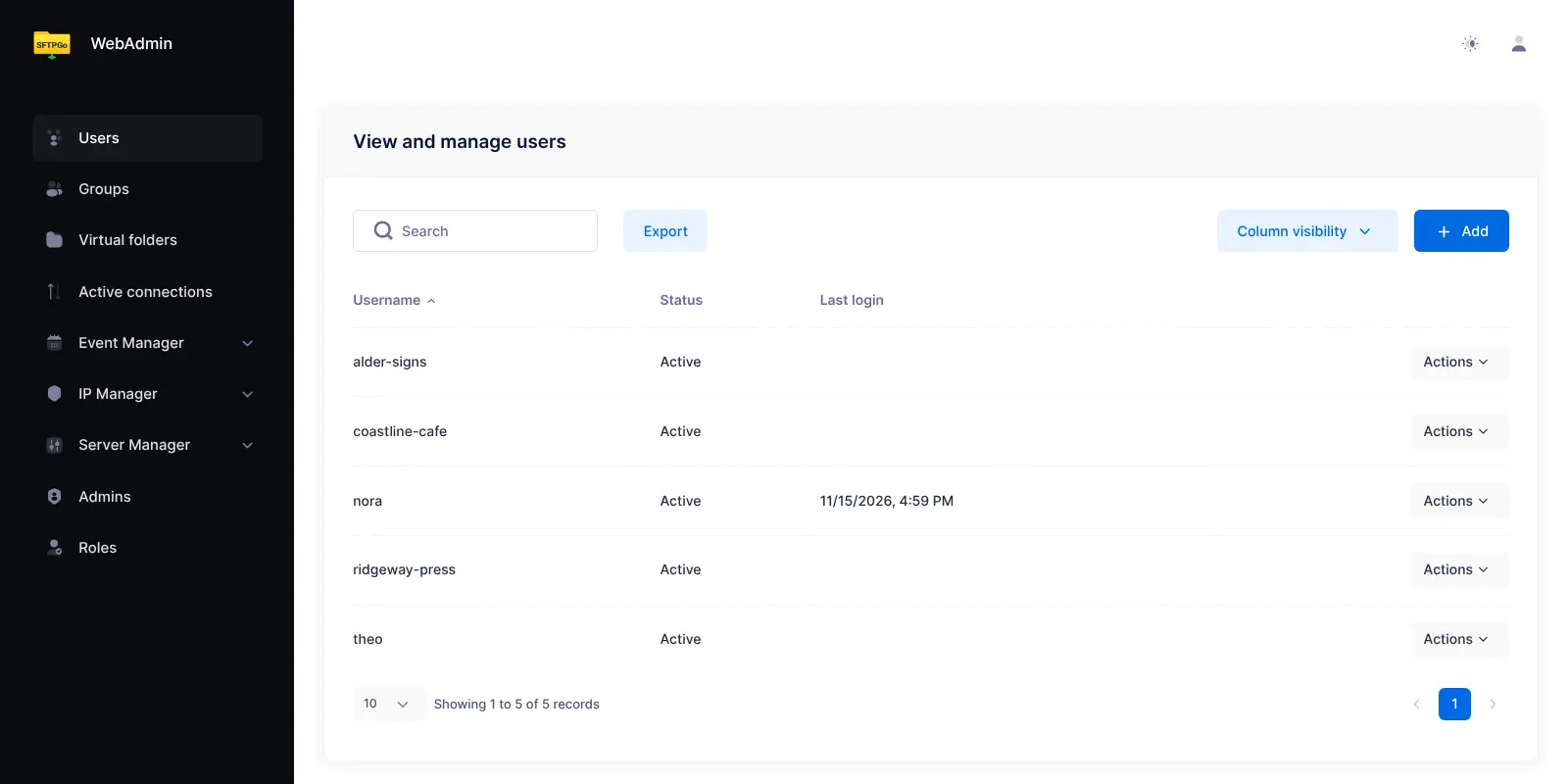
The admin pages let you sort people into groups, set what each one can do in each folder, give accounts a storage quota and block repeated failed sign-ins. Files can stay on the server's disk or go to Amazon S3-compatible storage, Google Cloud Storage or Azure. SFTPGo's makers sell a paid Enterprise edition; this template installs the free open-source edition.
Cloudgate installs SFTPGo on a server Cloudgate provides or one you connect and gives it a secure web address. SFTPGo also speaks SFTP and FTP, but those need connections a web address can't carry, so on Cloudgate everyone uses it in the browser. Sign in to the admin pages as admin with the password Cloudgate created, then add your first accounts.
What you can do with SFTPGo
- Give every partner a private folder Each client, supplier or colleague signs in to their own folder in the browser to upload, download and organise files.
- Share links with limits Send a download link with a password, an expiry date and a cap on how many times it can be used.
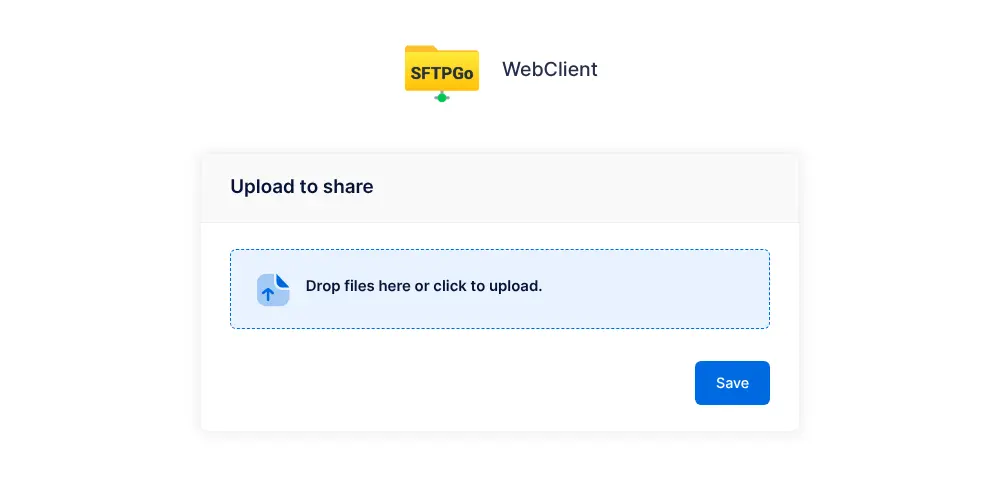
- Collect files with upload links Give someone an upload-only link so they can drop files into one of your folders without an account.
- Control who sees what Put people in groups, set permissions folder by folder, and give each account a storage quota.
- Keep files where you want Store files on the server's disk, encrypted on disk, or in Amazon S3-compatible storage, Google Cloud Storage or Azure.
- React to new files Set rules that email you when a partner uploads a file (once you add your email settings), move or copy files, or delete old ones on a schedule.
- Protect each sign-in Users can turn on two-step sign-in with an authenticator app, and repeated failed sign-ins are blocked.
Replaces ShareFile and Box
SFTPGo does the same job as ShareFile and Box. Here is what changes when you switch.
- No fee per user or per partner account
- Files stay on your server or in cloud storage you choose
- Upload-only links, quotas and per-folder permissions are all included
- On Cloudgate it works in the browser only; partners can't connect with an SFTP or FTP program
- There are no phone, desktop sync or Outlook apps, and no e-signatures
- New features now go mainly to the makers' paid Enterprise edition, such as office editing and virus scanning
What happens when you click Deploy?
You do not need a server or any technical knowledge. Four steps, and SFTPGo is running at its own web address.
- Step 1 Click Deploy and create your account
Deploy takes you to Cloudgate. Create an account, or log in if you have one. SFTPGo itself is free.
- Step 2 Choose a server
No server? Get one from Cloudgate: pick a size and a country, and Cloudgate gets it ready. Already have one? Connect it instead.
- Step 3 Cloudgate sets up SFTPGo
It prepares the server, makes the passwords the app needs and starts it. There is nothing to install and nothing to write down.
- Step 4 Open your app and sign in
Your app gets a free web address to start, without https. Add your own domain, like app.yourshop.com, and Cloudgate secures it with https for you.
New to Cloudgate? See what Cloudgate is
Run Cloudgate yourself? Deploy from your own console
In your Cloudgate console, open Templates and choose SFTPGo.
Questions
Is SFTPGo free?
Yes. SFTPGo is open-source software under the AGPL-3.0 licence, and you pay only for your server. Its makers also sell a paid Enterprise edition with extra features and support; this template installs the free open-source edition.
Is SFTPGo a good alternative to ShareFile?
Yes, for exchanging files with clients. Each client gets their own sign-in and folder, and you can send download links with a password and expiry date or upload-only links. ShareFile adds e-signatures, Office editing, an Outlook plug-in and phone apps, which SFTPGo does not have.
Can my partners connect to SFTPGo with SFTP or FTP?
No, not on Cloudgate. SFTP and FTP need a direct network connection that a web address can't carry, so this template turns them off. Partners use SFTPGo in their web browser over a secure HTTPS address instead.
How do I sign in to SFTPGo the first time?
You sign in as admin with the password Cloudgate created, which is shown in Cloudgate, on the admin pages at your SFTPGo web address followed by /web/admin. Then create an account for each person; they sign in at the plain web address.
Do the people I share files with need an SFTPGo account?
No. Anyone with an SFTPGo share link can download the files, or upload to an upload-only link, without signing in. You can protect the link with a password and an expiry date.
Can SFTPGo store files in Amazon S3 or Azure?
Yes. Each SFTPGo account's files can live on the server's disk, encrypted on disk, or in Amazon S3-compatible storage, Google Cloud Storage, Azure Blob Storage or another SFTP server.
What server size do I need for SFTPGo?
A small one. SFTPGo is a single program with a built-in database, so Cloudgate uses its smallest server size; plan the disk for the files you will store there, or keep them in cloud storage.
Do I need technical skills to run SFTPGo?
No. Click Deploy, create your Cloudgate account and choose a server, and Cloudgate sets up SFTPGo and gives it a web address. You use it in your browser like any other online tool.
Do I need my own server for SFTPGo?
No. When you deploy SFTPGo, hosted Cloudgate can provide a server. If you already rent one, you can connect it instead.
Can I move my data from ShareFile to SFTPGo?
Most people export from ShareFile and import into SFTPGo. The official guides at docs.sftpgo.com walk through it.
Related apps

A private client portal for sending files, on your own server.

File sharing with team workspaces and client links.

File sync and sharing, with shared Spaces for each team.

Send large files by link and see who downloaded each one.