
ProjectSend
A private client portal for sending files, on your own server.
No server needed to start: Cloudgate can provide one. What happens when you click Deploy



What is ProjectSend?
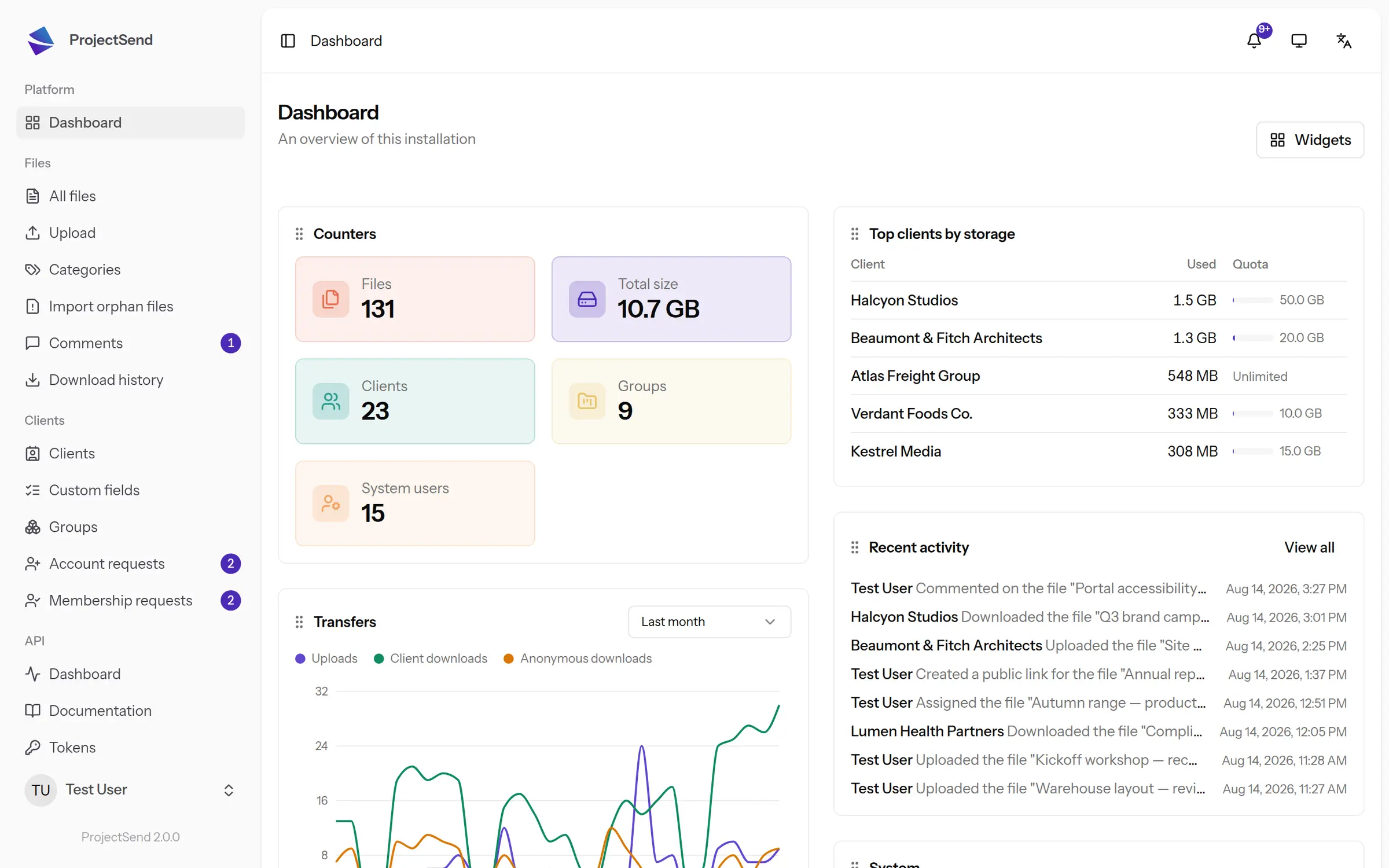
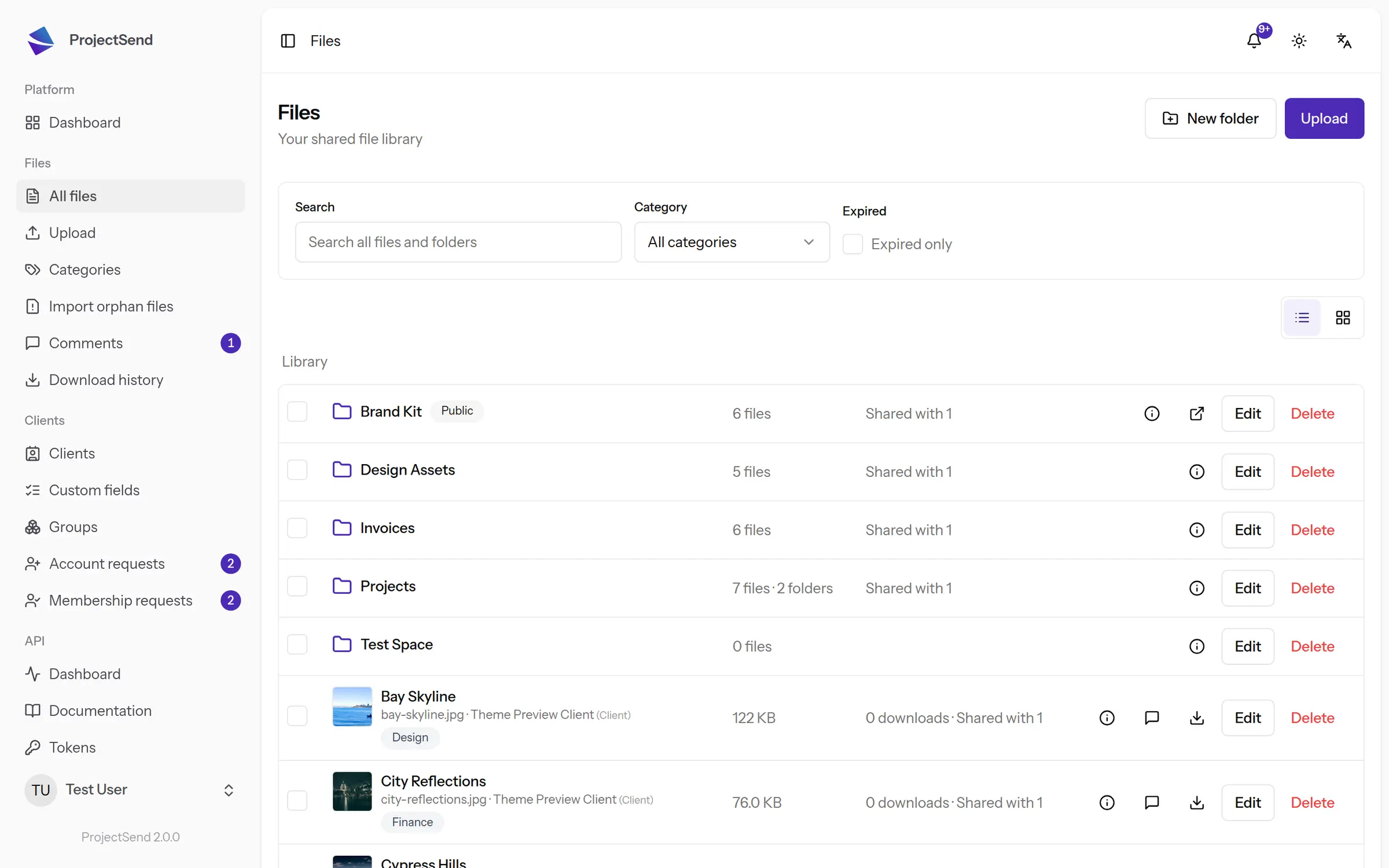
ProjectSend is a self-hosted client portal: share files privately with each client, let them upload back, and see who downloaded what.
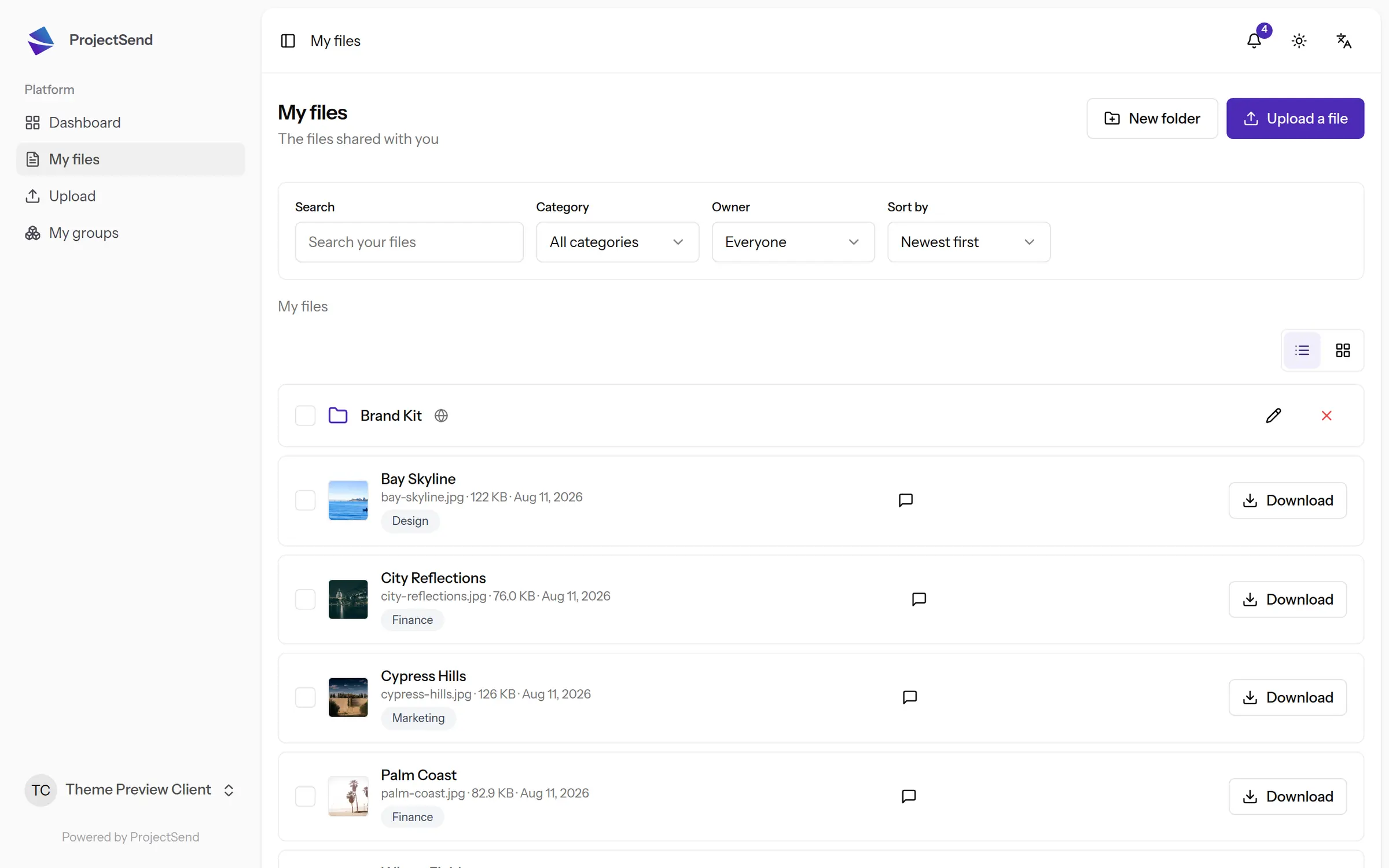
ProjectSend is a free, open-source, self-hosted client portal for sharing files privately with your clients, and an alternative to hosted portals like ShareFile. You upload a file, choose which clients can see it, and each client signs in with their email to a private page that lists only their files.
It replaces email attachments and links that anyone can forward. Clients can upload documents back to you, you can set an expiry date or a download limit on a file, and the activity log shows who downloaded what and when. A small architecture practice, for example, could give each client a page with their drawings and invoices, get site photos uploaded back, and see when the final plans were downloaded.
ProjectSend works in any web browser, in 16 languages, with your own branding on the client pages and emails. It has folders, categories, client groups, storage quotas and two-factor sign-in, and it connects to LDAP or social sign-in if your team uses them. There are no phone or desktop apps.
Cloudgate installs ProjectSend on your server with a secure web address and creates your admin account from the email you choose. Add your mail server in its settings so clients are told when new files arrive.
What you can do with ProjectSend
- A private page for each client Each client signs in with their email and sees only the files you shared with them, with optional two-factor sign-in.
- Choose exactly who gets a file Share a file with one client, a group of clients or anyone with a public link, and set an expiry date or a download limit.
- Let clients send files back Clients can upload documents to you from their own page, so you stop chasing attachments by email.
- See who downloaded what A full activity log and download history shows who got each file, and when.
- Upload large files reliably Uploads resume after a dropped connection, and images and documents get thumbnails and previews.
- Keep it organised Sort files into folders and categories, group your clients, and set a storage quota for each client.
- Notify clients in their language Clients get an email when something new arrives, in one of 16 languages, and can comment on a file.
- Put your brand on it Theme the client pages and the emails, give your team roles, and connect LDAP or social sign-in if you use them.
Replaces ShareFile, Box and WeTransfer
ProjectSend does the same job as ShareFile, Box and WeTransfer. Here is what changes when you switch.
- No fee per user, client or gigabyte; the limit is your server's disk
- Clients' documents stay on your server, not with another company
- Every download is on record, including files shared by public link
- Your own branding on the pages and emails your clients see
- No desktop sync or phone apps; clients use it in a web browser
- No e-signatures, request lists or Office editing built in
- You set up your own mail server before clients get email notifications
- Files already in another service don't move across on their own
What happens when you click Deploy?
You do not need a server or any technical knowledge. Four steps, and ProjectSend is running at its own web address.
- Step 1 Click Deploy and create your account
Deploy takes you to Cloudgate. Create an account, or log in if you have one. ProjectSend itself is free.
- Step 2 Choose a server
No server? Get one from Cloudgate: pick a size and a country, and Cloudgate gets it ready. Already have one? Connect it instead.
- Step 3 Cloudgate sets up ProjectSend
It prepares the server, makes the passwords the app needs and starts it. There is nothing to install and nothing to write down.
- Step 4 Open your app and sign in
Your app gets a free web address to start, without https. Add your own domain, like app.yourshop.com, and Cloudgate secures it with https for you.
New to Cloudgate? See what Cloudgate is
Run Cloudgate yourself? Deploy from your own console
In your Cloudgate console, open Templates and choose ProjectSend.
Questions
Is ProjectSend free?
Yes, ProjectSend is free and open source under the GPL version 2 or later, including for commercial use with paying clients. The self-hosted version has no limits on users, clients, files or storage; there is also a paid hosted version, ProjectSend Cloud, run by the same team.
Is ProjectSend a good alternative to ShareFile?
Yes, if what you need is a client portal. In ProjectSend each client gets a private page to download and upload files, and you see every download, much like a ShareFile portal. It has no e-signatures, request lists or desktop sync, and it runs on your own server with no fee per user.
Do my clients need a ProjectSend account?
Yes, for their private ProjectSend page: you add each client, and they sign in with their email address. For a one-off file you can also make a public link with an expiry date or a download limit, which needs no account.
Can clients upload files to me with ProjectSend?
Yes, clients can upload files from their own ProjectSend page, and you can sort them into folders and categories. Uploads resume if the connection drops, which helps with large files.
How do I sign in to ProjectSend the first time?
Sign in to ProjectSend with the admin email you entered when you set it up in Cloudgate and the admin password Cloudgate generated, which you find on the app's variables page. There is no setup wizard to complete first.
Will my clients get email notifications from ProjectSend?
Yes, once you add your mail server's details in ProjectSend's email settings, which have a button to send a test email. Until then, no emails go out.
What server size do I need for ProjectSend?
A small Cloudgate server with 1 GB of memory is enough to start. Plan the disk for all the files you will share, because ProjectSend keeps them on your server.
Do I need technical skills to run ProjectSend?
No. Click Deploy, create your Cloudgate account and choose a server, and Cloudgate sets up ProjectSend and gives it a web address. You use it in your browser like any other online tool.
Do I need my own server for ProjectSend?
No. When you deploy ProjectSend, hosted Cloudgate can provide a server. If you already rent one, you can connect it instead.
Can I move my data from ShareFile to ProjectSend?
Most people export from ShareFile and import into ProjectSend. The official guides at github.com walk through it.
Related apps
Exchange files with clients and partners, each in their own folder.

Send large files by link and see who downloaded each one.

File sharing with team workspaces and client links.

File sharing with links that expire on their own.