Xibo
Digital signage for the TV screens in your business.
No server needed to start: Cloudgate can provide one. What happens when you click Deploy




What is Xibo?
Xibo is self-hosted, open-source digital signage: design and schedule what plays on the screens in your shop, café or gym, in place of Yodeck or ScreenCloud.
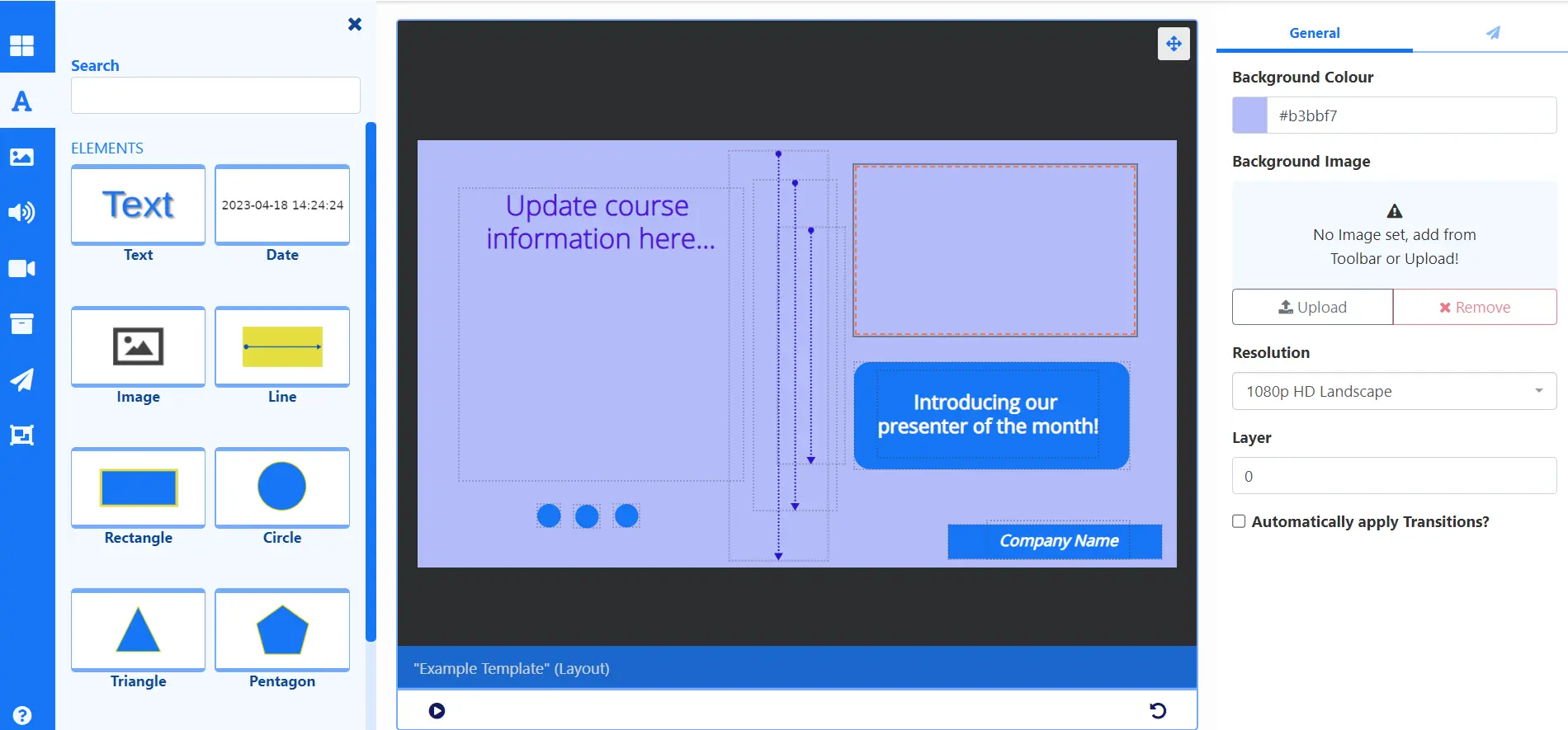
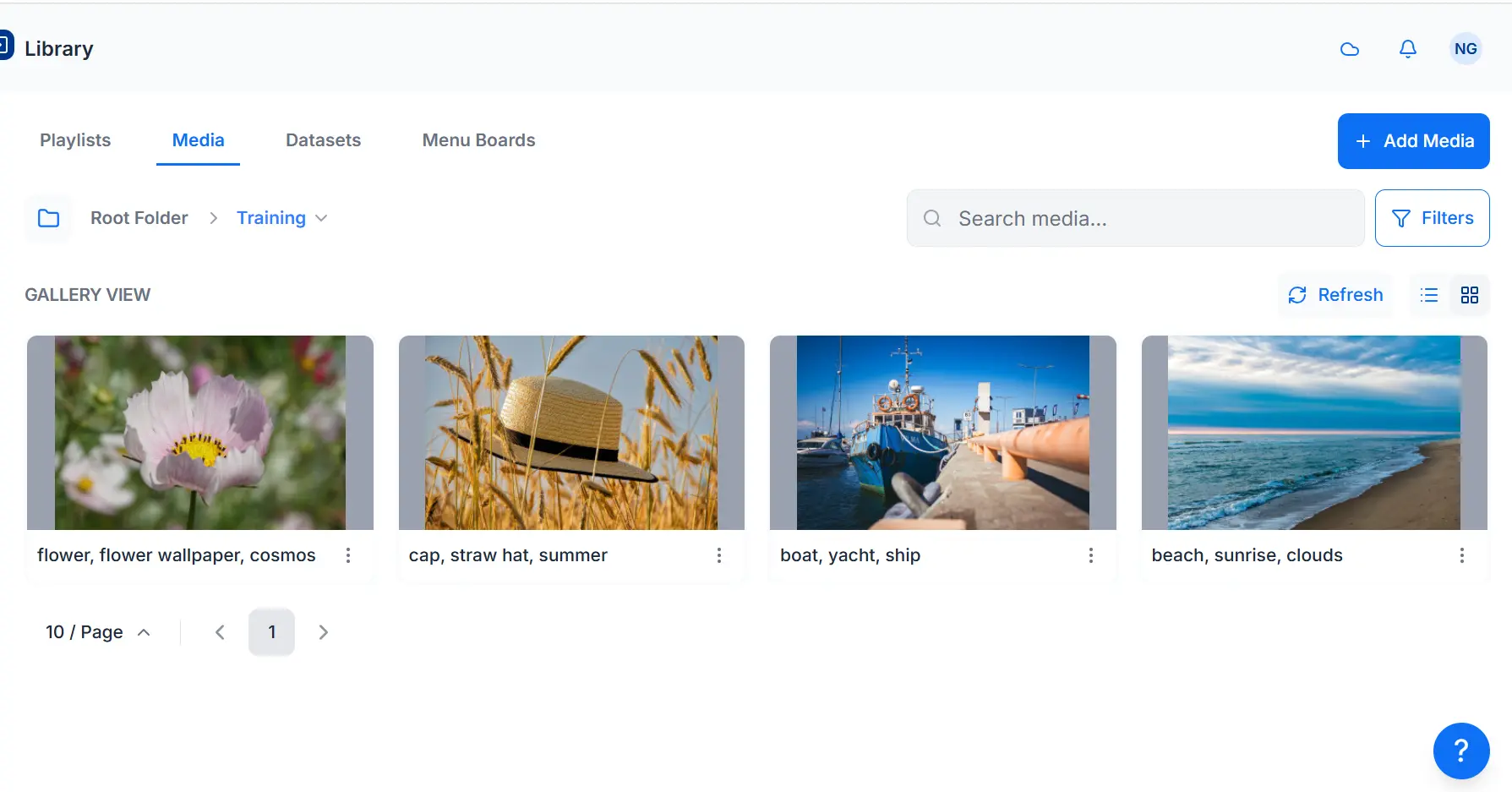
Xibo is open-source digital signage software that lets you design, schedule and manage what plays on the TV screens in your business from one website, as a self-hosted alternative to Yodeck, ScreenCloud and OptiSigns. You build layouts with images, video, text, menus and live information such as weather or news, then choose which screens show them and when.
A café, for example, could keep its menu and prices in Xibo's menu boards, show breakfast items until 11am and lunch after that, and add a weekend offer that only plays on Saturdays and Sundays. A school or gym could run notices on screens in several buildings and check from the Displays page which ones are up to date.
Each screen runs a Xibo player app. The players for Windows and Linux computers are free; players for Android devices, LG webOS and Samsung Tizen screens and ChromeOS need a paid licence from Xibo for each screen. Players keep showing their content if the internet connection drops.
Cloudgate installs Xibo on a server Cloudgate provides or one you connect, together with the database it needs, and gives it a secure web address. Sign in as xibo_admin with the password Cloudgate shows, then connect your first screen.
What you can do with Xibo
- Design screens by drag and drop Build layouts from text, images, video, clocks and shapes, or start from a ready-made template.
- Show live information Add weather, news feeds, calendars, currency rates and your own data tables that update on their own.
- Run digital menu boards Keep your menu's categories, products and prices in one list and show them on any layout.
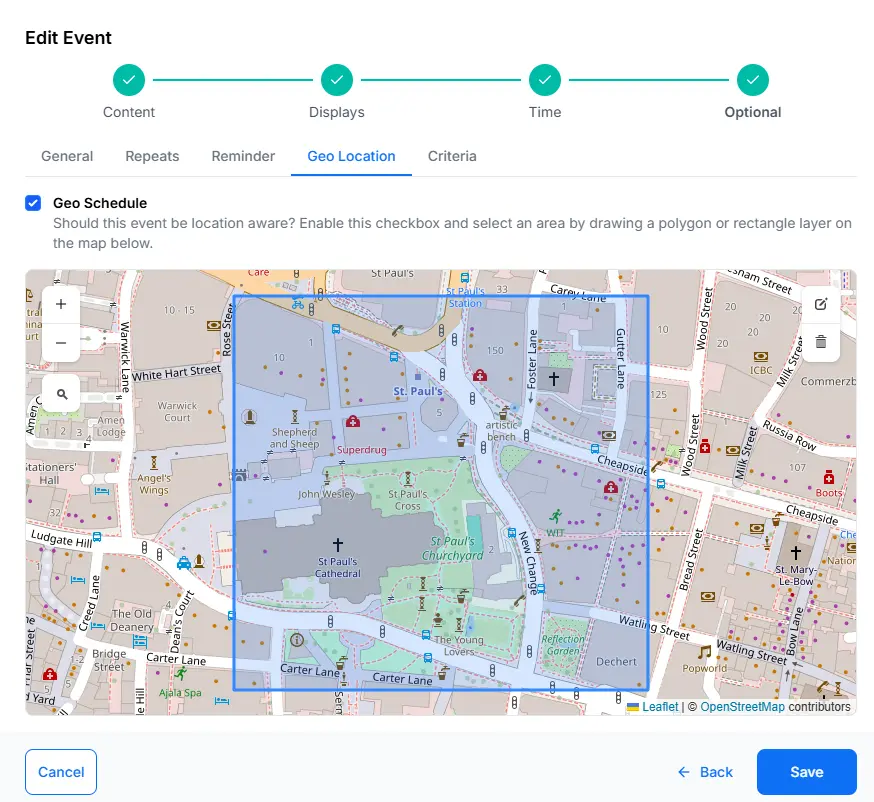
- Schedule what plays and when Plan content by date, time of day or repeating pattern, give urgent messages priority, and target screens by area on a map.
- Manage every screen in one place Group screens, see which are online and when each last checked in, and keep several screens in step.
- Check what played Proof of play reports show what appeared on which screen and how often, and can be emailed as a PDF.
- Make screens interactive Let a touch, a key press or a webhook change what is on screen.
- Share the work safely Give colleagues their own accounts, folders and permissions, with two-step sign-in.
Replaces Yodeck, ScreenCloud and OptiSigns
Xibo does the same job as Yodeck, ScreenCloud and OptiSigns. Here is what changes when you switch.
- No monthly fee per screen for the software that manages your screens
- Free player apps for Windows and Linux computers
- Detailed scheduling with day parts, priorities, campaigns and map areas
- Your media, schedules and play reports stay on your own server
- Android, LG webOS, Samsung Tizen and ChromeOS screens each need a paid Xibo player licence
- Changes reach your screens when they next check in, not instantly
- More screens and settings to learn than simpler cloud signage tools
- Your existing designs and schedules do not move across, so you rebuild them in Xibo
What happens when you click Deploy?
You do not need a server or any technical knowledge. Four steps, and Xibo is running at its own web address.
- Step 1 Click Deploy and create your account
Deploy takes you to Cloudgate. Create an account, or log in if you have one. Xibo itself is free.
- Step 2 Choose a server
No server? Get one from Cloudgate: pick a size and a country, and Cloudgate gets it ready. Already have one? Connect it instead.
- Step 3 Cloudgate sets up Xibo
It prepares the server, makes the passwords the app needs and starts it. There is nothing to install and nothing to write down.
- Step 4 Open your app and sign in
Your app gets a free web address to start, without https. Add your own domain, like app.yourshop.com, and Cloudgate secures it with https for you.
New to Cloudgate? See what Cloudgate is
Run Cloudgate yourself? Deploy from your own console
In your Cloudgate console, open Templates and choose Xibo.
Questions
Is Xibo free?
Partly. The Xibo CMS is free, open-source software under the AGPL licence, and its Windows and Linux player apps are free too. The players for Android, LG webOS, Samsung Tizen and ChromeOS are commercial, so each of those screens needs a player licence bought from Xibo, with a 14-day trial.
Is Xibo a good alternative to Yodeck, ScreenCloud or OptiSigns?
Yes, if you want to run your own digital signage system rather than pay a monthly fee per screen for the software. Xibo covers layouts, playlists, menu boards, detailed scheduling and proof of play reports. It takes longer to learn, and screens other than Windows and Linux need a paid Xibo player licence.
Which screens can show Xibo content?
Any screen connected to a Windows or Linux computer running the free Xibo player, or a device running Xibo's paid player for Android (including many Android signage sticks and boxes), LG webOS, Samsung Tizen signage monitors or ChromeOS. Xibo keeps showing downloaded content if the internet connection drops.
How do I connect a screen to Xibo?
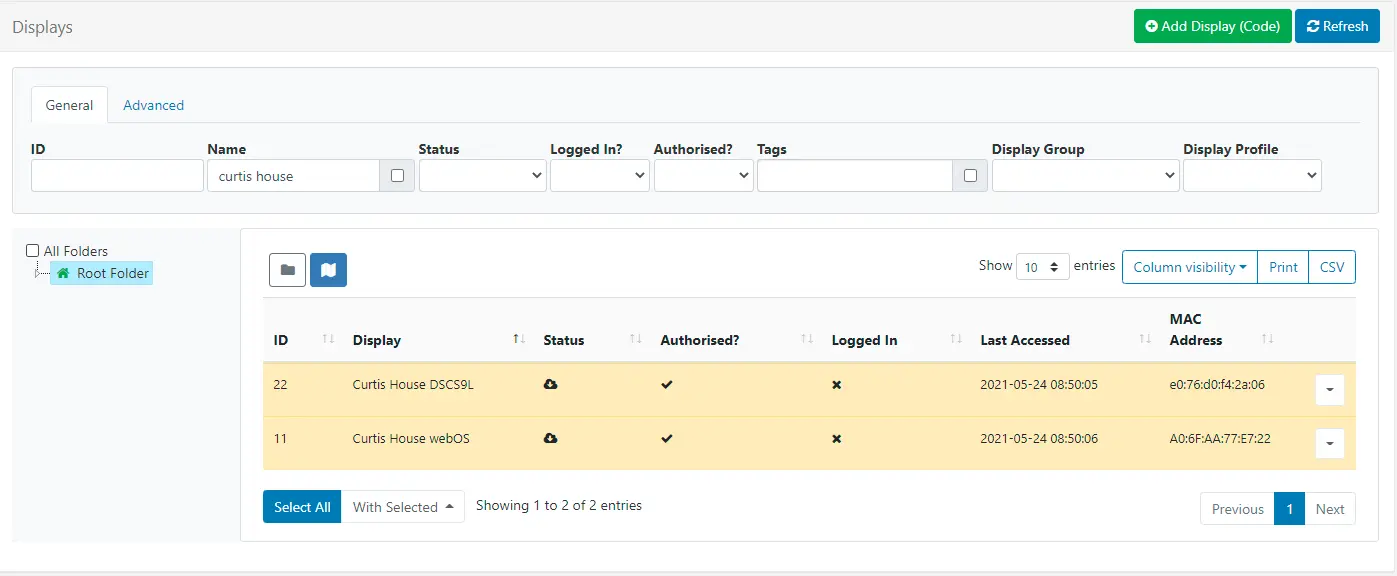
Install the Xibo player on the screen's device and enter your Xibo web address and the key from Xibo's display settings. The new screen then appears on the Displays page, where you authorise it and schedule something to it.
How do I sign in to Xibo the first time?
Open your Xibo web address and sign in with the username xibo_admin and the password Cloudgate shows for this app. Xibo's usual default password does not work on a Cloudgate install. You can change the password in your user profile.
How quickly do changes reach my screens?
Changes reach each screen the next time it checks in with Xibo, every 5 minutes by default, and you can change that interval for each group of screens. Instant push updates are not available on a Cloudgate install, so a change can take up to one interval to appear.
What server size do I need for Xibo?
Xibo's recommended setup has at least 4 GB of memory and 20 GB of free disk, plus room for your videos, images and play reports. Cloudgate starts Xibo on a medium server, and you can move to a bigger one as your media library and number of screens grow.
Do I need technical skills to run Xibo?
No. Click Deploy, create your Cloudgate account and choose a server, and Cloudgate sets up Xibo and gives it a web address. You use it in your browser like any other online tool.
Do I need my own server for Xibo?
No. When you deploy Xibo, hosted Cloudgate can provide a server. If you already rent one, you can connect it instead.
Can I move my data from Yodeck to Xibo?
Most people export from Yodeck and import into Xibo. The official guides at docs.xibosignage.com walk through it.
Related apps

Self-hosted digital signage with free players for every screen.

An open-source CMMS for work orders and preventive maintenance.

Recipes, costs, stock, orders and production for small makers.

Run your fab lab or makerspace, from machine bookings to invoices.