
Traggo
Time tracking with tags and dashboards you build.
No server needed to start: Cloudgate can provide one. What happens when you click Deploy
What is Traggo?
Traggo is a self-hosted time tracker: tag your time, such as by client or project, and see where the hours went in dashboards you build.
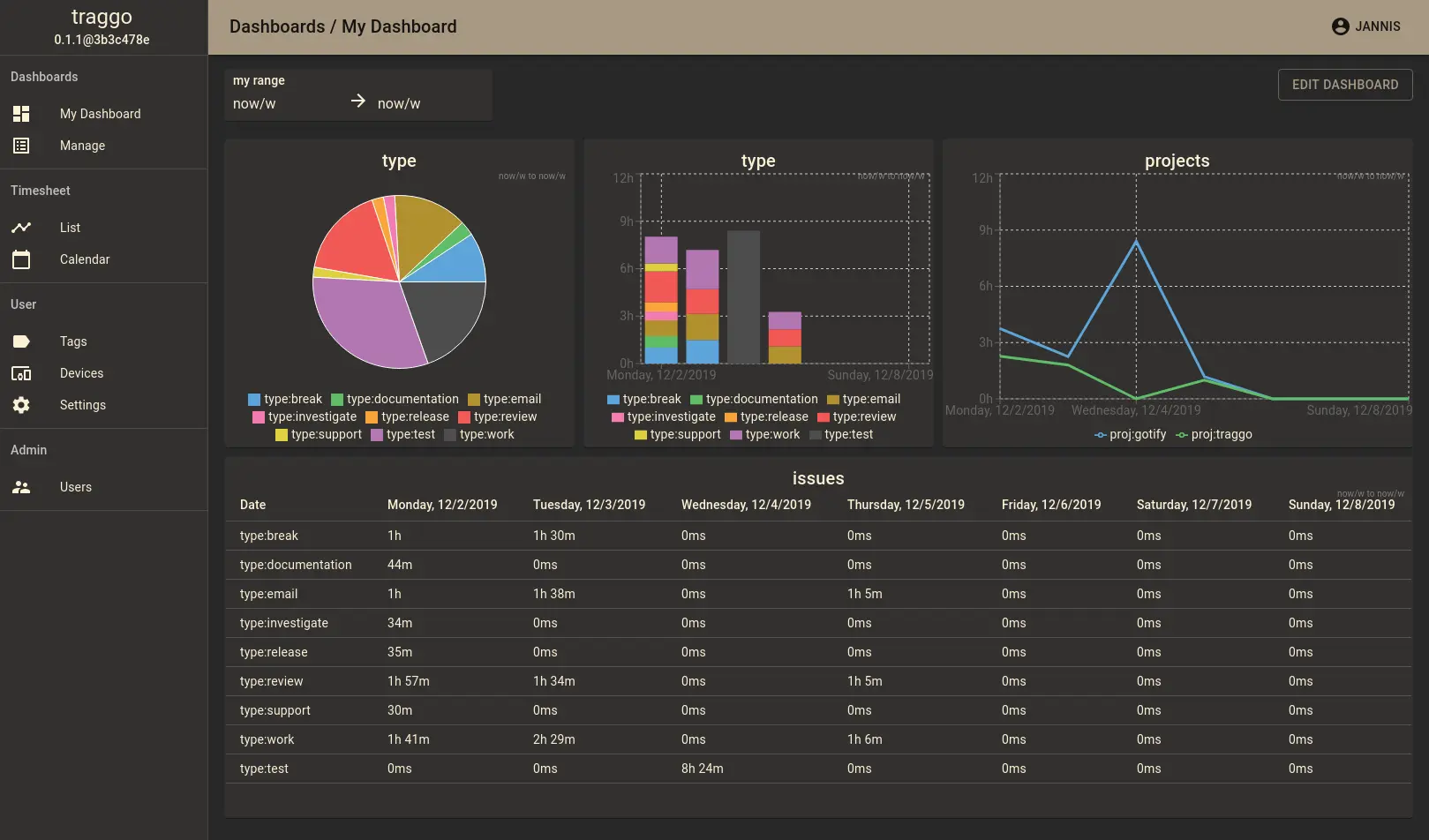
Traggo is a free, open-source, self-hosted time tracker that can replace Toggl Track or Clockify for people who want simple, private time tracking. Instead of booking hours to fixed projects and tasks, you tag each stretch of time, for example project:website or client:acme, and Traggo adds it up in dashboards of charts and tables that you arrange yourself.
A freelance web designer, for example, can start a timer tagged client:acme and type:design, log a meeting afterwards, and at the end of the month open a dashboard that shows how many hours went to each client and how much of it was meetings.
Traggo suits individuals and small teams who want to see where their time goes. It is deliberately small: there are no clients, rates or invoices, no import or export, and no phone apps, though the website works in a phone's browser. If you bill clients by the hour, solidtime or Kimai fit better. Traggo is still before version 1.0, with small, occasional releases.
Cloudgate installs Traggo on a server Cloudgate provides or one you connect and gives it a secure web address. You sign in with the admin username you chose and the password Cloudgate created, and your time records stay on your server.
What you can do with Traggo
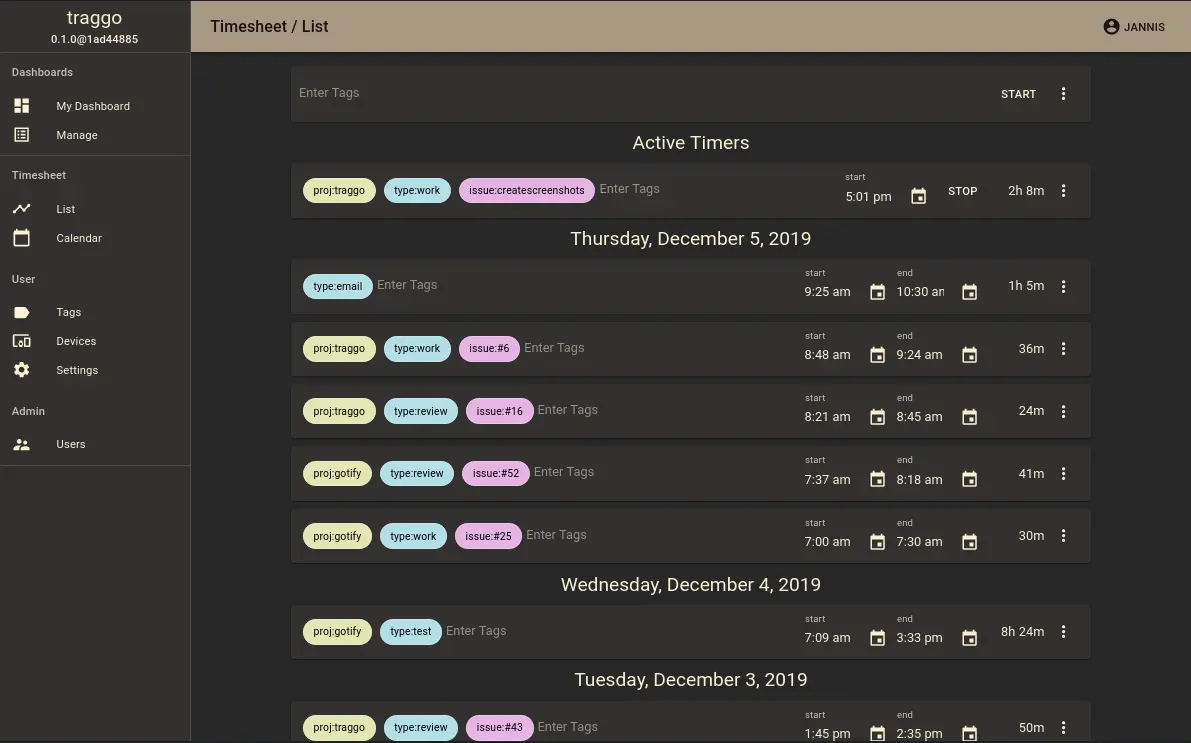
- Track time with a timer or by hand Start and stop a timer, or log a time span afterwards, and add a note to it.
- Tag instead of booking to projects Label each time span with tags such as project:website or client:acme, with colours and suggestions as you type.
- Build your own dashboards Add pie, bar and line charts and tables of time by tag, over the date ranges you choose, with tags to include or leave out.
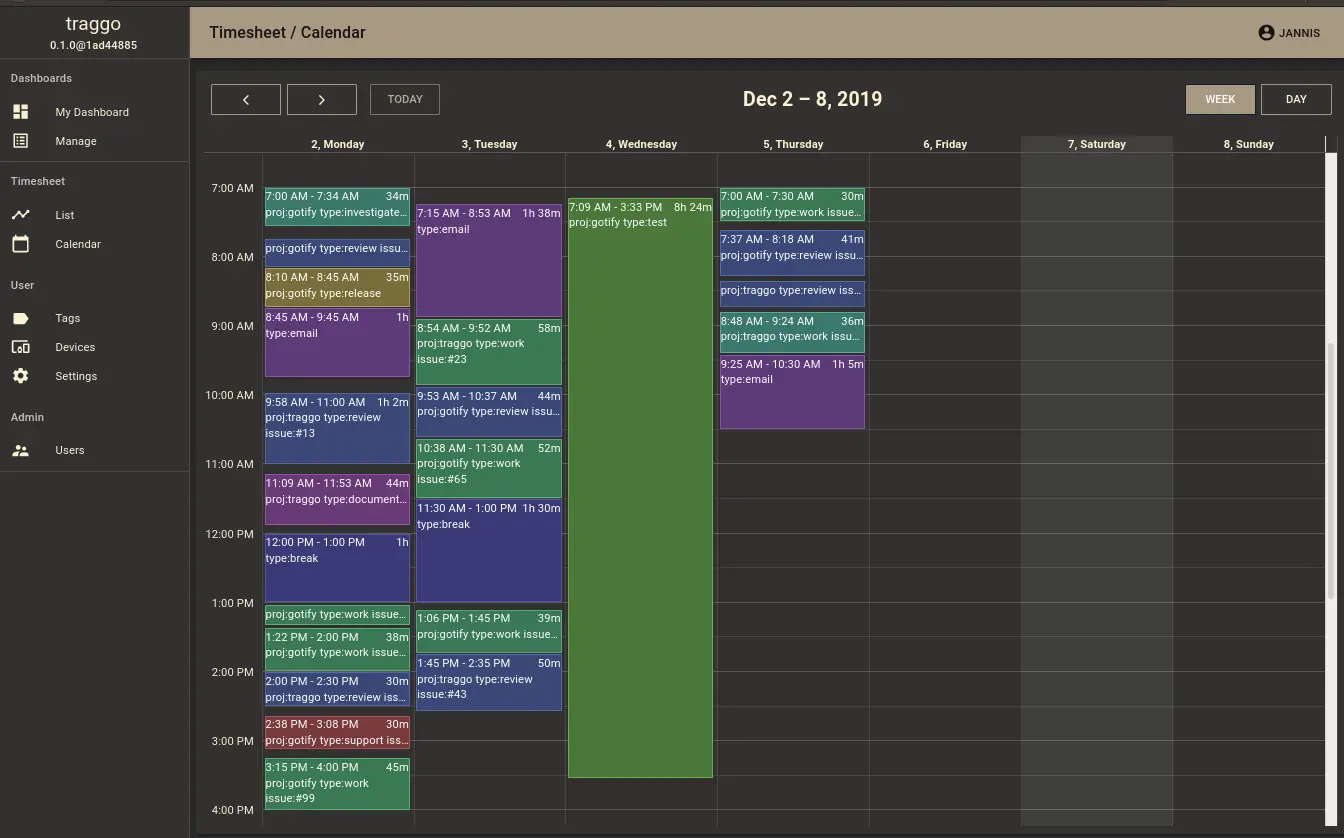
- See your week at a glance Review your time as a list grouped by day or as a day and week calendar.
- Fix tags in bulk Replace a tag across many time spans at once when you rename a client or project.
- Add your team The admin creates accounts for other people, and each person tracks their own time.
Replaces Toggl Track and Clockify
Traggo does the same job as Toggl Track and Clockify. Here is what changes when you switch.
- Free, with no per-user fee and no plan limits
- Your time records stay on your own server
- Tags let you slice your time any way you like, not only by project
- Charts and dashboards you arrange yourself
- No clients, hourly rates or invoices; solidtime or Kimai cover those
- No import from Toggl or Clockify, and no CSV or PDF export
- No phone or desktop apps or browser extension, only the website
- A small project with occasional releases, still before version 1.0
What happens when you click Deploy?
You do not need a server or any technical knowledge. Four steps, and Traggo is running at its own web address.
- Step 1 Click Deploy and create your account
Deploy takes you to Cloudgate. Create an account, or log in if you have one. Traggo itself is free.
- Step 2 Choose a server
No server? Get one from Cloudgate: pick a size and a country, and Cloudgate gets it ready. Already have one? Connect it instead.
- Step 3 Cloudgate sets up Traggo
It prepares the server, makes the passwords the app needs and starts it. There is nothing to install and nothing to write down.
- Step 4 Open your app and sign in
Your app gets a free web address to start, without https. Add your own domain, like app.yourshop.com, and Cloudgate secures it with https for you.
New to Cloudgate? See what Cloudgate is
Run Cloudgate yourself? Deploy from your own console
In your Cloudgate console, open Templates and choose Traggo.
Questions
Is Traggo free?
Yes, Traggo is free and open source under the GPL-3.0 licence, with no paid edition. You pay only for the server it runs on.
Is Traggo a good alternative to Toggl Track or Clockify?
Yes, for personal or small-team time tracking with your own reports. Traggo has no clients, hourly rates, invoices, team timesheets or phone apps, so if you bill clients, solidtime or Kimai is the better fit.
How does tag-based time tracking work in Traggo?
In Traggo, every time span gets one or more tags written as a name and a value, such as project:website, client:acme or type:meeting. Dashboards then add up your time by those tags, so you can report by client, project or kind of work without setting anything up in advance.
How do I sign in to Traggo the first time?
Sign in to Traggo with the admin username you chose during setup (admin unless you changed it) and the password Cloudgate generated, which is shown on the app's variables page in Cloudgate. There is no public sign-up; the admin adds other people's accounts in the app.
Can Traggo import from Toggl or Clockify, or export my time to CSV?
No, Traggo has no built-in import or export. Start fresh in Traggo, and keep your old Toggl or Clockify reports if you need them.
Is there a Traggo phone app?
No, Traggo has no phone or desktop app, but its website works in a phone's browser.
What server size do I need for Traggo?
The smallest server is enough, because Traggo is one light app that keeps its data in a single file. Cloudgate sets it up on an extra-small server.
Do I need technical skills to run Traggo?
No. Click Deploy, create your Cloudgate account and choose a server, and Cloudgate sets up Traggo and gives it a web address. You use it in your browser like any other online tool.
Do I need my own server for Traggo?
No. When you deploy Traggo, hosted Cloudgate can provide a server. If you already rent one, you can connect it instead.
Related apps
Time tracking that turns your hours into invoices.

Time tracking for freelancers and teams, with billable rates.

Time tracking on a timeline, with tags and PDF reports.

Simple, self-hosted time tracking for freelancers and small teams.