
TimeTagger
Time tracking on a timeline, with tags and PDF reports.
No server needed to start: Cloudgate can provide one. What happens when you click Deploy
What is TimeTagger?
TimeTagger is a self-hosted time tracker for freelancers: log your hours with tags on a timeline and send clients PDF or CSV reports.
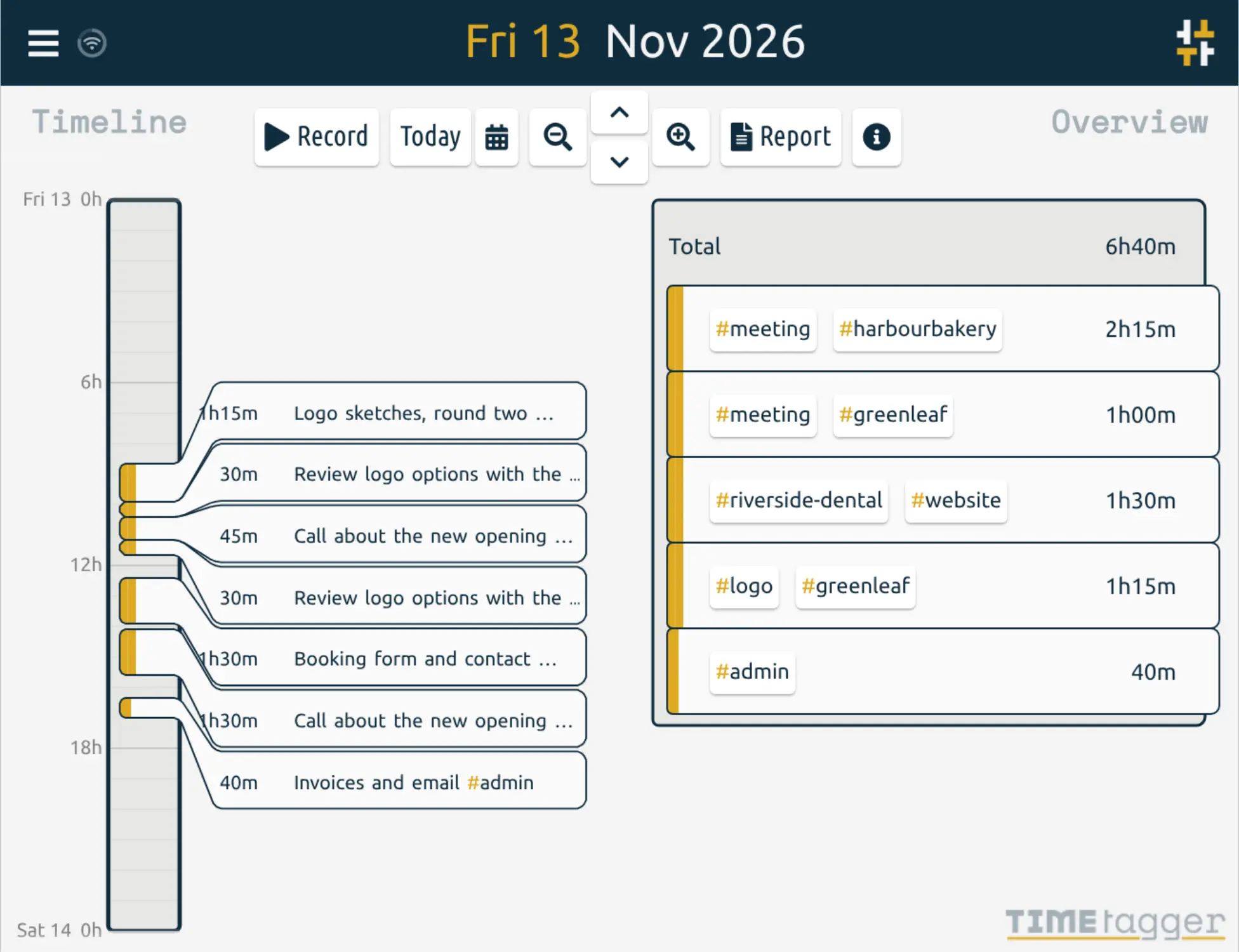
TimeTagger is a free, open-source, self-hosted time tracker that can replace Toggl Track or Clockify for freelancers who track their own hours. You record what you work on with a short description and tags such as #client or #meeting, see your day, week or month on a timeline, and turn any period into a PDF or CSV report for a client.
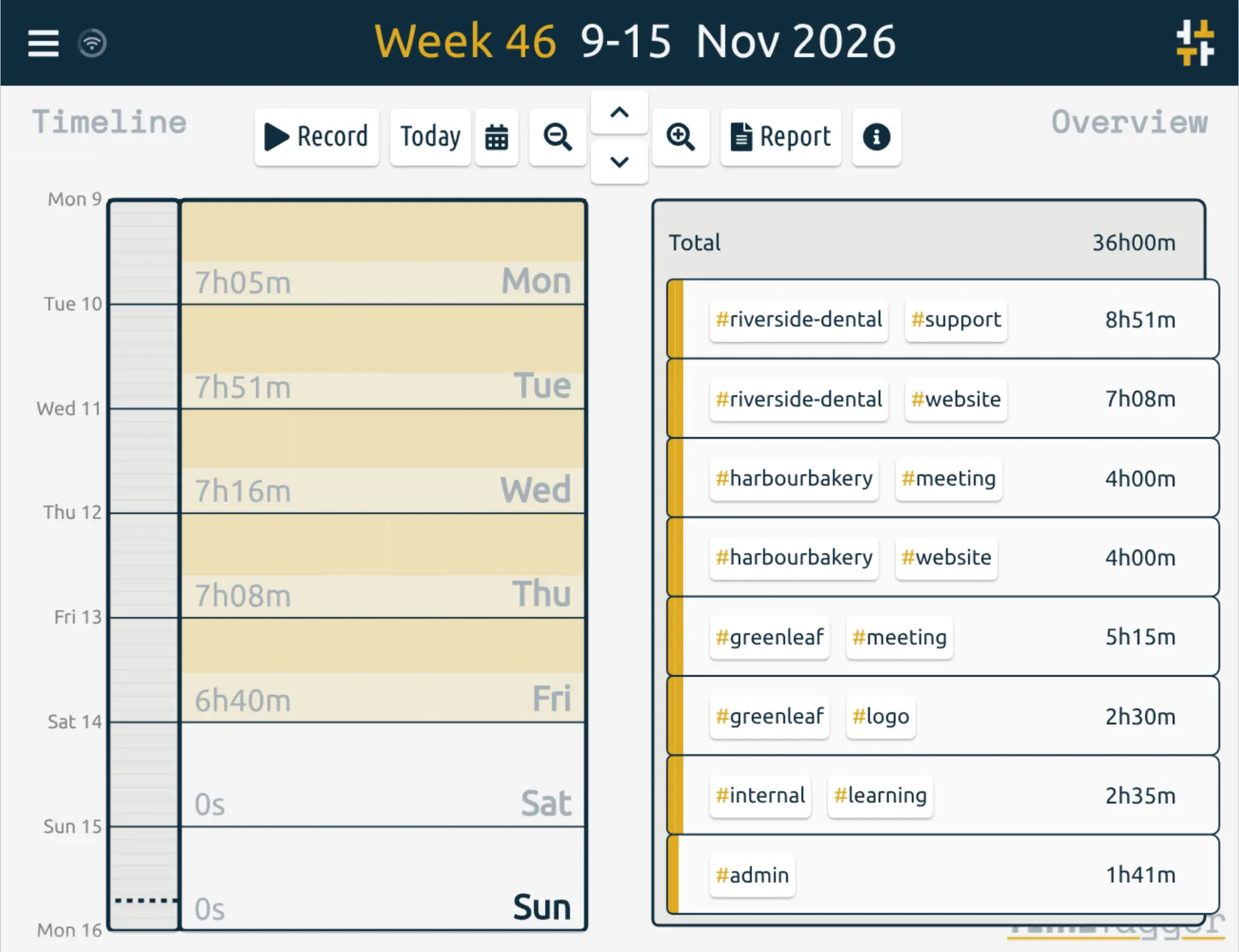
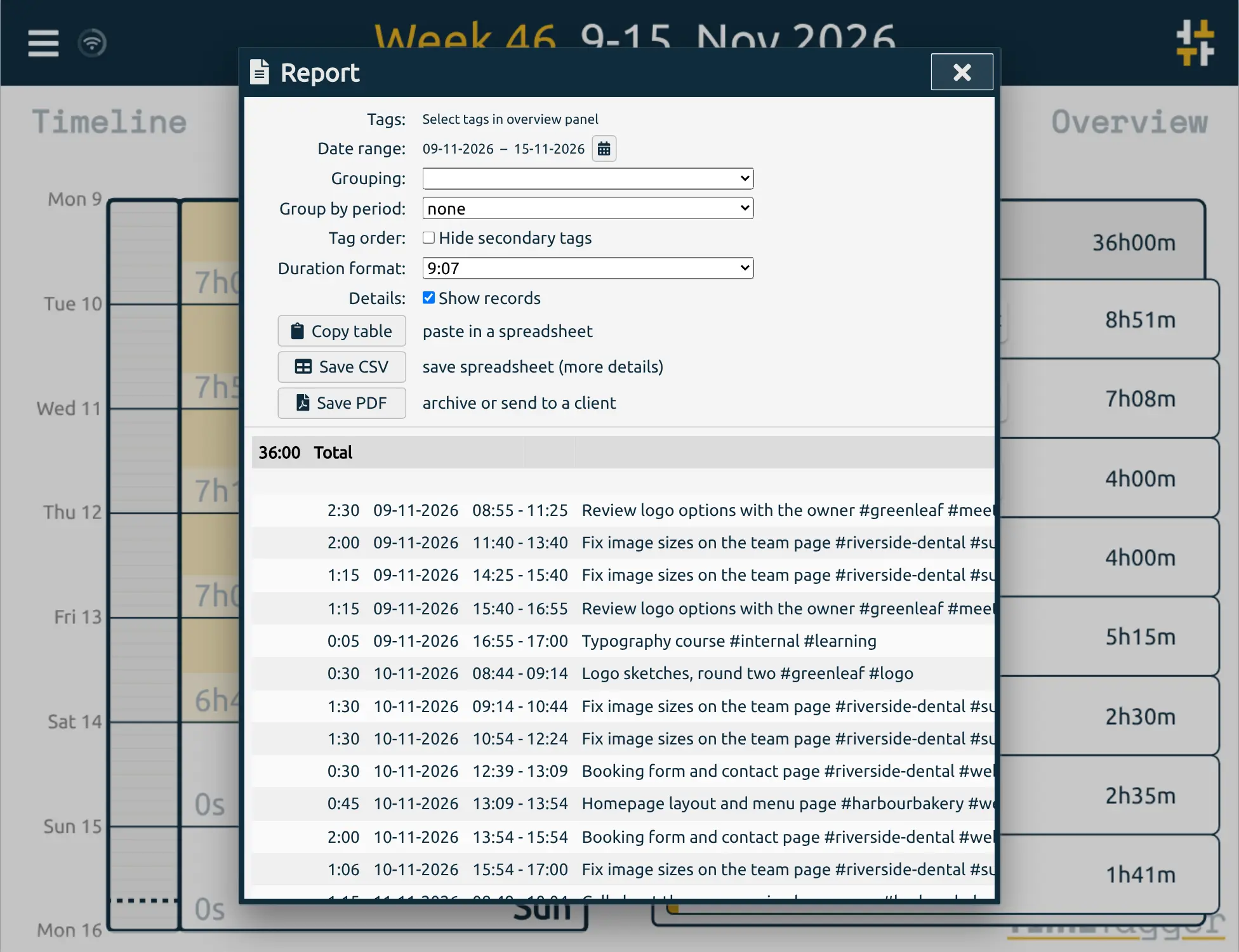
A freelance designer, for example, can tag each task with the client's name and the kind of work, glance at the overview to see how many hours went to each client this week, and at the end of the month save a PDF report for each client to send with the invoice.
TimeTagger is deliberately simple. It has no hourly rates or invoices and no team workspace, so a business that bills a team's hours fits better with solidtime or Kimai. It runs in any browser, installs on a phone or computer from the browser, keeps working offline, and can import records from a CSV export of your old tracker.
Cloudgate installs TimeTagger on a server Cloudgate provides or one you connect and gives it a secure web address. You sign in with the username you chose and the password Cloudgate created, and your time records stay on your server.
What you can do with TimeTagger
- See your time on a timeline Your records sit on a timeline you zoom from one day out to a week, month or year, and you drag a record to change its times.
- Tag instead of setting up projects Write tags such as #client or #meeting in a record's description, then search, rename and total your hours by tag.
- Know where the hours went An overview next to the timeline adds up the hours for each tag in the period you are looking at.
- Send reports to clients Make a report for any dates and tags, grouped by tag or by week, and save it as a PDF or CSV or copy it into a spreadsheet.
- Set targets Give a tag a daily, weekly or monthly target and follow your progress towards it.
- Track from your phone, even offline Install it on your phone or computer from the browser; it keeps working without internet and syncs when you are back online.
- Bring your old records Paste a CSV or spreadsheet export from your previous tracker, and export all your records whenever you like.
Replaces Toggl Track and Clockify
TimeTagger does the same job as Toggl Track and Clockify. Here is what changes when you switch.
- Free, with no subscription and no paid plan to unlock features
- Your time records stay on your own server
- Tags let you total your hours any way you like, not only by project
- Works offline on your phone and syncs later
- No hourly rates or invoices; you bill from the PDF or CSV report, or use Kimai
- Made for one person, with no team workspace or team reports
- No app-store apps or browser extension; you install it from the browser instead
- No one-click Toggl or Clockify import; you paste a CSV export
What happens when you click Deploy?
You do not need a server or any technical knowledge. Four steps, and TimeTagger is running at its own web address.
- Step 1 Click Deploy and create your account
Deploy takes you to Cloudgate. Create an account, or log in if you have one. TimeTagger itself is free.
- Step 2 Choose a server
No server? Get one from Cloudgate: pick a size and a country, and Cloudgate gets it ready. Already have one? Connect it instead.
- Step 3 Cloudgate sets up TimeTagger
It prepares the server, makes the passwords the app needs and starts it. There is nothing to install and nothing to write down.
- Step 4 Open your app and sign in
Your app gets a free web address to start, without https. Add your own domain, like app.yourshop.com, and Cloudgate secures it with https for you.
New to Cloudgate? See what Cloudgate is
Run Cloudgate yourself? Deploy from your own console
In your Cloudgate console, open Templates and choose TimeTagger.
Questions
Is TimeTagger free?
Yes, TimeTagger is free and open source under the GPL-3.0 licence, and the self-hosted version has every feature. You pay only for the server it runs on; the paid plans on timetagger.app are for the author's hosted service.
Is TimeTagger a good alternative to Toggl Track or Clockify?
Yes, if you track your own hours and send clients a report. TimeTagger has no hourly rates, invoices, team workspace or integrations, so a team that needs those is better served by solidtime or Kimai.
How do I sign in to TimeTagger the first time?
Sign in to TimeTagger with the username you chose during setup (admin unless you changed it) and the password Cloudgate generated, which is shown on the app's variables page in Cloudgate. There is no sign-up page.
Can TimeTagger import my time from Toggl or Clockify?
Partly. TimeTagger imports any CSV or spreadsheet table with start and end times, so you can paste an export from Toggl or Clockify, but project names become tags and the columns may need tidying first. Trying it in TimeTagger's sandbox page first is a safe way to check.
Is there a TimeTagger app for iPhone and Android?
No, not in the app stores, but you can install TimeTagger from your phone's browser with "Add to Home Screen" or "Install app". It works offline and syncs your records when you are back online.
Can my team use TimeTagger?
No, not as a team. TimeTagger is a personal tracker in which each person sees only their own records, and this setup creates one login. For team timesheets and reports, look at solidtime or Kimai.
What server size do I need for TimeTagger?
The smallest server is enough, because TimeTagger is one light app that keeps its data in a small file. Cloudgate sets it up on an extra-small server.
Do I need technical skills to run TimeTagger?
No. Click Deploy, create your Cloudgate account and choose a server, and Cloudgate sets up TimeTagger and gives it a web address. You use it in your browser like any other online tool.
Do I need my own server for TimeTagger?
No. When you deploy TimeTagger, hosted Cloudgate can provide a server. If you already rent one, you can connect it instead.
Related apps

Time tracking for freelancers and teams, with billable rates.
Time tracking with invoices, expenses and mileage.
Time tracking that turns your hours into invoices.

Simple, self-hosted time tracking for freelancers and small teams.