
OwnTracks Recorder
The self-hosted server for the OwnTracks app, with a live map.
No server needed to start: Cloudgate can provide one. What happens when you click Deploy

What is OwnTracks Recorder?
OwnTracks Recorder is a self-hosted server for the OwnTracks phone app that keeps your location history and shows where each phone is on a live map.
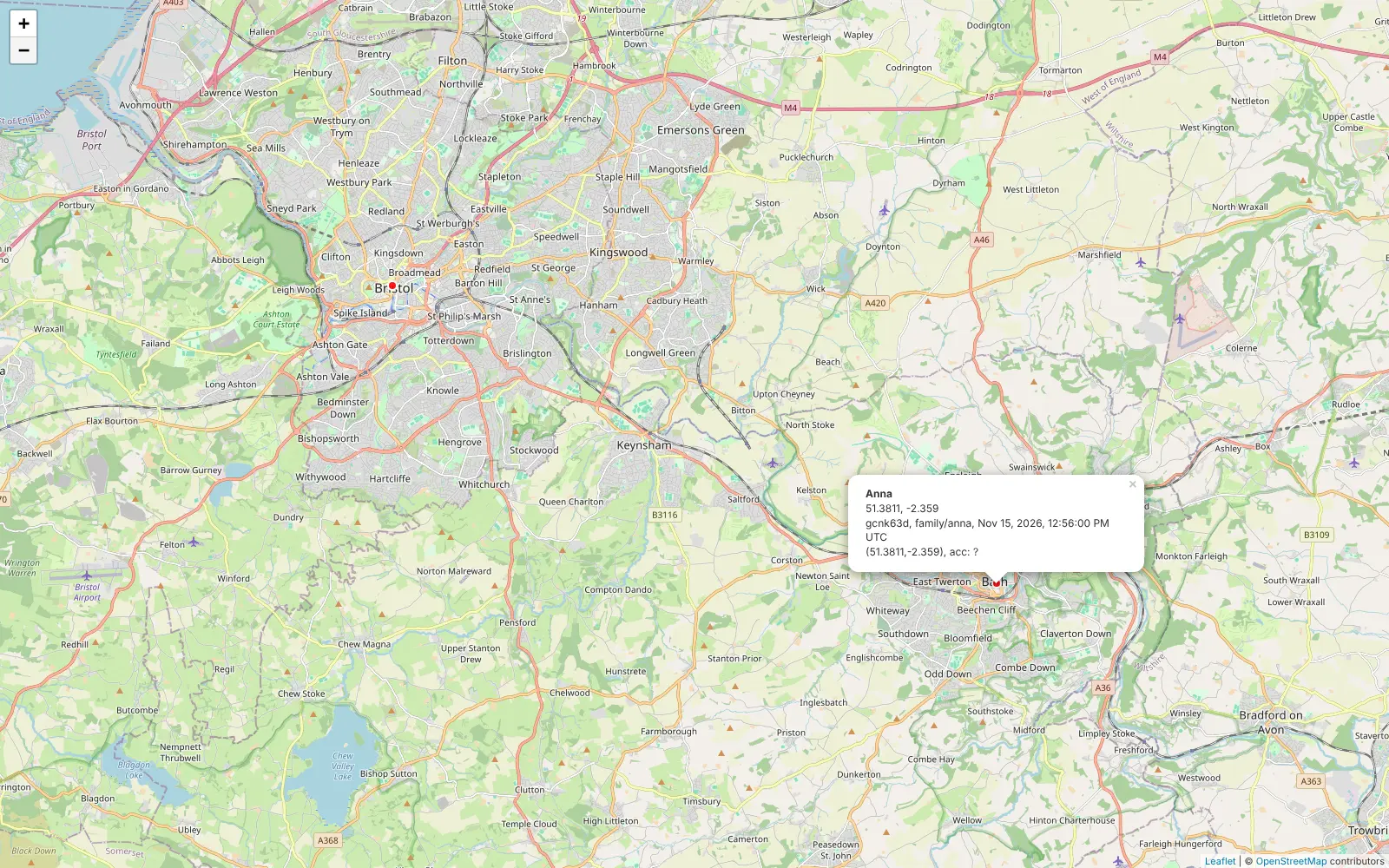
OwnTracks Recorder is the free, self-hosted server for the OwnTracks phone app: it keeps your location history on your own server and shows where each phone is on a private live map, instead of Google Maps Timeline or Life360. The OwnTracks app on iPhone or Android sends its location, and the Recorder files every point by person and device.
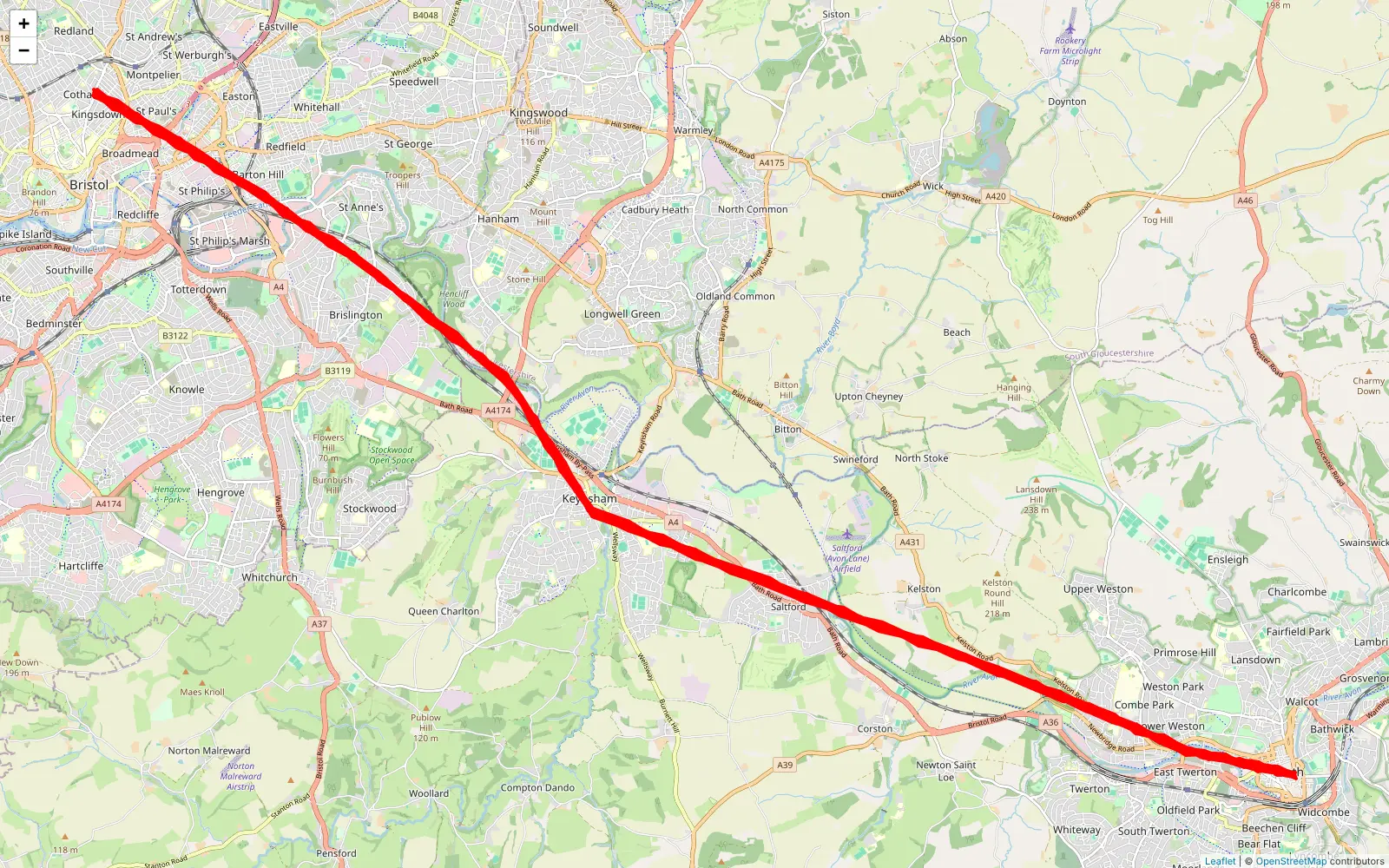
In a web browser you see a live map of each phone's latest position, a table of everyone's last report with battery level and speed, and any phone's points or route over the last 12 hours, 7 days or 30 days. A family could, for example, see that someone got home safely after a late drive, or look back at the route of last weekend's trip.
It is deliberately simple. There is no day-by-day timeline, no trips or stats and no Google Timeline import; if you want those, Dawarich also works with the OwnTracks app. In return, the Recorder needs only the smallest server, and you choose in the app how often each phone reports, to spare its battery.
Cloudgate installs OwnTracks Recorder on a server Cloudgate provides or one you connect, puts a sign-in in front of it and gives it a secure web address. Enter that address, your username and password in the OwnTracks app on each phone.
What you can do with OwnTracks Recorder
- See where each phone is now A live map shows every phone's latest position and moves the marker as new locations arrive.
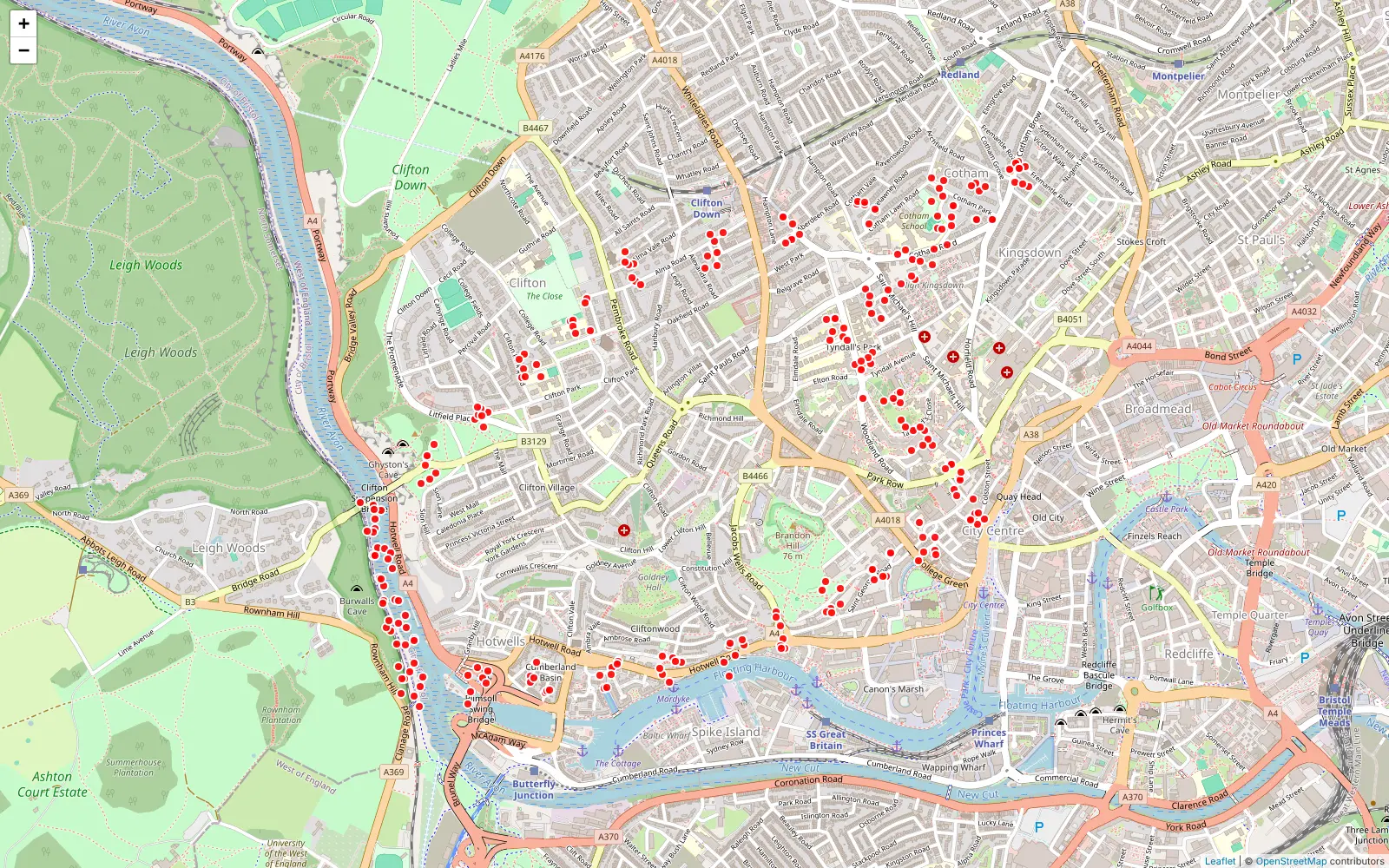
- Look back at past tracks Open any phone's route for the last 12 hours, 7 days or 30 days as a line or as single points on the map.
- Check everyone at a glance A table lists each phone's last report with its time, battery level and speed, and you can sort and search it.
- Keep your history private Every location your phones send is stored on your own server, filed by person and device, for as long as you keep it.
- No map account needed Maps use OpenStreetMap, so there is no Google account or map key to set up.
- Runs on the smallest server The Recorder is a small program that keeps your history in plain files, with no database server to look after.
Replaces Google Maps Timeline and Life360
OwnTracks Recorder does the same job as Google Maps Timeline and Life360. Here is what changes when you switch.
- Your location history stays on your own server, not with an app company
- Each phone's position on a live map in any web browser
- No subscription and no limit on how long your history is kept
- The OwnTracks app lets you choose how often it reports, to save battery
- No day-by-day timeline, visited places, trips or yearly stats
- It cannot import your Google Timeline history
- No place alerts, crash detection or SOS, and in this setup family members see each other on the web map, not inside the phone app
- Positions show as coordinates, not street addresses, unless you add an address lookup service later
What happens when you click Deploy?
You do not need a server or any technical knowledge. Four steps, and OwnTracks Recorder is running at its own web address.
- Step 1 Click Deploy and create your account
Deploy takes you to Cloudgate. Create an account, or log in if you have one. OwnTracks Recorder itself is free.
- Step 2 Choose a server
No server? Get one from Cloudgate: pick a size and a country, and Cloudgate gets it ready. Already have one? Connect it instead.
- Step 3 Cloudgate sets up OwnTracks Recorder
It prepares the server, makes the passwords the app needs and starts it. There is nothing to install and nothing to write down.
- Step 4 Open your app and sign in
Your app gets a free web address to start, without https. Add your own domain, like app.yourshop.com, and Cloudgate secures it with https for you.
New to Cloudgate? See what Cloudgate is
Run Cloudgate yourself? Deploy from your own console
In your Cloudgate console, open Templates and choose OwnTracks Recorder.
Questions
Is OwnTracks Recorder free?
Yes, OwnTracks Recorder is free and open source under the GPL-2.0-or-later licence, and there is no paid edition. The OwnTracks apps for iPhone and Android are free too. You pay only for your server.
How is OwnTracks Recorder different from Dawarich?
OwnTracks Recorder is the small, official server for the OwnTracks app, with a live map of where each phone is now and its past tracks. Dawarich is a fuller location history app with a day-by-day timeline, trips, yearly stats and Google Timeline import, and it needs a bigger server. Dawarich also accepts OwnTracks data, so you can move to it later.
Is OwnTracks Recorder a good alternative to Life360?
Only for seeing where your family's phones are. OwnTracks Recorder's live map shows each phone's latest position in a web browser, with the history kept on your own server. It has no place alerts, crash detection or SOS, and in this setup family members do not see each other inside the OwnTracks app.
How do I connect my phone to OwnTracks Recorder?
Install the OwnTracks app on your iPhone or Android phone, open its connection settings and choose HTTP mode. Enter your Recorder's address ending in /pub, turn on authentication, type your username and password, and give the phone a device name, such as anna-phone.
How do I sign in to OwnTracks Recorder the first time?
You sign in to OwnTracks Recorder with the username you chose during setup (owntracks unless you changed it) and the password Cloudgate generated. There is no admin account; the same username and password open the web pages and connect each phone.
Can I import my Google Timeline history into OwnTracks Recorder?
No, OwnTracks Recorder only stores locations sent from the OwnTracks app from the day you connect it. If you want to bring your Google Timeline history, Dawarich can import a Google Takeout export.
What server size do I need for OwnTracks Recorder?
The smallest server is enough. OwnTracks Recorder is a lightweight program that keeps its data in plain files and needs no database server, so Cloudgate gives it an extra-small server.
Do I need technical skills to run OwnTracks Recorder?
No. Click Deploy, create your Cloudgate account and choose a server, and Cloudgate sets up OwnTracks Recorder and gives it a web address. You use it in your browser like any other online tool.
Do I need my own server for OwnTracks Recorder?
No. When you deploy OwnTracks Recorder, hosted Cloudgate can provide a server. If you already rent one, you can connect it instead.
Related apps

Your own location history and timeline, on a private map.
Turn your phone's location into a private diary of visits and trips.

A self-hosted travel tracker, trip planner and world map in one.

A self-hosted flight tracker for every flight you take, on one map.