
An Otter Wiki
A simple self-hosted wiki in Markdown, with every change kept.
No server needed to start: Cloudgate can provide one. What happens when you click Deploy
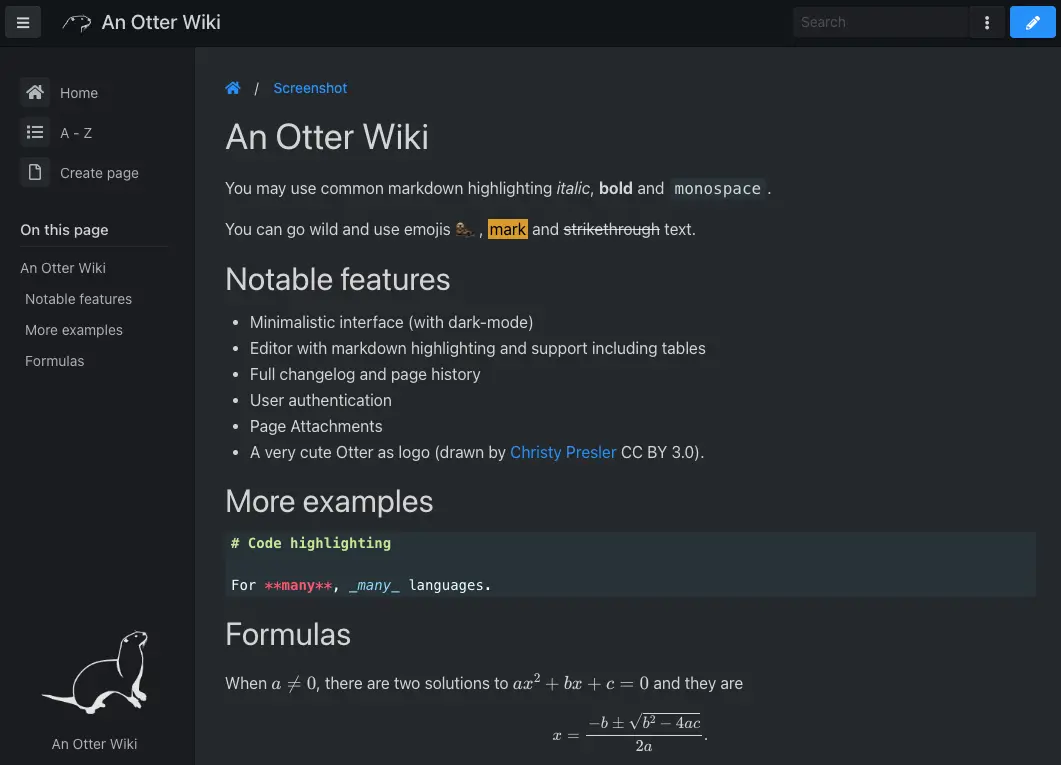
What is An Otter Wiki?
An Otter Wiki is a simple self-hosted wiki: write pages in Markdown, attach files and keep every change in Git. A light Confluence alternative for small teams.
An Otter Wiki is a free, open-source, self-hosted wiki that keeps every page in Markdown and every change in Git, and a simple alternative to Confluence or GitBook for a small team's documentation. You write pages in your browser, attach files, and can always see who changed what and go back to an older version.
It is deliberately small. There is no database server to look after and it needs very little memory, so it suits a team that wants a wiki without a project to maintain. A bakery, for example, could keep its opening checklist, recipes with exact weights and supplier contacts in one wiki, let every baker read them, and let only signed-in staff edit them.
The trade-off is a plain feature set: you write in Markdown with a toolbar, there is no live co-editing, and there are no comments, page templates or databases. You choose who can read, edit and upload, and pages can be copied to a Git remote such as GitHub as a backup. There is no phone app, but the wiki works in a phone's browser.
Cloudgate installs An Otter Wiki on a server Cloudgate provides or one you connect and gives it a secure web address. Register straight away: the first account becomes the admin.
What you can do with An Otter Wiki
- Write pages in Markdown The editor highlights Markdown as you type, has buttons for common formatting and tables, and lets you paste images straight in.
- See and undo every change Every save is recorded with a note, so you can read a page's history, see who wrote each line, and go back to an older version.
- Attach files to pages Upload PDFs, images and other files to a page and link to them from the text.
- Richer pages when you need them Add footnotes, coloured alert boxes, formulas and Mermaid diagrams, all written in the same Markdown.
- Find anything quickly Search the text of every page, browse the A to Z index, or follow the page list in the sidebar.
- Choose who reads and who edits Let anyone read, or only signed-in or approved people, and decide separately who may edit pages and upload files.
- Your pages are plain files in Git Pages and attachments are kept in a Git repository, which the wiki can also copy to a remote such as GitHub after every change.
Replaces Confluence, GitBook and Notion
An Otter Wiki does the same job as Confluence, GitBook and Notion. Here is what changes when you switch.
- Free and open source under the MIT licence, with no paid edition and no per-user price
- Every change kept with its history, and pages stored as plain Markdown files you can take anywhere
- Very light to run, with nothing but the wiki itself to look after
- Your documentation stays on your own server
- You write in Markdown with a toolbar; there is no word-processor style editor
- There is no live co-editing and no page comments
- It is pages only, with no spaces, page templates, databases or boards
- There is no built-in importer from Confluence, Notion or GitBook
What happens when you click Deploy?
You do not need a server or any technical knowledge. Four steps, and An Otter Wiki is running at its own web address.
- Step 1 Click Deploy and create your account
Deploy takes you to Cloudgate. Create an account, or log in if you have one. An Otter Wiki itself is free.
- Step 2 Choose a server
No server? Get one from Cloudgate: pick a size and a country, and Cloudgate gets it ready. Already have one? Connect it instead.
- Step 3 Cloudgate sets up An Otter Wiki
It prepares the server, makes the passwords the app needs and starts it. There is nothing to install and nothing to write down.
- Step 4 Open your app and sign in
Your app gets a free web address to start, without https. Add your own domain, like app.yourshop.com, and Cloudgate secures it with https for you.
New to Cloudgate? See what Cloudgate is
Run Cloudgate yourself? Deploy from your own console
In your Cloudgate console, open Templates and choose An Otter Wiki.
Questions
Is An Otter Wiki free?
Yes, An Otter Wiki is free and open source under the MIT licence, and every feature is in the free app; there is no paid edition or cloud plan. You pay only for your server.
How do I sign in to An Otter Wiki the first time?
An Otter Wiki has no default password; open your wiki's address and register, and the first account to register becomes the admin. Do it straight after setup. Cloudgate's template lets anyone read but only signed-in people edit or upload, which you can change under Settings. New users confirm their email, so add your mail settings or switch confirmation off.
Is An Otter Wiki a good alternative to Confluence?
Yes. An Otter Wiki is a good alternative to Confluence for small teams that want a simple wiki for handbooks, how-tos and notes, with full page history and no per-user price. It is much plainer than Confluence, with a Markdown editor, no live co-editing, no comments and no spaces or page templates.
Can I import my Confluence, Notion or GitBook pages?
No, An Otter Wiki has no built-in importer. Pages are Markdown, so text exported as Markdown can be pasted in, but plan to move your most important pages by hand.
Where does An Otter Wiki keep my pages?
An Otter Wiki keeps pages and attachments as plain files in a Git repository on your server, with every change kept. Backing up the wiki means copying that repository, and the wiki can push it to a remote such as GitHub after each change.
How is An Otter Wiki different from Wiki.js, BookStack and DokuWiki?
An Otter Wiki is the simplest of them, a Markdown wiki that keeps everything in Git and needs very little memory. Wiki.js and BookStack keep pages in a database and have friendlier editors, and DokuWiki uses its own wiki syntax by default and adds rights per folder.
Does An Otter Wiki have a phone app?
No. An Otter Wiki has no phone app, but the wiki works in a phone's web browser, including dark mode.
Do I need technical skills to run An Otter Wiki?
No. Click Deploy, create your Cloudgate account and choose a server, and Cloudgate sets up An Otter Wiki and gives it a web address. You use it in your browser like any other online tool.
Do I need my own server for An Otter Wiki?
No. When you deploy An Otter Wiki, hosted Cloudgate can provide a server. If you already rent one, you can connect it instead.
Related apps

A self-hosted Markdown wiki with live co-writing and Git sync.
A simple self-hosted wiki, organised like books on a shelf.

A self-hosted Markdown wiki your team and AI assistants can share.

An open-source team wiki with spaces, live editing and diagrams.