
LinguaCafe
Learn a language by reading books, articles and subtitles.
No server needed to start: Cloudgate can provide one. What happens when you click Deploy




What is LinguaCafe?
LinguaCafe is a self-hosted app for learning a language by reading: import books and articles, look up words as you read, and review them later.
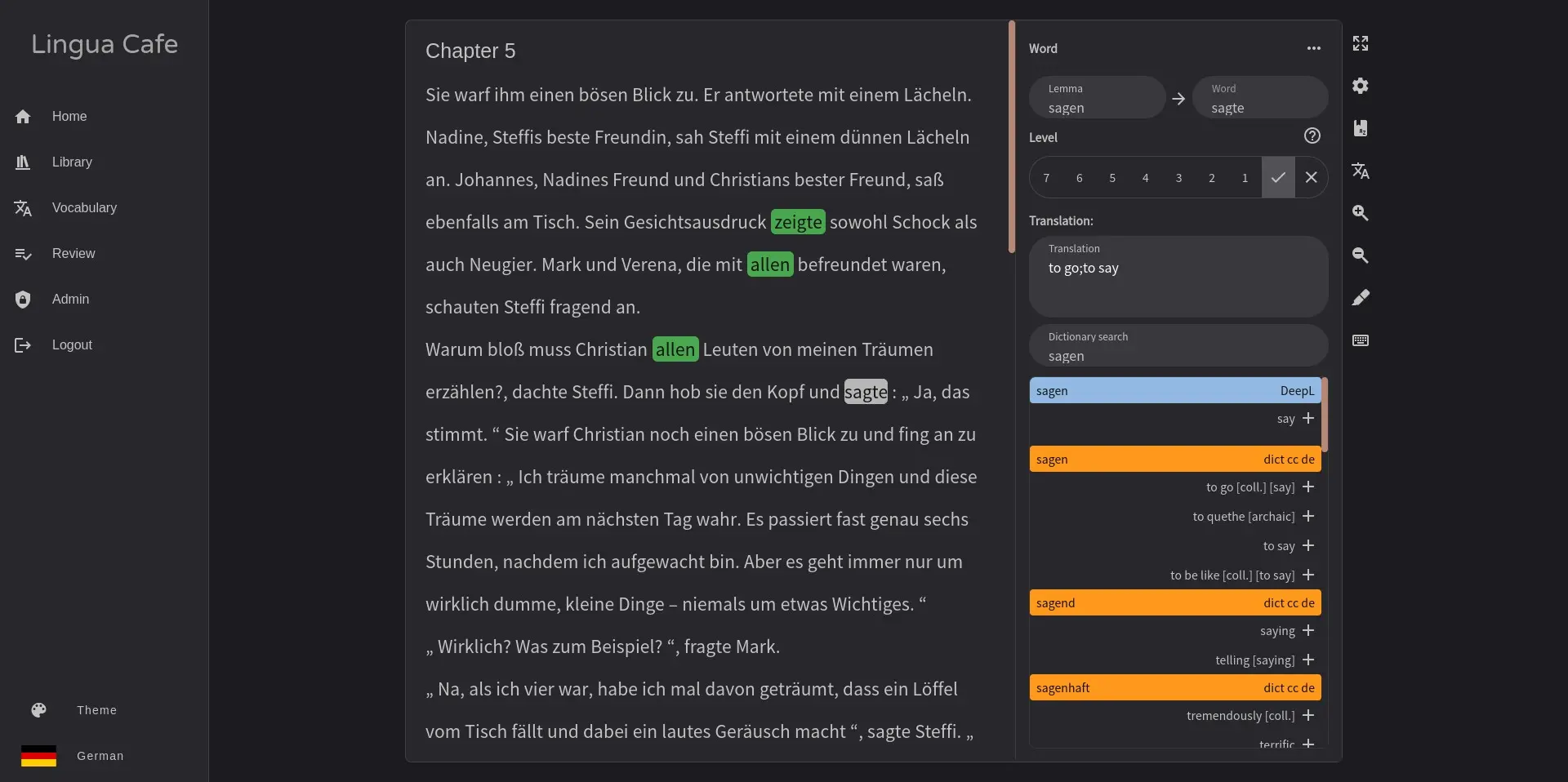
LinguaCafe is a self-hosted app for learning a language by reading, and a free alternative to LingQ and Readlang. You import something you want to read, and LinguaCafe highlights the words you don't know yet, lets you look each one up with a click, and brings them back later as flash cards.
You can import e-books, web pages, YouTube subtitles, subtitle files or pasted text. As you read, new words are marked in one colour and words you are learning in another, and finishing a chapter marks the rest as known. Translations come from free dictionaries you add and, if you like, from DeepL. A home page tracks how many words you read and review each day. A nurse moving to Germany, for example, could read German news articles and a favourite novel each evening and review the new words on the bus the next morning.
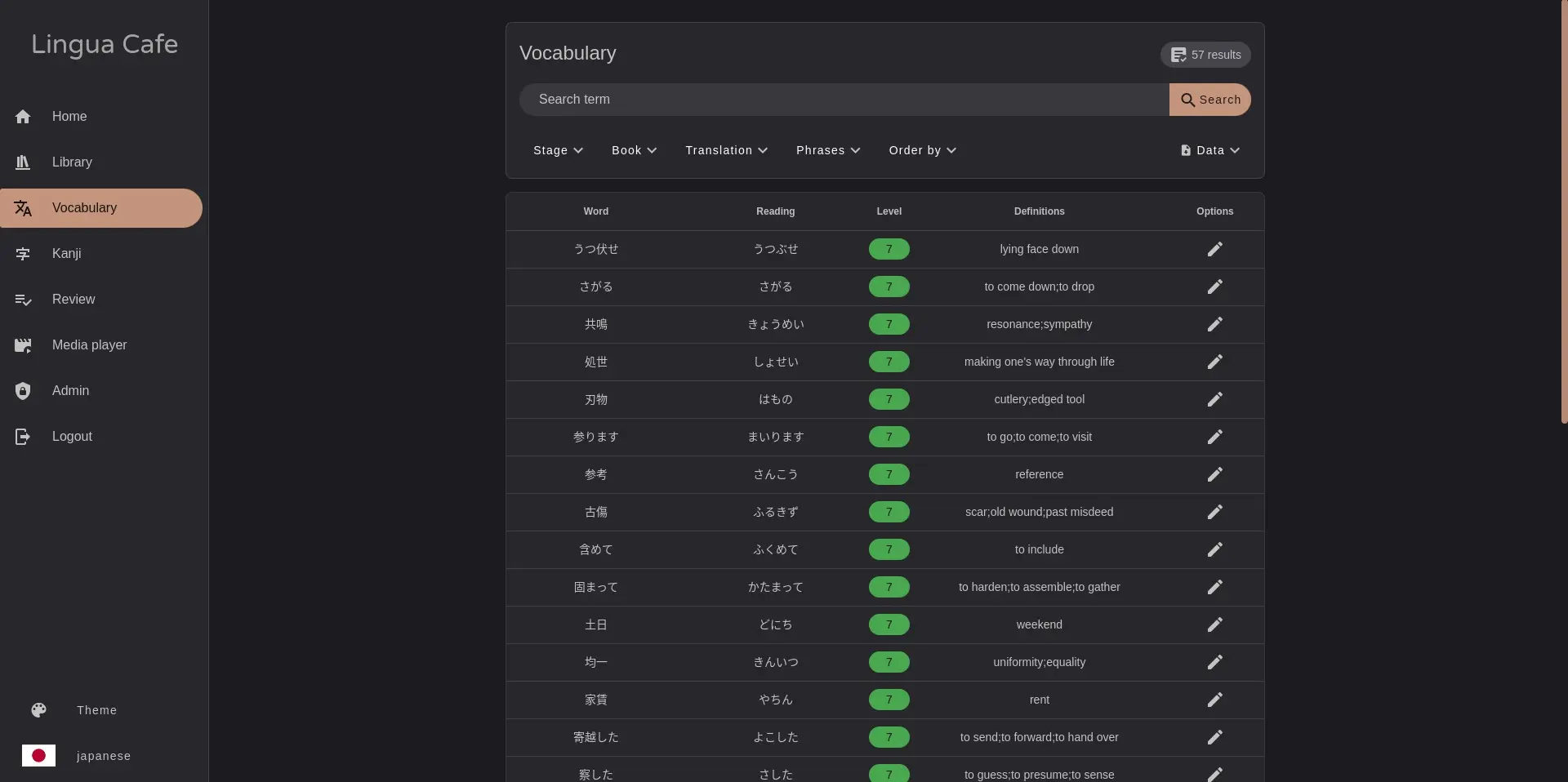
LinguaCafe supports 27 languages, from Spanish and German to Japanese and Chinese. It runs in the web browser, with layouts for phones and tablets. It is built mainly for one learner, and its last release was in March 2025, so expect a few rough edges.
Cloudgate installs LinguaCafe on your server with its database and language service, and gives it a secure web address. The first account you create becomes the admin; then install your languages and upload dictionary files from LinguaCafe's GitHub release, a CSV file or DeepL from the admin pages.
What you can do with LinguaCafe
- Read with new words highlighted Words you have never seen are marked in one colour and words you are learning in another, so you see your progress on every page.
- Look up a word with one click Click a word or select a phrase to see dictionary results and an optional DeepL translation, then save your own meaning.
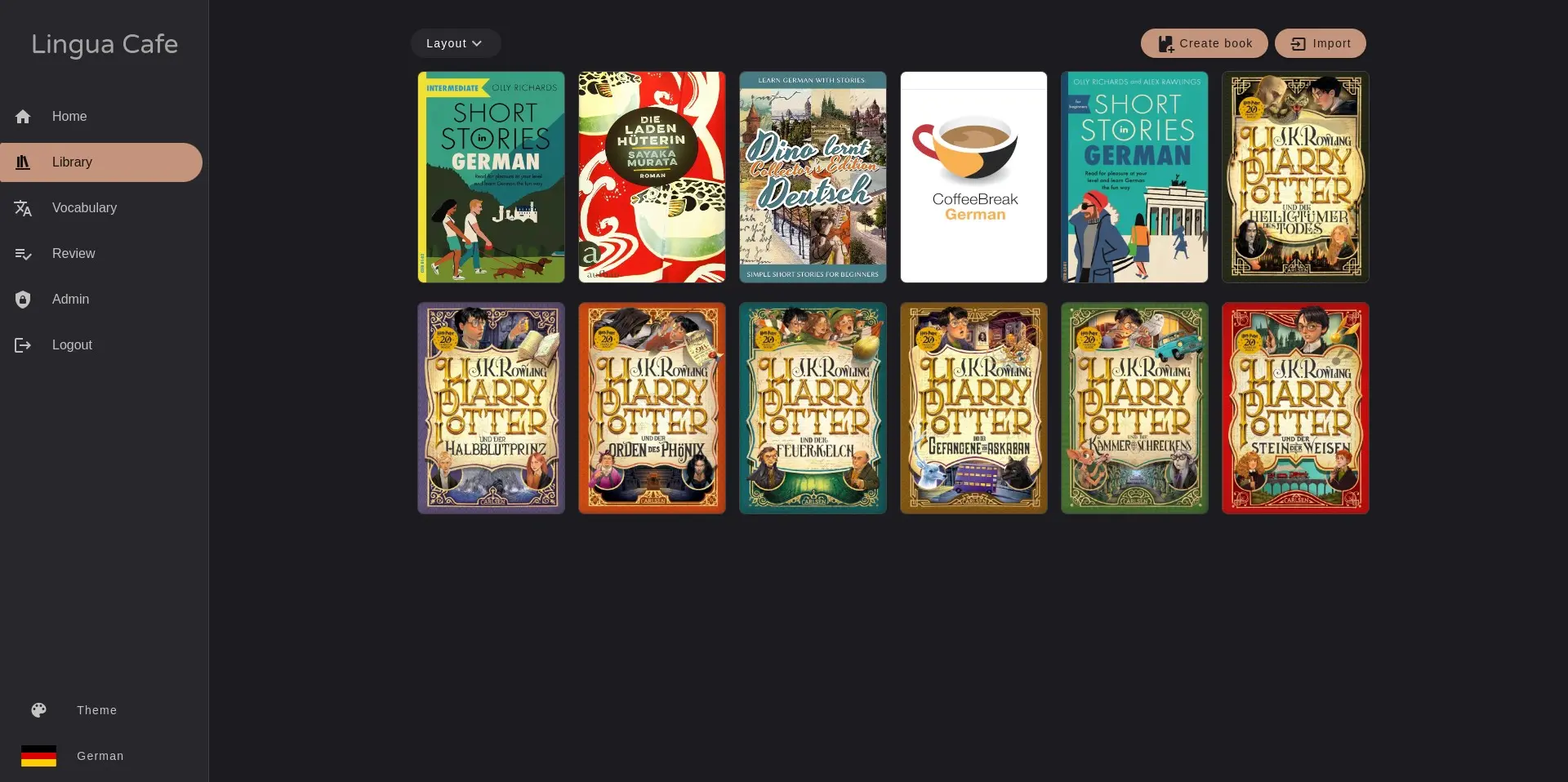
- Import what you want to read Add e-books, web pages, YouTube subtitles, subtitle files or pasted text, split into chapters.
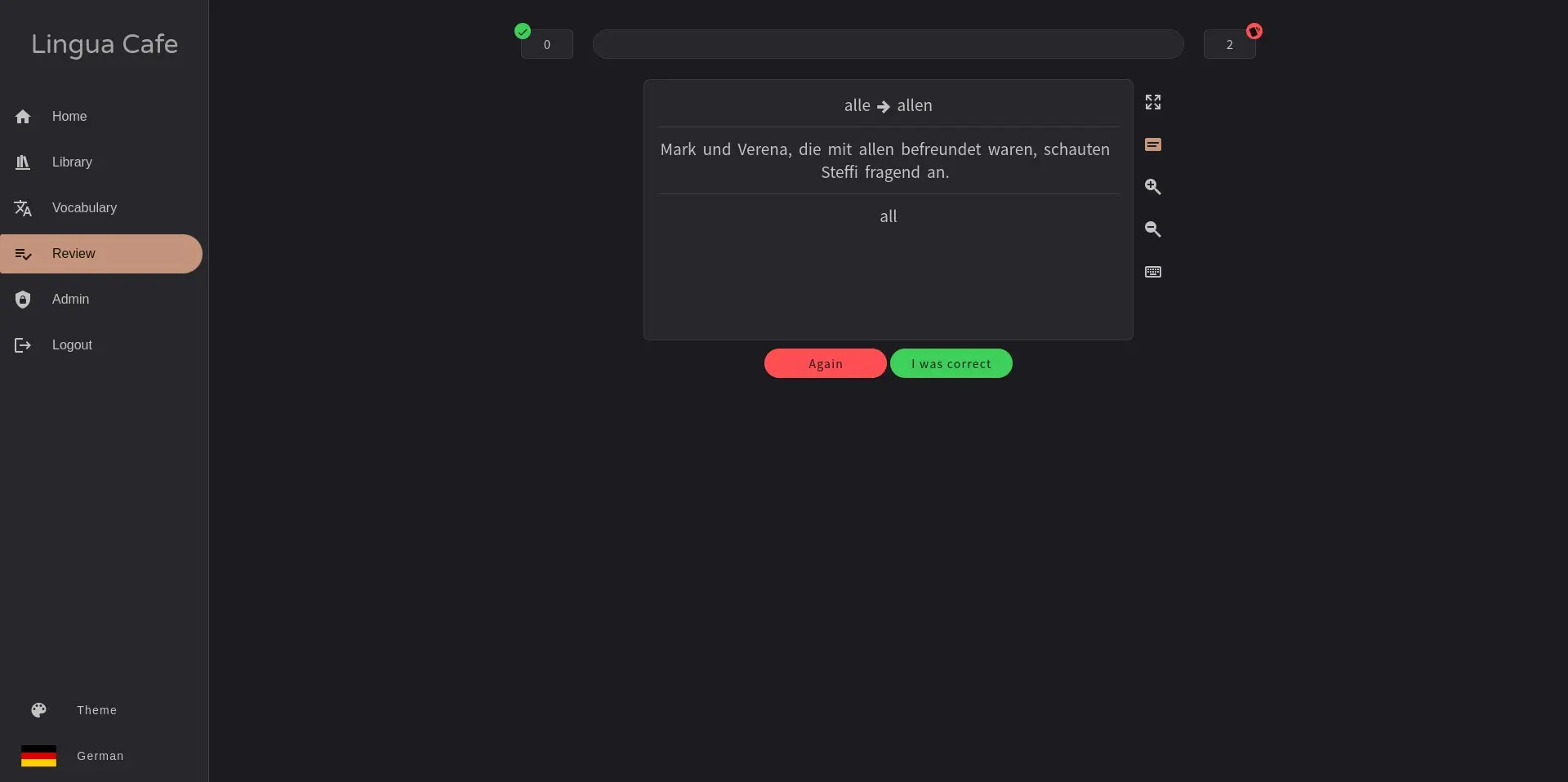
- Review with flash cards Saved words come back as flash cards in the sentence where you met them, more often until you know them.
- Set daily goals Track how many words you read, save and review each day, with a calendar and all-time statistics.
- Study 27 languages Includes Spanish, French, German, Italian, Japanese, Chinese, Korean, Russian, Ukrainian, Welsh and more.
Replaces LingQ and Readlang
LinguaCafe does the same job as LingQ and Readlang. Here is what changes when you switch.
- No subscription; every feature is included
- Your reading list, words and progress stay on your own server
- Read anything you can import, from e-books to subtitles and web pages
- No ready-made library of lessons; you bring your own texts
- No phone or tablet app; you read in the web browser
- No new release since March 2025, and some rough edges remain
- Dictionaries are not included; you download and upload them yourself
What happens when you click Deploy?
You do not need a server or any technical knowledge. Four steps, and LinguaCafe is running at its own web address.
- Step 1 Click Deploy and create your account
Deploy takes you to Cloudgate. Create an account, or log in if you have one. LinguaCafe itself is free.
- Step 2 Choose a server
No server? Get one from Cloudgate: pick a size and a country, and Cloudgate gets it ready. Already have one? Connect it instead.
- Step 3 Cloudgate sets up LinguaCafe
It prepares the server, makes the passwords the app needs and starts it. There is nothing to install and nothing to write down.
- Step 4 Open your app and sign in
Your app gets a free web address to start, without https. Add your own domain, like app.yourshop.com, and Cloudgate secures it with https for you.
New to Cloudgate? See what Cloudgate is
Run Cloudgate yourself? Deploy from your own console
In your Cloudgate console, open Templates and choose LinguaCafe.
Questions
Is LinguaCafe free?
Yes. LinguaCafe is free, open-source software under the GPL-3.0 licence, with no paid tier. You pay only for your server, and for DeepL only if you go beyond its free allowance.
Is LinguaCafe a good alternative to LingQ?
Yes, if you mostly read your own material. LinguaCafe works like LingQ, with imported texts, highlighted unknown words, saved words and reviews. LingQ adds a large lesson library with audio, phone apps and more languages.
Which languages does LinguaCafe support?
LinguaCafe supports 27 languages: Chinese, Croatian, Czech, Danish, Dutch, English, Finnish, French, German, Greek, Italian, Japanese, Korean, Latin, Macedonian, Norwegian, Polish, Portuguese, Romanian, Russian, Slovenian, Spanish, Swedish, Thai, Turkish, Ukrainian and Welsh. Some must be installed from the admin pages first.
Where do the translations come from?
From dictionaries you add under Admin > Dictionaries. Download the free dictionary files, such as Wiktionary, JMdict for Japanese and CC-CEDICT for Chinese, from the "dictionaries" release on LinguaCafe's GitHub page and upload them, upload your own CSV file, or add DeepL with your own DeepL key. You can also type your own meaning for any word or phrase.
Why does the progress bar not move when I import a dictionary or a book?
The live progress bars need a second connection that this setup does not give an address, so they stay still. The import still runs and LinguaCafe reports the result when it finishes.
Is there a LinguaCafe phone app?
No. LinguaCafe is a web app with layouts for phones and tablets, so you read in the browser on any device.
What server size do I need for LinguaCafe?
Cloudgate plans a medium server with 2 GB of memory and a standard (x64) processor, since one part of LinguaCafe has no Arm version. It uses about 830 MB when idle, and its makers say it can pass 2 GB if you use every language, so choose a bigger server if you study many.
Who is the admin?
The first account created on LinguaCafe's sign-up page becomes the admin, so create it right after setup. There is no default login. Further accounts are added by the admin, though LinguaCafe is built mainly for one learner, and a few features don't yet work per person.
Do I need technical skills to run LinguaCafe?
No. Click Deploy, create your Cloudgate account and choose a server, and Cloudgate sets up LinguaCafe and gives it a web address. You use it in your browser like any other online tool.
Do I need my own server for LinguaCafe?
No. When you deploy LinguaCafe, hosted Cloudgate can provide a server. If you already rent one, you can connect it instead.
Related apps

Live polls, Q&A and quizzes on your own slides, self-hosted.

LMS for staff training, compliance and customer courses.

Sell online courses and downloads from your own website.

Host capture-the-flag events with teams, hints and a live scoreboard.