
Homer
A self-hosted start page with links to every app your team uses.
No server needed to start: Cloudgate can provide one. What happens when you click Deploy
What is Homer?
Homer is a self-hosted start page that puts links to all your team's web apps on one fast, searchable page, set up from one simple settings file.
Homer is a free, open-source, self-hosted start page that puts links to every web app your team uses on one page, a simple alternative to start.me with no subscription. You list your tools in sections, give each one an icon and a short description, and your team opens one web address to find them all.
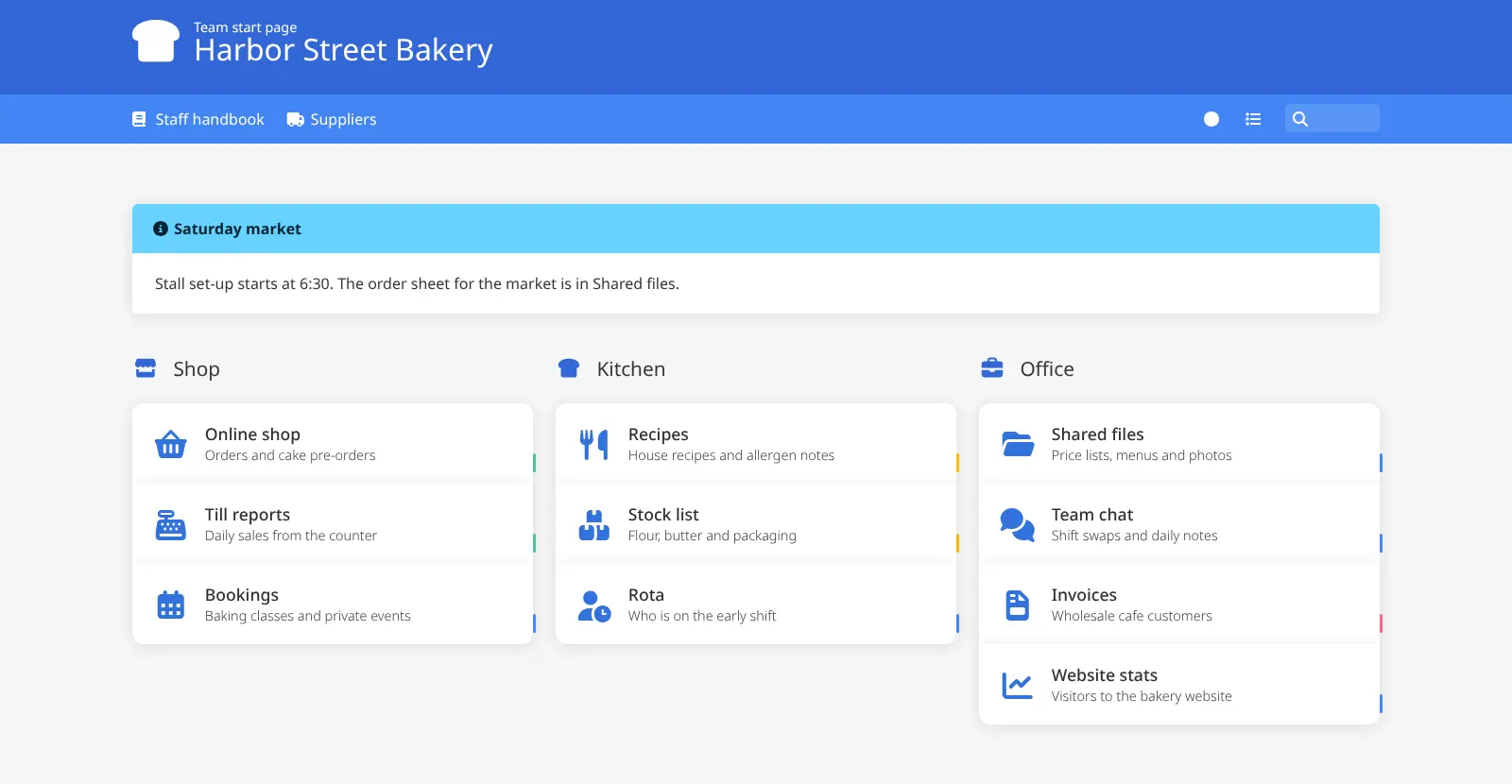
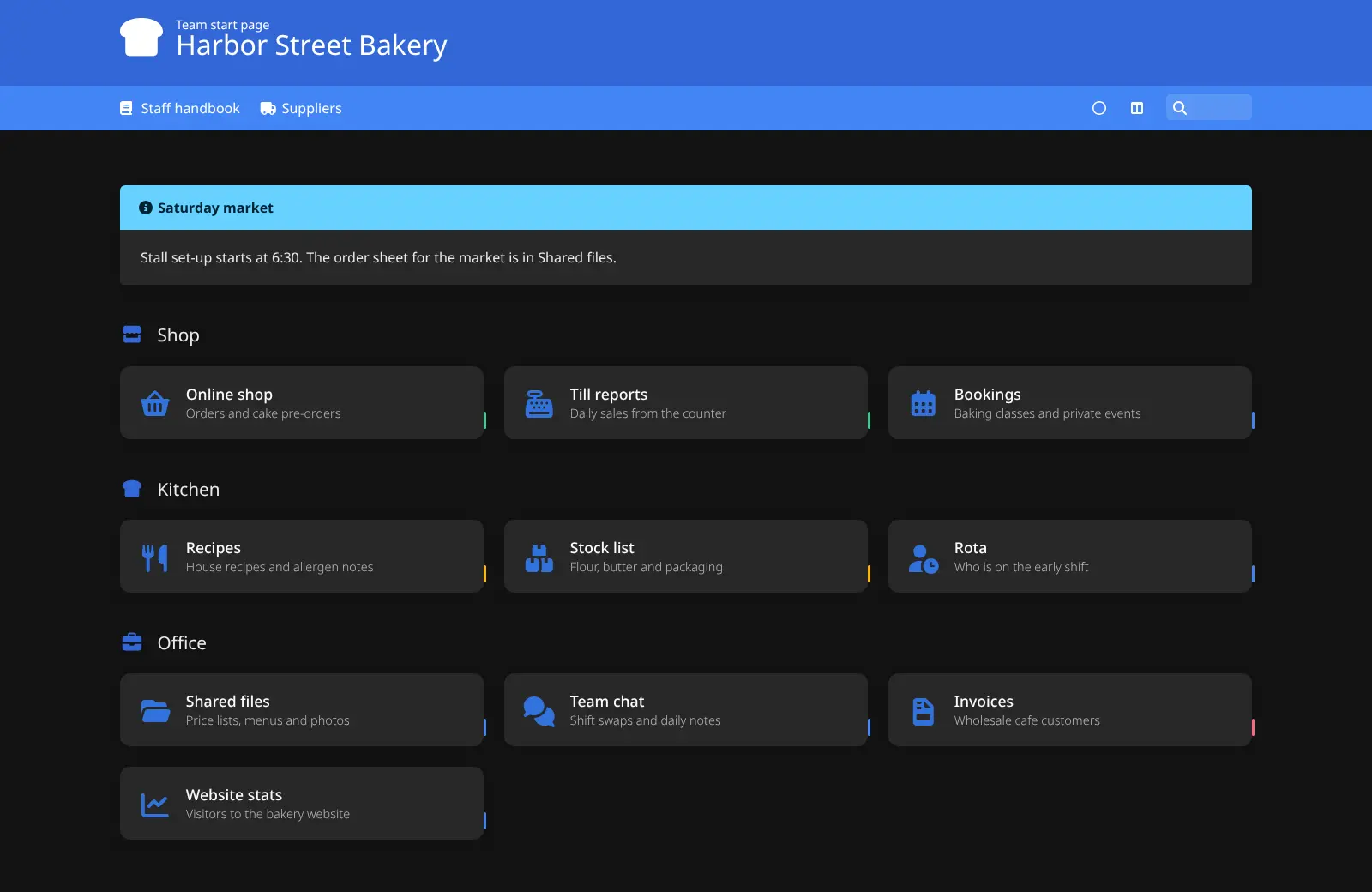
The page is light and fast. Press / to search it, switch between light and dark mode, and post a notice banner at the top. For many self-hosted apps, such as Uptime Kuma, Immich or Nextcloud, a smart card can show whether the app is up. A bakery, for example, could give its staff one page with the online shop, the till reports, the recipes folder, the rota and the team chat, plus a notice about Saturday's market stall.
Homer has no editor in the browser and no sign-in: you change it by editing one short settings file, and anyone with the address can see the page. That keeps it almost free of upkeep, but it suits a page of links more than private information. It works in any browser and can be pinned to a phone's home screen or set as the new tab page.
Cloudgate installs Homer on your server with a secure web address and an example page to start from.
What you can do with Homer
- Put every app on one page Group links to your tools into sections, each with an icon, a short description and a coloured tag.
- Find a link fast Press / and start typing to search the page, then press Enter to open the first match.
- Post a notice for everyone Show a banner at the top of the page, such as this week's opening hours or a reminder for the team.
- See if your apps are up Smart cards show live status for many self-hosted apps, such as Uptime Kuma, Healthchecks, Immich and Nextcloud.
- Make it look like yours Choose light or dark mode, columns or rows, your own colours, logo and background.
- Open it like an app Add Homer to your phone or computer's home screen, or set it as your browser's new tab page.
Replaces start.me
Homer does the same job as start.me. Here is what changes when you switch.
- One shared page for the whole team, at your own web address
- No ads, no account to create and no subscription
- Nothing to maintain once it is set up; it is a single light page
- Live status for the self-hosted apps you already run
- You change the page by editing a settings file, not by dragging links in the browser
- Everyone sees the same page; there are no personal pages or sign-in
- No browser extension, and your start.me bookmarks do not move across
- No RSS feeds, notes or to-do widgets
What happens when you click Deploy?
You do not need a server or any technical knowledge. Four steps, and Homer is running at its own web address.
- Step 1 Click Deploy and create your account
Deploy takes you to Cloudgate. Create an account, or log in if you have one. Homer itself is free.
- Step 2 Choose a server
No server? Get one from Cloudgate: pick a size and a country, and Cloudgate gets it ready. Already have one? Connect it instead.
- Step 3 Cloudgate sets up Homer
It prepares the server, makes the passwords the app needs and starts it. There is nothing to install and nothing to write down.
- Step 4 Open your app and sign in
Your app gets a free web address to start, without https. Add your own domain, like app.yourshop.com, and Cloudgate secures it with https for you.
New to Cloudgate? See what Cloudgate is
Run Cloudgate yourself? Deploy from your own console
In your Cloudgate console, open Templates and choose Homer.
Questions
Is Homer free?
Yes, Homer is free and open source under the Apache-2.0 licence. There is no paid edition, so you pay only for the small server it runs on.
Is Homer a good alternative to start.me?
Yes, if what you need is one shared page of links to your team's tools at your own web address. Homer has no personal pages, browser extension or RSS widgets like start.me, and you change it by editing a settings file rather than in the browser.
Does Homer have a login or password?
No, Homer has no sign-in. Anyone who has its web address can see the page and its settings file, so keep passwords and private notes out of it, and protect the address if the links themselves are private.
How do I change what Homer shows?
You edit one settings file that lists the page title, the sections and each link with its name, icon and address. Homer starts with an example page, so you can copy its layout and swap in your own links.
Can I import my bookmarks from start.me or my browser?
No, Homer has no import. You type each link into its settings file once, with its name, icon and web address.
Can Homer show whether my apps are working?
Yes, for many self-hosted apps, including Uptime Kuma, Healthchecks, Immich, Nextcloud, Vaultwarden and Home Assistant. These smart cards only work when the app allows Homer's page to read its status; ordinary link cards always work.
What server size do I need for Homer?
The smallest server is enough. Homer is a single light web page with no database, so Cloudgate sets it up on the smallest server size.
Do I need technical skills to run Homer?
No. Click Deploy, create your Cloudgate account and choose a server, and Cloudgate sets up Homer and gives it a web address. You use it in your browser like any other online tool.
Do I need my own server for Homer?
No. When you deploy Homer, hosted Cloudgate can provide a server. If you already rent one, you can connect it instead.
Related apps
A self-hosted start page for all your apps, with live status dots.

A self-hosted start page with every web app one click away.

Your team's start page: every app in one place, and whether it's up.

A self-hosted start page and dashboard for every app you run.