
Heimdall
A self-hosted start page with every web app one click away.
No server needed to start: Cloudgate can provide one. What happens when you click Deploy
What is Heimdall?
Heimdall is a self-hosted start page that puts all your team's web apps and links on one tidy dashboard, in place of start.me or messy bookmarks.
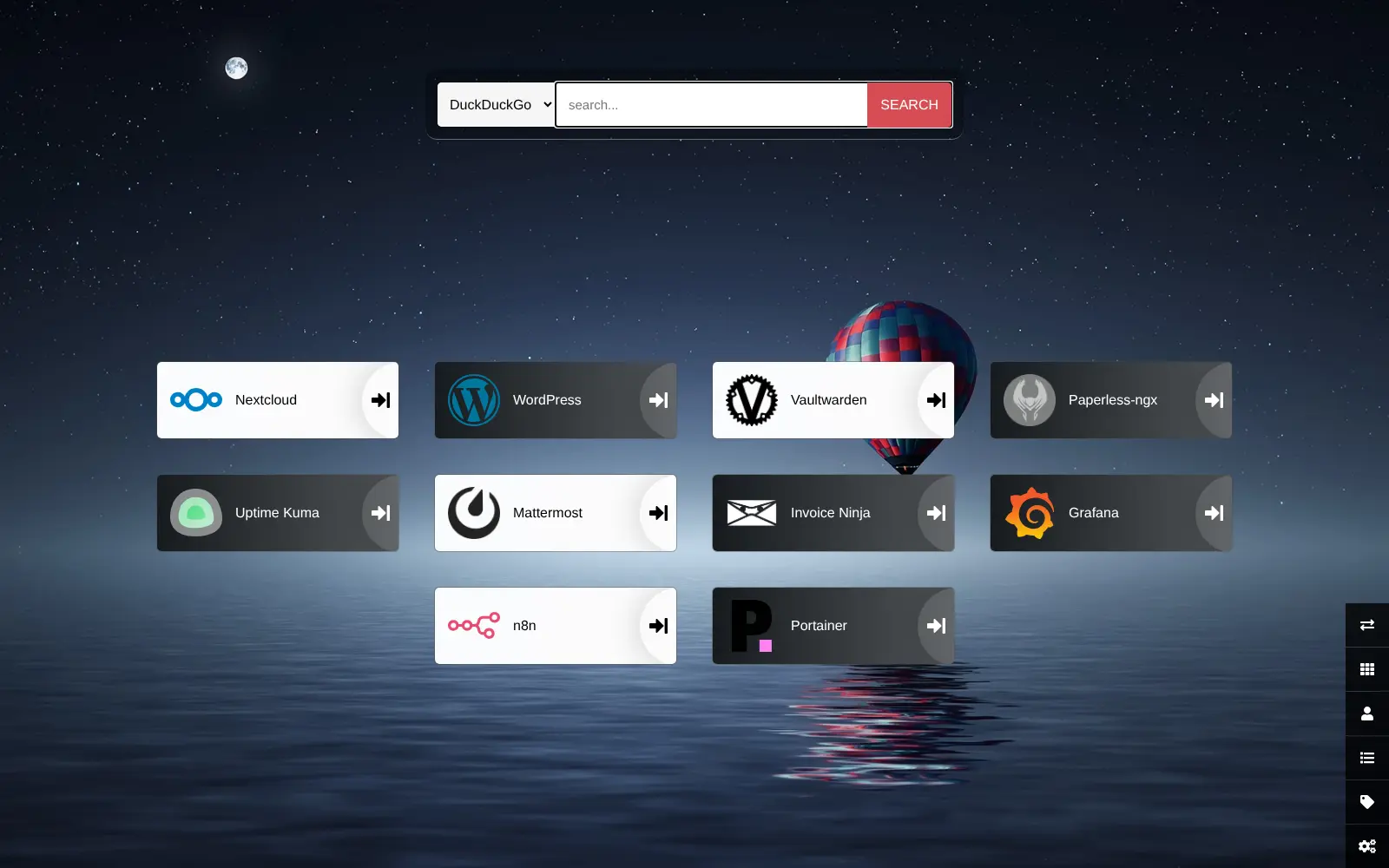
Heimdall is a free, open-source, self-hosted start page that puts every web app your team uses on one tidy dashboard, in place of a paid start page such as start.me or a long list of bookmarks. Each app gets a tile with its name, icon and colour, and one click opens it. A search bar on the same page means it works well as everyone's browser home page.
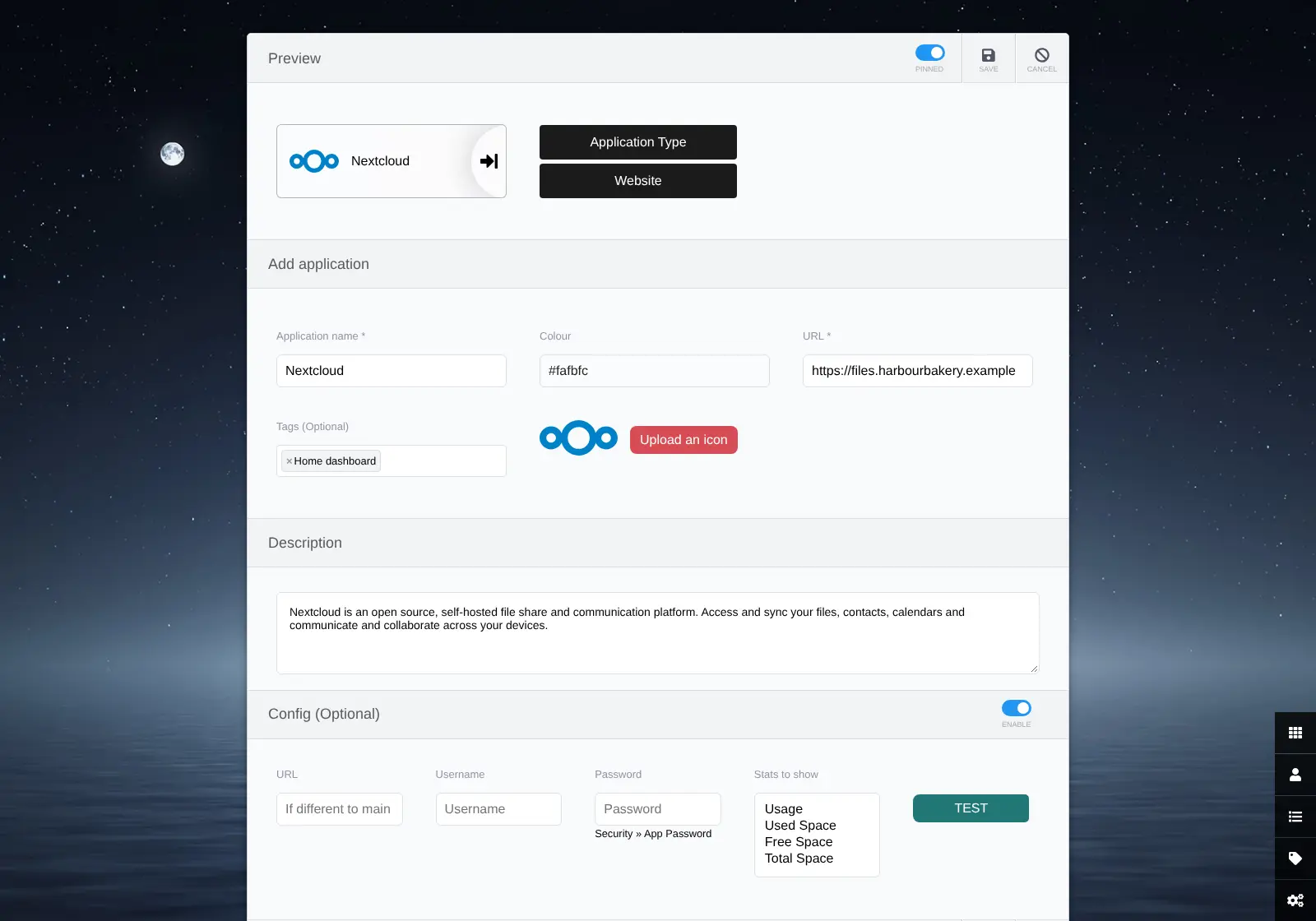
Adding a tile takes seconds: start typing the name of a well-known app and Heimdall fills in its icon and colour, and for some apps it can show a few live figures on the tile. A bakery that runs its files, website, passwords, invoices and team chat on different web addresses could give every member of staff one page to start from, with tiles grouped under tags such as Office and Shop, instead of a different set of bookmarks on each computer.
Heimdall is made by the linuxserver.io group and is set up entirely in the browser. It works on phones through the browser; there is no separate app. Cloudgate installs Heimdall on your server with a secure web address. It opens without a password, so set one for the admin user before you share the address.
What you can do with Heimdall
- One page for all your apps Add a tile for every web app or website you use, with its name, colour, icon and link.
- Icons filled in for you Start typing the name of a well-known app such as Nextcloud or WordPress and Heimdall adds its icon and colour.
- Live numbers on some tiles For apps with an enhanced tile, enter the app's login details to show a few live figures, such as storage used.
- Search from the same page A search bar sends searches to Google, Bing, DuckDuckGo and others, or finds one of your own tiles by name.
- Group tiles with tags Sort tiles into tags such as Office or Shop, shown as folders or as sections of the page.
- A dashboard for each person Add users with their own tiles and password, and choose whether a dashboard can be viewed without signing in.
- Make it yours Pick your own background picture and set the interface in one of 22 languages.
Replaces start.me
Heimdall does the same job as start.me. Here is what changes when you switch.
- Free and open source, with no paid plan
- Your list of apps and links stays on your own server
- One home page the whole team can share
- Tiles that know many self-hosted apps and fill in their icons
- Only tiles and a search bar, with no notes, news feeds or calendar widgets
- No browser extension or phone app; you open it in the browser
- Your start.me pages and bookmarks do not import, so you add tiles by hand
What happens when you click Deploy?
You do not need a server or any technical knowledge. Four steps, and Heimdall is running at its own web address.
- Step 1 Click Deploy and create your account
Deploy takes you to Cloudgate. Create an account, or log in if you have one. Heimdall itself is free.
- Step 2 Choose a server
No server? Get one from Cloudgate: pick a size and a country, and Cloudgate gets it ready. Already have one? Connect it instead.
- Step 3 Cloudgate sets up Heimdall
It prepares the server, makes the passwords the app needs and starts it. There is nothing to install and nothing to write down.
- Step 4 Open your app and sign in
Your app gets a free web address to start, without https. Add your own domain, like app.yourshop.com, and Cloudgate secures it with https for you.
New to Cloudgate? See what Cloudgate is
Run Cloudgate yourself? Deploy from your own console
In your Cloudgate console, open Templates and choose Heimdall.
Questions
Is Heimdall free?
Yes, Heimdall is free and open source under the MIT licence, and there is no paid edition. You pay only for the server it runs on.
Is Heimdall a good alternative to start.me?
Yes, if you mainly want one page of links to the apps and sites you use every day. Heimdall keeps that page on your own server and fills in icons for many apps, but it has no notes, news feed or calendar widgets.
How do I sign in to Heimdall the first time?
You don't need to, because Heimdall opens straight onto the dashboard as a built-in admin user with no password. Anyone with the address can change it, so open Settings, then Users, edit admin and set a password before you share the address.
Can Heimdall show live information from my apps?
Yes, Heimdall can, for apps that have an enhanced tile, such as Nextcloud. You enter the app's login details on the tile and it shows a few live figures, such as storage used; other tiles are plain links.
Can I import my start.me pages or browser bookmarks into Heimdall?
No, Heimdall only imports its own export file. You add each app or link as a tile, which takes a few seconds each because known apps fill in their own icon.
Heimdall or Homepage, which should I choose?
Choose Heimdall if you want to set everything up by clicking in the browser and mostly need links. Homepage is set up by editing settings files and shows more live status from your apps.
What server size do I need for Heimdall?
The smallest server is enough, because Heimdall is one light app that stores its tiles in a small built-in database. It can share a server with other apps.
Do I need technical skills to run Heimdall?
No. Click Deploy, create your Cloudgate account and choose a server, and Cloudgate sets up Heimdall and gives it a web address. You use it in your browser like any other online tool.
Do I need my own server for Heimdall?
No. When you deploy Heimdall, hosted Cloudgate can provide a server. If you already rent one, you can connect it instead.
Related apps

A self-hosted start page for all your apps, with live status dots.

A self-hosted start page with links to every app your team uses.

Your team's start page: every app in one place, and whether it's up.

A self-hosted start page and dashboard for every app you run.