
Group-Office
Shared email, calendars and contacts for your office.
No server needed to start: Cloudgate can provide one. What happens when you click Deploy




What is Group-Office?
Self-hosted Group-Office gives your team shared email, calendars, contacts, tasks and files in one web app, synced to Outlook and phones.
Self-hosted Group-Office is open-source groupware that gives a small team shared email, calendars, contacts, tasks, notes and files in one web app, as an alternative to the Outlook side of Microsoft 365, Zoho Workplace or Google Workspace. It is made by Intermesh, a Dutch company, and the free Community edition has no fee per user.
Everything in Group-Office can be linked together, so an email, a file or a meeting can be saved to a customer's contact and found later by anyone on the team. A small accounting office, for example, could share one address book of clients, see every colleague's appointments in one calendar, and keep each client's emails and documents linked to their name.
Group-Office works with the mailboxes you already have: it reads and sends mail through your current mail provider rather than hosting addresses itself. Calendars, contacts, tasks and email sync to iPhone and Android phones and to Outlook through Microsoft Exchange sync, and files open on your computer like a network drive. It can connect to ONLYOFFICE or Collabora Online for editing documents in the browser. Projects, time tracking, support tickets and invoicing are paid add-ons from Intermesh.
Cloudgate installs Group-Office on your server with a secure web address and creates the admin account for you.
What you can do with Group-Office
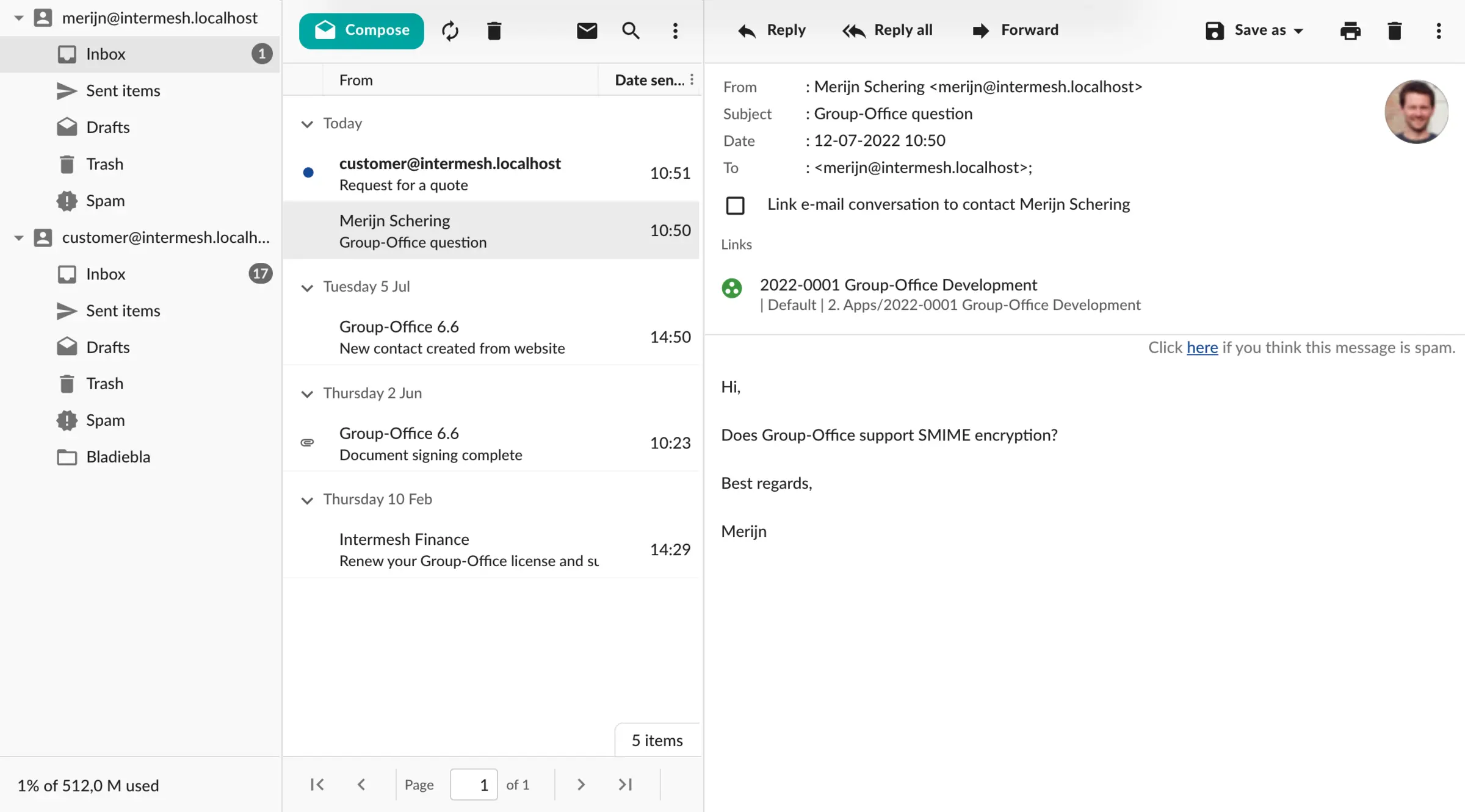
- Read your email in the browser Webmail for the mailboxes you already have, with folders, several accounts per person and sent mail kept on your mail server.
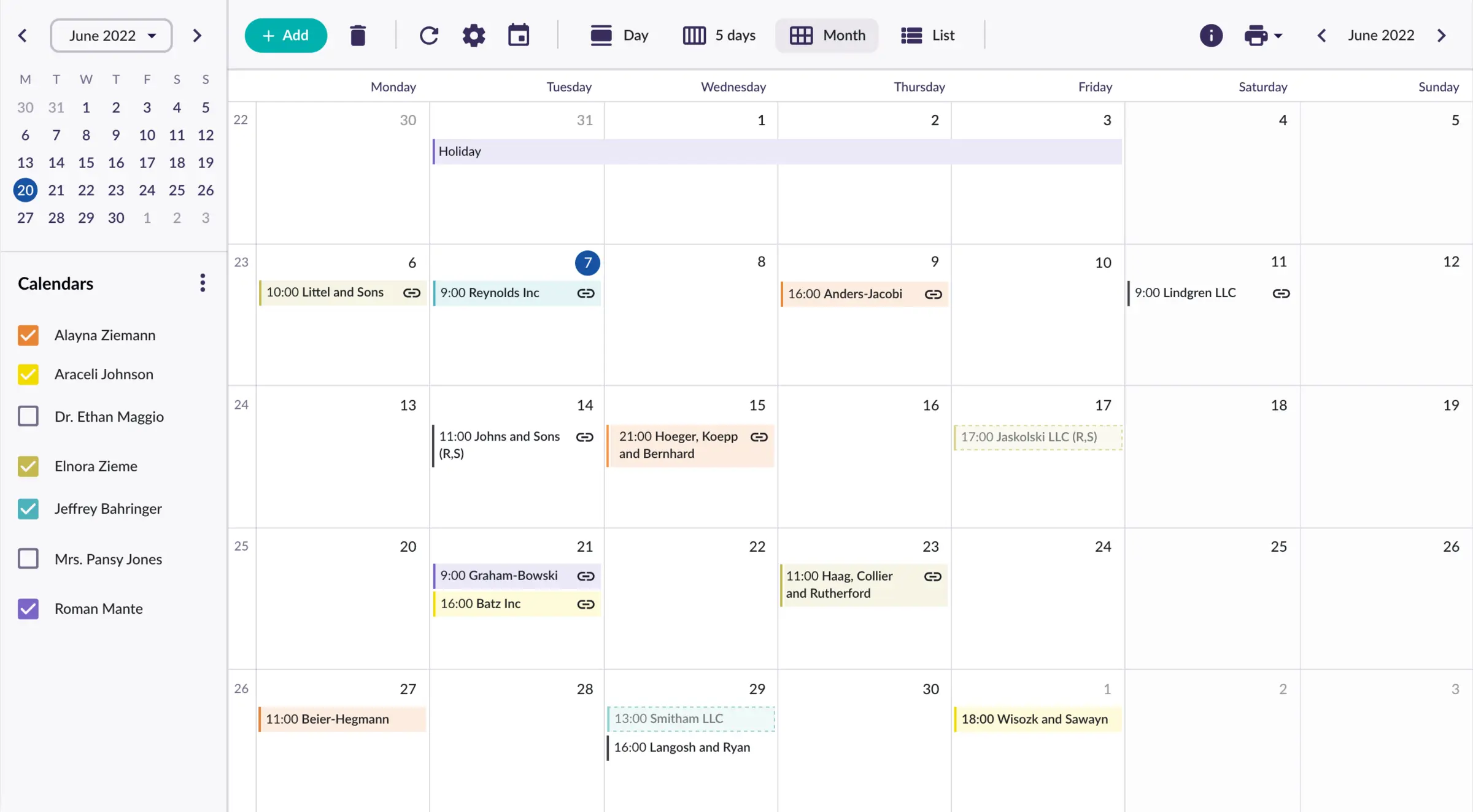
- Share calendars with your team Each person has a calendar, and you can show several side by side to plan meetings and see who is free.
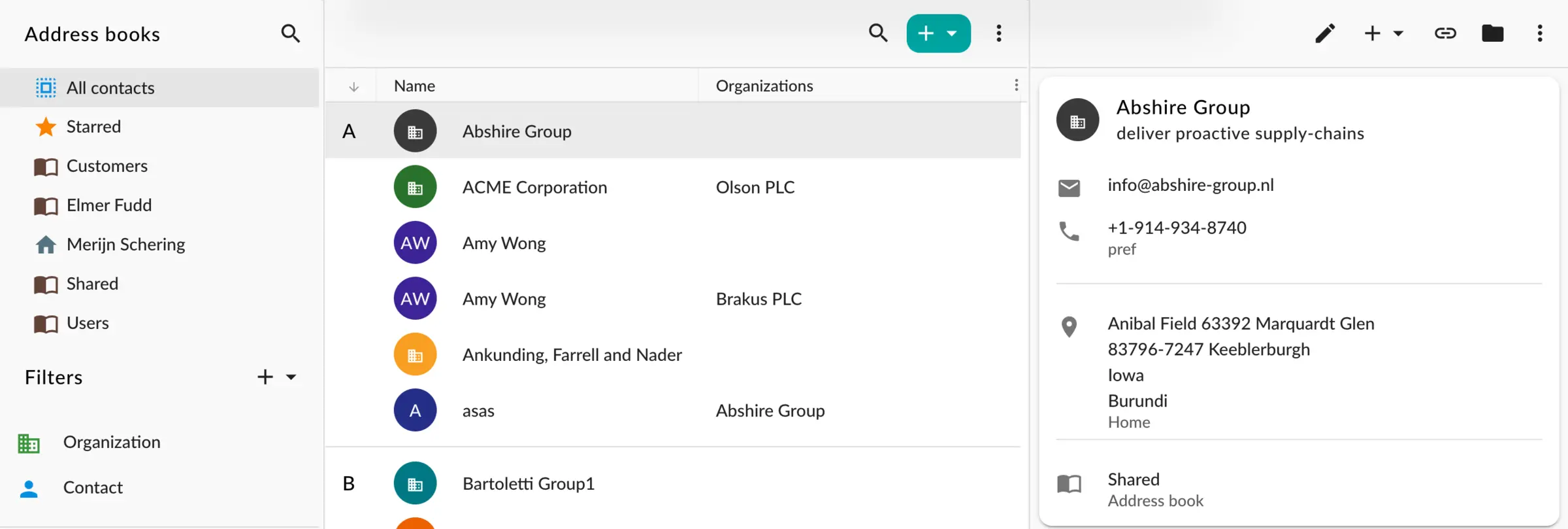
- Keep one shared address book Store customers and suppliers as people and organisations, in address books you share with the whole team or a few colleagues.
- Link everything to a contact Save an email, file, note or appointment to a customer's contact so the whole history sits in one place.
- Track tasks and notes Shared task lists and notebooks for the work and ideas the team needs to keep track of.
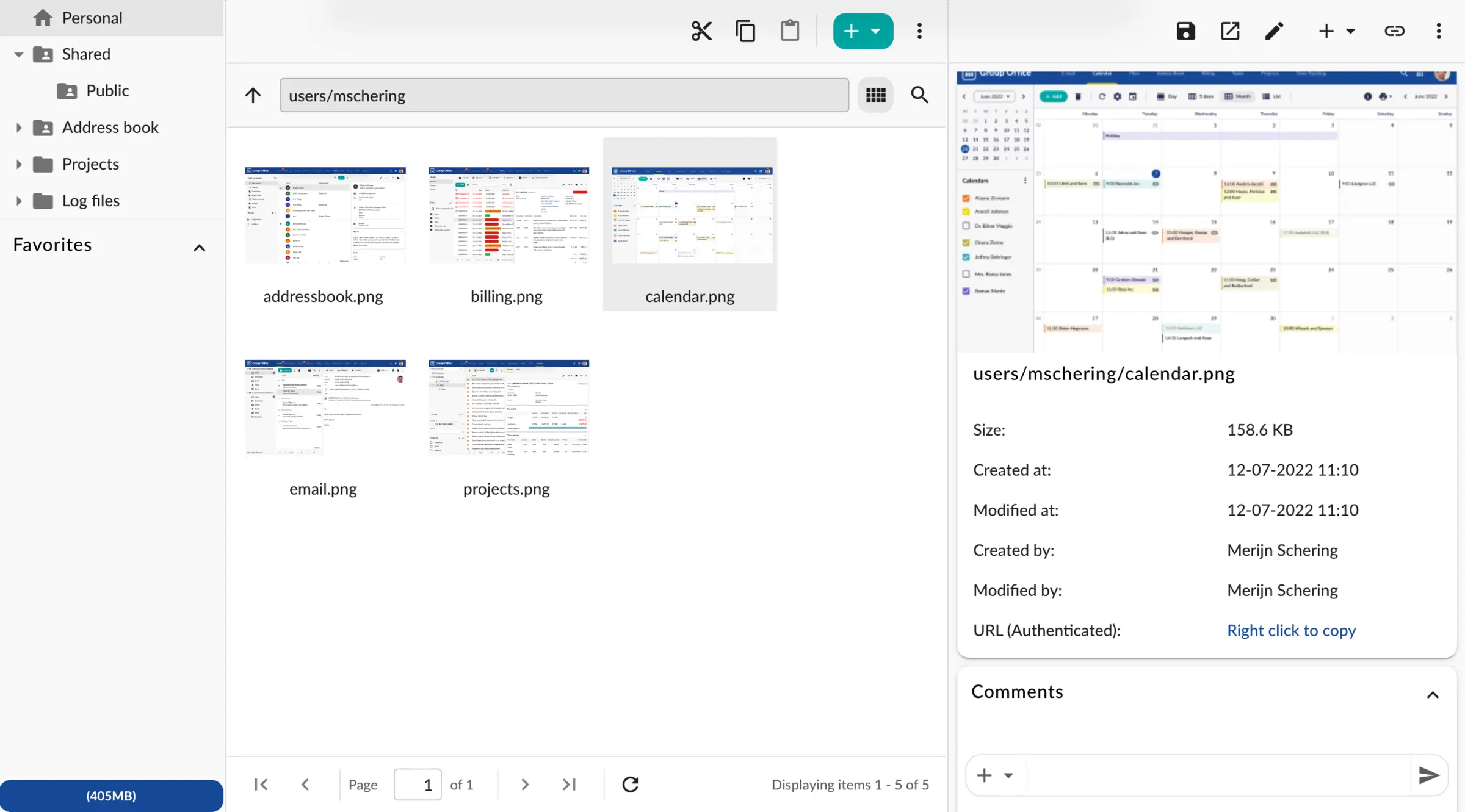
- Store and share files Shared folders in the browser that you can also open on your computer like a network drive.
- Sync with phones and Outlook Calendars, contacts, tasks and email appear in the phone's own apps and in Outlook through Microsoft Exchange sync.
Replaces Microsoft Exchange, Microsoft 365, Zoho Workplace and Google Workspace
Group-Office does the same job as Microsoft Exchange, Microsoft 365, Zoho Workplace and Google Workspace. Here is what changes when you switch.
- The free Community edition has no fee per user and no user limit
- Your emails, calendars and customer contacts stay on your own server
- Phones and Outlook keep working, through the same Exchange sync they already use
- It does not host mailboxes, so you keep a mail provider for your addresses
- No Word or Excel editors, chat or video calls of its own; those need separate apps it connects to
- Projects, time tracking, support tickets, kanban boards, newsletters and invoicing are paid add-ons
- There is no Group-Office phone app; phones use their built-in mail, calendar and contacts apps
What happens when you click Deploy?
You do not need a server or any technical knowledge. Four steps, and Group-Office is running at its own web address.
- Step 1 Click Deploy and create your account
Deploy takes you to Cloudgate. Create an account, or log in if you have one. Group-Office itself is free.
- Step 2 Choose a server
No server? Get one from Cloudgate: pick a size and a country, and Cloudgate gets it ready. Already have one? Connect it instead.
- Step 3 Cloudgate sets up Group-Office
It prepares the server, makes the passwords the app needs and starts it. There is nothing to install and nothing to write down.
- Step 4 Open your app and sign in
Your app gets a free web address to start, without https. Add your own domain, like app.yourshop.com, and Cloudgate secures it with https for you.
New to Cloudgate? See what Cloudgate is
Run Cloudgate yourself? Deploy from your own console
In your Cloudgate console, open Templates and choose Group-Office.
Questions
Is Group-Office free?
Yes, the Group-Office Community edition is free and open source under the AGPL-3.0 licence, with no user limit. It covers email, calendars, contacts, tasks, notes and files. Projects, time tracking, support tickets, kanban boards, newsletters and invoicing are in Intermesh's paid Professional edition and add-ons.
Is Group-Office a good alternative to Microsoft 365?
Yes, for the Outlook side of Microsoft 365. Group-Office gives your team shared email, calendars, contacts and tasks in the browser and syncs them to Outlook and phones. It has no Word, Excel or Teams of its own and does not host mailboxes, so you keep a mail provider and add other apps for documents and chat.
Does Group-Office include email hosting?
No, Group-Office is an email app, not a mail server. You connect the mailboxes you already have with any provider that offers IMAP, and Group-Office reads and sends mail through them.
Can I use Group-Office on my phone and in Outlook?
Yes, Group-Office syncs with phones and Outlook through Microsoft Exchange sync (ActiveSync). On an iPhone or Android phone you add an Exchange account with your Group-Office sign-in, and your calendar, contacts and email appear in the phone's own apps; Outlook on Windows connects the same way. There is no separate Group-Office app.
Can I move my contacts and calendars from Microsoft 365 or Google?
Yes, Group-Office imports contacts as vCard files and calendars as iCalendar (.ics) files. Export them from Microsoft 365 or Google and import them into Group-Office's address book and calendar. Your email stays in your mailbox, or is copied to a new one with a mail copying tool such as imapsync, and files can be uploaded in the browser.
How do I sign in to Group-Office the first time?
Cloudgate runs Group-Office's installer for you during setup. Sign in with the username admin and the admin password Cloudgate created, shown in Cloudgate, then add your colleagues as users and connect each person's mailbox.
Do I need technical skills to run Group-Office?
No. Click Deploy, create your Cloudgate account and choose a server, and Cloudgate sets up Group-Office and gives it a web address. You use it in your browser like any other online tool.
Do I need my own server for Group-Office?
No. When you deploy Group-Office, hosted Cloudgate can provide a server. If you already rent one, you can connect it instead.
Related apps

Groupware for shared calendars, contacts and tasks.

Online office for Word, Excel and PowerPoint files.

Edit Word, Excel and PowerPoint files together in the browser.

Calendar and contacts sync, managed from one admin page.