
Damselfly
A self-hosted photo manager for fast search and keyword tagging.
No server needed to start: Cloudgate can provide one. What happens when you click Deploy



What is Damselfly?
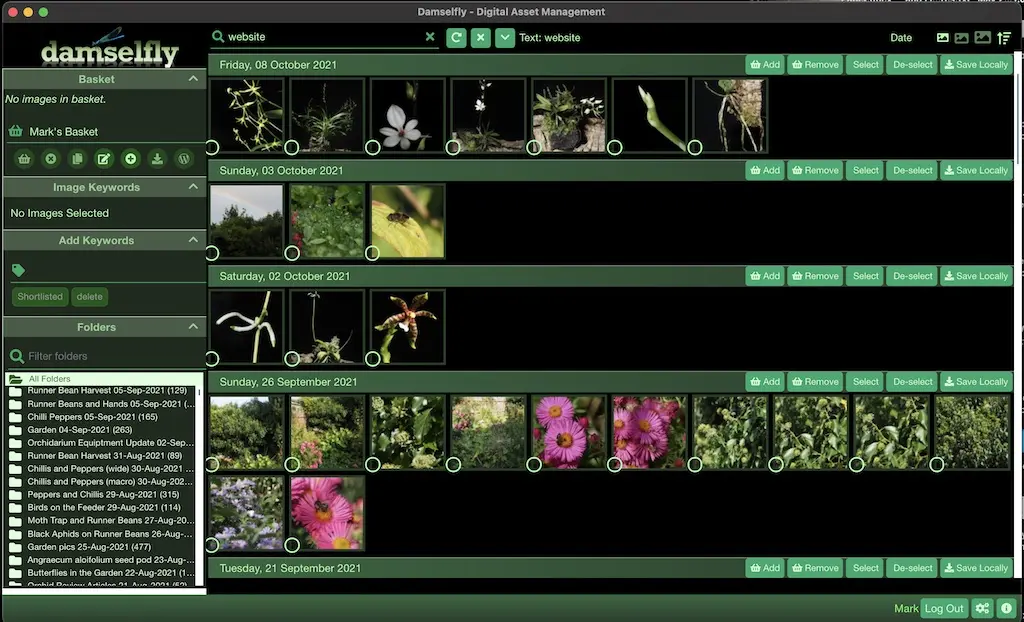
Damselfly is a self-hosted photo manager for large photo folders, with fast search, keyword tagging written into the files, and local face recognition.
Damselfly is a free, open-source, self-hosted photo manager for large folder-based photo collections: it indexes your folders, lets you search and keyword-tag thousands of photos quickly, and finds faces and objects with AI on your own server, a subscription-free alternative to keeping your catalogue in Adobe Lightroom.
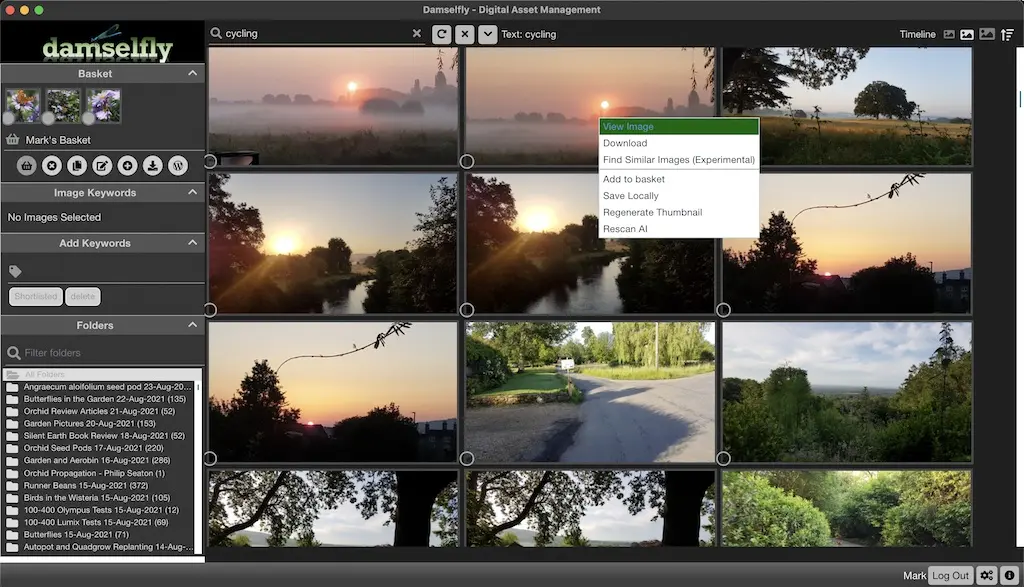
Its layout will feel familiar to anyone who used Google Picasa. Keywords are written into the photo files, so they stay with the photos if you move them. A basket collects photos from any search for downloading, exporting with a watermark or sending to WordPress. A wedding photographer, for example, could tag a season of shoots by couple and venue, then find every photo from one venue with a single search.
Damselfly reads JPG, HEIC, RAW and other formats and shows photos with location data on a map. It does not edit photos, and there is no phone app or upload button: you copy your photo folders onto the server, and Damselfly picks them up. A desktop app can copy a basket to your computer for editing.
Cloudgate installs Damselfly on a server Cloudgate provides or one you connect and gives it a secure web address behind a password prompt. Sign in with admin and the password Cloudgate shows, register your Damselfly account, then copy your photos to the server.
What you can do with Damselfly
- Your folders, indexed Damselfly scans your photo folders, makes thumbnails and keeps up with new photos on its own.
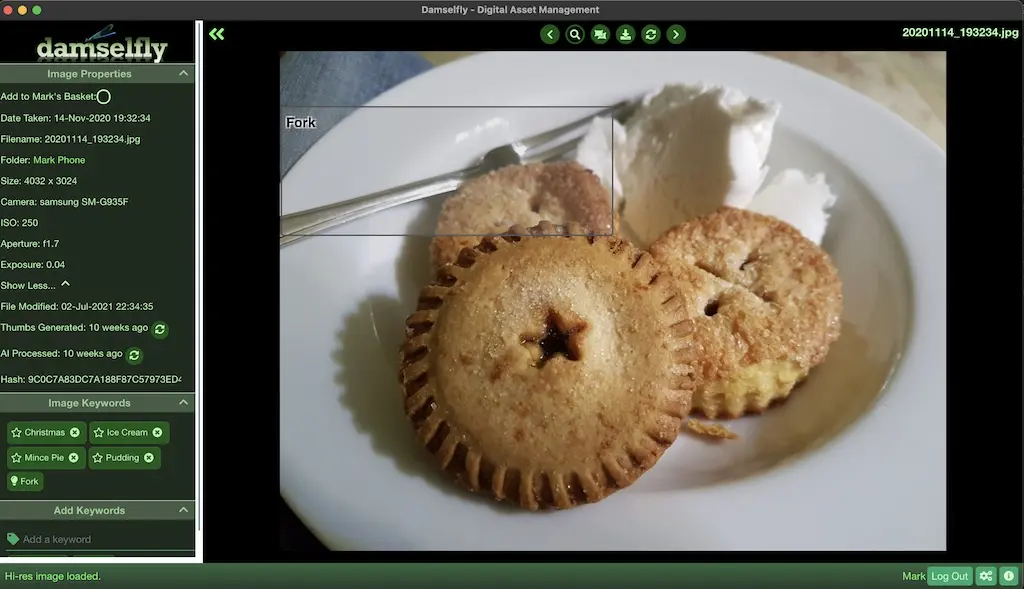
- Tag photos quickly Add keywords to many photos at once, and Damselfly writes them into the image files themselves, without re-compressing JPEGs.
- Find any photo Search by keyword, date, person, object, camera, lens, file size or orientation, or find photos that look alike.
- Faces and objects found for you Built-in AI spots faces and objects on your own server; name a person once and Damselfly finds them in other photos.
- Collect, export and share Gather photos in a basket, then download them, export them with a watermark, or send them to WordPress.
- See where photos were taken Photos with location data appear on a map.
- Accounts for the family or team Give people their own login as admin, user or read-only, so only some can change tags.
Replaces Adobe Lightroom
Damselfly does the same job as Adobe Lightroom. Here is what changes when you switch.
- No subscription, and your catalogue lives on your own server
- Keywords are saved in the photo files, so they travel with them
- Faces and objects are recognised on your server, not in a cloud
- Damselfly organises photos but does not edit them
- Lightroom catalogues can't be imported, though keywords already saved in your files are read
- There is no upload button or phone app; photos are copied onto the server
- It is built and kept up by one developer
What happens when you click Deploy?
You do not need a server or any technical knowledge. Four steps, and Damselfly is running at its own web address.
- Step 1 Click Deploy and create your account
Deploy takes you to Cloudgate. Create an account, or log in if you have one. Damselfly itself is free.
- Step 2 Choose a server
No server? Get one from Cloudgate: pick a size and a country, and Cloudgate gets it ready. Already have one? Connect it instead.
- Step 3 Cloudgate sets up Damselfly
It prepares the server, makes the passwords the app needs and starts it. There is nothing to install and nothing to write down.
- Step 4 Open your app and sign in
Your app gets a free web address to start, without https. Add your own domain, like app.yourshop.com, and Cloudgate secures it with https for you.
New to Cloudgate? See what Cloudgate is
Run Cloudgate yourself? Deploy from your own console
In your Cloudgate console, open Templates and choose Damselfly.
Questions
Is Damselfly free?
Yes. Damselfly is free, open-source software under the GPL-3.0 licence, with no paid edition. You pay only for your server and the disk space your photos need.
Is Damselfly a good alternative to Adobe Lightroom?
Yes, for cataloguing, searching and keyword-tagging a large photo library without a subscription. It does not edit photos, so keep an editor for that; Damselfly can hand a selection of photos to your computer for editing.
How do I sign in to Damselfly the first time?
First, sign in to the password prompt with the username admin and the password Cloudgate shows for this app. Then click Log In in Damselfly's status bar and register an account; the first account becomes Damselfly's admin.
How do I add my photos to Damselfly?
Copy your photo folders onto the server's pictures folder, for example with a sync or file transfer tool. Damselfly has no upload button; it watches that folder and adds new photos on its own.
Can I move my Lightroom catalogue to Damselfly?
Not the catalogue itself. Damselfly reads keywords already saved in your image files, so save your metadata to the files in Lightroom first, then copy the photo folders onto the server.
Does Damselfly recognise faces?
Yes. Damselfly finds faces and objects in your photos with AI that runs on your own server, offline. Name a person once and it can find them in other photos.
Which photo formats does Damselfly support?
Damselfly reads JPG, PNG, HEIC, TIFF, WebP and BMP files, and RAW files in DNG, CR2, ORF and NEF formats.
What server size do I need for Damselfly?
Cloudgate asks for a medium server with 2 GB of memory. Damselfly analyses every photo while it first indexes them, so a very large library needs more memory and processing power, and a disk big enough for your photos.
Do I need technical skills to run Damselfly?
No. Click Deploy, create your Cloudgate account and choose a server, and Cloudgate sets up Damselfly and gives it a web address. You use it in your browser like any other online tool.
Do I need my own server for Damselfly?
No. When you deploy Damselfly, hosted Cloudgate can provide a server. If you already rent one, you can connect it instead.
Related apps

A self-hosted photo library that finds any picture by place or face.

Image hosting to upload pictures and share them by link.

Upload files and screenshots and share them by link from your server.

A two-panel web file manager for your server, in any browser.