
Cloud Commander
A two-panel web file manager for your server, in any browser.
No server needed to start: Cloudgate can provide one. What happens when you click Deploy
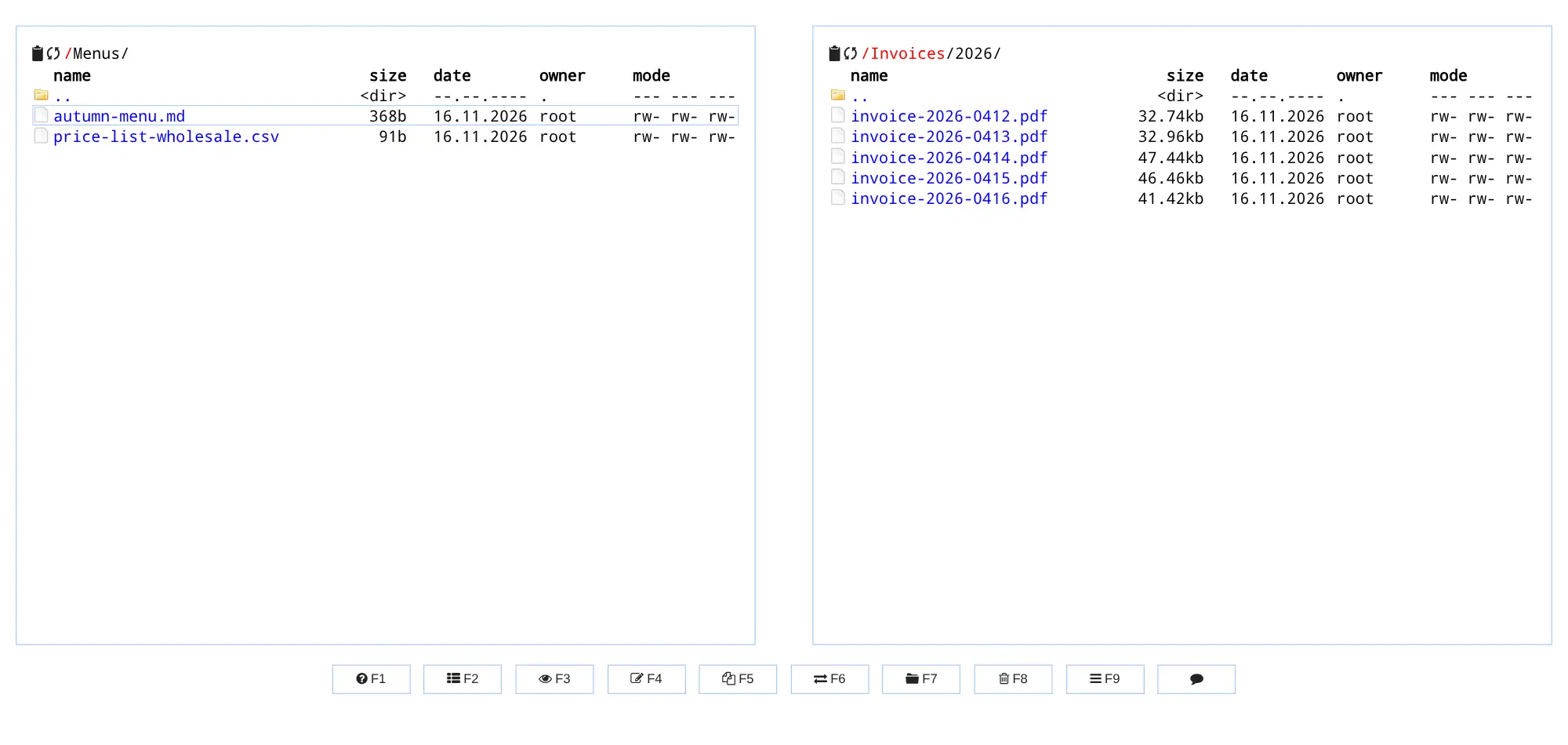
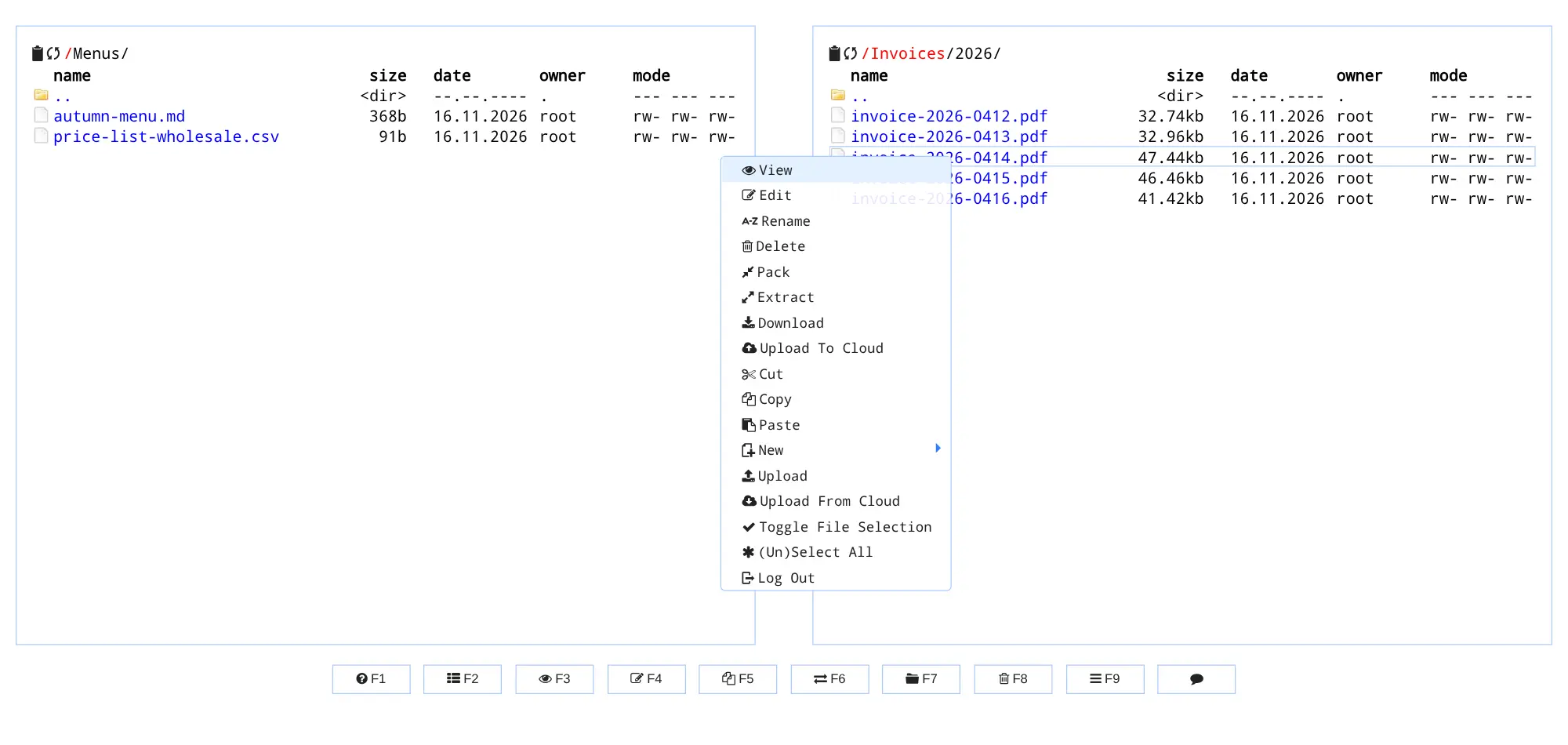
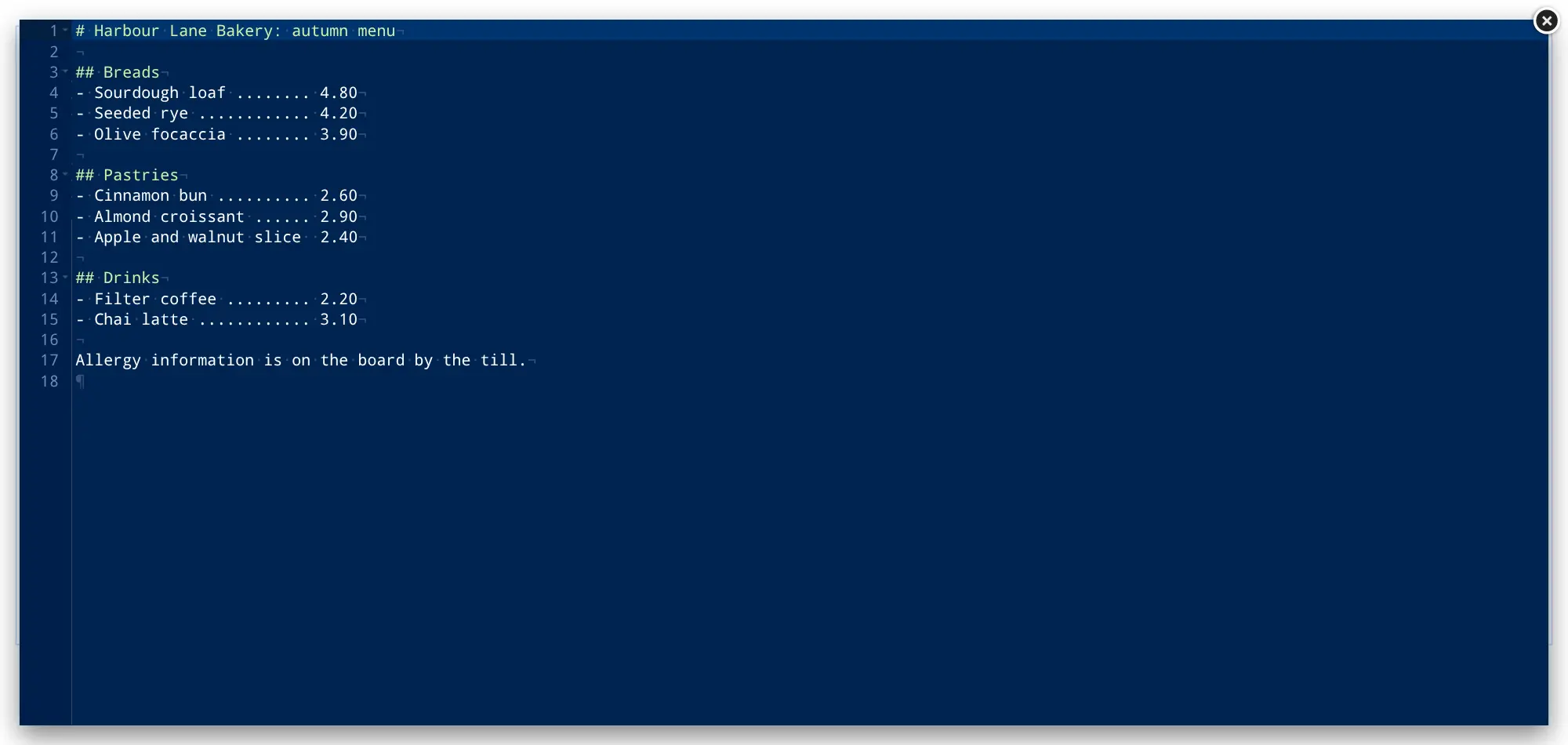
What is Cloud Commander?
Cloud Commander is a self-hosted, two-panel web file manager: upload, copy, move, view, edit and zip your server's files from any browser.
Cloud Commander is a free, open-source, self-hosted web file manager that brings the two-panel, Total Commander way of working to your browser. Two folders sit side by side, and you copy, move, rename, view, edit, zip and unzip files with a click, a drag or a function key.
It suits a person or small team that keeps files on a server and wants to reach them from anywhere, without remote desktop or a file transfer program. A bakery, for example, can open its Menus folder in one panel and its website folder in the other, fix a price in the autumn menu in the built-in editor, copy the file across, and download last month's invoices as one zip.
Everyone signs in with one shared username and password; there are no separate accounts and no share links. It works in any modern browser, and on a phone it shows one panel at a time. For safety, this template switches off Cloud Commander's web console, terminal and settings dialog, so a signed-in visitor can manage files but cannot run commands on the server.
Cloudgate installs Cloud Commander on a server Cloudgate provides or one you connect, with its own storage folder, a password and a secure web address.
What you can do with Cloud Commander
- Work in two panels Open two folders side by side and copy or move files between them by dragging or with one key.
- Upload and download by dragging Drag files from your computer into a panel to upload them, or drag them out to download.
- View photos, video and documents Look at images and text files, and play audio and video, without downloading them first.
- Edit text files in the browser Change a price list, a web page or a note in the built-in editor, with line numbers and syntax colours.
- Zip and unzip Pack files into a zip or tar.gz archive, and extract zip, tar, gz and bz2 archives on the server.
- Rename many files at once Open a folder's file names in the editor, change them all, and save to rename them in one go.
- Keep your hands on the keyboard Every action has a shortcut, from F3 to view and F4 to edit to F5 to copy, as in classic file managers.
Replaces Total Commander
Cloud Commander does the same job as Total Commander. Here is what changes when you switch.
- It runs in a browser, so it works from any computer, tablet or phone
- No licence to buy for each computer
- Your files stay on your own server, behind a password
- It manages files on your server, not the files on your own computer
- One shared login; there are no separate accounts or per-folder rights
- No share links, no sync app, and fewer tools than Total Commander
- The web console and terminal are switched off in this template
What happens when you click Deploy?
You do not need a server or any technical knowledge. Four steps, and Cloud Commander is running at its own web address.
- Step 1 Click Deploy and create your account
Deploy takes you to Cloudgate. Create an account, or log in if you have one. Cloud Commander itself is free.
- Step 2 Choose a server
No server? Get one from Cloudgate: pick a size and a country, and Cloudgate gets it ready. Already have one? Connect it instead.
- Step 3 Cloudgate sets up Cloud Commander
It prepares the server, makes the passwords the app needs and starts it. There is nothing to install and nothing to write down.
- Step 4 Open your app and sign in
Your app gets a free web address to start, without https. Add your own domain, like app.yourshop.com, and Cloudgate secures it with https for you.
New to Cloudgate? See what Cloudgate is
Run Cloudgate yourself? Deploy from your own console
In your Cloudgate console, open Templates and choose Cloud Commander.
Questions
What is Cloud Commander?
Cloud Commander is a free, open-source web file manager with two panels, in the style of Total Commander. You use it in a browser to upload, download, copy, move, view, edit, zip and unzip the files on your server.
Is Cloud Commander free?
Yes, Cloud Commander is free and open source under the MIT licence, with no paid edition. You pay only for your server.
Is Cloud Commander a good alternative to Total Commander?
Yes, if you like Total Commander's two panels and function keys and want them in a browser. The difference is that Cloud Commander works on files kept on your server, not on your own computer's disk, and it has fewer plugins and tools.
How do I sign in to Cloud Commander the first time?
Open your Cloud Commander address and your browser asks for a username and password; enter admin and the password Cloudgate created, which is shown on the app's variables page. Cloud Commander reads that password each time it starts, so change it in Cloudgate rather than in the app.
Can I add colleagues or share files from Cloud Commander?
No, Cloud Commander has one shared login and no share links. If you need accounts for each person, folder rights or links for clients, a web file manager such as FileBrowser Quantum fits better.
Does Cloud Commander have a terminal or command console?
Not in this template. Cloud Commander has a web console and terminal, but this template switches them off, along with the settings dialog, because they would let anyone signed in run commands on the server. You get the file manager, viewer and editor.
Does Cloud Commander work on a phone?
Yes, the Cloud Commander web page adapts to the screen and shows one panel at a time on a phone or tablet. There is no phone app.
Do I need technical skills to run Cloud Commander?
No. Click Deploy, create your Cloudgate account and choose a server, and Cloudgate sets up Cloud Commander and gives it a web address. You use it in your browser like any other online tool.
Do I need my own server for Cloud Commander?
No. When you deploy Cloud Commander, hosted Cloudgate can provide a server. If you already rent one, you can connect it instead.
Can I move my data from Total Commander to Cloud Commander?
Most people export from Total Commander and import into Cloud Commander. The official guides at cloudcmd.io walk through it.
Related apps

Browse, preview and share your server's files from any web browser.

A self-hosted web file manager with a home folder for each person.

Image hosting to upload pictures and share them by link.

Upload files and screenshots and share them by link from your server.