
Tymeslot
Your own booking link, so clients pick a time without emails.
No server needed to start: Cloudgate can provide one. What happens when you click Deploy




What is Tymeslot?
Tymeslot is self-hosted meeting scheduling: share a booking link, sync your calendars, add video links and send reminders.
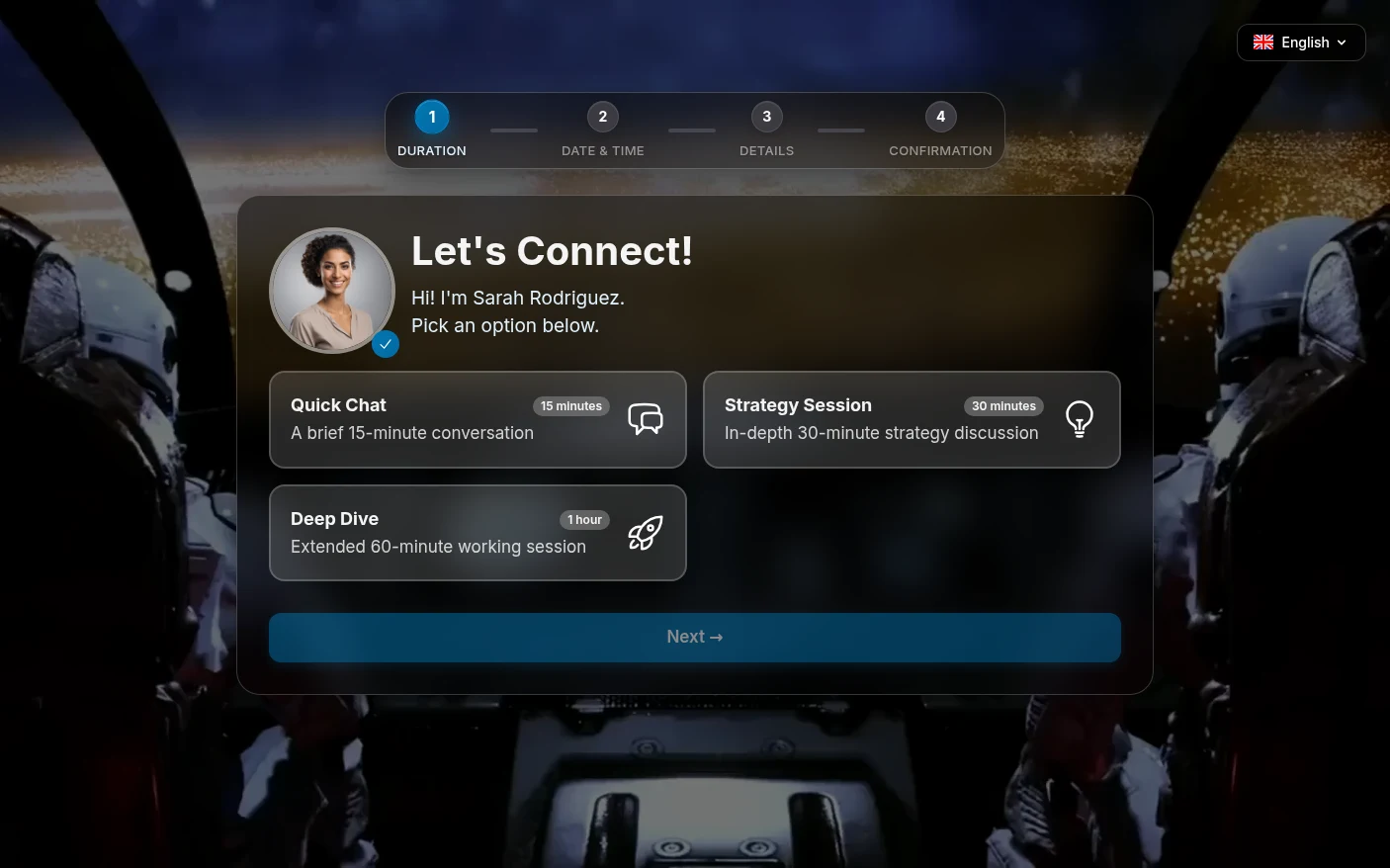
Tymeslot is self-hosted, open-source meeting scheduling software and a free alternative to Calendly: you share one booking link, and clients pick a time when you are really free, with no emails back and forth. Guests choose a meeting type and a slot in their own language and time zone, and the booking lands in your calendar with a video link attached.
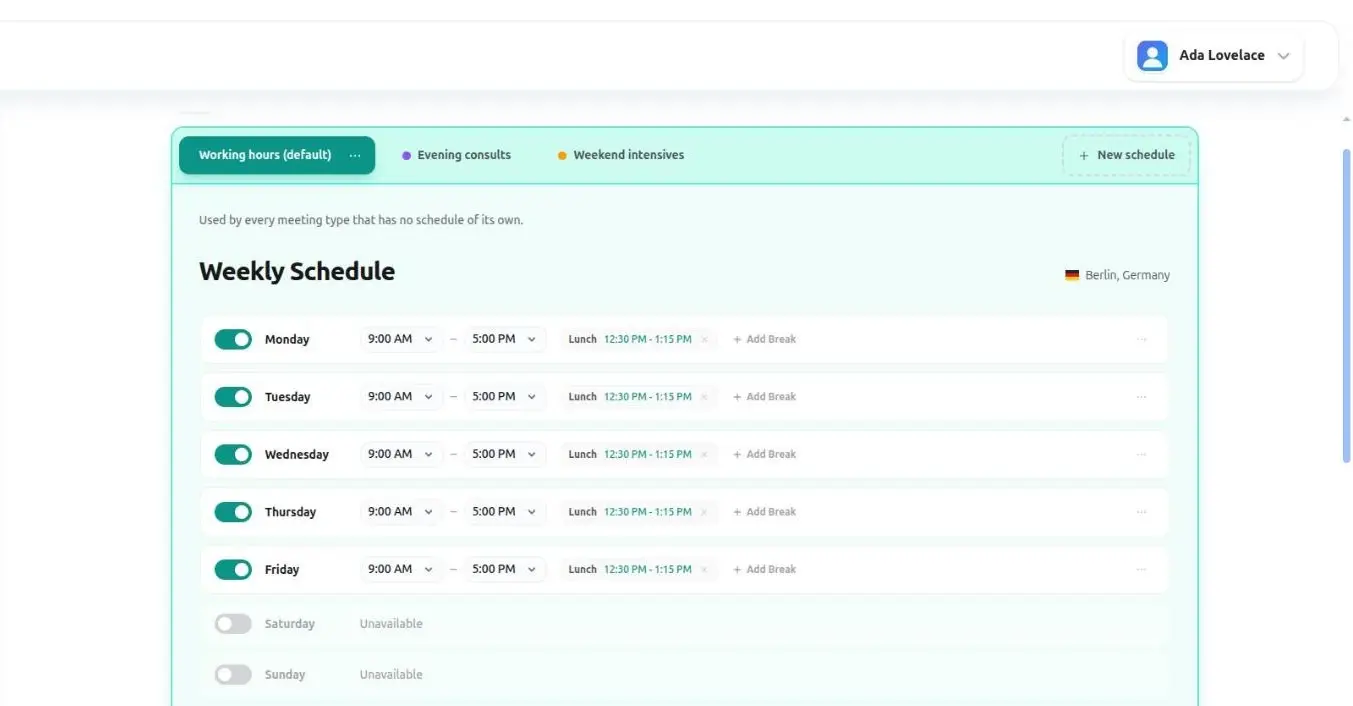
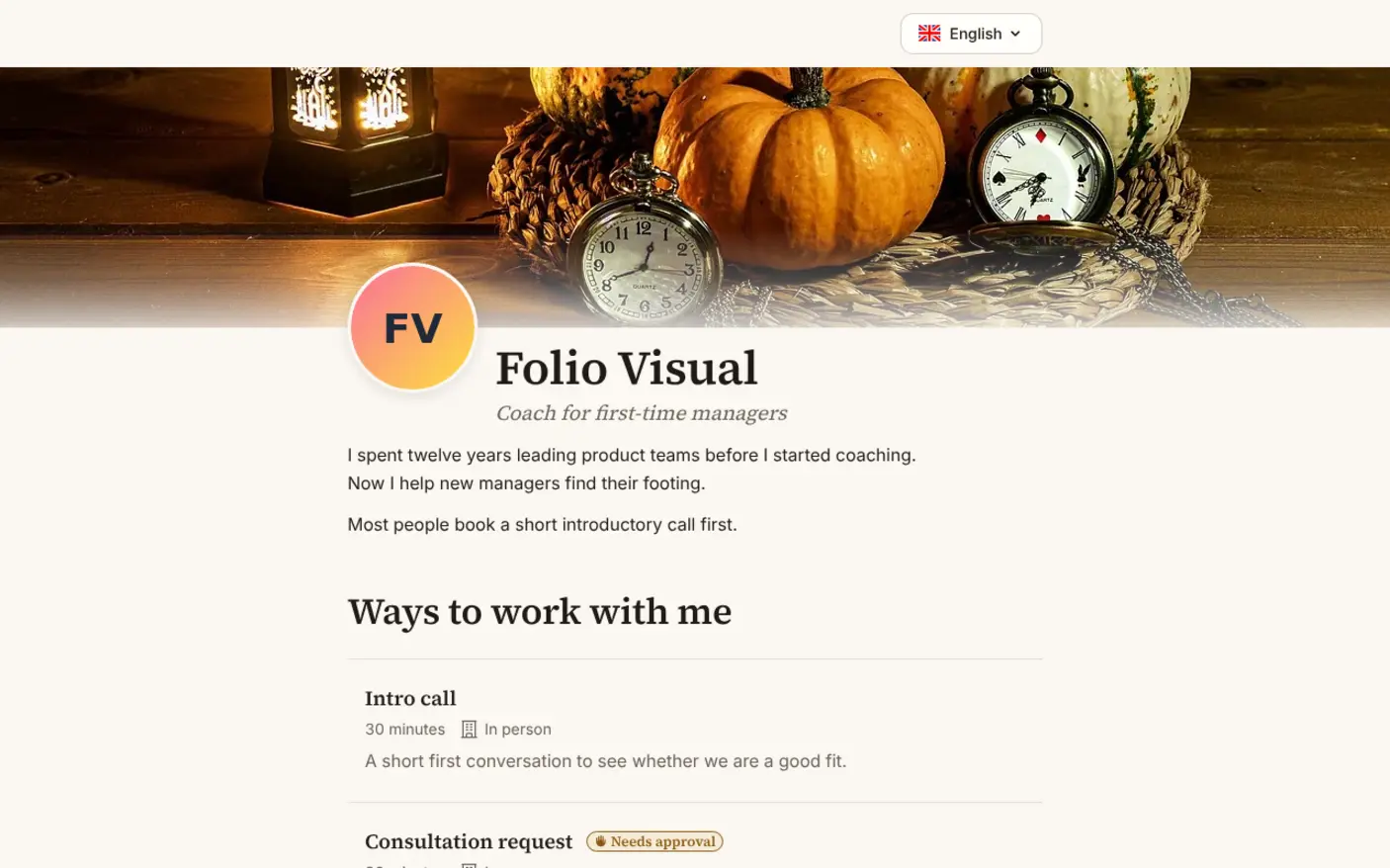
It checks every calendar you connect, from Google and Outlook to Apple iCloud and Nextcloud, before offering a time. You decide your hours, breaks, buffers between meetings and how much notice you need, and Tymeslot sends confirmations and reminders with a link to cancel or reschedule. A career coach, for example, could offer a free 30-minute intro call and a paid one-hour session, ask each client a few questions when they book, and approve new clients before the time is confirmed.
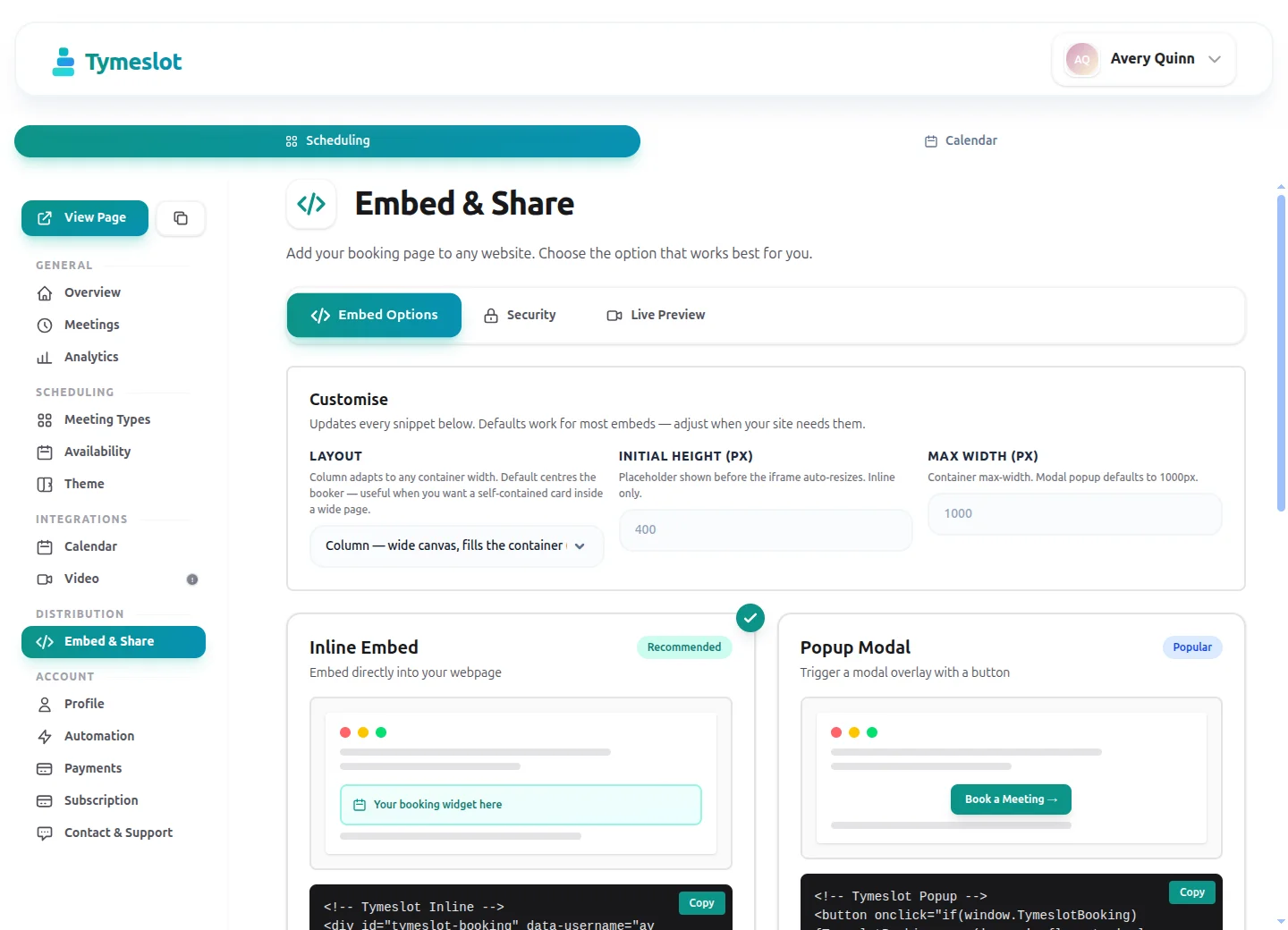
Booking pages come in four themes in your own colours and work on any phone or computer, and you can embed them in your website. Webhooks and Slack or Telegram messages tell your other tools about new bookings.
Cloudgate installs Tymeslot on a server Cloudgate provides or one you connect, with a secure web address and the email service you choose at setup. The first person to sign up and confirm their email becomes the admin.
What you can do with Tymeslot
- Share a booking page Guests pick a meeting type and a free time in their own language and time zone, with no account to create.
- Never double-book Two-way sync with Google, Outlook, Apple iCloud, Nextcloud and other CalDAV calendars, so a busy slot in any of them is blocked.
- Set your hours your way Keep several named schedules with breaks, buffers between meetings, minimum notice and how far ahead people can book.
- Add a video link automatically Each booking gets its own Zoom, Google Meet, Microsoft Teams, Jitsi or Nextcloud Talk room, or an in-person or phone location.
- Send confirmations and reminders Branded emails carry a calendar invite and a link to cancel or reschedule without logging in.
- Approve requests and run polls Hold a booking until you accept it, let several guests book one slot, or let a group vote on a meeting time.
- Put it on your website Embed the booking page inline, as a pop-up or as a floating button on any site.
- Take payment when people book Optionally charge for a meeting through your own Stripe account.
Replaces Calendly and Acuity Scheduling
Tymeslot does the same job as Calendly and Acuity Scheduling. Here is what changes when you switch.
- Every feature, including payments, polls and removing the branding, with no plan to upgrade
- Your clients' names and booking details stay on your own server
- Works with Nextcloud and other CalDAV calendars as well as Google and Outlook
- Made for one person's booking pages; there is no team scheduling such as round-robin
- It needs an email sending service (SMTP) from the start, for sign-up confirmations and booking emails
- There is no import from Calendly, so you recreate your meeting types
- Google and Outlook connections are set up once by you
What happens when you click Deploy?
You do not need a server or any technical knowledge. Four steps, and Tymeslot is running at its own web address.
- Step 1 Click Deploy and create your account
Deploy takes you to Cloudgate. Create an account, or log in if you have one. Tymeslot itself is free.
- Step 2 Choose a server
No server? Get one from Cloudgate: pick a size and a country, and Cloudgate gets it ready. Already have one? Connect it instead.
- Step 3 Cloudgate sets up Tymeslot
It prepares the server, makes the passwords the app needs and starts it. There is nothing to install and nothing to write down.
- Step 4 Open your app and sign in
Your app gets a free web address to start, without https. Add your own domain, like app.yourshop.com, and Cloudgate secures it with https for you.
New to Cloudgate? See what Cloudgate is
Run Cloudgate yourself? Deploy from your own console
In your Cloudgate console, open Templates and choose Tymeslot.
Questions
Is Tymeslot free?
Yes. Self-hosted Tymeslot is free, open-source software under the AGPL licence, and it includes every feature, from payments and polls to unbranded booking pages. You pay only for your server.
Is Tymeslot a good alternative to Calendly?
Yes, for one person taking bookings. Tymeslot does Calendly's core job, a link where people book free slots from your calendars, with video links, reminders and an embed. It has no team scheduling such as round-robin, so a team that shares bookings is better served by Cal.com.
Should I choose Tymeslot or Cal.com?
Choose Tymeslot if you take bookings on your own page and want themed booking pages, meeting polls, approvals and payments on a small server. Choose Cal.com if several people share bookings, for example in turn or by who is free.
How do I sign in the first time?
Open your Tymeslot web address and create an account: the first account becomes the admin, and there is no default login. Tymeslot first emails you a link to confirm your address, which is why setup asks for an email sending service. From the admin page you can then turn off open sign-ups so nobody else can register.
Which calendars and video apps does it work with?
Tymeslot syncs with Google Calendar, Outlook and Microsoft 365, Exchange, Apple iCloud and any CalDAV calendar such as Nextcloud. It creates rooms on Zoom, Google Meet, Microsoft Teams, Jitsi, MiroTalk, kMeet and Nextcloud Talk.
Can I import my Calendly event types?
No. There is no import from Calendly, so you recreate your meeting types and availability in Tymeslot, which takes a few minutes each.
What server size do I need?
A small server with 1 GB of memory is enough, with Tymeslot and its database in one container; the project asks for at least 500 MB.
Do I need technical skills to run Tymeslot?
No. Click Deploy, create your Cloudgate account and choose a server, and Cloudgate sets up Tymeslot and gives it a web address. You use it in your browser like any other online tool.
Do I need my own server for Tymeslot?
No. When you deploy Tymeslot, hosted Cloudgate can provide a server. If you already rent one, you can connect it instead.
Related apps

Let customers book a service with your staff online.

A light, self-hosted booking link for consultants and small teams.

Let clients book time with you from a simple link.

Encrypted online appointment booking for practices and clinics.