
Cal.com
Let clients book time with you from a simple link.
No server needed to start: Cloudgate can provide one. What happens when you click Deploy
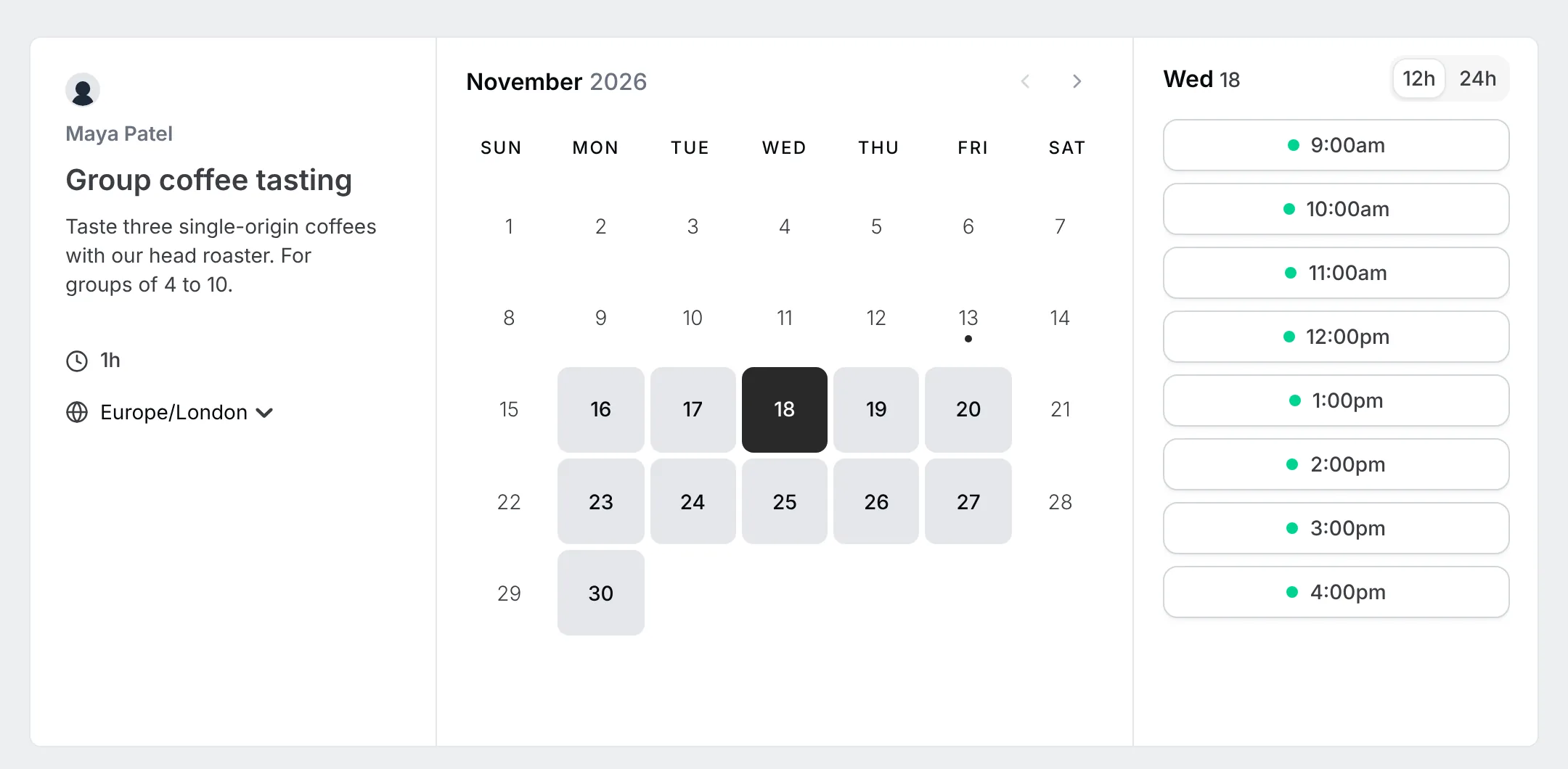
What is Cal.com?
Self-hosted Cal.com, the open-source Calendly alternative: let clients book meetings from a link that checks your calendar, for freelancers and teams.
Cal.com is an open-source scheduling tool that lets clients book meetings with you from a link, without the usual back-and-forth of emails. You set when you are available and what kinds of meetings you offer, and clients choose a free slot that suits them. The booking goes straight into your calendar.
It checks your existing calendars so a slot is only offered when you are really free, and it can add a Zoom, Google Meet or Microsoft Teams link to each booking. For teams, bookings can go to whoever is free or rotate between people. A physiotherapy practice, for example, could let patients book a first assessment online with any of its three therapists, and ask for their symptoms on the booking form.
Cal.com works with Google Calendar, Outlook and Apple Calendar, and booking pages work on any phone or computer. You can embed the booking page in your own website and send booking details to other tools through webhooks.
Cloudgate installs Cal.com with its database and cache on a server Cloudgate provides or one you connect and gives it a secure web address. The first person to open that address creates the admin account, then sets up their availability and meeting types and invites the team. Calendar and video connections are switched on once in the admin settings.
What you can do with Cal.com
- Share a booking link Clients pick a free time slot from your page, with no back-and-forth emails.
- Avoid double bookings Connect Google, Outlook or Apple calendars so only the times you are really free are offered.
- Offer different meeting types A 15-minute call or a one-hour consultation, each with its own length, buffer time and questions.
- Book the right person Share bookings across a team, in turn or by who is free, or book several people at once.
- Add video calls Each booking can get its own Zoom, Google Meet or Microsoft Teams link.
- Put it on your website Embed your booking page or a pop-up button in any website, including WordPress, Wix and Squarespace.
Replaces Calendly
Cal.com does the same job as Calendly. Here is what changes when you switch.
- No price per user for team scheduling
- Your clients' details stay on your own server
- Meeting types, team bookings and embeds with no plan to upgrade
- Calendar and video connections are set up once by you
- Booking confirmation emails need an email sending service connected
- Cal.com's makers now focus on their hosted service, so this self-hosted version gets few updates
What happens when you click Deploy?
You do not need a server or any technical knowledge. Four steps, and Cal.com is running at its own web address.
- Step 1 Click Deploy and create your account
Deploy takes you to Cloudgate. Create an account, or log in if you have one. Cal.com itself is free.
- Step 2 Choose a server
No server? Get one from Cloudgate: pick a size and a country, and Cloudgate gets it ready. Already have one? Connect it instead.
- Step 3 Cloudgate sets up Cal.com
It prepares the server, makes the passwords the app needs and starts it. There is nothing to install and nothing to write down.
- Step 4 Open your app and sign in
Your app gets a free web address to start, without https. Add your own domain, like app.yourshop.com, and Cloudgate secures it with https for you.
New to Cloudgate? See what Cloudgate is
Run Cloudgate yourself? Deploy from your own console
In your Cloudgate console, open Templates and choose Cal.com.
Questions
Is Cal.com free?
Yes. Cal.com's self-hosted version is free, open-source software under the AGPL licence, and you pay only for hosting. A few advanced features for large organisations are under a separate commercial licence.
Is Cal.com a good alternative to Calendly?
Yes. Cal.com does the same core job as Calendly, sharing a link where clients book free slots from your calendar, and adds team scheduling with no price per user when you host it yourself. Calendly is quicker to start with, since its calendar and video connections need no setup.
How do I self-host Cal.com?
Pick Cal.com in Cloudgate's template list and press Set up. Cloudgate installs Cal.com with its database and cache on your server and gives it a secure web address; the first person to open it creates the admin account.
Can I put my booking page on my website?
Yes. You can link to your booking page or embed it, inline or as a pop-up button, in any website, including WordPress, Wix and Squarespace.
Does Cal.com send booking confirmations by email?
Yes, once you connect an email sending service. You can enter its details during setup, or add them later on the app's variables page; until then bookings still land in your connected calendar.
Is my data private?
Yes. Your bookings and your clients' names and email addresses are stored in a database on your own server. Calendar and video services you connect receive only the meeting details they need.
What server size do I need?
A medium server (2 GB of memory) is the smallest that runs Cal.com comfortably, since it needs more memory than most apps when it starts.
Do I need technical skills?
No. Click Deploy, create your Cloudgate account and choose a server, and Cloudgate sets up Cal.com and gives it a web address. You use it in your browser like any other online tool.
Do I need my own server?
No. When you deploy Cal.com, hosted Cloudgate can provide a server. If you already rent one, you can connect it instead.
Can I move my data from Calendly?
Most people export from Calendly and import into Cal.com. The official guides at cal.com walk through it.

