
SurfSense
A private NotebookLM that also writes and edits your Office files.
No server needed to start: Cloudgate can provide one. What happens when you click Deploy

What is SurfSense?
Self-hosted SurfSense: a private NotebookLM alternative whose AI answers from your documents with citations and edits Word, Excel and PDF files.
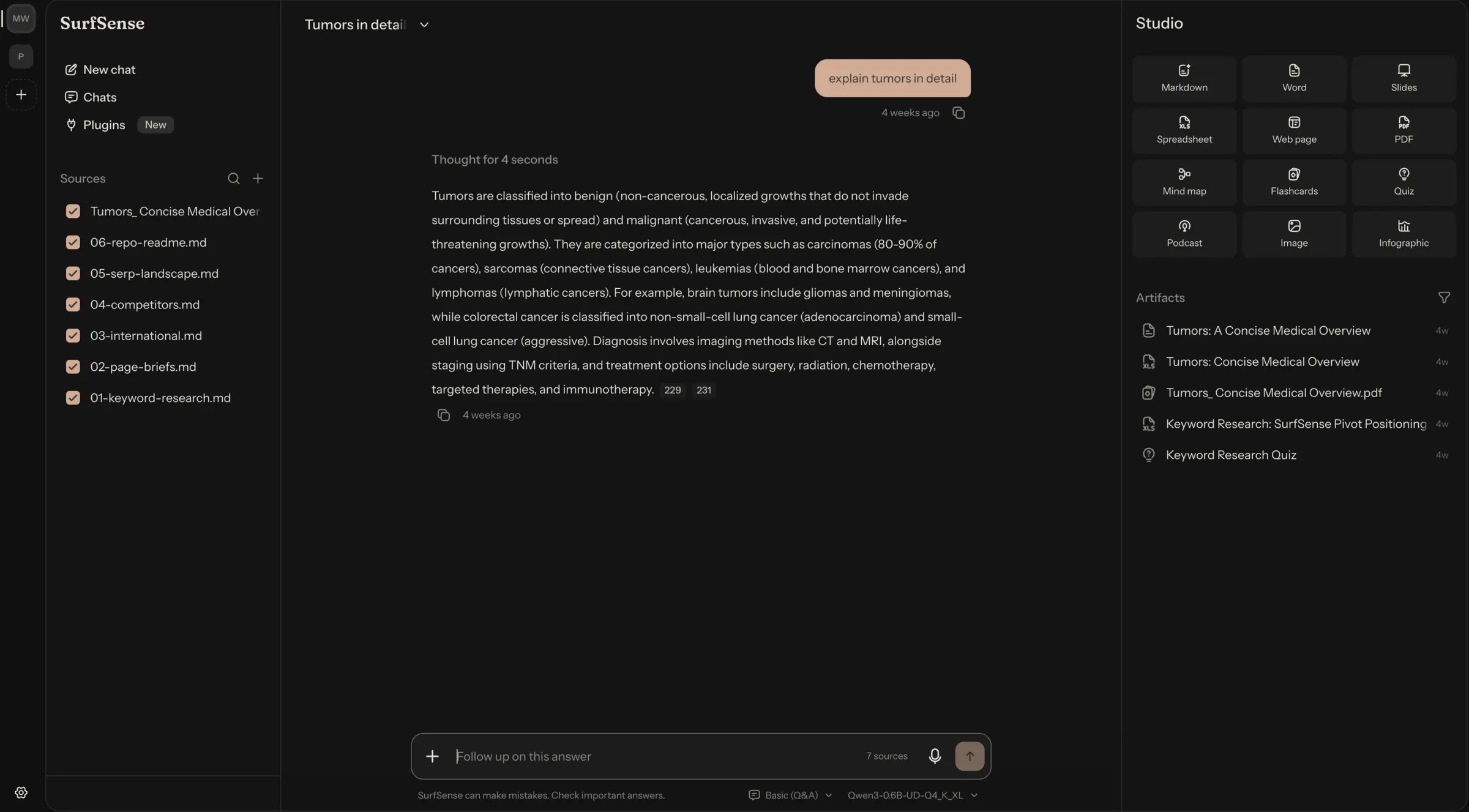
Self-hosted SurfSense is a free, open-source AI research app and a private alternative to Google NotebookLM (now Gemini Notebook). You add your files, folders, notes and recordings, ask questions and get answers that cite their sources, and its AI agent can also create and edit Word, Excel, PowerPoint and PDF files for you.
You choose the AI. SurfSense can run a model on your own server so nothing leaves it, or connect OpenAI, OpenRouter or another OpenAI-compatible service, or a ChatGPT or Claude plan. Edits always make a new copy, with tracked changes and comments in Word, so your originals stay untouched. A small law firm, for example, could load a client's contracts, ask which ones renew this year, and get a redlined copy of the next agreement to review.
SurfSense is for one person: one password protects it, with no separate accounts. It works in any web browser, including on a phone, and also comes as a desktop app. Web search and site readers are paid add-ons; everything else is free. Version 2 is a recent rebuild, so expect frequent changes.
Cloudgate installs SurfSense on your server, gives it a secure web address and creates its password. Sign in, pick an AI model, and add your first documents.
What you can do with SurfSense
- Ask your documents, get cited answers Add files, whole folders, notes and recordings to a workspace, then ask questions and see which source each point came from.
- Read almost any document PDFs including scanned pages, Word, Excel, PowerPoint, CSV, images, web pages, e-books and audio recordings, which are transcribed on your server.
- Create real Office files Ask for a report, deck or spreadsheet and get a .docx, .pptx or .xlsx you can open in Word, PowerPoint or Excel, even built on your own template.
- Edit with tracked changes Ask for changes to a contract or report and get a revised copy with tracked changes and comments; your original file is never changed.
- Work on PDFs Merge, split, rotate and reorder pages, add watermarks or page numbers, and fill in PDF forms.
- Turn sources into study material and podcasts Studio makes summaries, slides, web pages, mind maps, flashcards, quizzes, images and podcast episodes from the sources you pick.
- Choose your AI model Run a model on your own server, connect any OpenAI-compatible service such as OpenAI, OpenRouter or Ollama, or sign in with a ChatGPT or Claude plan.
Replaces NotebookLM
SurfSense does the same job as NotebookLM. Here is what changes when you switch.
- Your documents stay on your own server, and with a local model nothing leaves it
- Any AI model instead of Google's Gemini only
- The AI can create and edit Word, Excel, PowerPoint and PDF files, not just answer
- No Google account needed
- One person per install, with one password and no sharing between accounts
- Web search, web crawling and YouTube reading are paid add-ons from SurfSense
- Local models run on your server's processor, so they are much slower than a paid AI service
- Version 2 is a recent rebuild that changes quickly, and notebooks don't import from NotebookLM
What happens when you click Deploy?
You do not need a server or any technical knowledge. Four steps, and SurfSense is running at its own web address.
- Step 1 Click Deploy and create your account
Deploy takes you to Cloudgate. Create an account, or log in if you have one. SurfSense itself is free.
- Step 2 Choose a server
No server? Get one from Cloudgate: pick a size and a country, and Cloudgate gets it ready. Already have one? Connect it instead.
- Step 3 Cloudgate sets up SurfSense
It prepares the server, makes the passwords the app needs and starts it. There is nothing to install and nothing to write down.
- Step 4 Open your app and sign in
Your app gets a free web address to start, without https. Add your own domain, like app.yourshop.com, and Cloudgate secures it with https for you.
New to Cloudgate? See what Cloudgate is
Run Cloudgate yourself? Deploy from your own console
In your Cloudgate console, open Templates and choose SurfSense.
Questions
Is SurfSense free?
Yes, SurfSense is free and open source under the Apache 2.0 licence, and every feature of the app works without paying. An optional paid SurfSense licence adds only its own web plugins, such as Google Search, a web crawler and YouTube, plus priority support. You pay for your server and for any AI service you connect.
Is SurfSense a good alternative to NotebookLM?
Yes, if you want NotebookLM's way of working on your own server. SurfSense answers from your sources with citations and makes podcasts, mind maps, flashcards and quizzes like NotebookLM, which Google renamed Gemini Notebook, and it can also create and edit Office files and PDFs with the AI model you choose. It suits one person rather than a team.
How is SurfSense different from Open Notebook?
SurfSense focuses on working with files. Its AI agent creates Word, Excel, PowerPoint and PDF files, edits your documents as tracked changes and runs AI models inside the app, while Open Notebook is simpler and adds web pages and YouTube videos as sources at no extra cost. Both are for one person per install.
How do I sign in to SurfSense the first time?
Open your SurfSense web address and enter the password Cloudgate generated for it, shown on the app's variables page in Cloudgate. There are no user accounts; then the app asks you to pick an AI model for chat.
Can several people use one SurfSense?
No, SurfSense is built for one person. One password protects the whole install, with no user accounts, roles or sharing, so each person who needs it should get their own install.
Does SurfSense need an AI provider key?
No, SurfSense can download a model and run it on your server, so your documents never leave it. A server has no graphics card, so local models are slow; for faster answers, add a key for OpenAI, OpenRouter or another OpenAI-compatible service, or sign in with a ChatGPT or Claude plan.
What server size do I need for SurfSense?
Plan on at least 4 GB of memory for SurfSense when you connect an AI service, and 8 GB or more to run AI models on the server itself. It also needs several GB of disk for the app, the models you download and your documents.
Do I need technical skills to run SurfSense?
No. Click Deploy, create your Cloudgate account and choose a server, and Cloudgate sets up SurfSense and gives it a web address. You use it in your browser like any other online tool.
Do I need my own server for SurfSense?
No. When you deploy SurfSense, hosted Cloudgate can provide a server. If you already rent one, you can connect it instead.
Can I move my data from NotebookLM to SurfSense?
Most people export from NotebookLM and import into SurfSense. The official guides at github.com walk through it.
Related apps

A self-hosted AI second brain that answers from your own notes.

A private NotebookLM for your own documents, with the AI you choose.

Chat with your documents and see the cited passage in each answer.

Ask an AI about your own documents, on your own server.