
Overleaf Community Edition
LaTeX editor for writing papers together in your browser.
No server needed to start: Cloudgate can provide one. What happens when you click Deploy
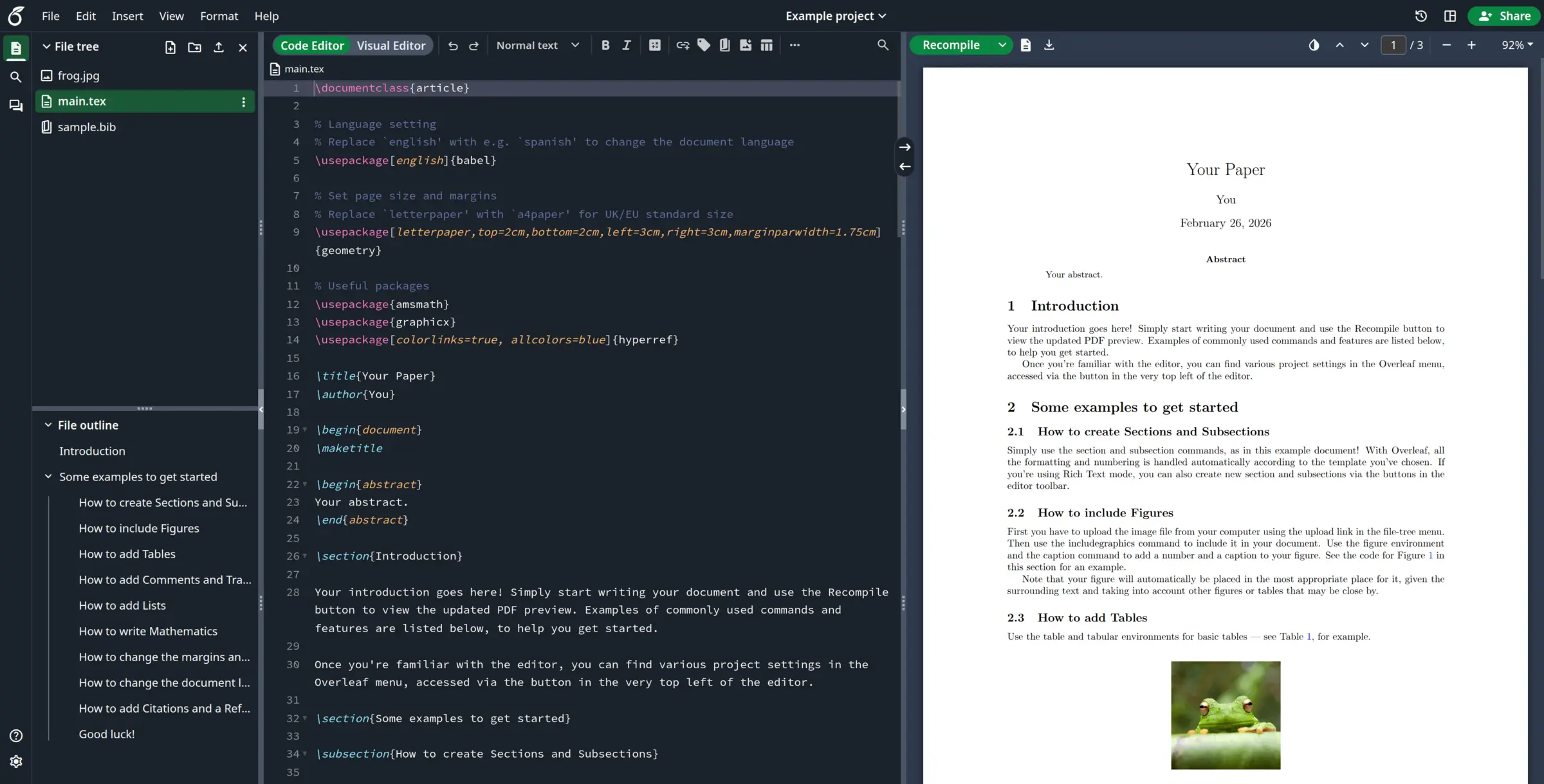

What is Overleaf Community Edition?
Overleaf Community Edition, self-hosted: write LaTeX papers and theses together in your browser with a live PDF preview, without an overleaf.com plan.
Overleaf Community Edition is the free, self-hosted edition of Overleaf: a collaborative LaTeX editor where your team writes papers, theses and reports together in the browser, with no subscription and no limit on collaborators. You type LaTeX on one side and see the compiled PDF on the other, and nobody needs LaTeX installed on their own computer.
Everyone in a project edits at the same time and sees changes as they happen, and the full history shows who changed what. A university research group, for example, could keep each grant proposal and every PhD student's thesis on its own server, with supervisors editing chapters alongside students and downloading the PDF for each deadline.
Community Edition is Overleaf's own free edition of the overleaf.com editor, without the paid features. Comments, track changes, Git and single sign-on are only in Overleaf's paid Server Pro; GitHub and Dropbox sync and the AI Assistant are only on overleaf.com. It ships a basic set of LaTeX packages, and Overleaf says it is meant for teams who trust each other. It works in any web browser; there is no phone app.
Cloudgate installs Overleaf Community Edition on a server Cloudgate provides or one you connect, with the databases it needs, and gives it a secure web address. Create your admin account first, then add your team.
What you can do with Overleaf Community Edition
- Write together in real time Several people edit the same LaTeX project at once and see each other's changes as they type.
- See the PDF as you write Press Recompile and the finished PDF appears beside your text, so nobody needs LaTeX installed on their own computer.
- Switch to the Visual Editor Work in the LaTeX code, or switch to a visual view that shows headings, lists and formatting as they will look.
- Keep the whole history Every change to a project is kept, so you can see who changed what and go back to an earlier version.
- Keep every file of a paper together Upload images and bibliography files, find your way with the file outline, and search across the whole project.
- Share projects with your team Invite colleagues to a project, share it with a link, and discuss it in the project chat.
- Download PDF and source Download the compiled PDF, or the whole project as a .zip file to keep or send to a journal.
Replaces Overleaf.com
Overleaf Community Edition does the same job as Overleaf.com. Here is what changes when you switch.
- No limit on collaborators per project and no subscription; you pay only for your server
- Unpublished papers and grant proposals stay on your own server
- The same editor as overleaf.com, so people who know Overleaf feel at home
- No comments or track changes; those are only in Overleaf's paid Server Pro and overleaf.com plans
- No Git, GitHub or Dropbox sync, AI Assistant or Zotero and Mendeley sync
- Only a basic set of LaTeX packages is installed, so some documents need packages added on the server before they compile
- Meant for people you trust; give accounts only to your own team
What happens when you click Deploy?
You do not need a server or any technical knowledge. Four steps, and Overleaf Community Edition is running at its own web address.
- Step 1 Click Deploy and create your account
Deploy takes you to Cloudgate. Create an account, or log in if you have one. Overleaf Community Edition itself is free.
- Step 2 Choose a server
No server? Get one from Cloudgate: pick a size and a country, and Cloudgate gets it ready. Already have one? Connect it instead.
- Step 3 Cloudgate sets up Overleaf Community Edition
It prepares the server, makes the passwords the app needs and starts it. There is nothing to install and nothing to write down.
- Step 4 Open your app and sign in
Your app gets a free web address to start, without https. Add your own domain, like app.yourshop.com, and Cloudgate secures it with https for you.
New to Cloudgate? See what Cloudgate is
Run Cloudgate yourself? Deploy from your own console
In your Cloudgate console, open Templates and choose Overleaf Community Edition.
Questions
Is Overleaf Community Edition free?
Yes, Overleaf Community Edition is free and open source under the AGPL-3.0 licence, with no limit on users or collaborators. You pay only for your server. Overleaf also sells a paid self-hosted edition, Server Pro, and paid plans on overleaf.com.
What is the difference between Overleaf Community Edition, Server Pro and overleaf.com?
Overleaf Community Edition is the free edition you host yourself, with the editor, real-time co-editing, PDF preview and full history. Server Pro, which is paid, adds comments, track changes, Git, the symbol palette, templates, single sign-on and isolated compiles. overleaf.com is Overleaf's hosted service, whose paid plans add GitHub and Dropbox sync, reference-manager sync and the AI Assistant.
Does Overleaf Community Edition have track changes and comments?
No, comments and track changes are only in Overleaf Server Pro and the paid overleaf.com plans. In Community Edition your team can talk in the project chat and use the project history to see who changed what.
How do I sign in to Overleaf Community Edition the first time?
There is no default login. Open your Overleaf address with /launchpad at the end and enter an email and password to create the admin account. Nobody can sign up on their own; the admin creates each account from Admin, Manage users, and sends the person the set-password link it shows.
Can I move my projects from overleaf.com to Overleaf Community Edition?
Yes, one project at a time. On overleaf.com, download a project's source as a .zip file, then choose New project and Upload project in Overleaf Community Edition. The files come across; the project's history and comments do not.
Are all LaTeX packages installed in Overleaf Community Edition?
No. Overleaf Community Edition comes with a basic TeX Live, the collection of LaTeX packages, rather than the full set on overleaf.com. If a document uses a package that isn't installed, it won't compile until someone with access to the server adds that package.
What server size do I need for Overleaf Community Edition?
Overleaf recommends at least 2 processor cores and 3 GB of memory for about five people compiling at the same time, plus one core and 1 GB for every five to ten more. Cloudgate treats it as a large app, with 4 GB of memory.
Do I need technical skills to run Overleaf Community Edition?
No. Click Deploy, create your Cloudgate account and choose a server, and Cloudgate sets up Overleaf Community Edition and gives it a web address. You use it in your browser like any other online tool.
Do I need my own server for Overleaf Community Edition?
No. When you deploy Overleaf Community Edition, hosted Cloudgate can provide a server. If you already rent one, you can connect it instead.
Related apps

A self-hosted Markdown knowledge base for maths, diagrams and teams.

A simple self-hosted wiki in Markdown, with every change kept.

An Airtable-style database with Gantt views.

A no-code database as easy to use as a spreadsheet, like Airtable.