
OHIF Viewer
View and measure X-ray, CT and MRI scans in your web browser.
No server needed to start: Cloudgate can provide one. What happens when you click Deploy



What is OHIF Viewer?
The OHIF Viewer is a self-hosted web DICOM viewer for X-ray, CT and MRI scans, set up with an Orthanc image server to store your studies.
The OHIF Viewer is a free, open-source medical image viewer that opens X-ray, CT, MRI and PET scans in a web browser, with nothing to install on the computer. It is made by the Open Health Imaging Foundation, and Cloudgate sets it up together with Orthanc, an open-source image server that stores your studies.
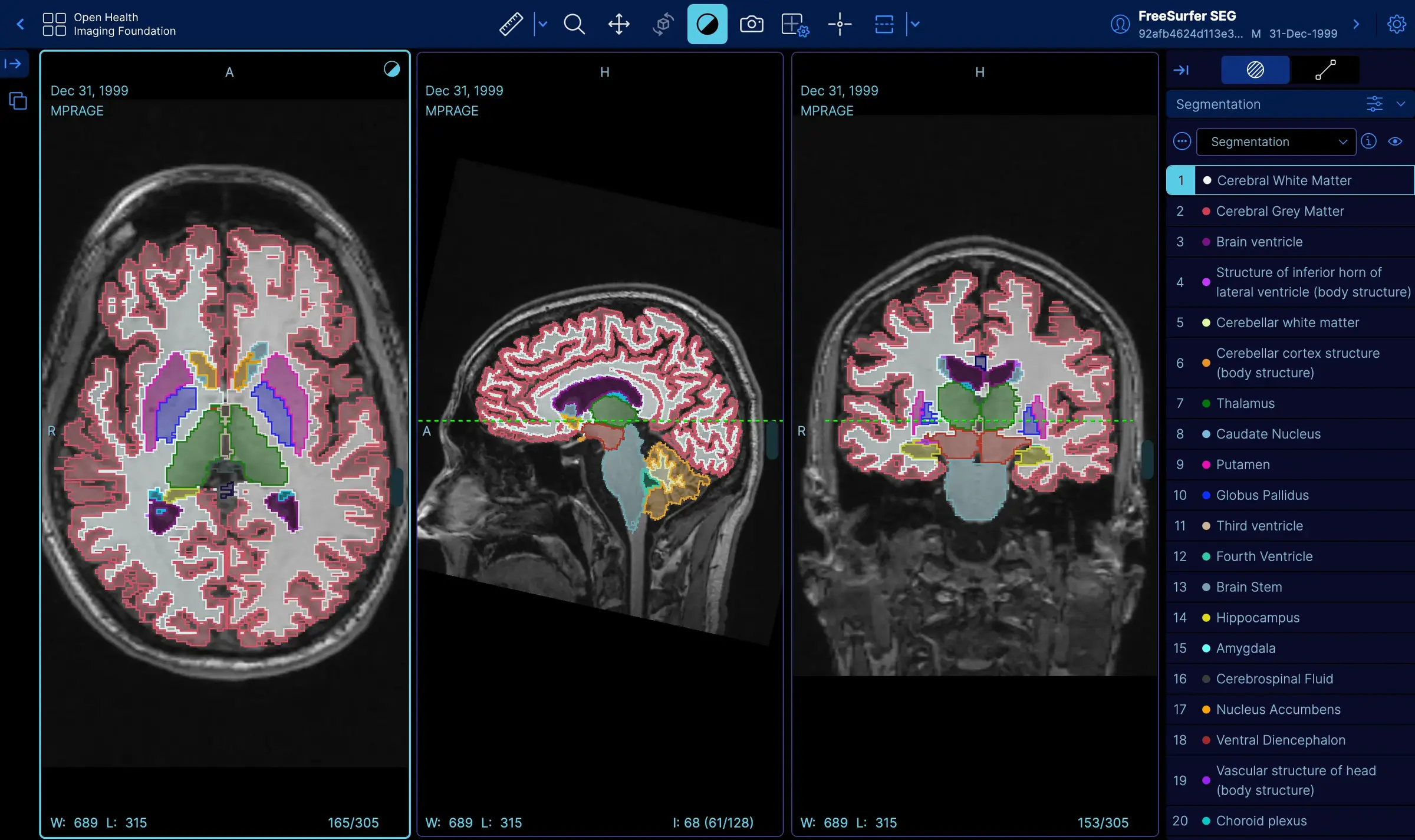
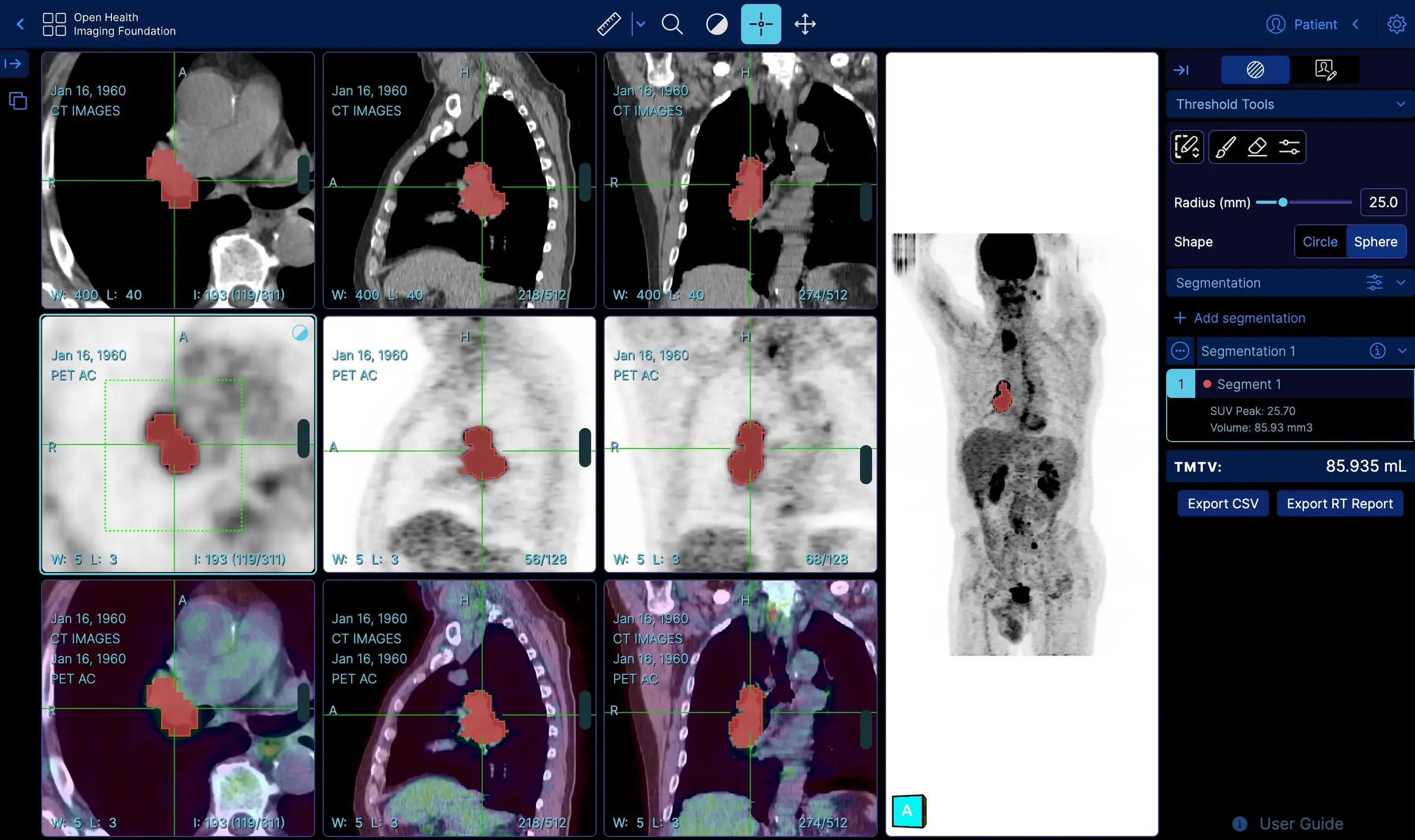
You search the study list, open a study and scroll through it, measure lengths and angles, mark findings, view the scan from three directions or in 3D, and fuse PET with CT. It also shows segmentations, slide microscopy, ECG waveforms and PDF reports. A university anatomy course, for example, could upload a set of anonymised teaching scans and let students study and measure them from any browser.
The OHIF Viewer is not FDA cleared or CE marked, and its makers say it doesn't meet all HIPAA criteria on its own. It suits research and teaching, and you are responsible for any rules that apply to patient data.
Cloudgate installs the viewer and Orthanc on your server behind one secure web address and a password. Everyone who uses this setup shares that one sign-in.
What you can do with OHIF Viewer
- Open scans in any browser View CT, MRI, X-ray, PET and ultrasound studies without installing anything on the computer.
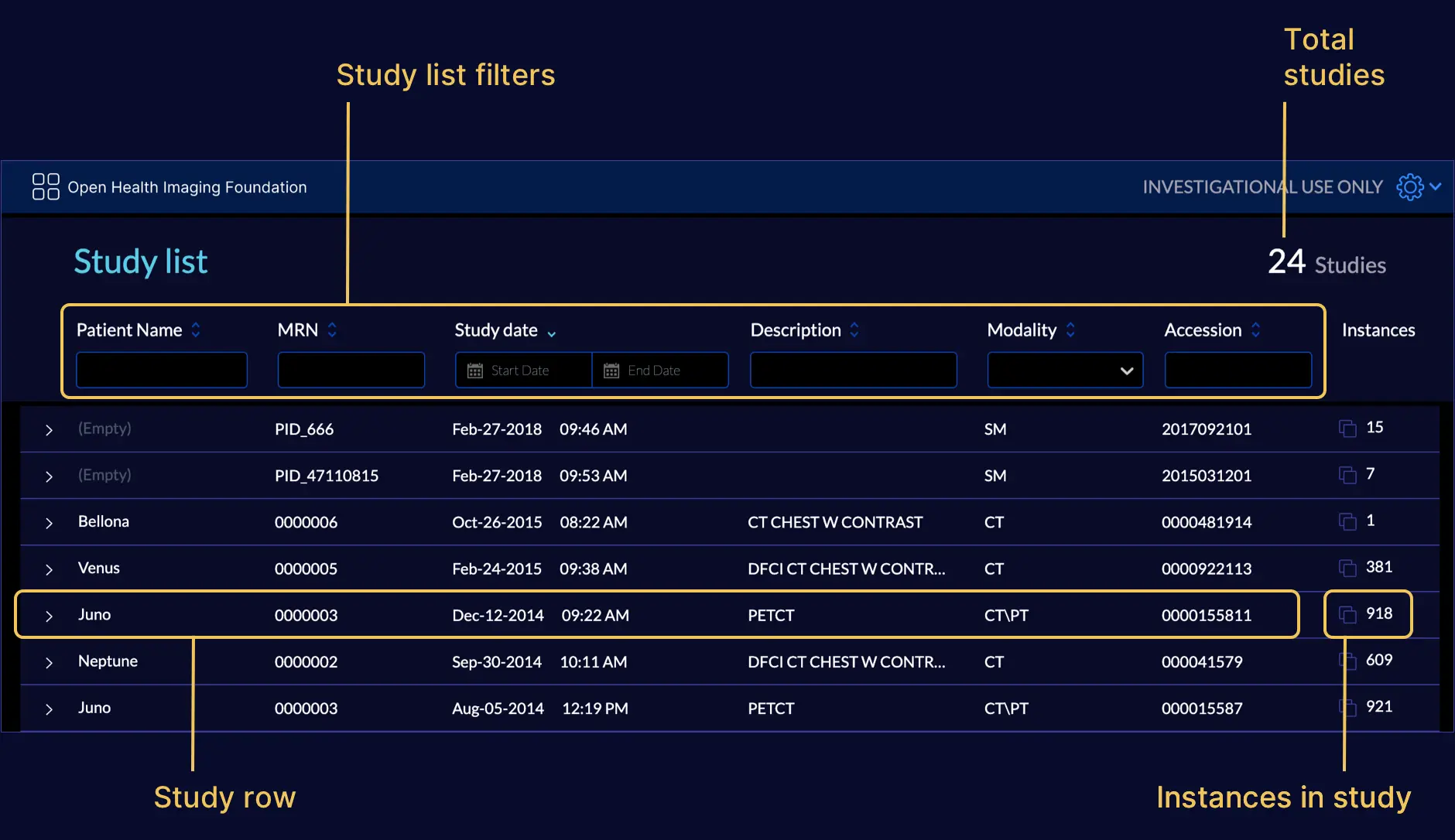
- Find the right study Search the study list by patient name, record number, date, description or type of scan.
- Measure and annotate Measure lengths and angles, mark findings, and step through each measurement in a side panel.
- See scans in 3D Look at a scan from three directions at once, rebuild it in 3D, and fuse PET and CT images.
- Show segmentations Display outlined organs and regions as coloured overlays, with a list of every structure.
- Open more than images Also view slide microscopy, ECG waveforms, videos, PDFs and structured reports stored with a study.
- Keep the scans with it Cloudgate includes an Orthanc image server that stores your studies, and you upload DICOM files from the viewer.
Compare OHIF Viewer
What happens when you click Deploy?
You do not need a server or any technical knowledge. Four steps, and OHIF Viewer is running at its own web address.
- Step 1 Click Deploy and create your account
Deploy takes you to Cloudgate. Create an account, or log in if you have one. OHIF Viewer itself is free.
- Step 2 Choose a server
No server? Get one from Cloudgate: pick a size and a country, and Cloudgate gets it ready. Already have one? Connect it instead.
- Step 3 Cloudgate sets up OHIF Viewer
It prepares the server, makes the passwords the app needs and starts it. There is nothing to install and nothing to write down.
- Step 4 Open your app and sign in
Your app gets a free web address to start, without https. Add your own domain, like app.yourshop.com, and Cloudgate secures it with https for you.
New to Cloudgate? See what Cloudgate is
Run Cloudgate yourself? Deploy from your own console
In your Cloudgate console, open Templates and choose OHIF Viewer.
Questions
Is the OHIF Viewer free?
Yes. The OHIF Viewer is free, open-source software under the MIT licence, and the Orthanc image server included with it is free too. You pay only for your server and its disk.
Is the OHIF Viewer FDA cleared or CE marked?
No. The OHIF Viewer is not FDA cleared or CE marked, and its makers say it is the user's responsibility to follow the rules that apply to them. Its study list is labelled "Investigational use only".
Is the OHIF Viewer HIPAA compliant?
No. Its makers say the OHIF Viewer does not meet all the criteria for HIPAA compliance on its own, so check your own obligations before you store patient scans.
Where does OHIF Viewer store the scans?
On your own server. OHIF Viewer itself stores nothing; Cloudgate sets it up with an Orthanc image server that keeps the studies and sends them to the viewer.
How do I add scans to OHIF Viewer?
Open the OHIF Viewer study list and upload DICOM files, the standard file format for medical images. Orthanc's own pages, also behind your sign-in, let you upload and manage studies as well.
How do I sign in to OHIF Viewer the first time?
Your browser asks for a username and password before OHIF Viewer opens. Use the username admin and the password Cloudgate created, shown on the app's variables page; everyone who uses this setup shares that sign-in.
Do I need technical skills to run OHIF Viewer?
No. Click Deploy, create your Cloudgate account and choose a server, and Cloudgate sets up OHIF Viewer and gives it a web address. You use it in your browser like any other online tool.
Do I need my own server for OHIF Viewer?
No. When you deploy OHIF Viewer, hosted Cloudgate can provide a server. If you already rent one, you can connect it instead.
Related apps

Your own DICOM server to store and view medical images.

Health data, from clinic forms to dashboards and maps.

FHIR backend for teams building their own health apps.

Glucose following for family and carers, with alarms.