LetterFeed
Turn email newsletters into RSS feeds for any reader.
No server needed to start: Cloudgate can provide one. What happens when you click Deploy

What is LetterFeed?
LetterFeed is a self-hosted newsletter to RSS tool that turns the newsletters in your email mailbox into feeds for any feed reader.
LetterFeed is a free, open-source, self-hosted newsletter to RSS tool: it reads the email newsletters in your mailbox and turns each one into a feed you can follow in any feed reader, in place of the paid newsletter features of Feedly or Inoreader. It needs an email mailbox with IMAP access, the one your newsletters already arrive in.
Every 15 minutes LetterFeed checks that mailbox for new emails from the senders you have added, and puts each new issue into that newsletter's own feed. There is also one combined feed with the latest issues from all of them. A café owner, for example, could follow a coffee trade newsletter, a local business bulletin and a supplier's updates, read them all in FreshRSS next to the blogs she already follows, and have LetterFeed mark them as read so her inbox stays for customers.
LetterFeed is a small web page for managing newsletters, not a reader, so you pair it with a feed reader such as FreshRSS or Miniflux. Cloudgate installs LetterFeed on a server Cloudgate provides or one you connect, asks for your mailbox details during setup, and gives it a secure web address. Your newsletters stay between your mailbox and your server.
What you can do with LetterFeed
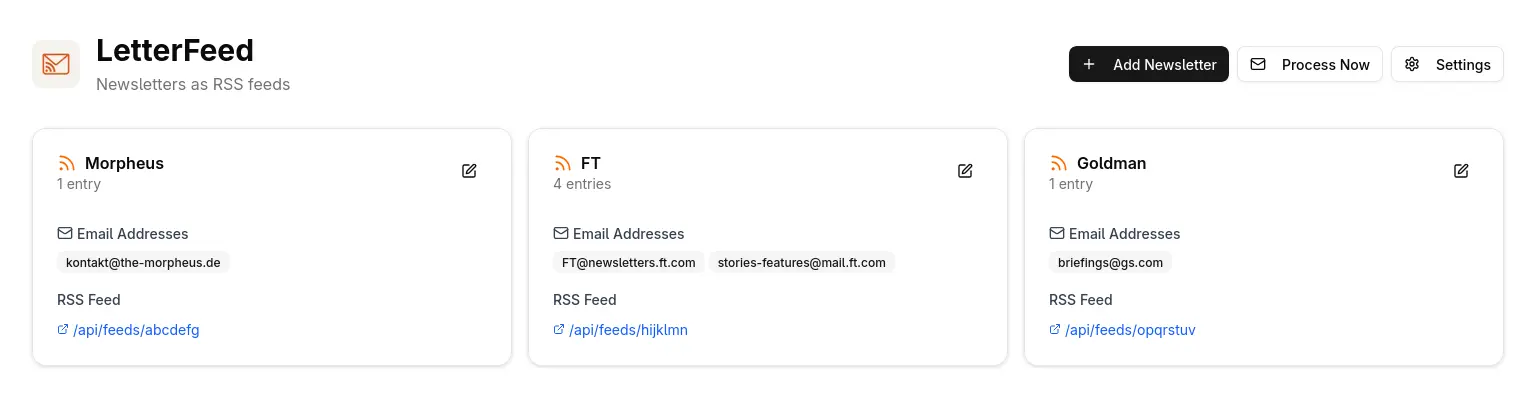
- A feed for every newsletter Add a newsletter by name and sender address, and each new issue appears in its own feed.
- Uses the mailbox you already have LetterFeed signs in to your existing mailbox and checks it every 15 minutes, so you keep subscribing with your usual address.
- One feed for everything A combined feed collects the latest issues of all your newsletters, for readers where you want just one subscription.
- Group senders together Give one newsletter several sender addresses, for publishers that send from more than one.
- Just the article Turn on main-content extraction for a newsletter to keep the text and drop the email layout around it.
- Keep your inbox tidy Have processed newsletters marked as read or moved to a folder of your choice.
- Check now Press Process Now to fetch new issues straight away instead of waiting for the next check.
Replaces Feedly and Inoreader
LetterFeed does the same job as Feedly and Inoreader. Here is what changes when you switch.
- Newsletters as feeds with no paid plan, unlike Feedly Pro+
- Works with any feed reader you like, including self-hosted ones
- No new email address to hand out; you use the mailbox you have
- Your newsletters and feeds stay on your own server
- LetterFeed is not a reader; you still need a feed reader to read the feeds
- You need a mailbox that allows IMAP access, and you set it up yourself
- It checks for new issues on a schedule, not the moment they arrive
- A small, young project with one main developer
What happens when you click Deploy?
You do not need a server or any technical knowledge. Four steps, and LetterFeed is running at its own web address.
- Step 1 Click Deploy and create your account
Deploy takes you to Cloudgate. Create an account, or log in if you have one. LetterFeed itself is free.
- Step 2 Choose a server
No server? Get one from Cloudgate: pick a size and a country, and Cloudgate gets it ready. Already have one? Connect it instead.
- Step 3 Cloudgate sets up LetterFeed
It prepares the server, makes the passwords the app needs and starts it. There is nothing to install and nothing to write down.
- Step 4 Open your app and sign in
Your app gets a free web address to start, without https. Add your own domain, like app.yourshop.com, and Cloudgate secures it with https for you.
New to Cloudgate? See what Cloudgate is
Run Cloudgate yourself? Deploy from your own console
In your Cloudgate console, open Templates and choose LetterFeed.
Questions
Is LetterFeed free?
Yes, LetterFeed is free and open source under the MIT licence, with no paid edition. You pay only for your server.
What do I need before installing LetterFeed?
LetterFeed needs an email mailbox with IMAP access over SSL on port 993, and its server name, username and password. Your newsletters must already arrive in that mailbox, so subscribe to them with its address first.
Does LetterFeed work with Gmail?
Yes, LetterFeed works with Gmail and other mailboxes that offer IMAP, such as Fastmail. Gmail and similar providers need an app password instead of your normal password.
How is LetterFeed different from Kill the Newsletter?
LetterFeed reads the mailbox you already have, while Kill the Newsletter gives you a new email address for each feed. With LetterFeed you keep subscribing with your own address and choose which senders become feeds.
Which feed readers work with LetterFeed?
Any feed reader that reads standard RSS or Atom feeds works with LetterFeed, such as FreshRSS, Miniflux, Feedly or NetNewsWire. You copy each newsletter's feed link into your reader like any other feed.
How do I sign in to LetterFeed the first time?
Sign in with the username admin and the password Cloudgate generated, which it shows on the app's variables page. Your mailbox details are already filled in from the install and shown locked in LetterFeed's settings.
Are my LetterFeed newsletter feeds private?
No, LetterFeed's feed links are open so feed readers can fetch them, and anyone who has a link can read that feed. The page where you manage newsletters and settings needs a sign-in.
Do I need technical skills to run LetterFeed?
No. Click Deploy, create your Cloudgate account and choose a server, and Cloudgate sets up LetterFeed and gives it a web address. You use it in your browser like any other online tool.
Do I need my own server for LetterFeed?
No. When you deploy LetterFeed, hosted Cloudgate can provide a server. If you already rent one, you can connect it instead.
Can I move my data from Feedly to LetterFeed?
Most people export from Feedly and import into LetterFeed. The official guides at github.com walk through it.
Related apps

A self-hosted RSS reader in the style of Google Reader.

A self-hosted RSS reader for every news site and blog you follow.

A self-hosted RSS reader with a Smart feed, read later and bookmarks.

A minimalist RSS reader that is fast, quiet and free of clutter.