
HuggingChat
A ChatGPT-style chat for open AI models.
No server needed to start: Cloudgate can provide one. What happens when you click Deploy
What is HuggingChat?
Chat UI, the open-source app behind HuggingChat, self-hosted: a private AI chat for open models from Hugging Face, Ollama or any OpenAI-compatible API.
Chat UI is Hugging Face's free, open-source chat app, the code behind HuggingChat, that you can self-host as a private ChatGPT Business alternative for your team. It holds no AI model itself: you connect Hugging Face's Inference Providers with an access token for open models such as Llama, Qwen and DeepSeek, or OpenRouter, OpenAI or a model server you run, such as Ollama, and pay that provider for what you use.
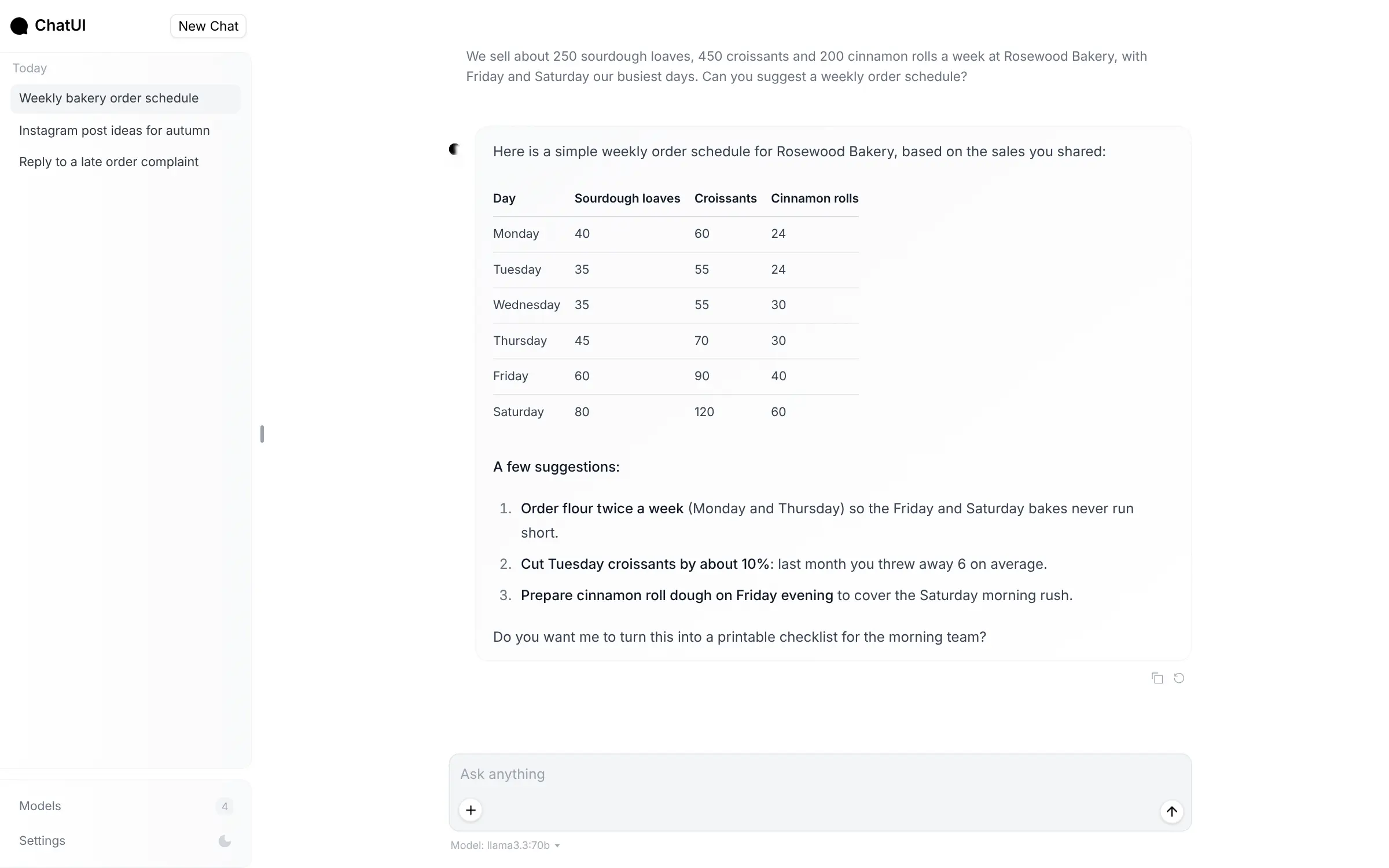
Your copy is separate from huggingface.co: chats are saved on your own server, and the app shows the name ChatUI. People pick a model for each chat, add text files or images, and can give the AI tools such as web search through MCP servers. A bakery, for example, could ask it to plan the week's orders from last month's sales, draft a reply to a customer complaint, or suggest posts for social media, all with an open model of its choice.
Chat UI keeps things simple: there are no separate user accounts until you connect your company sign-in, and no document library or chat import. It works in any browser, including on phones.
Cloudgate installs Chat UI on a server Cloudgate provides or one you connect, with the database it needs, and gives it a secure web address behind a shared sign-in, username admin and a generated password. Add your provider's API key, and your team can start chatting.
What you can do with HuggingChat
- Chat with open AI models Use Llama, Qwen, DeepSeek and other open models through Hugging Face, or connect OpenRouter, OpenAI or a model server you run, such as Ollama.
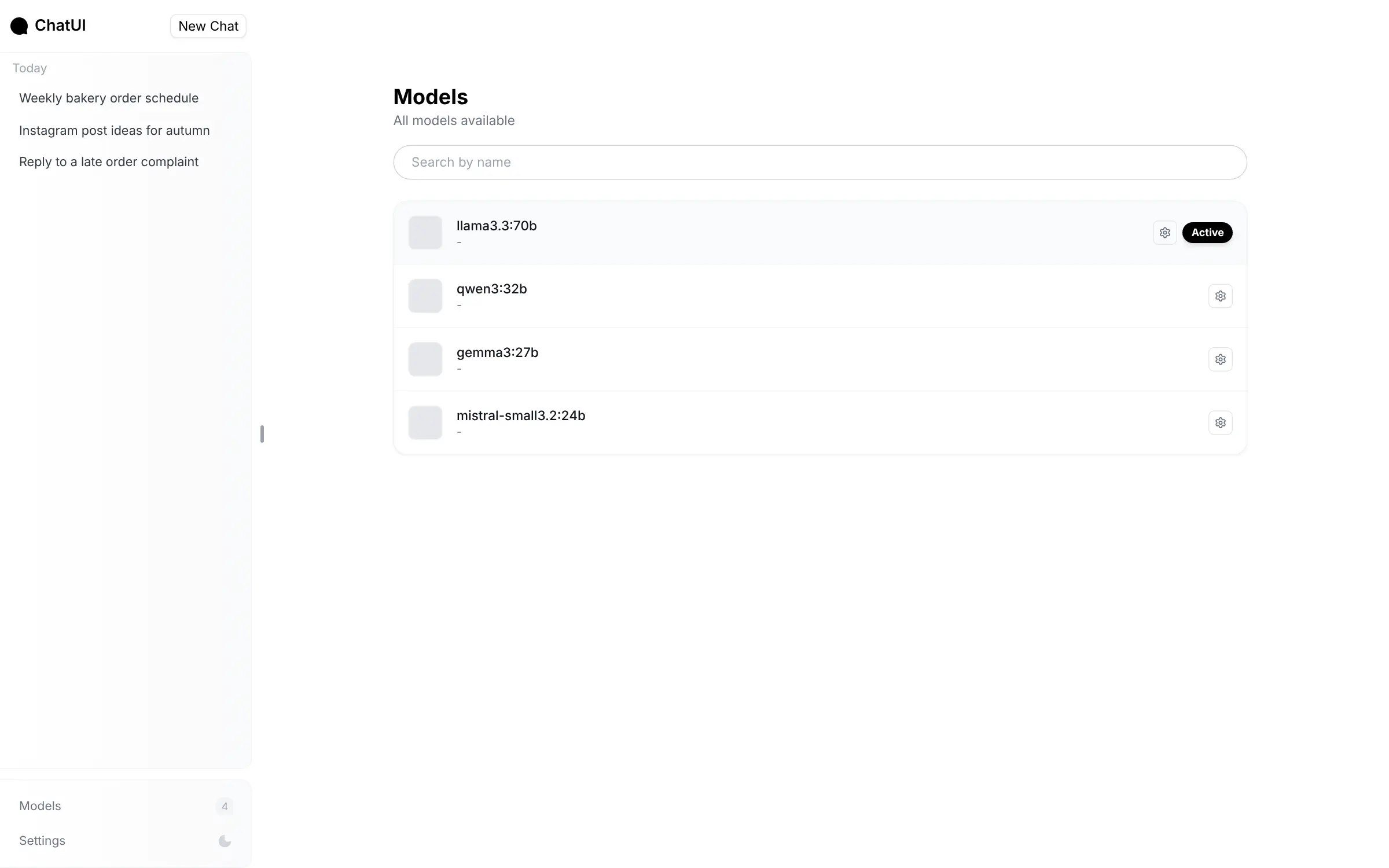
- Pick the model for each chat Chat UI lists every model your provider offers on its Models page, so each person picks the one that suits the job.
- Give the AI tools Connect MCP servers, for example a web search tool, and the AI uses them in the middle of a chat.
- Ask about pictures and text files Add a text file to a chat, or upload images when the model you picked can read them.
- Keep and share past chats Every chat is saved in a sidebar with a title written for you, and you can share a conversation with a link.
- Sign in with your company account Connect any OpenID Connect sign-in and allow only your team's email addresses or domain.
Replaces ChatGPT Business
HuggingChat does the same job as ChatGPT Business. Here is what changes when you switch.
- No price per seat; you pay for the server and for the AI you actually use
- A wide choice of open models, or models you run on your own hardware
- Chat history stays on your own server, in an app under the Apache-2.0 open-source licence
- A clean, simple chat that needs little explaining to your team
- Cloudgate puts one shared sign-in in front of the app; Chat UI has no user accounts of its own until you connect your company sign-in
- There are no projects, memory, custom GPTs or document library like in ChatGPT
- ChatGPT chats cannot be imported
- There are no phone apps for your own copy; it works in the phone's browser
What happens when you click Deploy?
You do not need a server or any technical knowledge. Four steps, and HuggingChat is running at its own web address.
- Step 1 Click Deploy and create your account
Deploy takes you to Cloudgate. Create an account, or log in if you have one. HuggingChat itself is free.
- Step 2 Choose a server
No server? Get one from Cloudgate: pick a size and a country, and Cloudgate gets it ready. Already have one? Connect it instead.
- Step 3 Cloudgate sets up HuggingChat
It prepares the server, makes the passwords the app needs and starts it. There is nothing to install and nothing to write down.
- Step 4 Open your app and sign in
Your app gets a free web address to start, without https. Add your own domain, like app.yourshop.com, and Cloudgate secures it with https for you.
New to Cloudgate? See what Cloudgate is
Run Cloudgate yourself? Deploy from your own console
In your Cloudgate console, open Templates and choose HuggingChat.
Questions
Is HuggingChat's Chat UI free?
Yes, HuggingChat's Chat UI is free and open source under the Apache-2.0 licence, with no paid edition. You pay for your server and for the AI provider you connect, which bills its own usage.
Is self-hosted Chat UI the same as HuggingChat on huggingface.co?
No. Chat UI is the open-source app that Hugging Face's HuggingChat service is built on, but your copy is separate from huggingface.co. It shows the name ChatUI, uses the AI provider and key you connect, and does not include Hugging Face accounts or HuggingChat's phone app.
Is HuggingChat's Chat UI a good alternative to ChatGPT Business?
Yes, HuggingChat's Chat UI suits a team that mostly wants a simple, private chat with open AI models and no seat price. ChatGPT has more extras, such as projects, memory, custom GPTs and phone apps, and teams that need user groups or a shared document library may prefer Open WebUI or LibreChat.
Does HuggingChat's Chat UI come with an AI model?
No, HuggingChat's Chat UI is only the chat app. It connects to a provider that speaks OpenAI's API format, such as Hugging Face's Inference Providers with a Hugging Face access token, OpenRouter, OpenAI, or a model server you run, such as Ollama.
How do I sign in to HuggingChat's Chat UI the first time?
When you open HuggingChat's Chat UI, your browser asks for a username and password first. The username is admin and the password is the ADMIN_PASSWORD that Cloudgate creates, shown on the app's variables page, and everyone on the team shares that login. To manage Chat UI itself, open the address with ?token= and the generated ADMIN_TOKEN at the end.
Can I import my ChatGPT chats into HuggingChat's Chat UI?
No, HuggingChat's Chat UI has no import for ChatGPT or other chat history, so your team starts with an empty chat list.
What server size do I need for HuggingChat's Chat UI?
A small server with about 1 GB of memory is enough for HuggingChat's Chat UI when the AI models run at a provider such as Hugging Face. Running your own models with Ollama needs a separate, much larger machine.
Do I need technical skills to run HuggingChat?
No. Click Deploy, create your Cloudgate account and choose a server, and Cloudgate sets up HuggingChat and gives it a web address. You use it in your browser like any other online tool.
Do I need my own server for HuggingChat?
No. When you deploy HuggingChat, hosted Cloudgate can provide a server. If you already rent one, you can connect it instead.
Related apps

Private AI chat over your own documents, for staff and your website.

An open-source AI assistant for your organisation, on your server.

AI chat for your team, with every major AI model.

AI chat and agents for many models, formerly LobeChat.