
Fleet
Manage and secure every Mac, PC and Linux computer you own.
No server needed to start: Cloudgate can provide one. What happens when you click Deploy
What is Fleet?
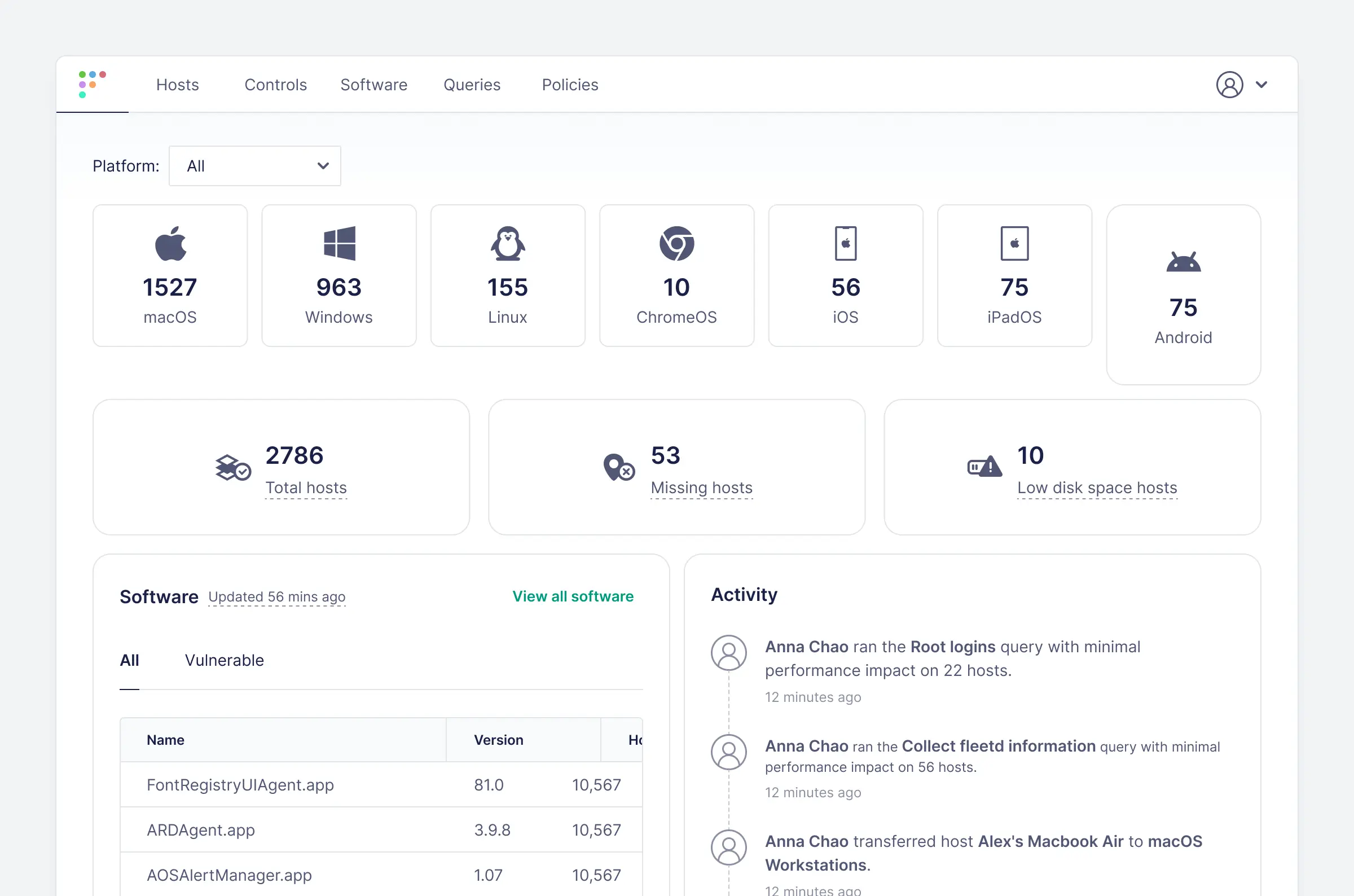
Fleet is self-hosted, open-source device management: see every Mac, Windows and Linux computer, its software, vulnerabilities and security checks.
Fleet is open-source device management you can self-host, used as an alternative to Jamf Pro or Microsoft Intune to see every company laptop, phone and server in one place. It shows what each Mac, Windows PC and Linux computer runs, which software has known vulnerabilities, and whether each device passes your security checks.
A small agent on each computer reports back to Fleet, and you can ask devices questions live, such as "which laptops still run an old browser?". You set rules like "the operating system is up to date" and see who fails them, run scripts to fix problems, and send settings profiles to Macs, PCs, iPhones, iPads and Android phones. A design studio's IT lead, for example, could check in a minute which of its 30 laptops are missing a security update and run a script on just those.
The free edition covers inventory, vulnerabilities, checks, scripts and settings. Installing apps, enforcing disk encryption and OS updates, lock and wipe, and device groups need paid Fleet Premium. Fleet works with single sign-on, opens Jira or Zendesk tickets, and has an API and webhooks.
Cloudgate installs Fleet on a server Cloudgate provides or one you connect, with its database, and gives it a secure web address. Open that address right away to create your admin account.
What you can do with Fleet
- See every device One list of your Macs, Windows PCs, Linux computers, Chromebooks, iPhones, iPads and Android phones, with hardware, operating system, disk space and when each was last seen.
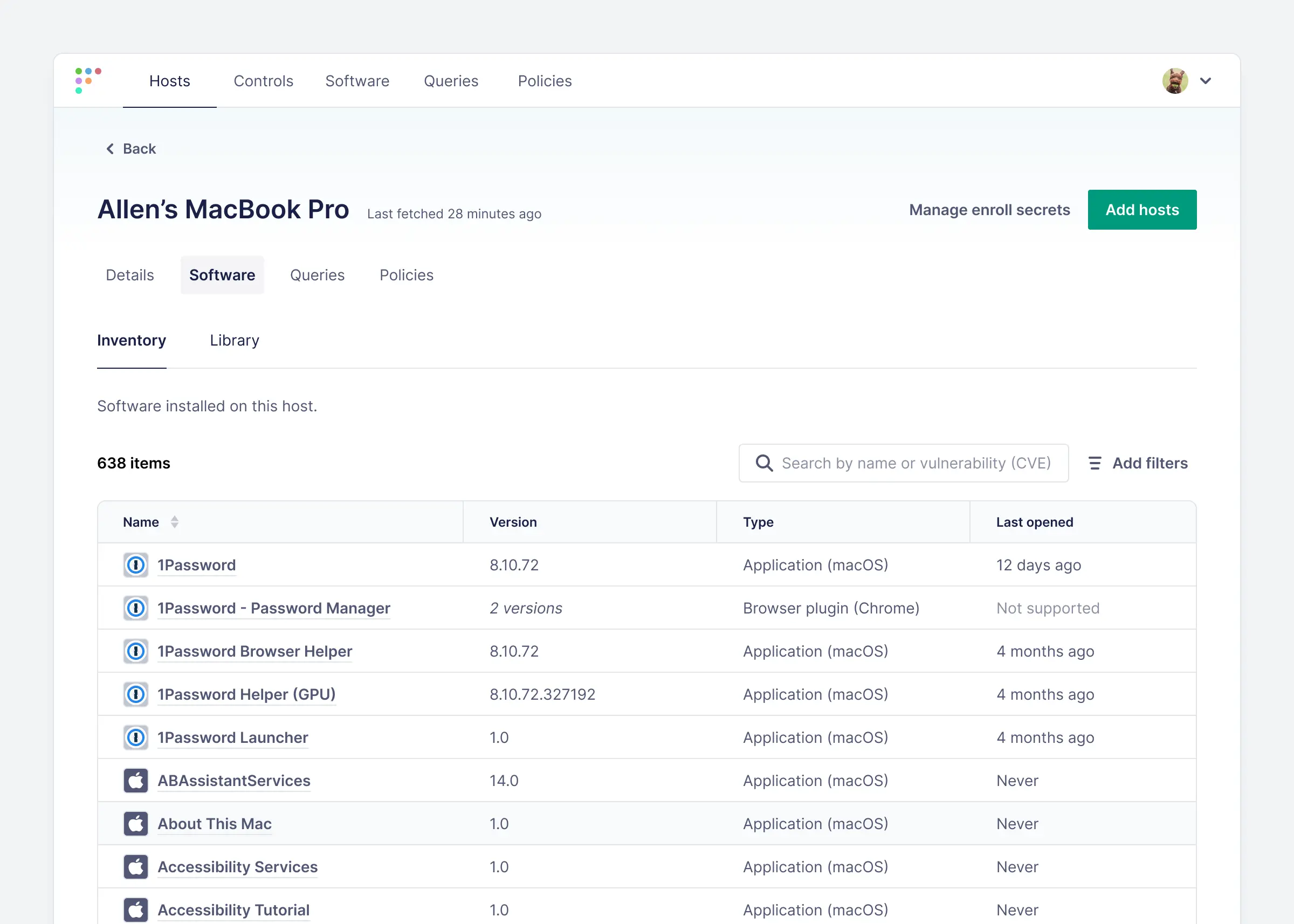
- Know what software is installed See every app and browser extension on each computer, and search all devices at once by name or version.
- Spot known vulnerabilities Fleet keeps checking installed software against published vulnerabilities (CVEs) and shows which devices are affected.
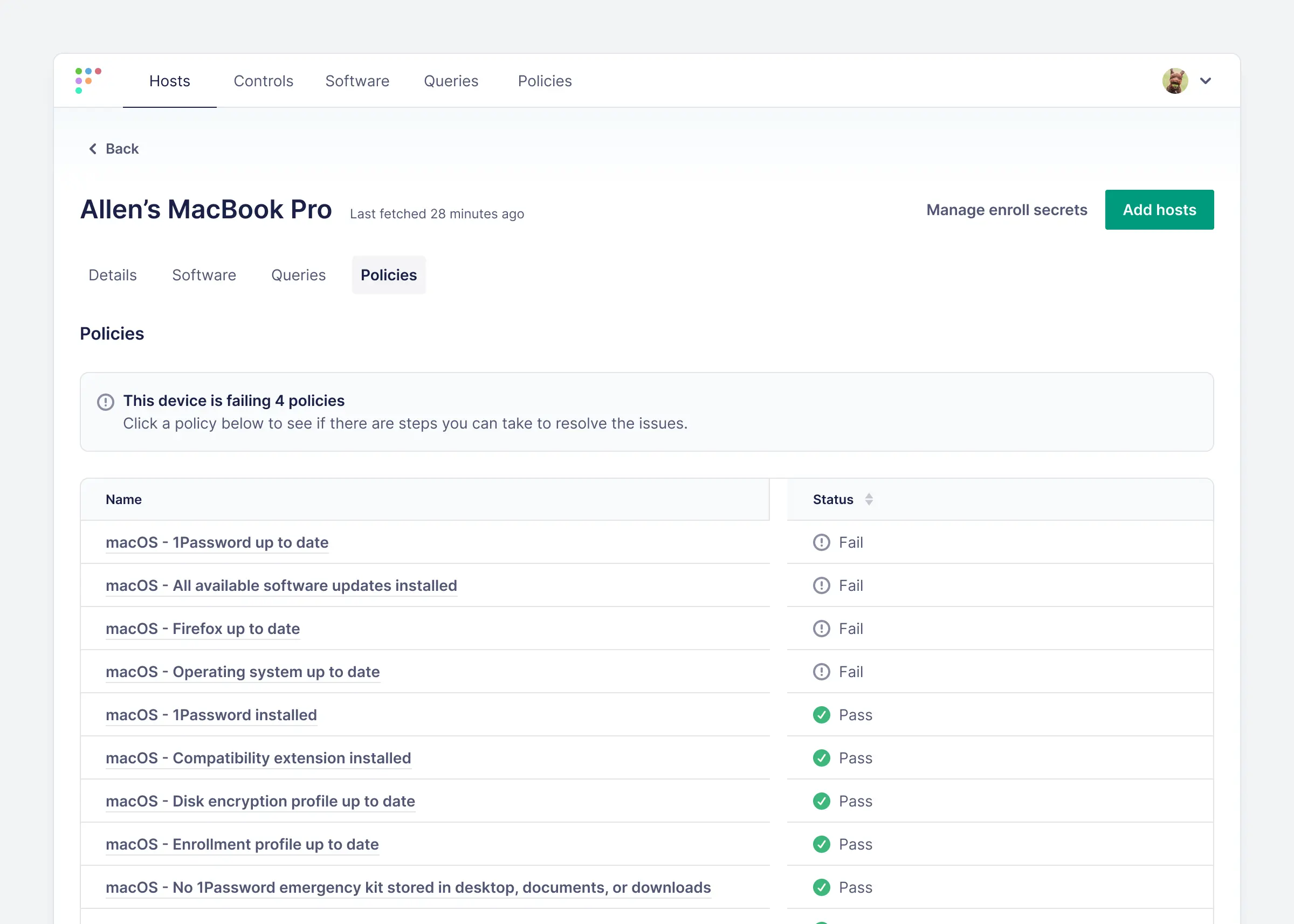
- Check devices against your rules Write pass-or-fail policies such as "the operating system is up to date" and see which devices fail each one.
- Ask devices questions live Run queries on chosen devices and get answers in seconds, with the performance cost of each query shown.
- Run scripts and push settings Run scripts on Mac, Windows and Linux computers, and send settings profiles to enrolled Macs, PCs and phones.
- Watch for tampering and malware Monitor important files for changes and look for malware with YARA rules.
- Connect your other tools Sign in with single sign-on, open Jira or Zendesk tickets automatically, and use the API, webhooks or settings kept in Git.
Replaces Jamf Pro and Microsoft Intune
Fleet does the same job as Jamf Pro and Microsoft Intune. Here is what changes when you switch.
- Macs, Windows PCs and Linux computers in one console instead of separate tools
- No fee per device for the free edition, and your device data stays on your server
- Open source code, so staff can see exactly what the agent collects
- Live questions to any device, written in SQL, for answers a fixed report doesn't give
- Enforcing disk encryption and OS updates, installing apps, lock and wipe, and zero-touch setup need paid Fleet Premium
- The free edition has no device groups, user roles or two-step sign-in; everyone shares one set of devices
- Adding a computer means installing Fleet's agent, built once with its command-line tool
- It suits a hands-on IT person; reports and policies are written as SQL queries
What happens when you click Deploy?
You do not need a server or any technical knowledge. Four steps, and Fleet is running at its own web address.
- Step 1 Click Deploy and create your account
Deploy takes you to Cloudgate. Create an account, or log in if you have one. Fleet itself is free.
- Step 2 Choose a server
No server? Get one from Cloudgate: pick a size and a country, and Cloudgate gets it ready. Already have one? Connect it instead.
- Step 3 Cloudgate sets up Fleet
It prepares the server, makes the passwords the app needs and starts it. There is nothing to install and nothing to write down.
- Step 4 Open your app and sign in
Your app gets a free web address to start, without https. Add your own domain, like app.yourshop.com, and Cloudgate secures it with https for you.
New to Cloudgate? See what Cloudgate is
Run Cloudgate yourself? Deploy from your own console
In your Cloudgate console, open Templates and choose Fleet.
Questions
Is Fleet free?
Yes, Fleet's free edition is open source under the MIT licence, with no limit on devices or users, and you pay only for your server. Some features, such as installing apps, enforcing disk encryption and OS updates, lock and wipe, device groups and user roles, are in Fleet Premium, which needs a paid licence key.
Is Fleet a good alternative to Jamf Pro or Microsoft Intune?
Yes, Fleet fits if you mainly need to see every computer, its software and vulnerabilities, check devices against your rules, run scripts and push settings profiles. The free edition does not install apps, enforce disk encryption or OS updates, lock or wipe devices, or set up new devices automatically, which Jamf Pro and Intune do.
Which devices can Fleet manage?
Fleet supports Macs (macOS 15 and later), Windows 10 and 11 PCs and Windows Server, most Linux distributions including Ubuntu, Debian, Fedora and Red Hat, Chromebooks, iPhones and iPads (iOS 17 and later) and Android phones (Android 14 and later). On the free edition, Android phones join as personal devices with a work profile.
How do I sign in to Fleet the first time?
Fleet has no default login; the first visit to its web address opens a setup form where you create the admin account, enter your organization's name and confirm Fleet's web address. Whoever reaches the address first becomes the admin, so complete the form right after setup.
How do I add computers to Fleet?
You add a computer by installing Fleet's small agent on it. Fleet's Add hosts screen shows a command for its fleetctl tool that builds an installer for macOS, Windows or Linux; you run the installer on each computer, or hand it out with tools you already use. iPhones, iPads and Android phones join through an enrollment link instead.
Can I move my Macs from Jamf to Fleet?
Yes, but not automatically and without your Jamf history. You remove each Mac from Jamf and then enroll it in Fleet, and staff may need to approve the change on their Mac. Fleet's guided self-service migration is part of Fleet Premium.
What server size do I need for Fleet?
A medium server is what Cloudgate asks for, for Fleet with its MySQL database and Redis. Fleet's own example for up to 1,000 devices uses 2 GB of memory per Fleet server, so move to a bigger server as you add many devices.
Do I need technical skills to run Fleet?
No. Click Deploy, create your Cloudgate account and choose a server, and Cloudgate sets up Fleet and gives it a web address. You use it in your browser like any other online tool.
Do I need my own server for Fleet?
No. When you deploy Fleet, hosted Cloudgate can provide a server. If you already rent one, you can connect it instead.
Related apps

Dispatch deliveries, track drivers live and run your own fleet.

Know what you own, where it is, and when its warranty ends.

Track parts, stock, suppliers and builds for your workshop.

Inventory of what you own, where it is and who has it.