
Erugo
Send large files by link, under your own logo.
No server needed to start: Cloudgate can provide one. What happens when you click Deploy




What is Erugo?
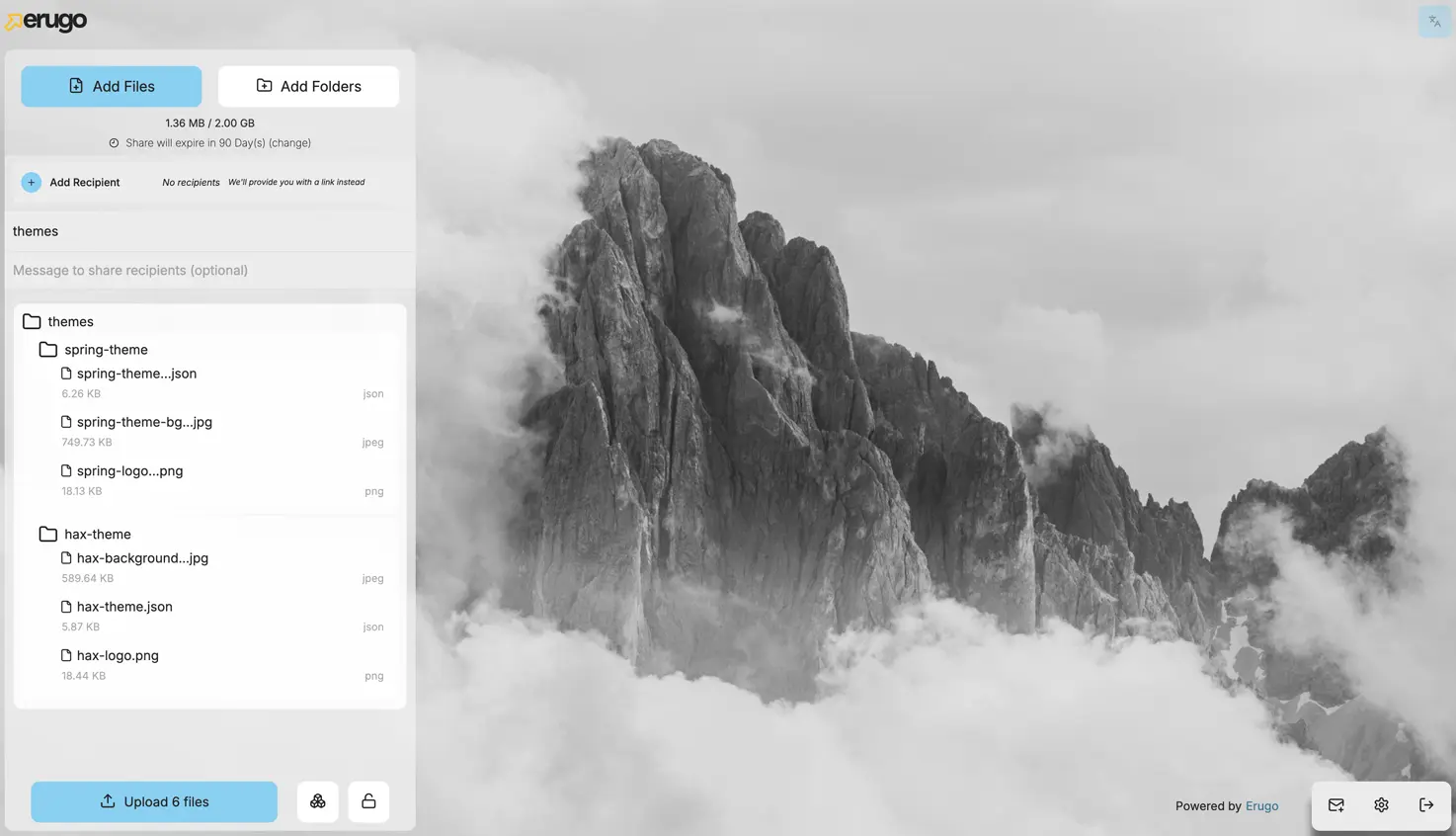
Erugo is self-hosted file sharing: send large files by password-protected, expiring link, like WeTransfer, and let clients upload files back to you.
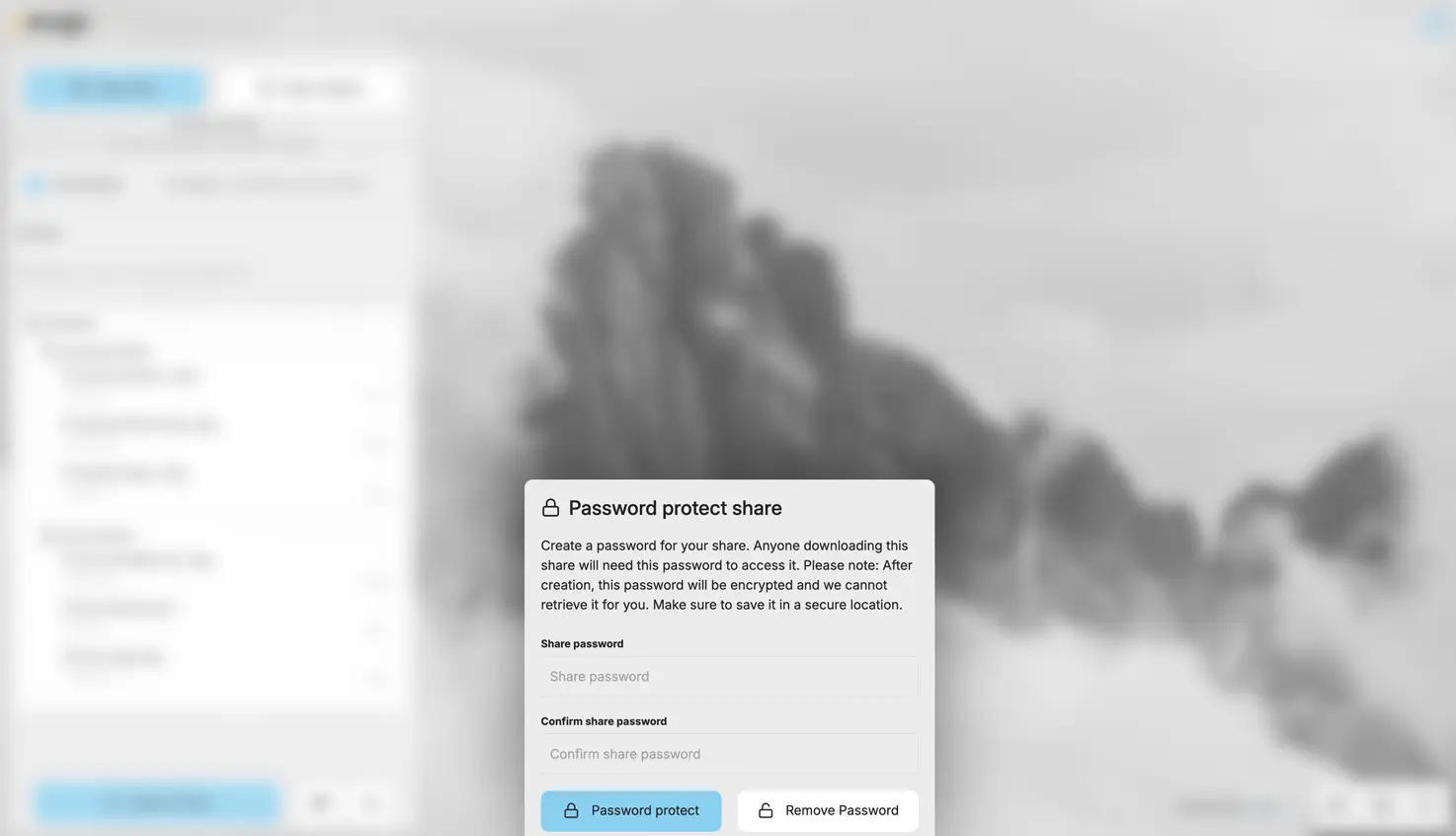
Erugo is free, open-source, self-hosted file sharing: a WeTransfer alternative that sends large files by link from your own server, under your own logo. You drag in files or whole folders, add a password, an expiry date or a download limit if you want, and get a short, readable link to send. The people you send it to need no account.
It is made for businesses that send big work to clients and want those files to stay in their hands. An architecture studio, for example, could send a client the drawings and renders for a new house with a password and a one-week link, get an e-mail when the client downloads them, and use a reverse share to ask the builder to upload site photos back.
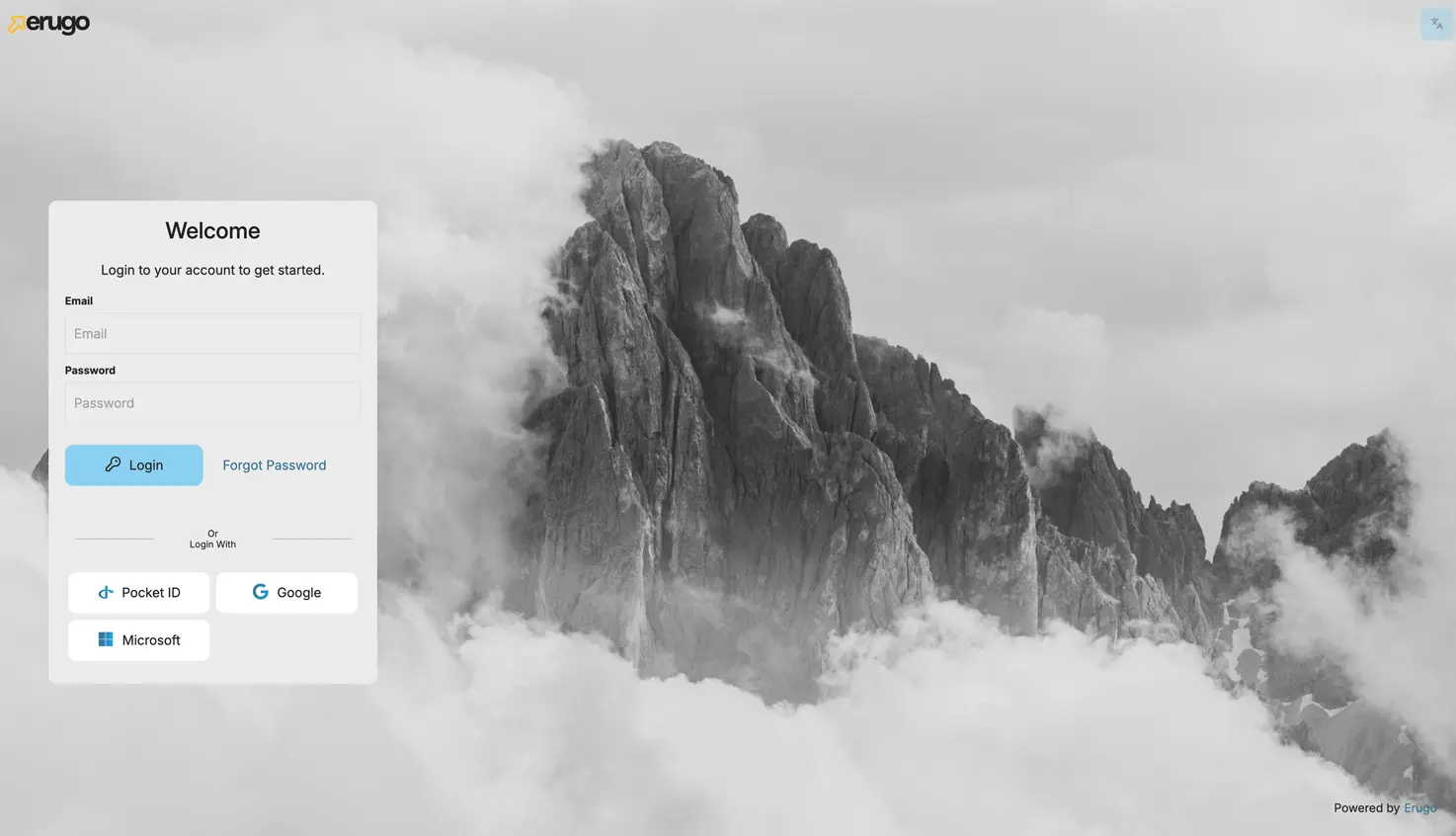
Erugo works in any web browser, in English, German, French, Italian, Dutch and Portuguese. Your team signs in with a password or with Google or Microsoft, and a dashboard shows each share's downloads and lets you extend or revoke it. To e-mail links and download alerts, connect your business e-mail account in the settings.
Cloudgate installs Erugo on your server with a secure web address. Expired shares are deleted on their own, so your disk doesn't fill up.
What you can do with Erugo
- Send files and whole folders Drag in many files or complete folders, and uploads pick up where they stopped if the connection drops.
- Get a link people can read Each share gets a short, readable link such as quiet-cloud-shrill-thunder, easy to say on the phone.
- Control who downloads and for how long Add a password, an expiry date and a download limit to any share, and expired files are deleted on their own.
- E-mail the link and hear about downloads Erugo can send the link to your recipients and tell you when they download, once you connect your e-mail account.
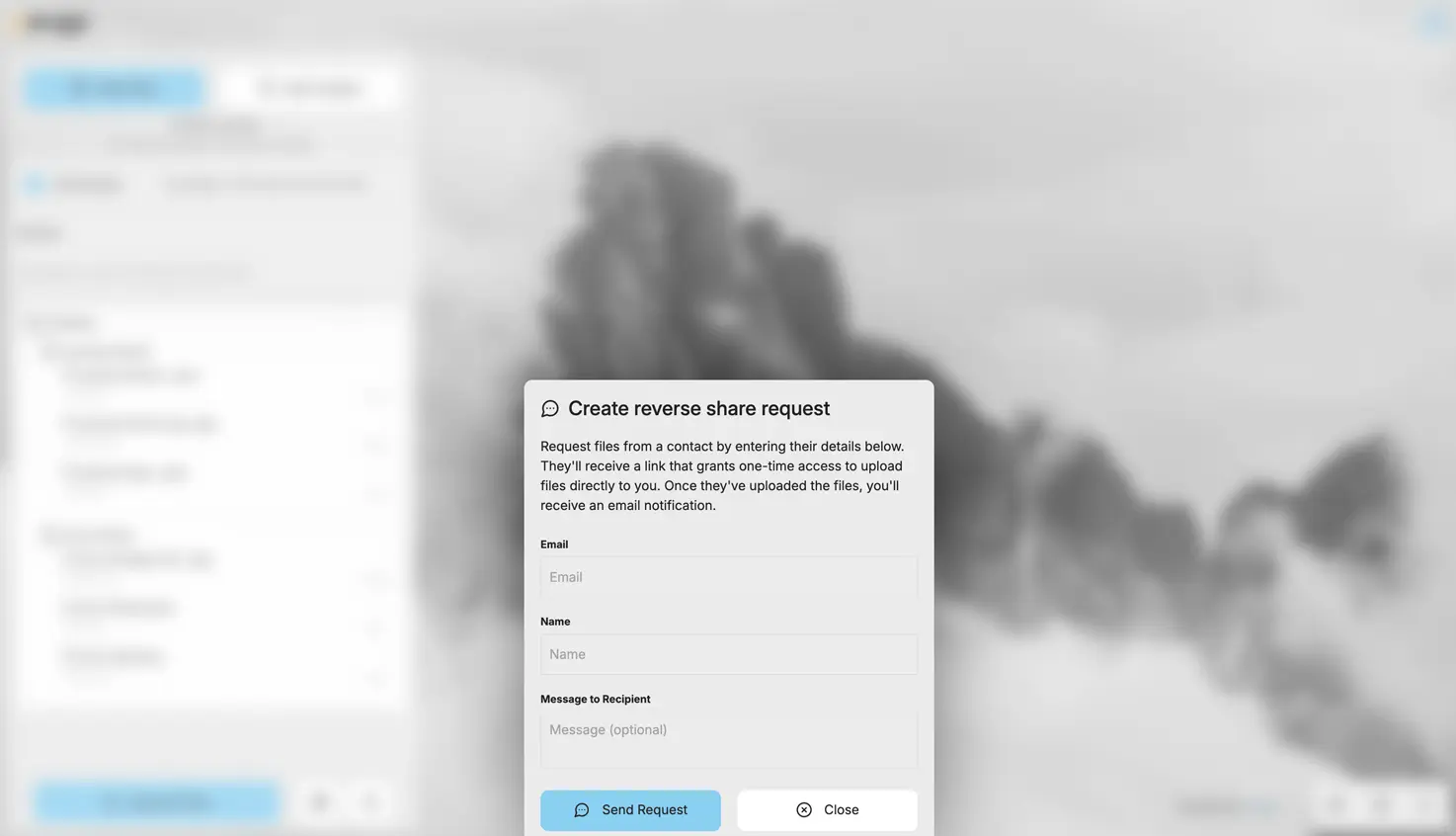
- Ask clients to send you files A reverse share e-mails a contact a one-time link to upload files straight to you.
- Put your own brand on it Choose a theme, colours, your logo and background pictures, so clients see your business on every share.
- Manage shares and people A dashboard shows downloads and storage, lets you extend or revoke shares, and invites colleagues, who can sign in with Google or Microsoft.
Replaces WeTransfer, Smash and Dropbox Transfer
Erugo does the same job as WeTransfer, Smash and Dropbox Transfer. Here is what changes when you switch.
- No monthly plan per sender; you pay only for your server and its disk
- Your logo and colours on every share page, with no ads
- Files go from your server to your client, not through another company
- Clients can upload files back to you with a one-time link
- Everyone who sends files needs an account on your Erugo; recipients don't
- Sending the link by e-mail and download alerts need your own e-mail account set up first
- No phone apps and no comments or review tools on files
- Old transfers don't move across, which rarely matters because they expire anyway
What happens when you click Deploy?
You do not need a server or any technical knowledge. Four steps, and Erugo is running at its own web address.
- Step 1 Click Deploy and create your account
Deploy takes you to Cloudgate. Create an account, or log in if you have one. Erugo itself is free.
- Step 2 Choose a server
No server? Get one from Cloudgate: pick a size and a country, and Cloudgate gets it ready. Already have one? Connect it instead.
- Step 3 Cloudgate sets up Erugo
It prepares the server, makes the passwords the app needs and starts it. There is nothing to install and nothing to write down.
- Step 4 Open your app and sign in
Your app gets a free web address to start, without https. Add your own domain, like app.yourshop.com, and Cloudgate secures it with https for you.
New to Cloudgate? See what Cloudgate is
Run Cloudgate yourself? Deploy from your own console
In your Cloudgate console, open Templates and choose Erugo.
Questions
Is Erugo free?
Yes, Erugo is free and open source under the MIT licence, with no paid edition and no fee per user, even for business use. You pay only for your server and its disk.
Is Erugo a good alternative to WeTransfer?
Yes, Erugo works well for sending big files by link from your own business. Like WeTransfer's paid plans it offers passwords, expiry dates, e-mails to recipients, download alerts and your own branding. It has no phone apps and no tools for commenting on files.
Do the people I send files to need an account?
No, recipients open the Erugo link, type the password if you set one, and download the files. Only the people who send files, such as you and your team, need an account.
How do I sign in to Erugo the first time?
The first person to open Erugo's web address creates the admin account with an e-mail address and a password; there is no default login. Do it right after installing, then invite your colleagues from the settings.
How big can files be, and how long do Erugo links last?
Up to 2 GB per share and up to 10 days (7 by default) when Erugo is new, and the admin can raise both in the settings. Large uploads resume after a dropped connection, so the real limit is your server's disk.
Can clients send files to me with Erugo?
Yes, Erugo's reverse share e-mails a contact a one-time link to upload files to you, and you get an e-mail when they have. This needs your e-mail account connected in Erugo's settings.
What server size do I need for Erugo?
A small server with 1 GB of memory is enough to run Erugo, which keeps everything in one app with no separate database. Plan the disk for the files waiting to be downloaded; the project suggests 40 GB or more.
Do I need technical skills to run Erugo?
No. Click Deploy, create your Cloudgate account and choose a server, and Cloudgate sets up Erugo and gives it a web address. You use it in your browser like any other online tool.
Do I need my own server for Erugo?
No. When you deploy Erugo, hosted Cloudgate can provide a server. If you already rent one, you can connect it instead.
Can I move my data from WeTransfer to Erugo?
Most people export from WeTransfer and import into Erugo. The official guides at erugo.app walk through it.
Related apps

Send large files with a link that expires, from your own server.

Send files by link, and let clients upload files to you.

File sharing with links that expire on their own.

Send large files by link from your own server, then let them expire.