
Peekaping
Uptime monitoring and status pages, with an API.
No server needed to start: Cloudgate can provide one. What happens when you click Deploy

What is Peekaping?
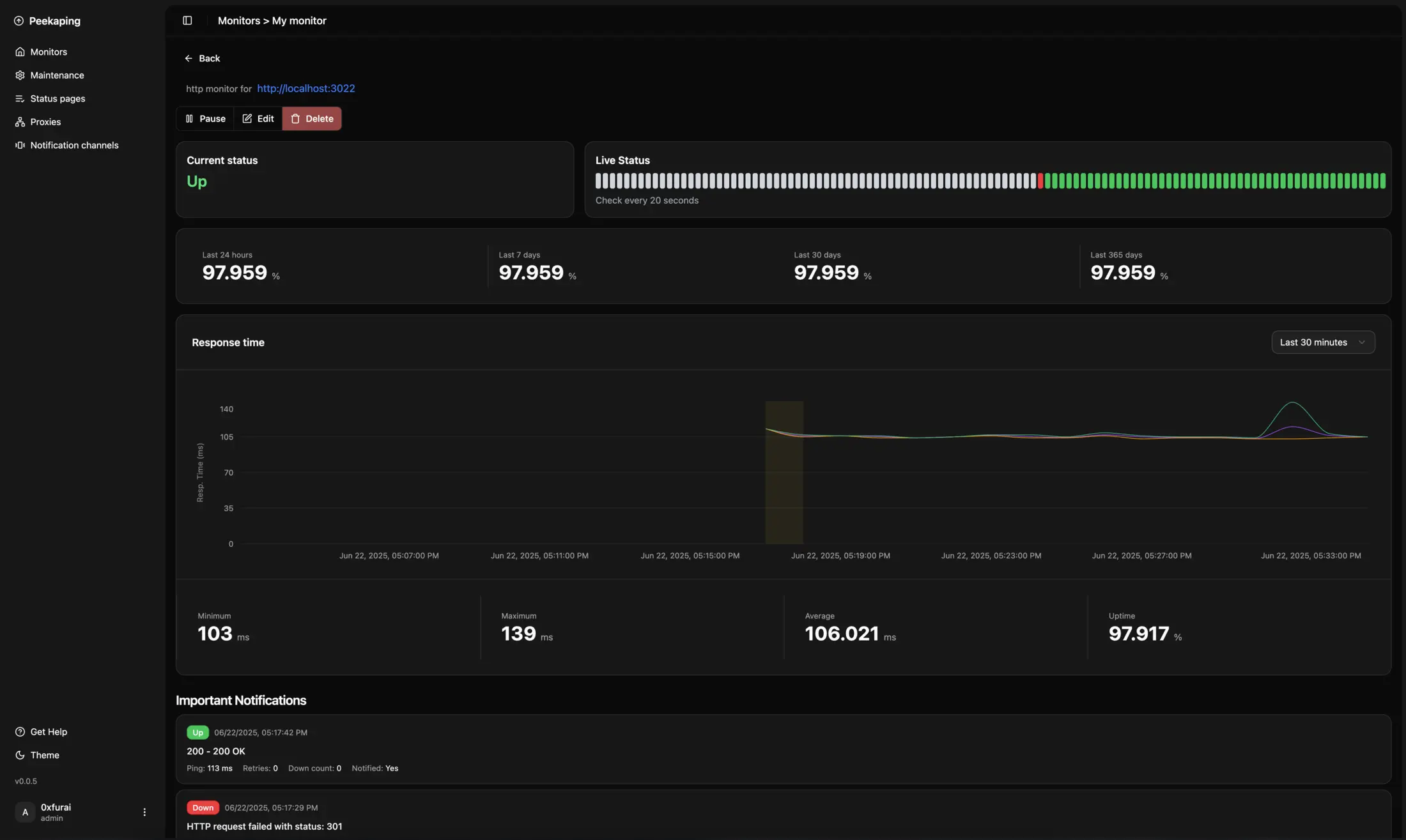
Peekaping is self-hosted uptime monitoring that checks your websites and services, alerts you when one goes down and publishes status pages.
Peekaping is a self-hosted, open-source uptime monitoring tool that checks your websites and online services around the clock, alerts you when one stops working and publishes status pages for your customers, as an alternative to UptimeRobot and Pingdom. Checks can run as often as every 20 seconds.
Alerts can go to email, Slack, Microsoft Teams, Telegram, Discord, SMS, PagerDuty and more than 15 other services. A small web agency, for example, could watch each client's website and booking form, get a Slack message within a minute when one goes down, and give every client a status page on its own address.
Peekaping can also check servers, domain names, databases and message queues, warn before a security certificate expires, and check from other regions if you run its small checker program elsewhere. Everything in the app is also available through its API. It is still in beta, with one admin account and no phone app; the dashboard works in any browser.
How Cloudgate installs Peekaping
Cloudgate installs Peekaping on a server Cloudgate provides or one you connect, keeps its data on lasting storage and gives it a secure web address. The first person to open it creates the admin account. For the most reliable alerts, run it on a different server from the websites it watches.
What you can do with Peekaping
- Watch websites and services Check websites, servers, domain names, databases and message queues as often as every 20 seconds.
- Get alerted where you already talk Send alerts to email, Slack, Microsoft Teams, Telegram, Discord, SMS, PagerDuty and more than 15 other services.
- Publish status pages Show customers what is working on a public or private status page, on your own web address if you like.
- Check from more than one place Add small helper programs on other machines to check the same website from another region or from inside a private network.
- Plan maintenance quietly Set a maintenance window, once or on a schedule, so planned work does not set off alerts.
- Catch expiring certificates Get a warning before your website's security certificate runs out.
- Automate everything Every setting in the app is also in its API, so you can add monitors from scripts or your build tools.
Replaces UptimeRobot and Pingdom
Peekaping does the same job as UptimeRobot and Pingdom. Here is what changes when you switch.
- No price per monitor, per check or per status page
- Checks as often as every 20 seconds
- An API for everything, plus checks for databases and message queues
- Your monitoring history stays on your own server
- It is beta software; the project suggests trying it before you rely on it
- It checks from your server unless you run extra checkers on other machines
- One admin account; colleagues cannot have their own logins yet
- Status pages have no incident posts or email subscribers yet
What happens when you click Deploy?
You do not need a server or any technical knowledge. Four steps, and Peekaping is running at its own web address.
- Step 1 Click Deploy and create your account
Deploy takes you to Cloudgate. Create an account, or log in if you have one. Peekaping itself is free.
- Step 2 Choose a server
No server? Get one from Cloudgate: pick a size and a country, and Cloudgate gets it ready. Already have one? Connect it instead.
- Step 3 Cloudgate sets up Peekaping
It prepares the server, makes the passwords the app needs and starts it. There is nothing to install and nothing to write down.
- Step 4 Open your app and sign in
Your app gets a free web address to start, without https. Add your own domain, like app.yourshop.com, and Cloudgate secures it with https for you.
New to Cloudgate? See what Cloudgate is
Run Cloudgate yourself? Deploy from your own console
In your Cloudgate console, open Templates and choose Peekaping.
Questions
Is Peekaping free?
Yes. Peekaping is free and open source under the MIT licence, for personal and commercial use, with no paid edition. You pay only for hosting.
Is Peekaping a good alternative to Uptime Kuma?
Peekaping can be, if you want an API for everything, checks for databases and message queues, or checks from more than one location. Uptime Kuma is older and more widely used, with more alert services and incident posts on its status pages, while Peekaping is still in beta.
Is Peekaping a good alternative to UptimeRobot or Pingdom?
Yes, for checking that websites and services are up and alerting you when they are not. Peekaping has no limit on monitors and includes status pages, but it checks from your own server unless you add checkers elsewhere, and it has no real-user or transaction monitoring.
How do I sign in to Peekaping the first time?
The first person to open Peekaping's web address creates the admin account on the setup screen. There is no default password. The same screen has two ticked boxes for sending anonymous usage statistics and error reports, which you can untick.
Can I import my monitors into Peekaping from Uptime Kuma or UptimeRobot?
No, not yet. An Uptime Kuma import is on Peekaping's plans; for now you add each monitor by pasting its address and choosing how often to check it.
Can Peekaping check my website from more than one location?
Yes. Peekaping can run a small checker program on another machine, for example in another country, and each monitor then shows results from every place it is checked.
Can my colleagues have their own Peekaping logins?
No, not yet. Peekaping has one admin account; separate users and access levels are on the project's plans. Colleagues can still receive alerts in Slack, Teams, email or any other channel you set up.
Do I need technical skills to run Peekaping?
No. Click Deploy, create your Cloudgate account and choose a server, and Cloudgate sets up Peekaping and gives it a web address. You use it in your browser like any other online tool.
Do I need my own server for Peekaping?
No. When you deploy Peekaping, hosted Cloudgate can provide a server. If you already rent one, you can connect it instead.
Related apps

Uptime monitoring for your websites and servers, with status pages.

Know the moment your website goes down, and tell customers.

Uptime, server and SSL monitoring with status pages.

Uptime checks and a status page, set in one file.