
OneUptime
Uptime checks, on-call paging and a status page in one tool.
No server needed to start: Cloudgate can provide one. What happens when you click Deploy



What is OneUptime?
Self-hosted OneUptime checks your websites, pages whoever is on call and runs your status page, replacing PagerDuty, Opsgenie and Statuspage in one app.
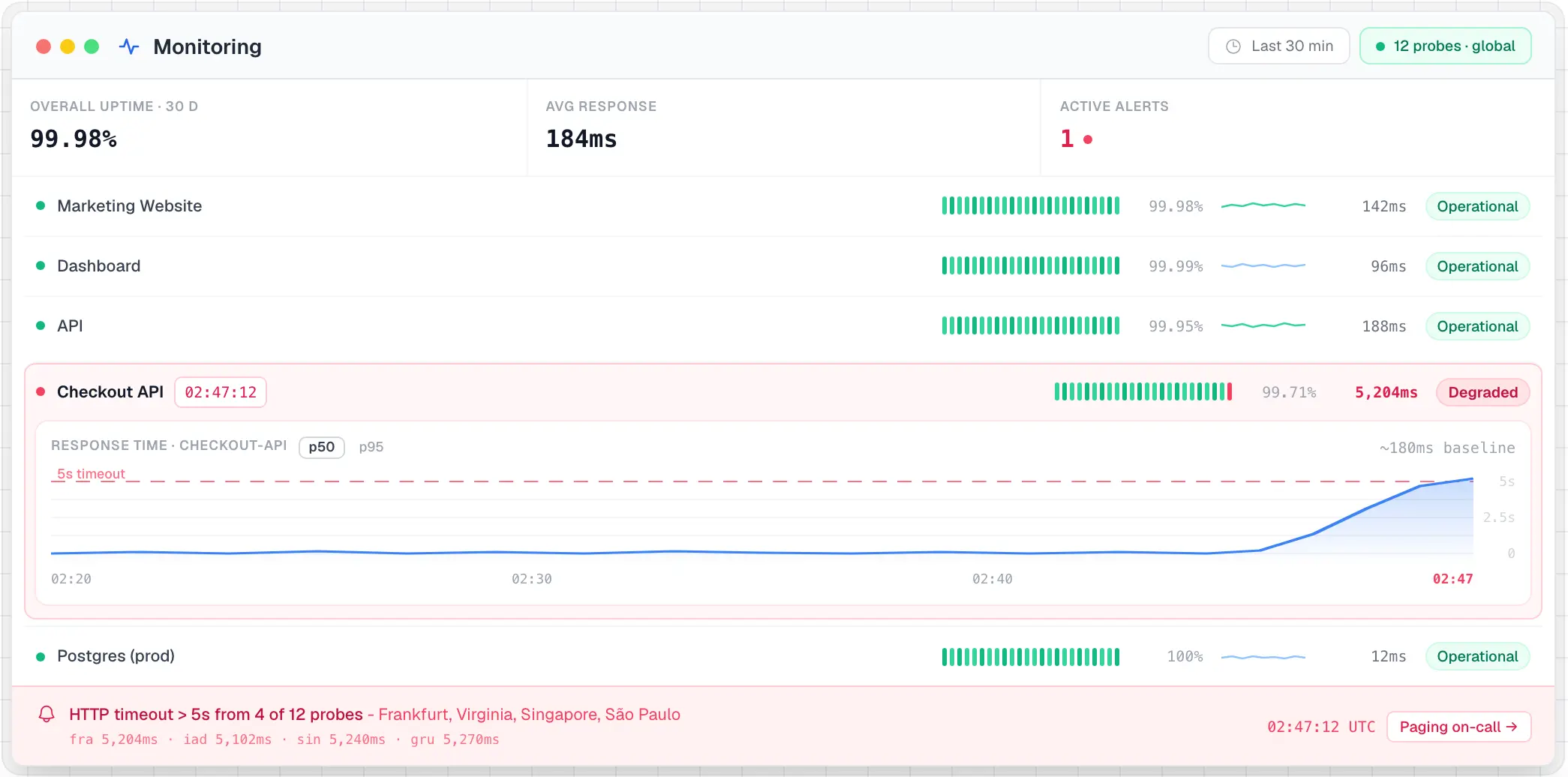
OneUptime is a self-hosted, open-source tool that checks your websites and servers, pages whoever is on call when something breaks, and keeps customers informed on a status page, so it can replace PagerDuty, Opsgenie, Statuspage and Pingdom with one app. Because the tool that notices a problem is the one that pages your team, every alert, call and update ends up on one incident timeline.
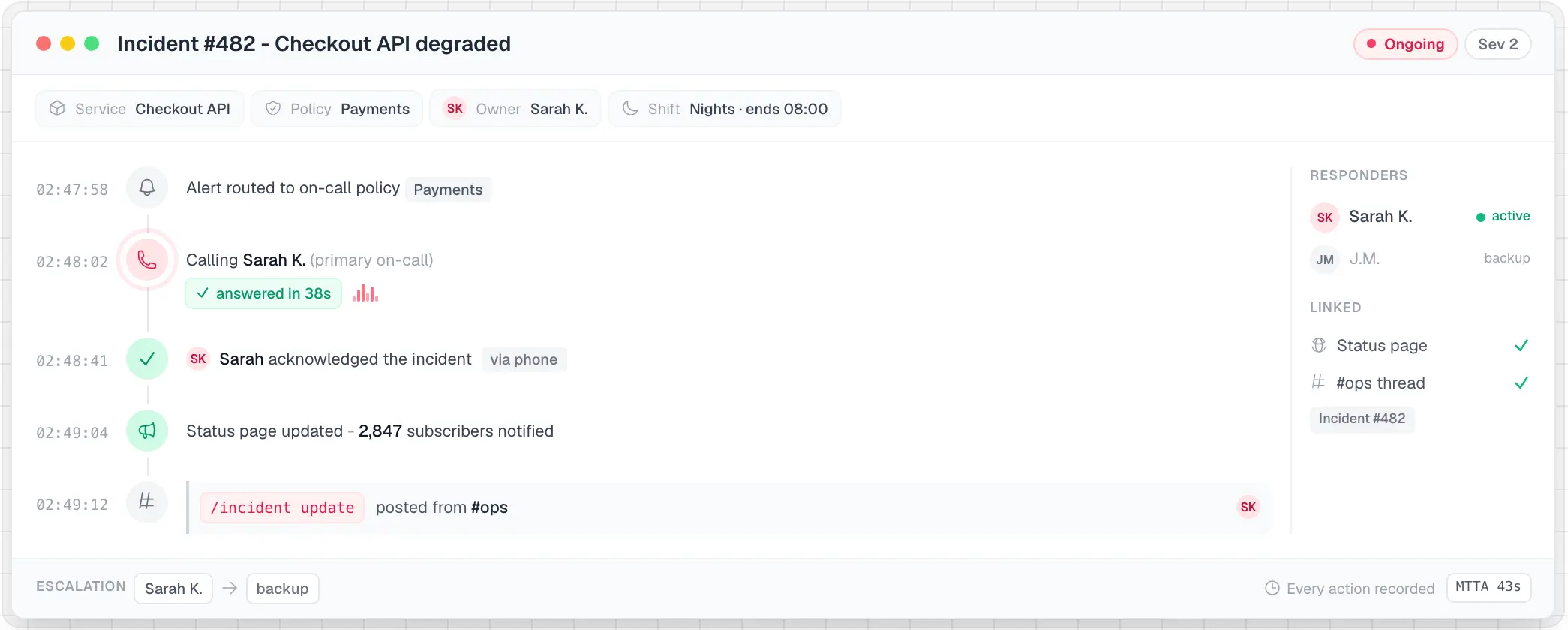
An IT support company looking after twenty client websites could set up a weekly on-call rota, have OneUptime phone the engineer on duty when a client's shop stops answering, escalate to a second person if nobody acknowledges, and post an update on that client's status page while it is fixed.
OneUptime also collects logs, metrics and traces from your own apps, and connects to Slack, Microsoft Teams, Jira and other tools. The OneUptime On-Call phone app works with your own server. The free Community Edition includes single sign-on; audit logs, custom roles and an unbranded status page are part of the paid Enterprise Edition.
How Cloudgate installs OneUptime
Cloudgate installs the free Community Edition of OneUptime on a large server Cloudgate provides or one you connect, keeps its data on lasting storage and gives it a secure web address. The first person to sign up becomes the admin. For the most reliable alerts, run it on a different server from the websites it watches.
What you can do with OneUptime
- Check websites and online services Watch websites, APIs, ports, DNS records and security certificates, and run scripted checks, such as a checkout, in a real browser.
- Page whoever is on call Set rotas and escalation rules, and reach the right person by phone call, text, email, phone app, Slack or Microsoft Teams until someone responds.
- Run incidents on one timeline Every alert, call, acknowledgement and update lands on the incident's timeline, with severities, owners, notes and postmortems.
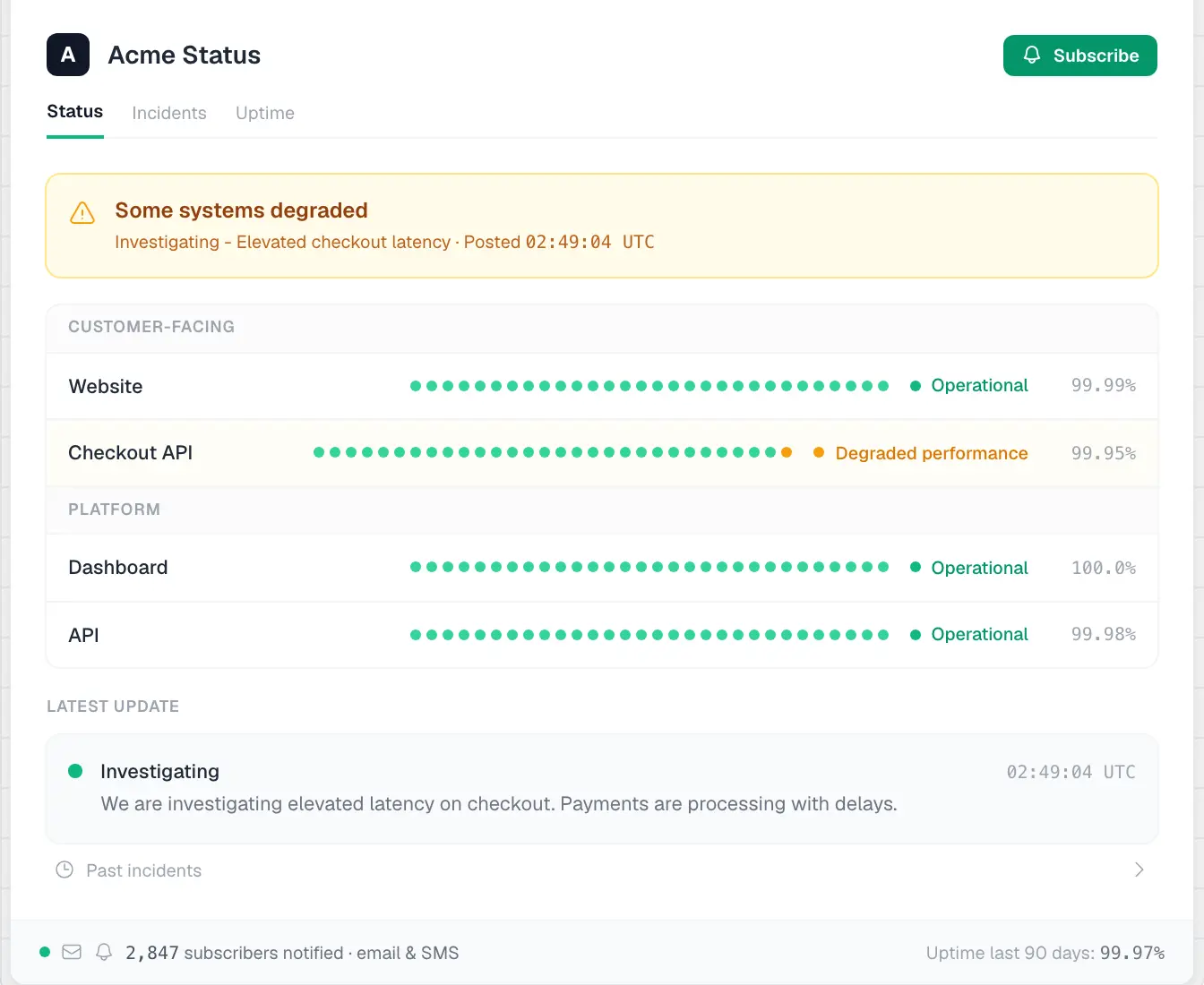
- Keep customers informed Publish public or private status pages with your logo, announce planned maintenance and let customers subscribe to updates.
- Bring your setup across Import schedules, escalation policies, status pages and checks from PagerDuty, Opsgenie, Statuspage, Pingdom, UptimeRobot and others.
- Collect logs, metrics and traces Send your apps' logs, metrics and traces with OpenTelemetry, then search them and build dashboards.
- Sign in with your company account Single sign-on with SAML or OpenID Connect is included in the free edition, for your team and for private status pages.
Replaces PagerDuty, Statuspage, Opsgenie and Pingdom
OneUptime does the same job as PagerDuty, Statuspage, Opsgenie and Pingdom. Here is what changes when you switch.
- No fee per user for on-call, and no limit on monitors or status pages
- Uptime checks, paging, incidents and status pages in one place instead of three bills
- Imports your PagerDuty, Opsgenie, Statuspage and Pingdom setup
- Your incident history and alert data stay on your own server
- It needs a large server, with at least 8 GB of memory
- Checks run from your server, not from many locations, unless you add more probes elsewhere
- Phone calls and texts need your own Twilio account, paid per message
- The free edition shows "Powered by OneUptime" on status pages, and audit logs, custom roles and SCIM are paid Enterprise features
What happens when you click Deploy?
You do not need a server or any technical knowledge. Four steps, and OneUptime is running at its own web address.
- Step 1 Click Deploy and create your account
Deploy takes you to Cloudgate. Create an account, or log in if you have one. OneUptime itself is free.
- Step 2 Choose a server
No server? Get one from Cloudgate: pick a size and a country, and Cloudgate gets it ready. Already have one? Connect it instead.
- Step 3 Cloudgate sets up OneUptime
It prepares the server, makes the passwords the app needs and starts it. There is nothing to install and nothing to write down.
- Step 4 Open your app and sign in
Your app gets a free web address to start, without https. Add your own domain, like app.yourshop.com, and Cloudgate secures it with https for you.
New to Cloudgate? See what Cloudgate is
Run Cloudgate yourself? Deploy from your own console
In your Cloudgate console, open Templates and choose OneUptime.
Questions
Is OneUptime free?
Yes, the Community Edition of OneUptime is free and open source under the Apache 2.0 licence, and it includes monitoring, on-call, incidents, status pages and single sign-on. A paid Enterprise Edition adds audit logs, SCIM user provisioning, custom roles, scheduled backups and hiding "Powered by OneUptime" on status pages; Cloudgate installs the free Community Edition.
Is OneUptime a good alternative to PagerDuty or Opsgenie?
Yes, OneUptime covers the core of PagerDuty and Opsgenie for small teams, including on-call rotas, escalation rules, and paging by phone call, text, phone app, email, Slack or Teams. Unlike those tools it also checks your sites itself and runs your status page, but phone and text paging needs your own Twilio account.
Can I import my setup from PagerDuty, Opsgenie or Statuspage?
Yes, OneUptime has a built-in import. With a read-only key it reads your PagerDuty or Opsgenie users, teams, schedules and escalation policies, or your Statuspage pages, components and email subscribers, shows what it found and creates what you tick. It also imports from Pingdom, UptimeRobot, Better Stack, incident.io and Uptime Kuma.
How do I sign in to OneUptime the first time?
The first account you sign up with on your OneUptime address becomes the admin, so do it right after install, then create your first project. In the admin settings you then add an email server, such as SMTP, SendGrid or Amazon SES, so OneUptime can send alerts and invitations.
Can OneUptime call or text the person on call?
Yes, once you connect a Twilio account, or your own text and voice gateway. Without one, OneUptime still pages by email, its phone app, Slack and Microsoft Teams.
Is there a OneUptime phone app?
Yes, the OneUptime On-Call app for iPhone and Android works with a self-hosted OneUptime. It pages you with push notifications that can ring through silent mode, and lets you acknowledge and resolve incidents.
What server size do I need for OneUptime?
OneUptime needs a large server with at least 8 GB of memory, which is what Cloudgate sets it up on. Its makers recommend 16 GB of memory and 8 processor cores for daily use, and more disk if you send it many logs and traces.
Do I need technical skills to run OneUptime?
No. Click Deploy, create your Cloudgate account and choose a server, and Cloudgate sets up OneUptime and gives it a web address. You use it in your browser like any other online tool.
Do I need my own server for OneUptime?
No. When you deploy OneUptime, hosted Cloudgate can provide a server. If you already rent one, you can connect it instead.
Related apps

Uptime checks and a status page, set in one file.

Uptime, server and SSL monitoring with status pages.

Uptime monitoring for your websites and servers, with status pages.

Uptime monitoring with incidents, on-call alerts and status pages.