
Koha
A library system for your catalogue, loans and members.
No server needed to start: Cloudgate can provide one. What happens when you click Deploy




What is Koha?
Koha is a self-hosted library system for your catalogue, loans, readers and public online catalogue, in place of Follett Destiny or Libib.
Koha is a free, open-source library system you can self-host to run a library's catalogue, loans, readers and online catalogue, in place of paid systems such as Follett Destiny or Libib. It began in 1999 for a public library trust in New Zealand and calls itself the first free and open-source library system.
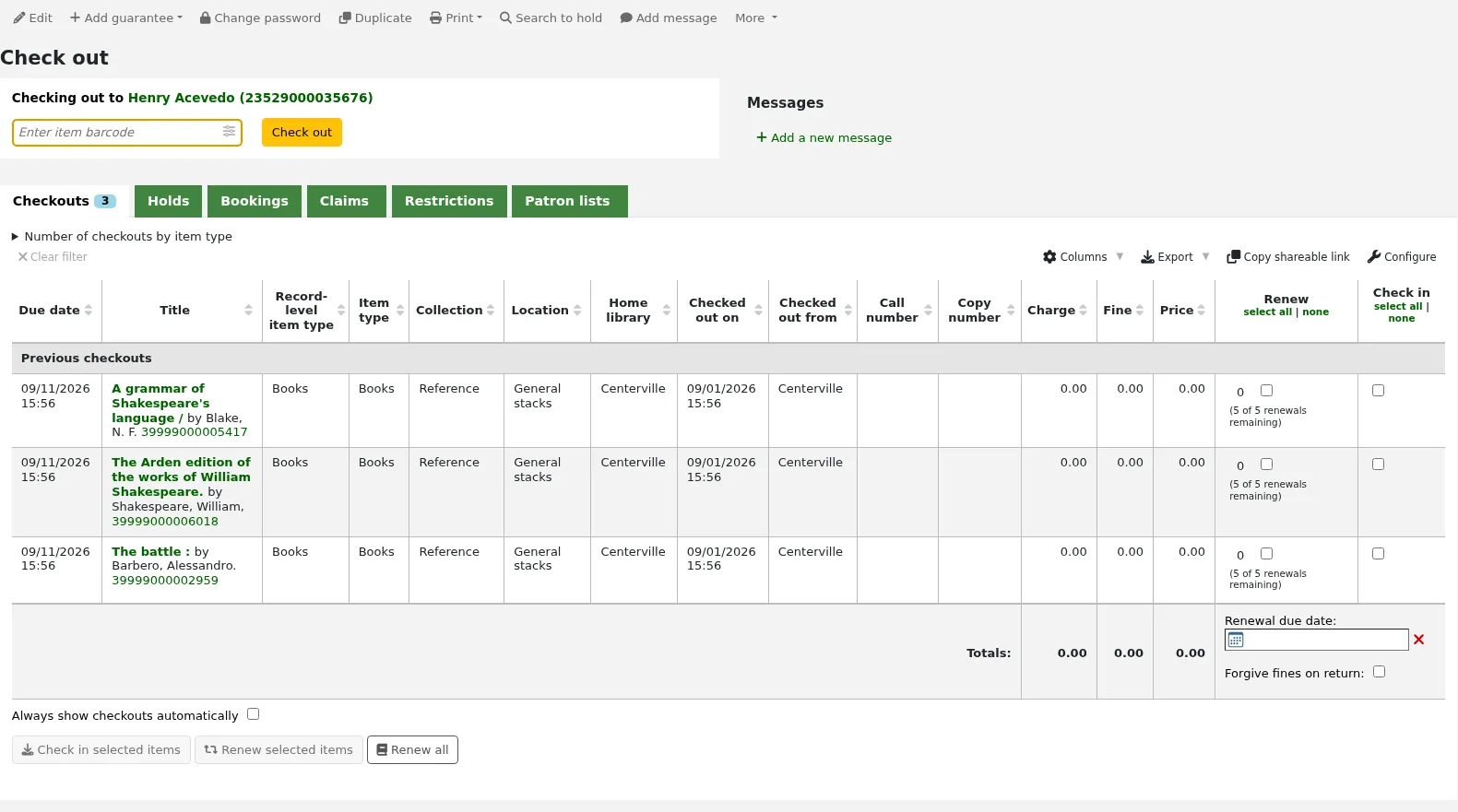
Staff use one website to catalogue books, check items in and out by barcode, take holds, send overdue notices, order new titles and run reports. Readers get a second website, the public catalogue, where they search the collection, place holds and renew their loans. A school library, for example, can give every pupil a library card, let them reserve a book from home, and email parents a reminder when it is overdue.
Koha follows library standards, so it can copy records from other library catalogues and import your existing records as MARC files. It handles one branch or several, works in many languages, and has no phone app, but the public catalogue works in a phone's browser.
Cloudgate installs Koha on your server with everything it needs and gives the staff site and the public catalogue their own secure web addresses. You finish the setup wizard on the staff site, then add your loan rules and books. Your catalogue and readers' records stay on your server.
What you can do with Koha
- Lend and take back items Check items out and in by barcode, renew loans, take holds and bookings, and send overdue notices.
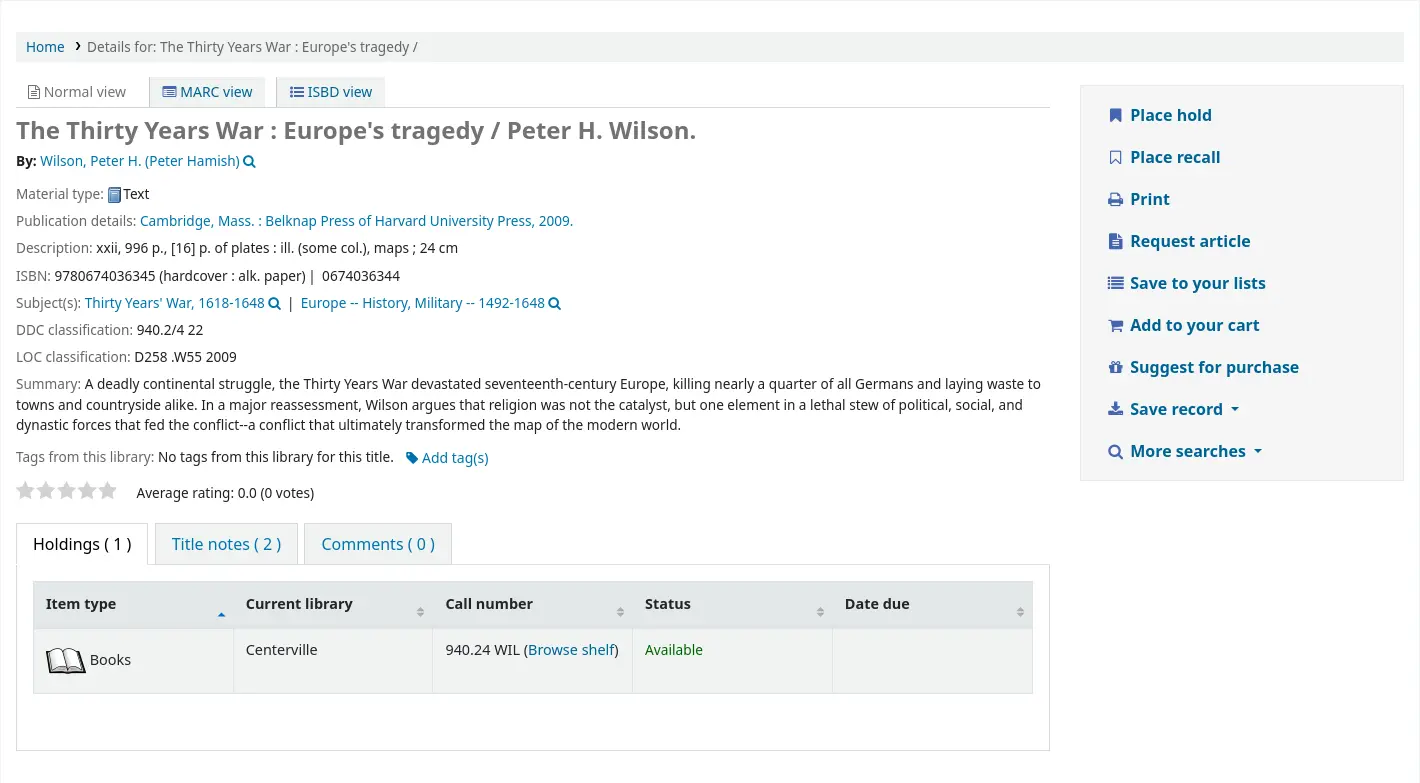
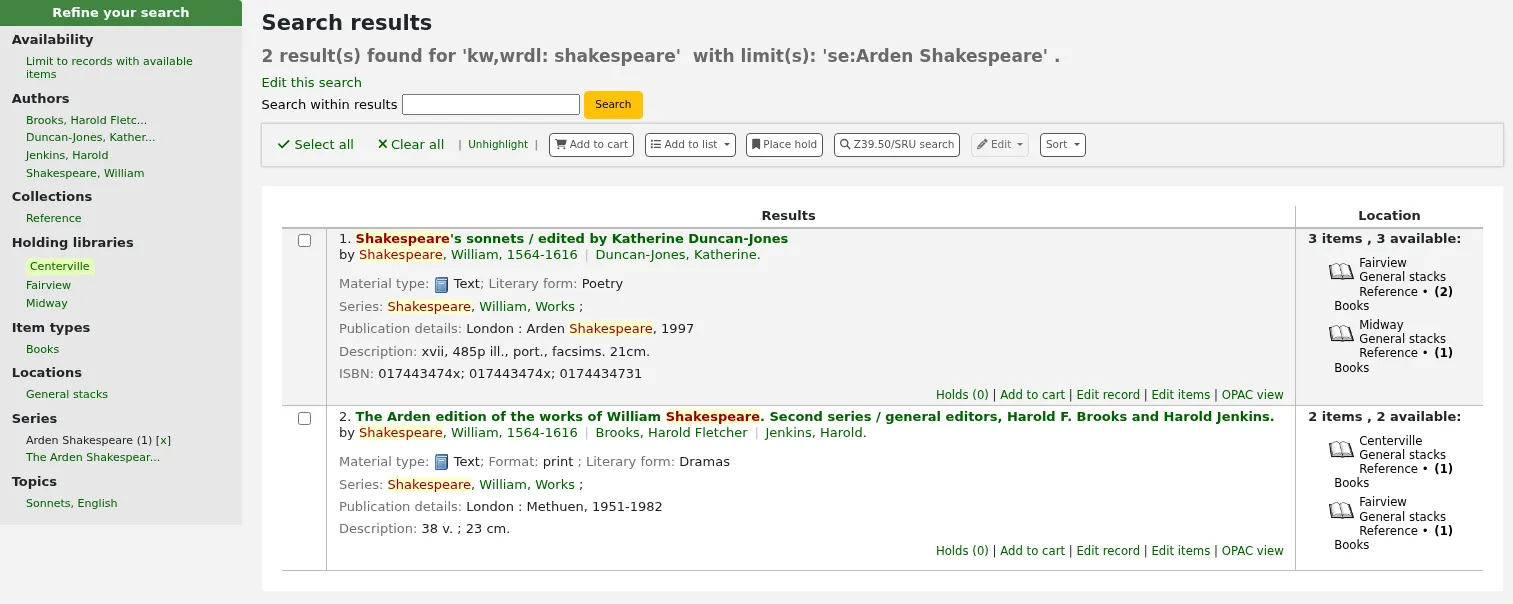
- Give readers an online catalogue Readers search your collection, place holds, renew loans, keep reading lists and suggest new titles from their own account.
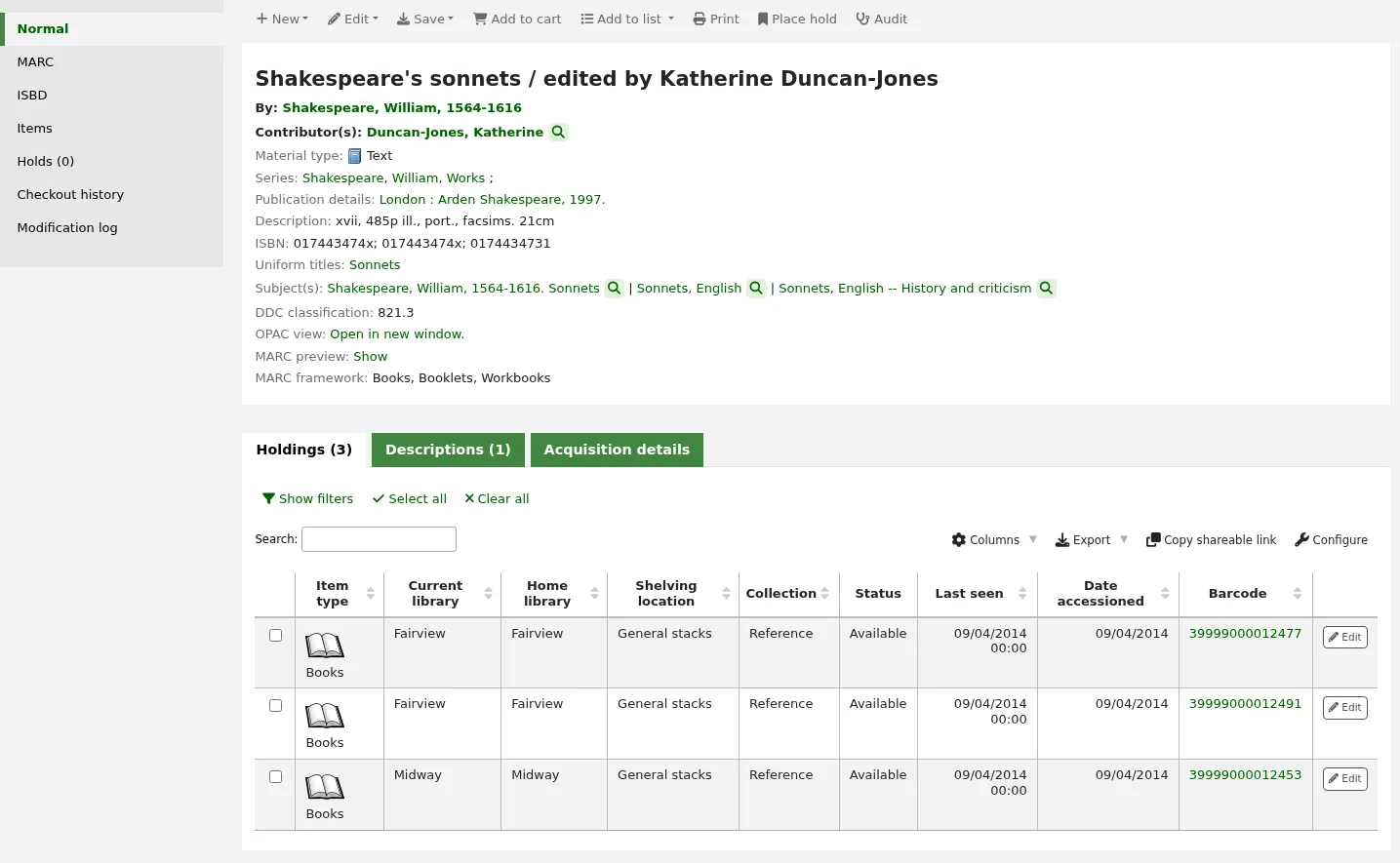
- Catalogue the library way Describe books in MARC 21 or UNIMARC, use a short form for quick records, or copy records from other libraries' catalogues.
- Keep borrower records Store each reader's details, category and loan history, link children to parents, and print library cards.
- Order books and track magazines Manage orders, budgets and suppliers, and follow magazine and journal subscriptions issue by issue.
- Run several branches Use one Koha for one library or several, with items that move between branches.
- Keep lending when the internet is down Record loans offline and upload them later, or let readers use a self-checkout screen.
- Import and export your data Bring in catalogue records as MARC files and readers from a spreadsheet, and export them again at any time.
Replaces Follett Destiny
Koha does the same job as Follett Destiny. Here is what changes when you switch.
- No licence fee for the software, for one branch or many
- Your catalogue and reader records stay on your own server and can be exported at any time
- The same software libraries buy as a hosted service, with no vendor lock-in
- Help is available from the community or a support company of your choice
- More settings to work through than a simple cataloguing app
- No vendor support included; you set it up or hire help
- No phone app; the catalogue works in a phone's browser
- Catalogue records and readers move across, but loan history usually stays behind
What happens when you click Deploy?
You do not need a server or any technical knowledge. Four steps, and Koha is running at its own web address.
- Step 1 Click Deploy and create your account
Deploy takes you to Cloudgate. Create an account, or log in if you have one. Koha itself is free.
- Step 2 Choose a server
No server? Get one from Cloudgate: pick a size and a country, and Cloudgate gets it ready. Already have one? Connect it instead.
- Step 3 Cloudgate sets up Koha
It prepares the server, makes the passwords the app needs and starts it. There is nothing to install and nothing to write down.
- Step 4 Open your app and sign in
Your app gets a free web address to start, without https. Add your own domain, like app.yourshop.com, and Cloudgate secures it with https for you.
New to Cloudgate? See what Cloudgate is
Run Cloudgate yourself? Deploy from your own console
In your Cloudgate console, open Templates and choose Koha.
Questions
Is Koha free?
Yes, Koha is free and open-source software under the GNU GPL version 3 or later, with no paid edition. You pay only for your server, and for outside support if you want it.
Is Koha a good alternative to Follett Destiny?
Yes, if you want a full library system with circulation, cataloguing, a public catalogue, acquisitions and reports, without a licence fee. Destiny includes vendor support and a school-focused setup; with Koha you configure it yourself or pay a Koha support company.
Can I move my library from Follett Destiny or Libib to Koha?
Partly. Koha imports catalogue records as MARC files and readers from a CSV spreadsheet, so export those from your old system first; a Libib list may need converting to MARC. Loan history and settings usually don't move across.
Is Koha good for a small library?
Yes, Koha works for a single-branch library as well as large networks. Expect to spend some time on the first setup, because it has many settings for loan rules, notices and the catalogue.
Does Koha have a phone app?
No, Koha has no official phone app. Its public catalogue works in a phone's browser, where readers can search, place holds and renew loans, and it can show their library card barcode on screen.
How do I sign in to Koha the first time?
Open Koha's staff site and sign in to the setup wizard with the user name koha_library and the database password Cloudgate shows. The wizard then creates your library, your first reader types and loan rule, and your own admin account, which you use from then on.
What server size do I need for Koha?
A large server, because Koha runs a database, a search engine and several helper services beside the library system itself. Cloudgate sets them all up for you, and you can move to a bigger server as your collection grows.
Do I need technical skills to run Koha?
No. Click Deploy, create your Cloudgate account and choose a server, and Cloudgate sets up Koha and gives it a web address. You use it in your browser like any other online tool.
Do I need my own server for Koha?
No. When you deploy Koha, hosted Cloudgate can provide a server. If you already rent one, you can connect it instead.
Related apps

A self-hosted web archive that keeps lasting copies of web pages.

Archives management with a public catalogue.
Publish your organisation's datasets on your own open data portal.

An open-source electronic lab notebook and inventory for your lab.