ArchiveBox
A self-hosted web archive that keeps lasting copies of web pages.
No server needed to start: Cloudgate can provide one. What happens when you click Deploy
What is ArchiveBox?
ArchiveBox is a self-hosted web archive that saves pages you choose as HTML, screenshots, PDFs and WARC files, like a private Wayback Machine.
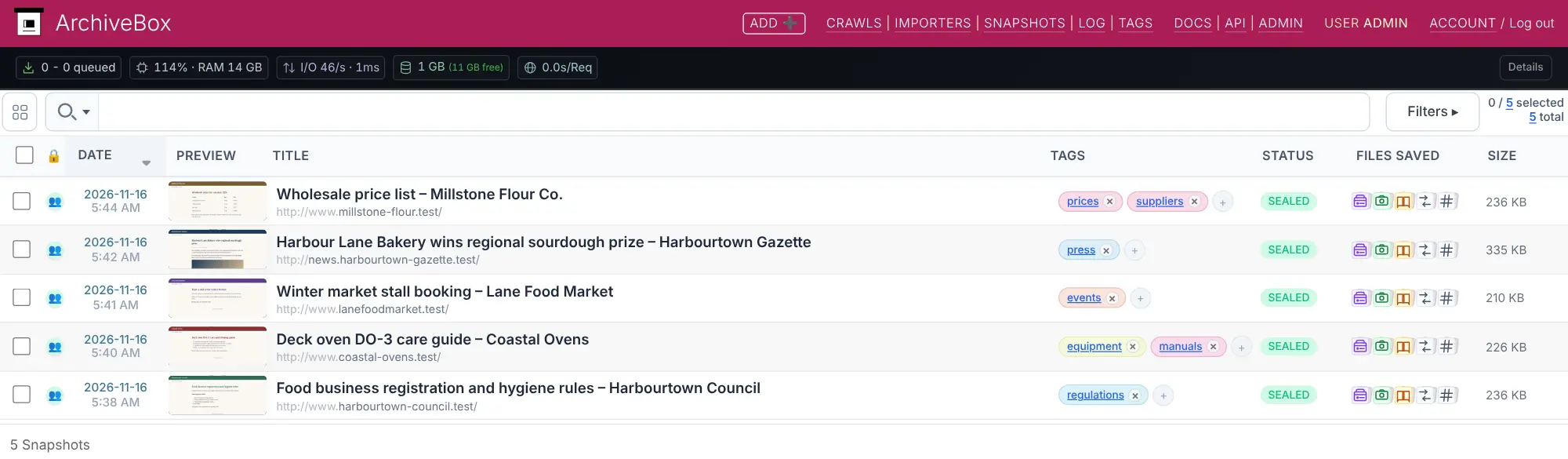
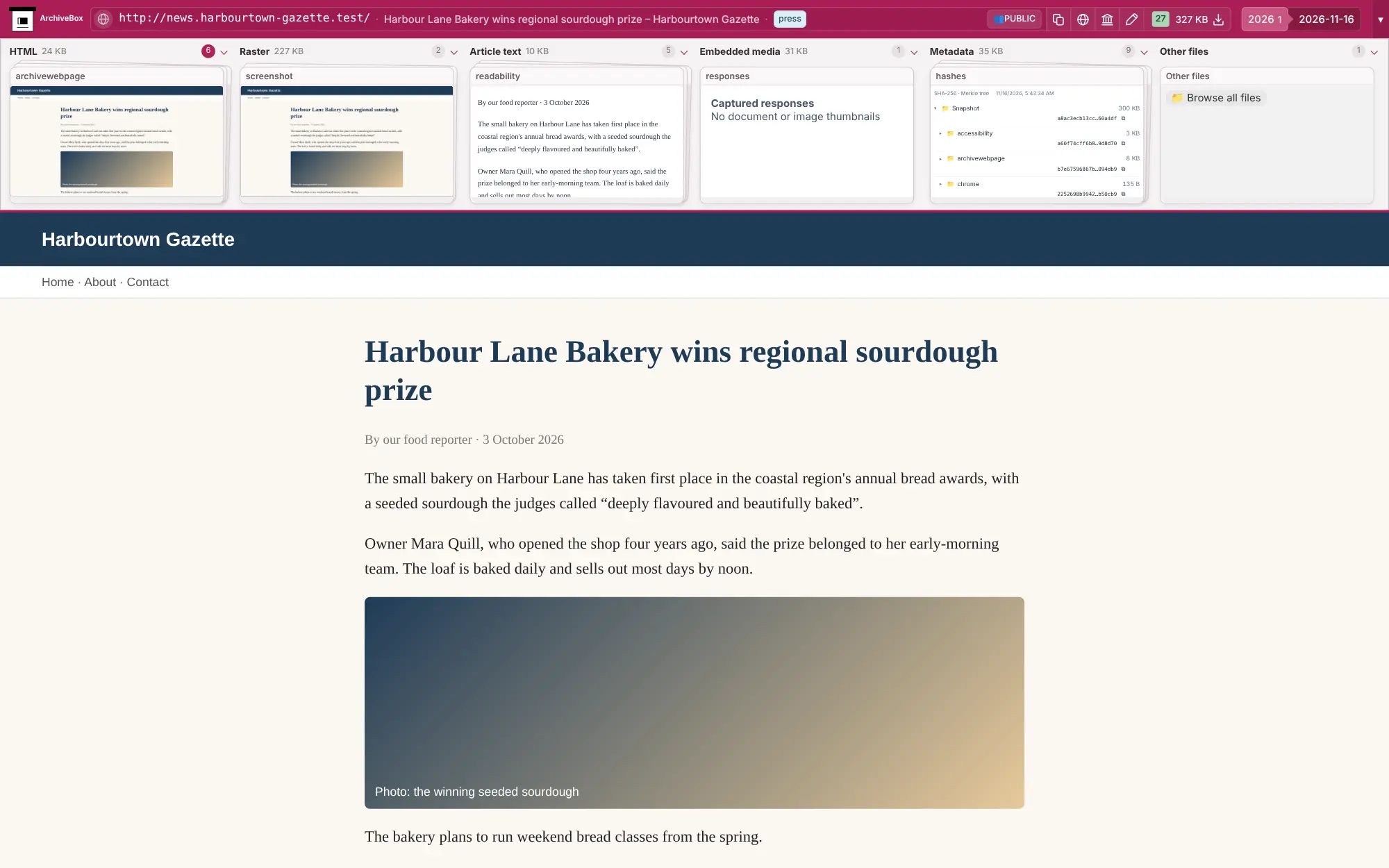
ArchiveBox is a free, open-source, self-hosted web archive that saves lasting copies of the web pages you choose, like a private Wayback Machine, in place of Pinboard's paid archiving or a subscription service such as Archive-It. Each page is kept as a full web page copy, a screenshot, a PDF, its article text and a WARC file, along with any video, audio or code it contains, so you still have it after the original changes or disappears.
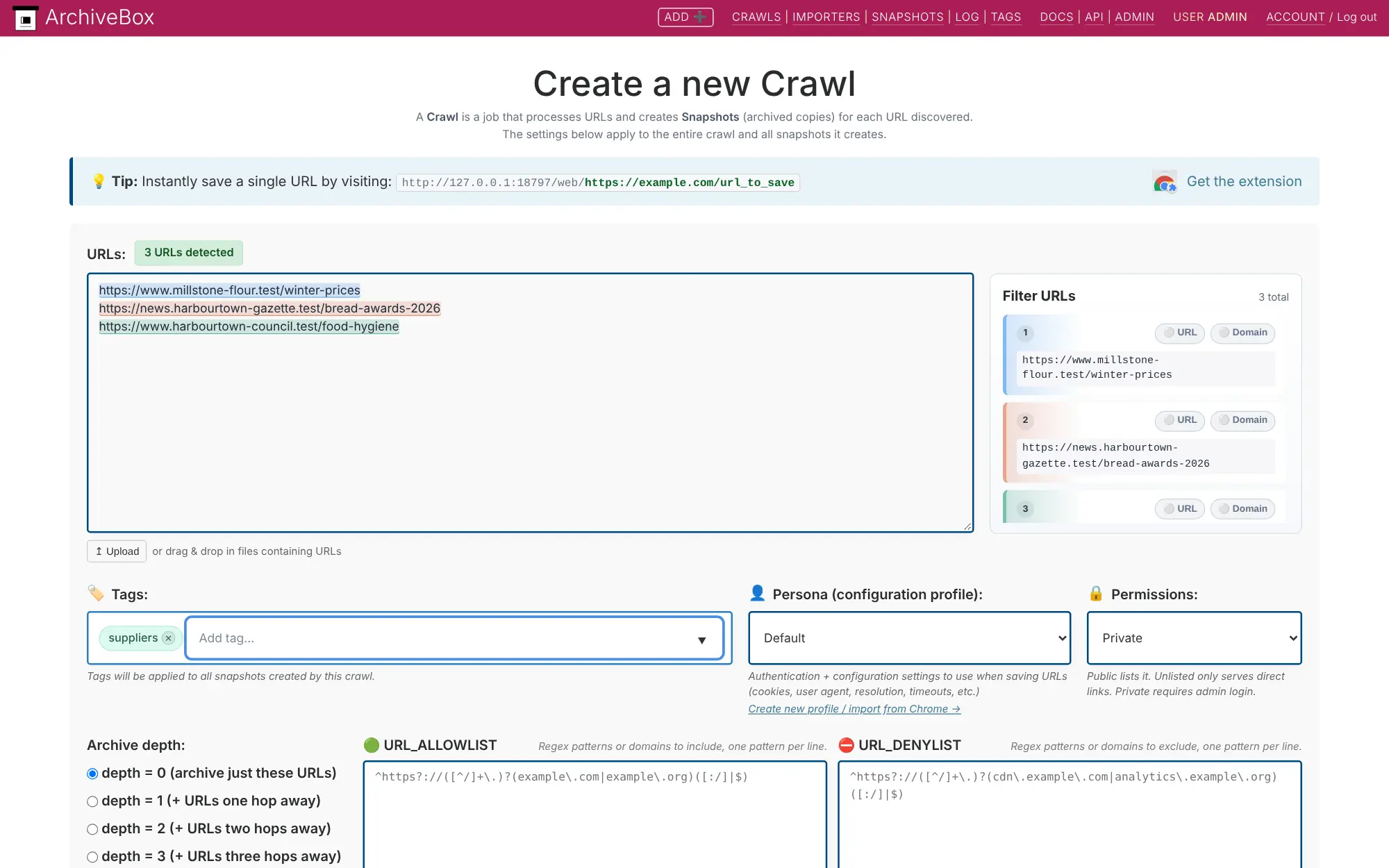
You add links by pasting them, uploading a bookmarks export, using the browser extension, or pointing ArchiveBox at an RSS feed to check on a schedule. Everything is tagged, searchable by its text and stored as ordinary files that open without the app. A bakery owner, for example, could keep dated copies of a supplier's price list, the council's food hygiene rules and a newspaper article about the shop, then find the exact wording months later after the websites have changed.
It is an archiving tool, not a reading app: to save and sort bookmarks with notes and shared collections, Linkwarden or Karakeep suit better.
Cloudgate installs ArchiveBox on your server with a secure web address and keeps your archive private to signed-in people. Sign in as admin with the generated password and save your first page.
What you can do with ArchiveBox
- Keep a page in several forms Each link is saved as a full web page copy, a screenshot, a PDF, the article text and a WARC file, the standard web-archive format.
- Save the video and files too Videos and audio with their subtitles, image galleries and code from GitHub links are saved next to the page.
- Add links any way you like Paste links, upload a list, or save the page you are on with the browser extension for Chrome, Firefox, Edge and Safari.
- Bring your old bookmarks Import from Pinboard, Pocket, Instapaper, Wallabag, Shaarli, an RSS feed or your browser's bookmarks file.
- Archive on a schedule Check an RSS feed or a web page on a schedule and save every new link it finds, even one or two links deep.
- Tag and search everything Tag what you save and search inside the text of every archived page.
- Keep dated versions Save the same address again later to keep several dated copies and see how a page changed.
- Ordinary files you can keep for decades Everything is stored as plain HTML, PDF, PNG, text and video files that open without ArchiveBox.
Replaces Pinboard and Archive-It
ArchiveBox does the same job as Pinboard and Archive-It. Here is what changes when you switch.
- Copies of every page stay on your own server, with no yearly fee per gigabyte or per account
- More formats per page than a bookmark archive, including PDF, WARC and saved video
- Feeds and pages saved on a schedule, with no limit on how many pages you keep
- Plain files you can back up, move or open without the app
- It is an archive, not a bookmark manager, so there are no notes, highlights or shared collections
- The interface looks like an admin tool rather than a polished reading app
- Disk use grows quickly, especially if you save videos
- Very interactive pages can look incomplete, and some big sites block archiving
What happens when you click Deploy?
You do not need a server or any technical knowledge. Four steps, and ArchiveBox is running at its own web address.
- Step 1 Click Deploy and create your account
Deploy takes you to Cloudgate. Create an account, or log in if you have one. ArchiveBox itself is free.
- Step 2 Choose a server
No server? Get one from Cloudgate: pick a size and a country, and Cloudgate gets it ready. Already have one? Connect it instead.
- Step 3 Cloudgate sets up ArchiveBox
It prepares the server, makes the passwords the app needs and starts it. There is nothing to install and nothing to write down.
- Step 4 Open your app and sign in
Your app gets a free web address to start, without https. Add your own domain, like app.yourshop.com, and Cloudgate secures it with https for you.
New to Cloudgate? See what Cloudgate is
Run Cloudgate yourself? Deploy from your own console
In your Cloudgate console, open Templates and choose ArchiveBox.
Questions
Is ArchiveBox free?
Yes, ArchiveBox is free and open source under the MIT licence, with no paid edition. You pay only for your server and the disk space your archive uses.
Is ArchiveBox a self-hosted Wayback Machine?
Yes, ArchiveBox works like a Wayback Machine of your own: you choose the pages, it saves dated copies on your server, and only you decide who can see them. Unlike the public Wayback Machine, it can also be set up to save pages you see only when signed in to a website.
How is ArchiveBox different from Linkwarden or Karakeep?
ArchiveBox is a web archive, while Linkwarden and Karakeep are bookmark managers that also keep a copy of each page. Pick ArchiveBox to save many pages in many formats, including video and WARC files, on a schedule; pick Linkwarden or Karakeep for shared collections, notes and phone apps.
Can I import my bookmarks from Pinboard, Pocket or my browser into ArchiveBox?
Yes, ArchiveBox reads exports from Pinboard, Pocket, Instapaper, Wallabag, Shaarli and Delicious, browser bookmark files, RSS feeds and plain lists of links, then archives every page in them. Pinboard's own archived copies do not move across, so ArchiveBox saves each page again.
How do I sign in to ArchiveBox the first time?
Sign in to ArchiveBox with the username admin and the password Cloudgate generated, which you find in the app's settings in Cloudgate. There is no setup wizard to go through; you can start adding links straight away.
Are my archived pages private in ArchiveBox?
Yes, Cloudgate sets ArchiveBox up so that only signed-in people can see your archive, and you can make chosen pages public later. By default ArchiveBox also asks the Internet Archive to save each link you add, which you can turn off in its settings for anything confidential.
How much disk space does ArchiveBox need?
ArchiveBox uses about 1 GB per 1,000 saved pages without video, and up to around 50 GB per 1,000 pages if it saves video and audio. Start with a modest disk, turn off video saving if you do not need it, and add space as the archive grows.
Do I need technical skills to run ArchiveBox?
No. Click Deploy, create your Cloudgate account and choose a server, and Cloudgate sets up ArchiveBox and gives it a web address. You use it in your browser like any other online tool.
Do I need my own server for ArchiveBox?
No. When you deploy ArchiveBox, hosted Cloudgate can provide a server. If you already rent one, you can connect it instead.
Related apps

Archives management with a public catalogue.

Publish your organisation's datasets on your own open data portal.

An open-source electronic lab notebook and inventory for your lab.

Field surveys that work offline, on phones and the web.