
Glances
See how hard your server is working right now, on one live web page.
No server needed to start: Cloudgate can provide one. What happens when you click Deploy

What is Glances?
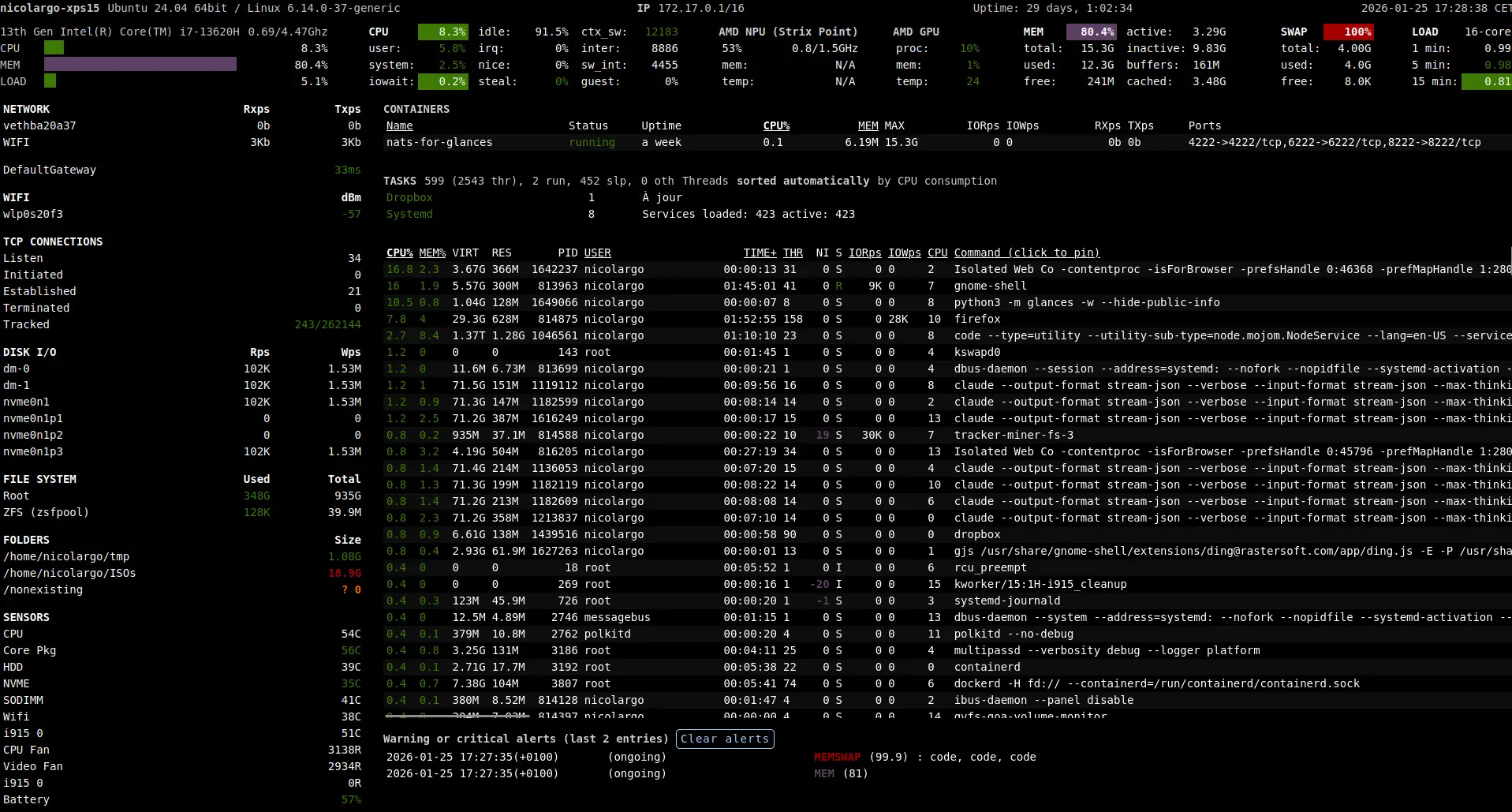
Glances is a self-hosted server monitor: one live, password-protected web page with your server's CPU, memory, load, disk activity and free disk space.
Glances is a free, open-source system monitor that shows how hard your server is working on one live web page. With Cloudgate it watches the server it runs on: CPU in total and per core, memory and swap, load average, disk activity and free disk space, all updating every few seconds behind a password.
Readings turn yellow or red when they pass a limit, and recent warnings are listed at the bottom, so problems stand out without reading every number. A small online shop could, for example, open Glances on a phone when the website feels slow and see within seconds whether the server is out of memory, short on disk space or busy on every core.
Glances shows the present moment, not long-term history, and it does not send emails or chat alerts. Cloudgate runs it without access to the rest of the server, so it does not list the server's running programs or Docker containers, and its network panel shows only its own connection. The page is dense and technical, but it adapts to phones.
Cloudgate installs Glances on a server Cloudgate provides or one you connect and gives it a secure web address. Your browser asks for a sign-in: the user is "glances" and the password is the one Cloudgate generated.
What you can do with Glances
- The essentials on one screen CPU in total and per core, memory and swap, load, disk activity and free disk space update every few seconds on a single page.
- Spot trouble by colour Values turn yellow or red when they cross a limit, and recent warnings are listed at the bottom of the screen.
- Behind a password The page and its API ask for a sign-in, user "glances" and a password Cloudgate generates, so your server's numbers are not public.
- Works on a phone The web page adapts to small screens, so you can check your server from anywhere.
- Read the numbers from other tools A REST API with the same sign-in lets scripts or Home Assistant read the current readings.
- Light on resources One small container with no database; it used about 90 MB of memory in testing.
Compare Glances
What happens when you click Deploy?
You do not need a server or any technical knowledge. Four steps, and Glances is running at its own web address.
- Step 1 Click Deploy and create your account
Deploy takes you to Cloudgate. Create an account, or log in if you have one. Glances itself is free.
- Step 2 Choose a server
No server? Get one from Cloudgate: pick a size and a country, and Cloudgate gets it ready. Already have one? Connect it instead.
- Step 3 Cloudgate sets up Glances
It prepares the server, makes the passwords the app needs and starts it. There is nothing to install and nothing to write down.
- Step 4 Open your app and sign in
Your app gets a free web address to start, without https. Add your own domain, like app.yourshop.com, and Cloudgate secures it with https for you.
New to Cloudgate? See what Cloudgate is
Run Cloudgate yourself? Deploy from your own console
In your Cloudgate console, open Templates and choose Glances.
Questions
Is Glances free?
Yes. Glances is free, open-source software under the LGPL-3.0 licence, with no paid edition. You pay only for the server it runs on.
What does Glances show when Cloudgate installs it?
The server's CPU (total and per core), memory and swap, load average, disk activity and free disk space, live. It does not list the server's running programs or Docker containers, because Cloudgate runs it without access to the rest of the server, so those panels show only Glances itself or stay empty.
How do I sign in to Glances?
Your browser asks for a username and password when you open the address. The username is "glances" and the password is the one Cloudgate generated, shown in the app's settings. There is no admin account or setup screen.
Does Glances keep history or send alerts?
No. It shows live readings and a list of recent warnings, with no graphs over days or weeks and no email or chat alerts. For history and alerts, use a monitoring tool that stores data, alongside or instead of Glances.
Can I watch more than one server?
Each Glances watches the server it runs on, and you open each one's page separately. Glances has no single dashboard for a whole fleet.
How is Glances different from an uptime monitor such as Uptime Kuma?
An uptime monitor checks from outside whether a website answers. Glances looks from inside one server at how busy its processor, memory and disk are, which helps explain why a site is slow.
Do I need technical skills to run Glances?
No. Click Deploy, create your Cloudgate account and choose a server, and Cloudgate sets up Glances and gives it a web address. You use it in your browser like any other online tool.
Do I need my own server for Glances?
No. When you deploy Glances, hosted Cloudgate can provide a server. If you already rent one, you can connect it instead.
Related apps

Watch all your servers and Docker apps on one light dashboard.

Uptime, server and SSL monitoring with status pages.

Uptime monitoring for your websites and servers, with status pages.
Watch your servers and network, and get alerts when something breaks.