
ClassicPress
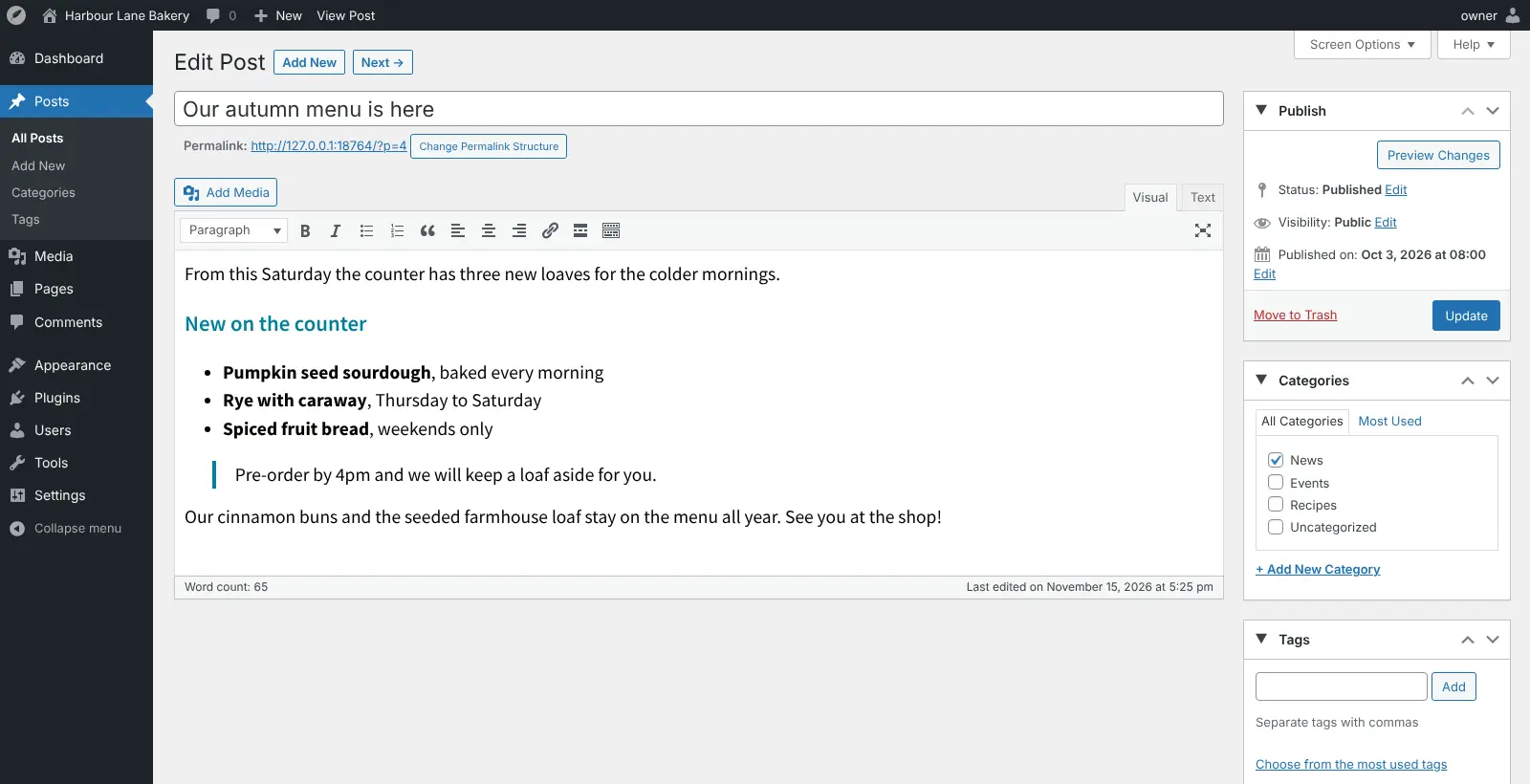
The familiar WordPress admin with the classic editor, no blocks.
No server needed to start: Cloudgate can provide one. What happens when you click Deploy
What is ClassicPress?
Self-hosted ClassicPress: the WordPress fork with the classic editor and no blocks, for business websites and blogs on your own server.
ClassicPress is a free, open-source content management system, forked from WordPress, that keeps the classic editor and leaves out the block editor. Self-hosted ClassicPress gives you the familiar WordPress admin for a business website or blog, with no monthly fee to Wix or Squarespace. You pick a theme, then write pages and posts in a word-processor style editor.
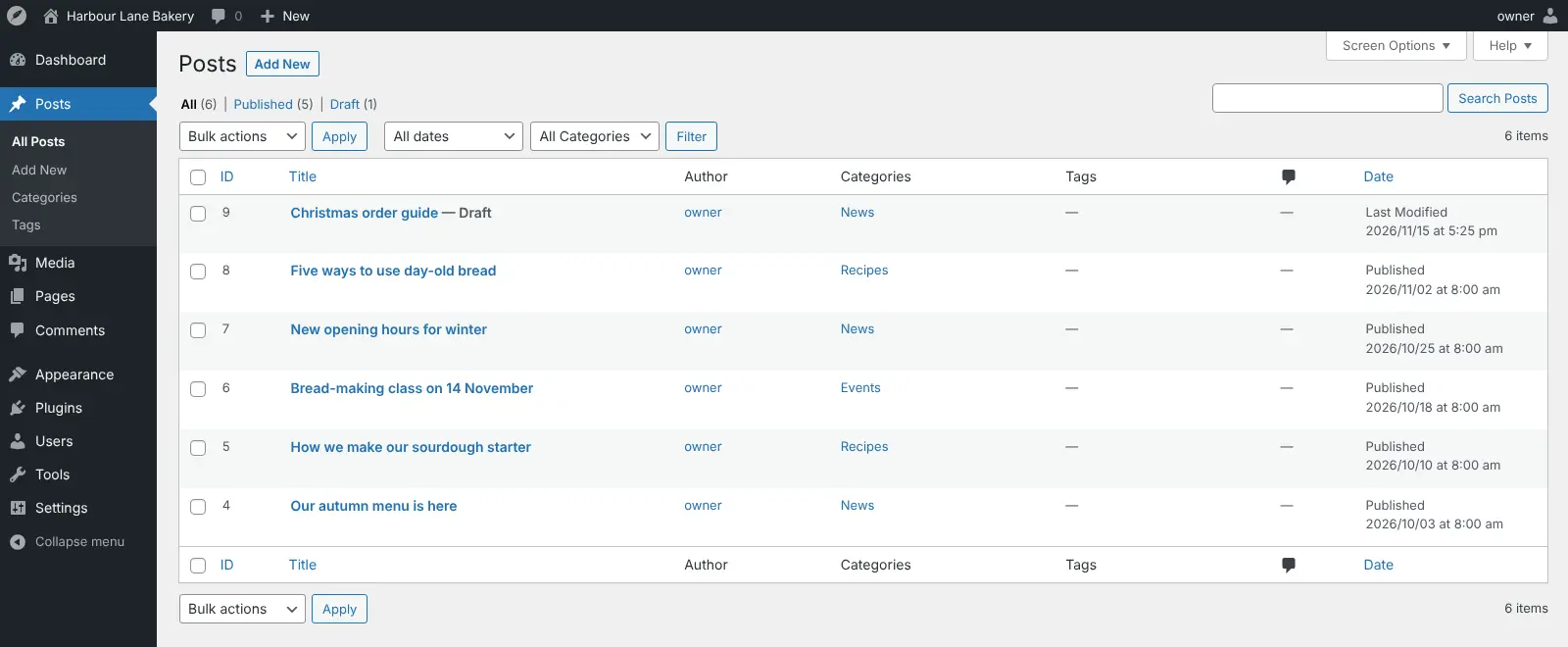
Most WordPress themes and plugins made for WordPress 6.2 or earlier work, as long as they do not need blocks, so contact forms, search engine tools and galleries are a plugin away. ClassicPress adds its own touches: categories and tags for your images, a view of where each file is used, and tools to clear out old post revisions. A bakery, for example, could run its menu, opening hours and a weekly news post on ClassicPress, with the owner and one editor each signing in to their own account.
If you already run WordPress, you can bring your posts across with the WordPress importer or switch the site over with the project's migration plugin. ClassicPress is run by volunteers, so its community is smaller than WordPress's.
Cloudgate installs ClassicPress and its database on a server Cloudgate provides or one you connect, and gives it a secure web address. The first person to open that address names the site and creates the admin account.
What you can do with ClassicPress
- Write in the classic editor A word-processor style editor with a toolbar for headings, lists, links and quotes, and a tab for the HTML.
- Use WordPress themes and plugins Most themes and plugins made for WordPress 6.2 or earlier work, as long as they do not need blocks.
- Sort your media Give images and files categories and tags, and see which posts and pages use each one.
- Keep revisions tidy Look back through every saved version of a post and delete old ones one by one or in bulk.
- Organise people in groups Put users into groups, such as staff, clients or classes, much like categories for posts.
- Work as a team Give editors, authors and contributors their own accounts with the right permissions.
- Move over from WordPress Bring posts in with the WordPress importer, or switch an existing WordPress site with the migration plugin.
Replaces Wix and Squarespace
ClassicPress does the same job as Wix and Squarespace. Here is what changes when you switch.
- No monthly platform fee or plan to upgrade
- The classic WordPress editor built in, with no block editor to switch off
- A lighter core than WordPress, about half the size, according to the project
- Your site and its content can move to any host at any time
- No drag-and-drop page builder; pages are written in the classic editor
- Block themes and plugins that need blocks or WordPress 6.3 and later may not work
- A smaller, volunteer-run community than WordPress
- You keep ClassicPress, your theme and your plugins up to date yourself
What happens when you click Deploy?
You do not need a server or any technical knowledge. Four steps, and ClassicPress is running at its own web address.
- Step 1 Click Deploy and create your account
Deploy takes you to Cloudgate. Create an account, or log in if you have one. ClassicPress itself is free.
- Step 2 Choose a server
No server? Get one from Cloudgate: pick a size and a country, and Cloudgate gets it ready. Already have one? Connect it instead.
- Step 3 Cloudgate sets up ClassicPress
It prepares the server, makes the passwords the app needs and starts it. There is nothing to install and nothing to write down.
- Step 4 Open your app and sign in
Your app gets a free web address to start, without https. Add your own domain, like app.yourshop.com, and Cloudgate secures it with https for you.
New to Cloudgate? See what Cloudgate is
Run Cloudgate yourself? Deploy from your own console
In your Cloudgate console, open Templates and choose ClassicPress.
Questions
Is ClassicPress free?
Yes, ClassicPress is free, open-source software under the GPL licence (version 2 or later). There is no paid edition, so self-hosting it costs only your server.
What is the difference between ClassicPress and WordPress?
ClassicPress is a community-led fork of WordPress 6.2 that keeps the classic editor and leaves out the block editor and full site editing. It looks and works like the WordPress admin, with a smaller core and extras such as media categories, revision clean-up and user groups.
Do WordPress plugins and themes work with ClassicPress?
Most WordPress plugins and themes work with ClassicPress, if they work on WordPress 6.2 or earlier and do not need blocks. Block themes cannot be installed, and plugins built for newer WordPress versions may fail, so test each one before you rely on it.
Can I move my WordPress site to ClassicPress?
Yes. Export your content from WordPress and bring it in with the WordPress importer, or switch an existing WordPress site in place with the free ClassicPress migration plugin, which can also switch it back.
Is ClassicPress a good alternative to Wix or Squarespace?
Yes, ClassicPress is a good Wix or Squarespace alternative if you want a site you own with no monthly plan and you like writing in a classic editor. It has no drag-and-drop builder, and Wix has no export, so pages from Wix are rebuilt by hand.
How do I sign in to ClassicPress the first time?
ClassicPress has no default password. The first person to open the site's web address chooses the site name and creates the admin account on a short welcome page, so open it yourself right after setup. Public sign-up is off until you turn it on under Settings > General.
What server size do I need for ClassicPress?
A small server with 1 GB of memory runs a typical business website or blog, because ClassicPress is one light app plus a MariaDB database. Choose a larger one for a busy site or many plugins.
Do I need technical skills to run ClassicPress?
No. Click Deploy, create your Cloudgate account and choose a server, and Cloudgate sets up ClassicPress and gives it a web address. You use it in your browser like any other online tool.
Do I need my own server for ClassicPress?
No. When you deploy ClassicPress, hosted Cloudgate can provide a server. If you already rent one, you can connect it instead.
Related apps

Build a website, blog or shop with themes and thousands of add-ons.

A self-hosted website and blog builder with themes and plugins.

A visual website builder and CMS that publishes plain HTML.

A self-hosted CMS for multilingual websites and members' areas.