
ownCloud Server
The classic ownCloud server for self-hosted file sharing and sync.
No server needed to start: Cloudgate can provide one. What happens when you click Deploy
What is ownCloud Server?
ownCloud Server is the classic, self-hosted ownCloud: store, sync and share your team's files with links and versions, in place of Dropbox or Google Drive.
ownCloud Server is the classic, self-hosted ownCloud: a free, open-source file cloud that stores, syncs and shares your company's files on your own server, in place of Dropbox or Google Drive and with no fee per user. ownCloud now also calls it ownCloud Classic, and it is a different product from ownCloud Infinite Scale.
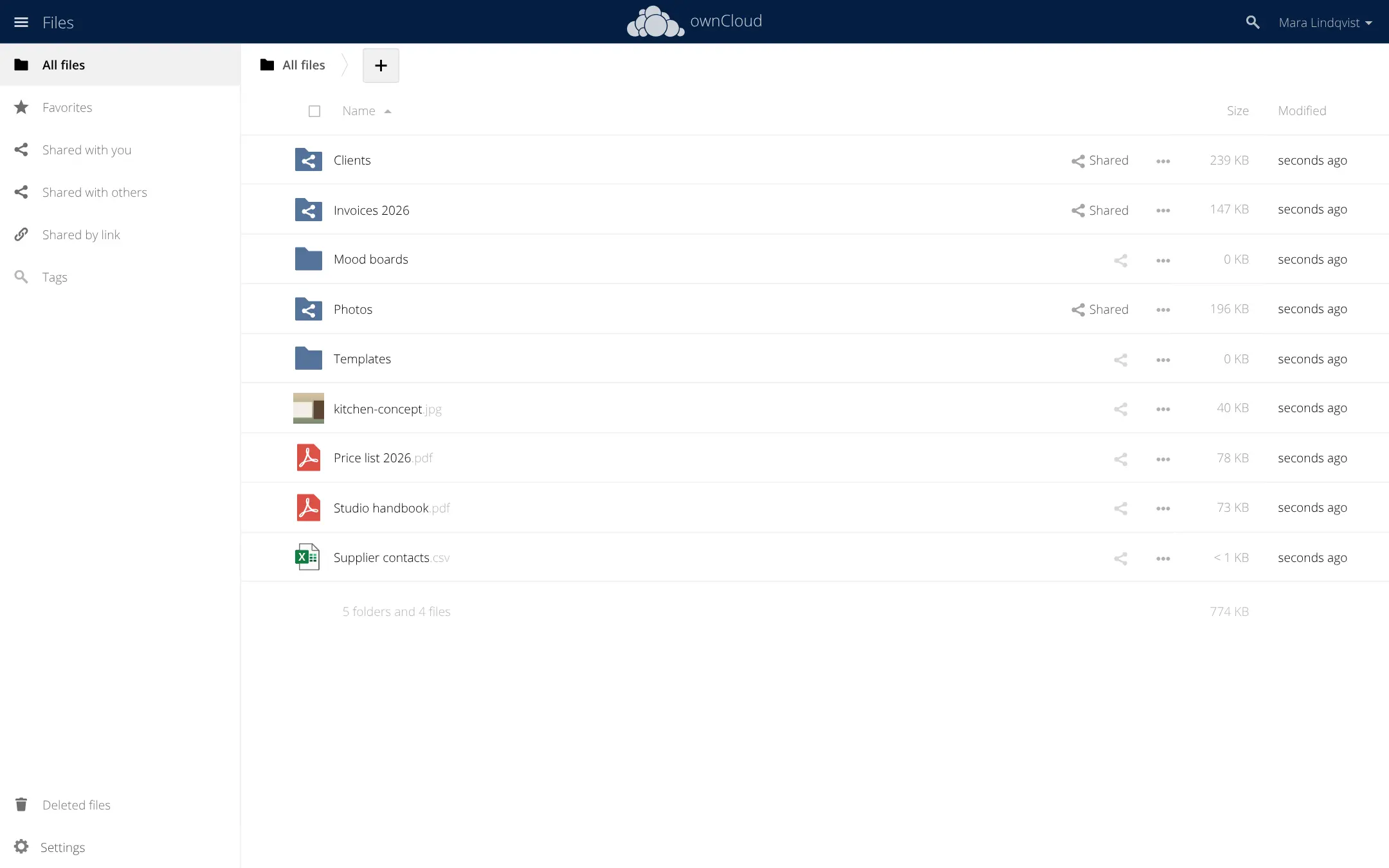
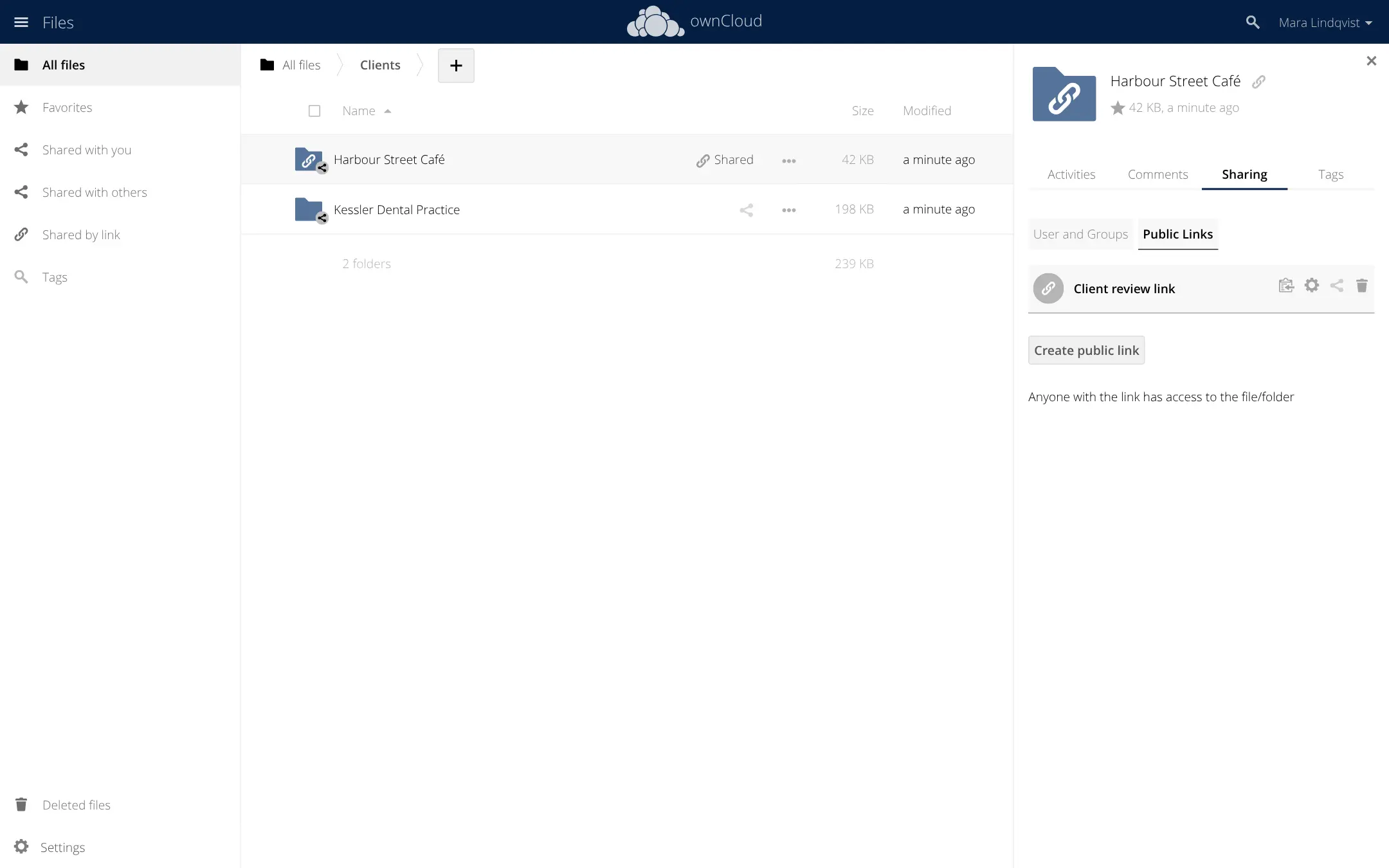
Everyone gets their own files in the browser and can share folders with colleagues or groups, or send a link with a password and an end date to someone outside. Earlier versions and deleted files can be brought back, and comments, tags and an activity list show what happened to each file. A small interior design studio, for example, could share a Clients folder with its designers, send each client a password-protected link to their project photos, and keep invoices shared with the bookkeeper only.
ownCloud's Android and iPhone apps work with it, and its desktop app version 6 syncs folders on Windows, macOS and Linux. An admin can also connect storage you already have, such as an SFTP server, Amazon S3 or Google Drive.
Cloudgate installs ownCloud Server 11.1 with a secure web address. You sign in as admin with the password Cloudgate creates, then add your people.
What you can do with ownCloud Server
- Your files in the browser Upload, sort and preview photos and PDFs, and mark the files you use most as favorites.
- Share with colleagues and groups Share a folder with a person or a whole group, and choose whether they can only view it or also change it.
- Send a link to anyone Give a client a link to a file or folder, with a name, a password and a date when it stops working.
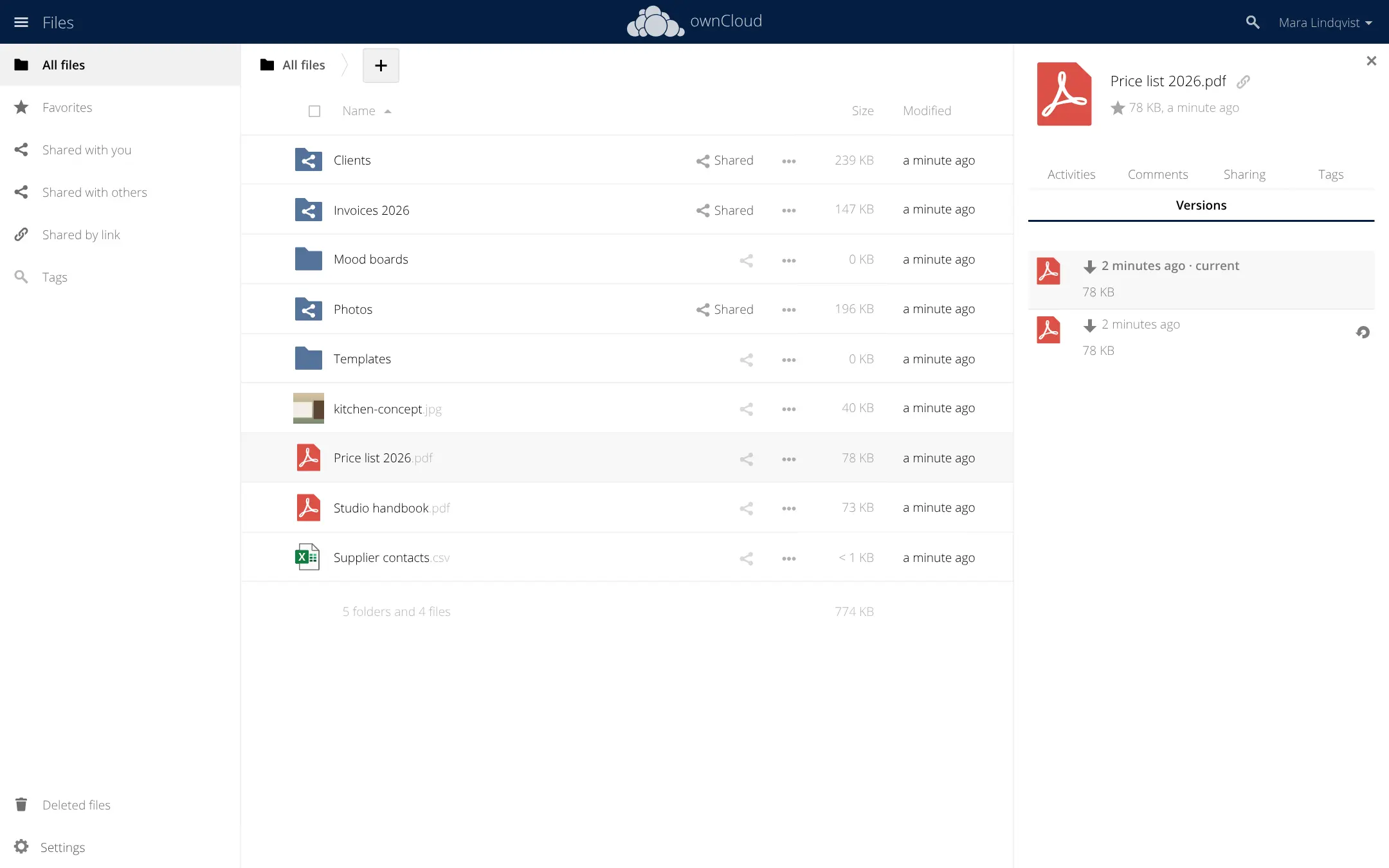
- Get back old versions and deleted files Restore an earlier version of a file, or bring a deleted one back from Deleted files.
- Comments, tags and activity Leave a comment on a file, tag related files, and see who changed or shared what.
- Connect storage you already have An admin can add an SFTP or WebDAV server, Amazon S3 or a Google Drive account as extra folders.
- Share with other ownCloud servers Send a share to someone on another company's ownCloud, so you can work with partners without a separate account.
Replaces Dropbox and Google Drive
ownCloud Server does the same job as Dropbox and Google Drive. Here is what changes when you switch.
- No fee per user, and storage limited only by your server's disk
- Your files stay on your own server
- Share links with passwords and end dates, file versions and a trash bin, as in Dropbox
- Open source under the AGPL, with a free Community edition
- There is no importer; an admin can connect a Dropbox or Google Drive account as extra storage to copy files across
- Editing Word or Excel files in the browser is not included in the free edition
- Single sign-on, ransomware protection and some other business features are in the paid Enterprise edition
- ownCloud's newest work goes into Infinite Scale, and the current desktop app only works with that
What happens when you click Deploy?
You do not need a server or any technical knowledge. Four steps, and ownCloud Server is running at its own web address.
- Step 1 Click Deploy and create your account
Deploy takes you to Cloudgate. Create an account, or log in if you have one. ownCloud Server itself is free.
- Step 2 Choose a server
No server? Get one from Cloudgate: pick a size and a country, and Cloudgate gets it ready. Already have one? Connect it instead.
- Step 3 Cloudgate sets up ownCloud Server
It prepares the server, makes the passwords the app needs and starts it. There is nothing to install and nothing to write down.
- Step 4 Open your app and sign in
Your app gets a free web address to start, without https. Add your own domain, like app.yourshop.com, and Cloudgate secures it with https for you.
New to Cloudgate? See what Cloudgate is
Run Cloudgate yourself? Deploy from your own console
In your Cloudgate console, open Templates and choose ownCloud Server.
Questions
Is ownCloud Server free?
Yes, ownCloud Server's Community edition is free, open-source software under the AGPL 3.0 licence, and you pay only for your server. ownCloud also sells an Enterprise edition with support and extra apps, such as single sign-on and ransomware protection, that need a paid licence key.
What is the difference between ownCloud Server and ownCloud Infinite Scale?
ownCloud Server, which ownCloud also calls ownCloud Classic, is the original PHP file cloud with a database, an app marketplace and folder-based sharing. Infinite Scale is ownCloud's newer rewrite, built around shared team Spaces. Both come from ownCloud, which has been part of Kiteworks since 2023, and ownCloud now promotes Infinite Scale as its main product.
Is ownCloud Server still maintained?
Yes. ownCloud released version 11.0 of the classic server in July 2026, which needs PHP 8.3, and version 11.1 with security fixes in November 2026. Cloudgate installs version 11.1.
Is ownCloud Server a good alternative to Dropbox or Google Drive?
Yes. ownCloud Server is a good alternative to Dropbox or Google Drive for storing, sharing and syncing files. It has share links with passwords, file versions, a trash bin and desktop and phone apps, with no fee per user. It does not include document editing like Google Docs in its free edition.
Can I move my files from Dropbox or Google Drive?
Partly. There is no one-click importer, but an admin can connect a Dropbox or Google Drive account as extra storage in ownCloud and copy the files across. Otherwise you download your files and upload or sync them into ownCloud.
Are there desktop and phone apps for ownCloud Server?
Yes. ownCloud's free Android and iPhone apps work with ownCloud Server. For Windows, macOS and Linux, use ownCloud's desktop app version 6, because version 7 and later only connect to Infinite Scale.
How do I sign in to ownCloud Server the first time?
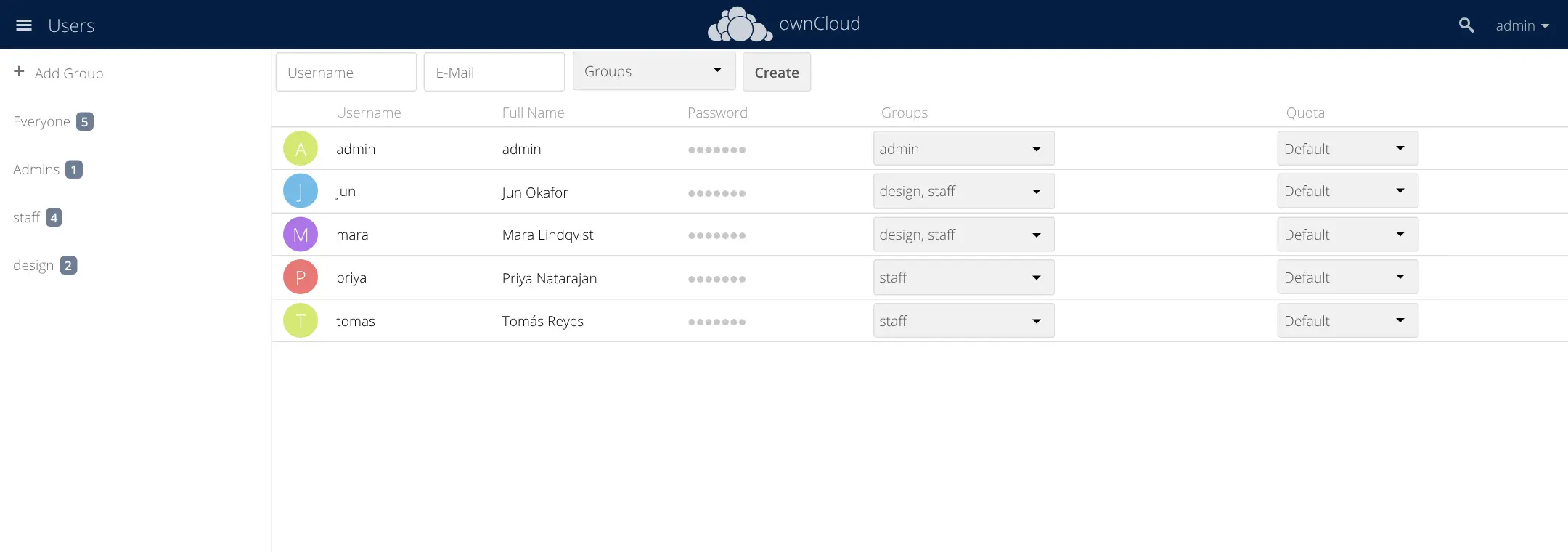
Sign in to ownCloud Server with the username admin and the password Cloudgate generated, shown in Cloudgate's values for the app. Then add your colleagues and groups on the Users page.
Do I need technical skills to run ownCloud Server?
No. Click Deploy, create your Cloudgate account and choose a server, and Cloudgate sets up ownCloud Server and gives it a web address. You use it in your browser like any other online tool.
Do I need my own server for ownCloud Server?
No. When you deploy ownCloud Server, hosted Cloudgate can provide a server. If you already rent one, you can connect it instead.
Related apps

Fast, self-hosted file sync and sharing for your team.

File sharing and sync for your team's shared drive.
A self-hosted web file manager with a home folder for each person.

File sync and sharing, with shared drives for each team.