
OpenList
See every cloud drive you use in one web file list.
No server needed to start: Cloudgate can provide one. What happens when you click Deploy
What is OpenList?
Self-hosted OpenList puts your cloud drives, S3 buckets and server folders in one web file list to browse, preview, share and open over WebDAV.
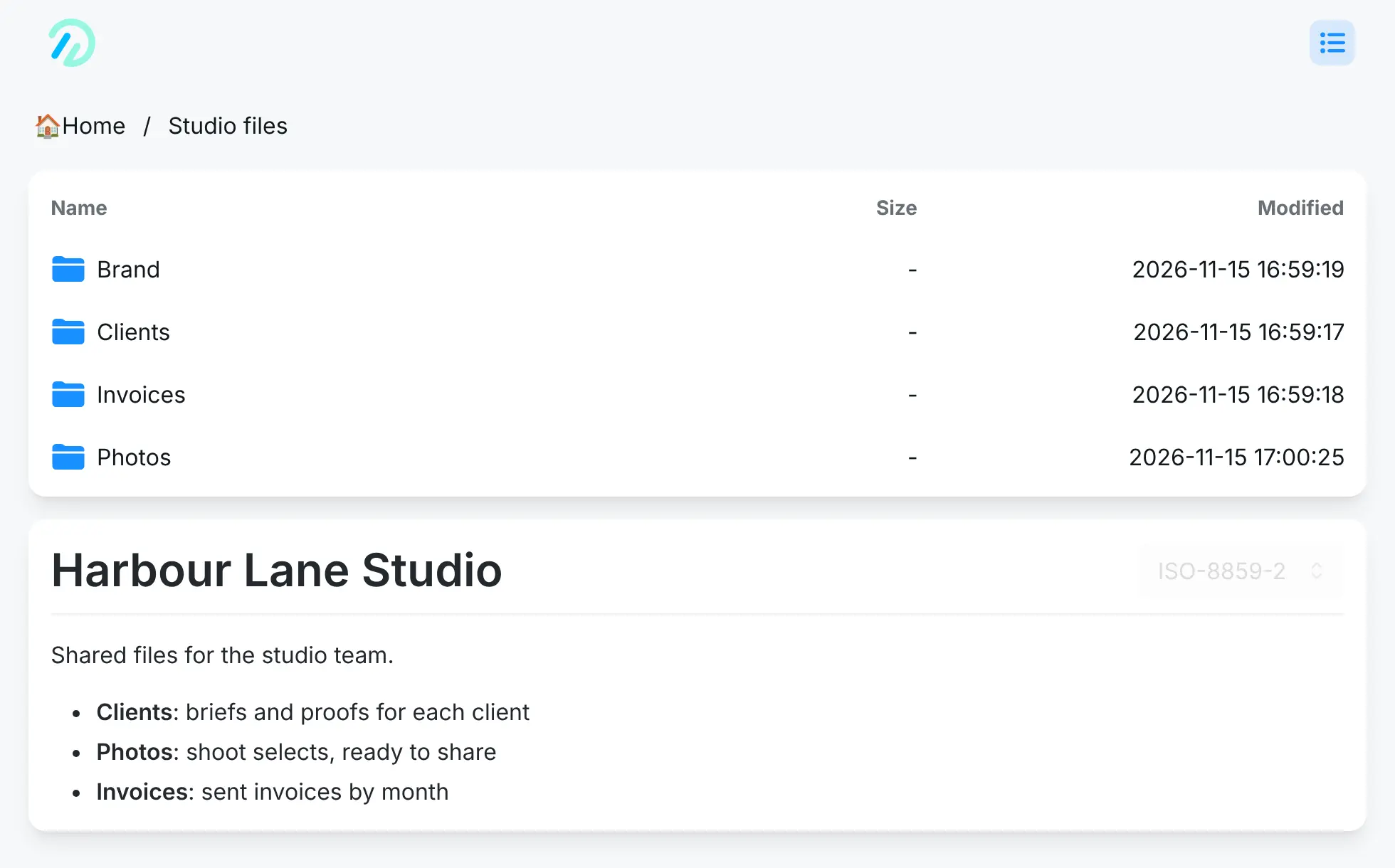
OpenList is a free, open-source web file list that puts all your cloud drives and storage in one place, a self-hosted alternative to cloud-drive managers such as MultCloud. Connect Google Drive, OneDrive, Dropbox, an S3 bucket or an FTP server, and each one shows up as a folder you can browse, search, preview and share from a single web address.
You can open PDFs, Office files, photos and videos in the browser, move and rename files, and copy files from one cloud to another. Folders can have a password or be limited to named users, and share links let you send files to people outside your team. A small design studio, for example, could keep client work in Google Drive, old projects in an S3 bucket and invoices in OneDrive, and give the whole team one address to find all of it.
OpenList is a community-run fork of AList, started in June 2025 after AList's developer announced that AList had been sold. Its built-in WebDAV lets computer and phone file managers open your drives too.
Cloudgate installs OpenList on a server Cloudgate provides or one you connect, and gives it a secure web address. You sign in as admin with a generated password, then connect the drives you want to see.
What you can do with OpenList
- All your drives in one place Connect Google Drive, OneDrive, Dropbox, Mega, Proton Drive, S3 buckets, WebDAV, FTP and dozens more, and each appears as a folder.
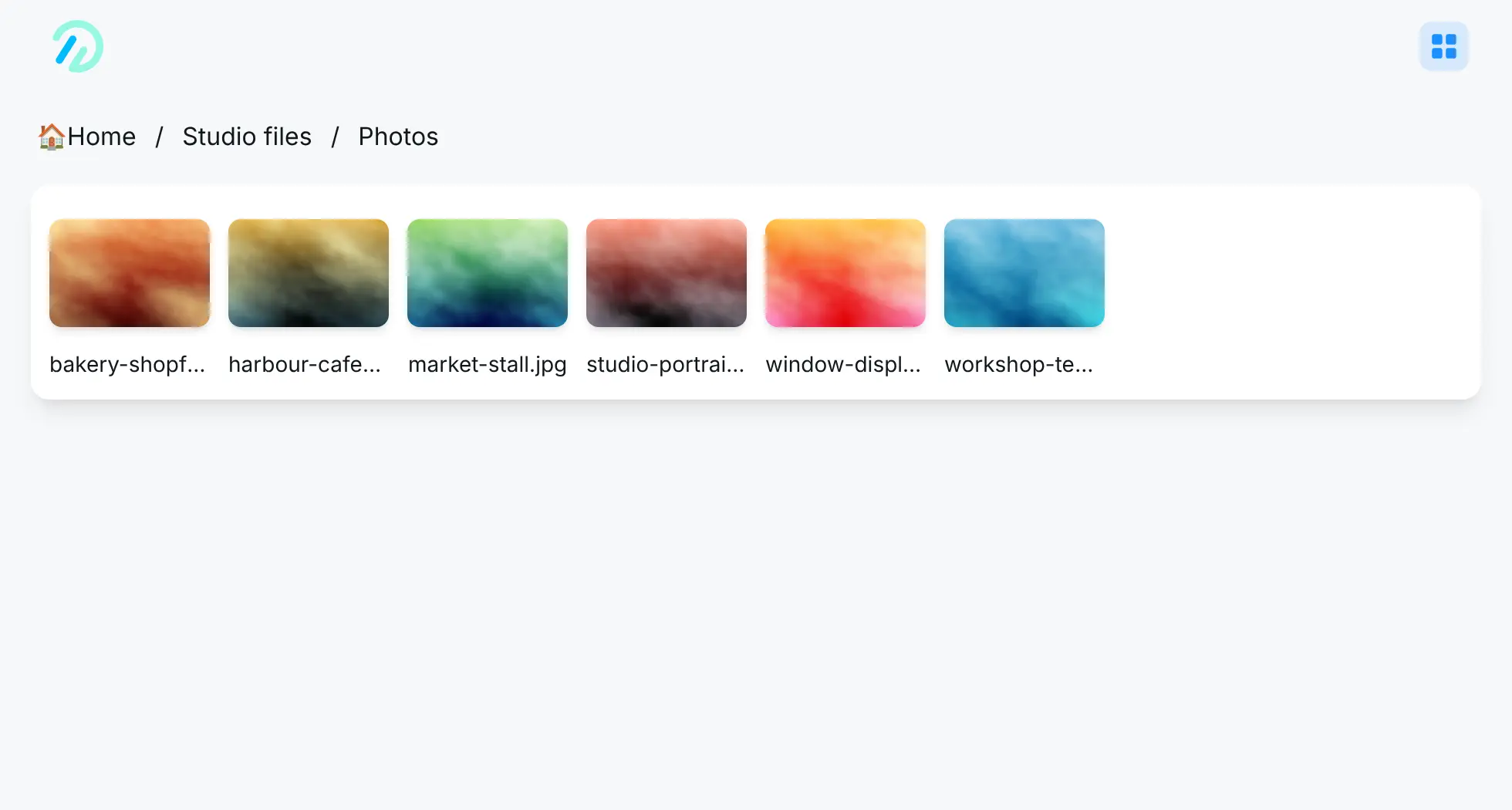
- Preview without downloading Open PDFs, Office documents, photos, videos with subtitles, music and text files right in the browser.
- Move files between clouds Upload, rename, move and copy files, including copying from one cloud drive straight to another.
- Share what you choose Make share links, put a password on a folder, or let only named people read or change it.
- Use it as a network drive Built-in WebDAV lets computer and phone file managers open every connected drive with your OpenList login.
- Download whole folders Download a folder as one package, or copy a direct link to a single file.
Replaces MultCloud
OpenList does the same job as MultCloud. Here is what changes when you switch.
- No monthly data traffic cap on moving files between your clouds
- Your cloud drive logins are kept on your own server, not with a third-party service
- One web address for the whole team, with your own users and folder permissions
- Free, open-source software with no paid tier
- No scheduled sync or backup between clouds; copies are started by hand
- You connect each drive yourself, and some drives need a token from their developer settings
- Speed and limits still depend on each cloud provider, whose terms still apply
- Its documentation is in English and Chinese, and many supported drives are Chinese services
What happens when you click Deploy?
You do not need a server or any technical knowledge. Four steps, and OpenList is running at its own web address.
- Step 1 Click Deploy and create your account
Deploy takes you to Cloudgate. Create an account, or log in if you have one. OpenList itself is free.
- Step 2 Choose a server
No server? Get one from Cloudgate: pick a size and a country, and Cloudgate gets it ready. Already have one? Connect it instead.
- Step 3 Cloudgate sets up OpenList
It prepares the server, makes the passwords the app needs and starts it. There is nothing to install and nothing to write down.
- Step 4 Open your app and sign in
Your app gets a free web address to start, without https. Add your own domain, like app.yourshop.com, and Cloudgate secures it with https for you.
New to Cloudgate? See what Cloudgate is
Run Cloudgate yourself? Deploy from your own console
In your Cloudgate console, open Templates and choose OpenList.
Questions
Is OpenList free?
Yes. OpenList is free, open-source software under the AGPL-3.0 licence, with no paid plan or locked features. You pay only for the server it runs on, plus whatever your cloud drives already cost.
Is OpenList the same as AList?
No. OpenList is a community fork of AList, the file list program it grew from. It was started in June 2025, after AList's developer announced the project had been sold and was going commercial, so that a community-run version would stay open. It works the same way, and the OpenList docs include a guide for moving over from AList.
Is OpenList a good alternative to MultCloud?
Yes, if you mainly want to see and move files across several cloud accounts. OpenList shows all your drives in one list and copies files between them, with no monthly traffic limit like MultCloud's free plan. It has no scheduled sync or backup between clouds, which MultCloud's paid plans offer.
Which cloud drives can OpenList connect to?
OpenList connects to more than 40 kinds of storage, including Google Drive, Google Photos, OneDrive and SharePoint, Dropbox, Mega, Proton Drive, Yandex Disk, Azure Blob Storage, S3-compatible buckets, WebDAV, FTP, SFTP and SMB shares, plus many Chinese cloud drives such as Baidu Netdisk and 115.
Does OpenList copy my files to my server?
No. Files stay in each cloud drive, and OpenList fetches or links to them when you open or download them. Only files you put in a folder on the server itself are stored there.
How do I sign in the first time?
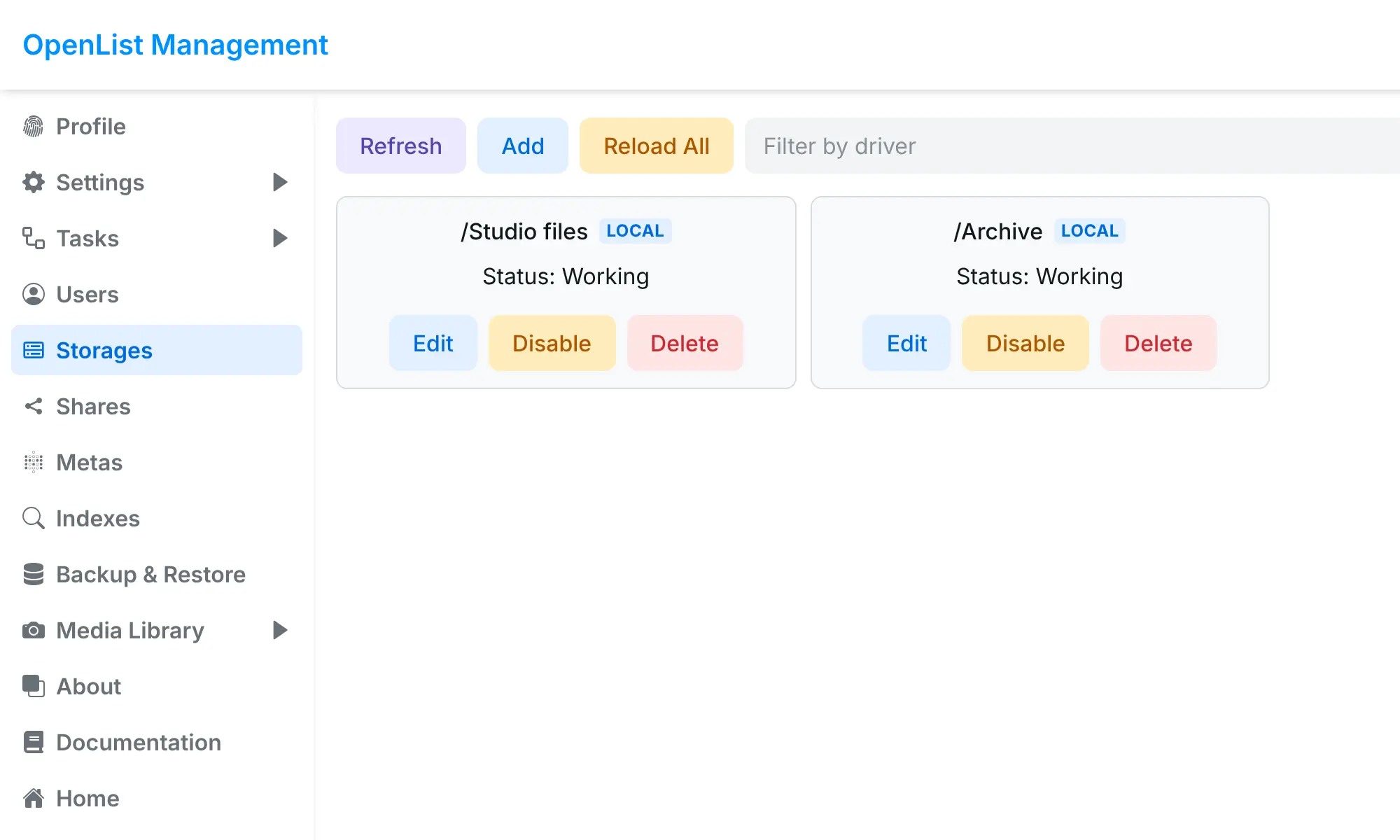
Sign in as admin with the password Cloudgate generates for you, which you find in the app's settings in the Cloudgate console. Then change it in your OpenList profile and add your first storage under Manage, Storages; the list stays empty until you do.
Can I open my files from a phone or my computer's file manager?
Yes. The OpenList web app works in any phone or computer browser, and its built-in WebDAV lets file managers and apps that speak WebDAV open all your connected drives with your OpenList username and password.
Do I need technical skills to run OpenList?
No. Click Deploy, create your Cloudgate account and choose a server, and Cloudgate sets up OpenList and gives it a web address. You use it in your browser like any other online tool.
Do I need my own server for OpenList?
No. When you deploy OpenList, hosted Cloudgate can provide a server. If you already rent one, you can connect it instead.
Can I move my data from MultCloud to OpenList?
Most people export from MultCloud and import into OpenList. The official guides at doc.oplist.org walk through it.
Related apps

Your own web drive to store, preview and share files privately.
File server to send, collect and share large files.

Send large files by link, under your own logo.

Browse, preview and share your server's files from any web browser.