
DataEase
Dashboards and wall screens, built by drag and drop.
No server needed to start: Cloudgate can provide one. What happens when you click Deploy
What is DataEase?
Self-hosted DataEase builds drag-and-drop dashboards and wall screens from your databases, Excel files or an API, with no per-viewer licence.
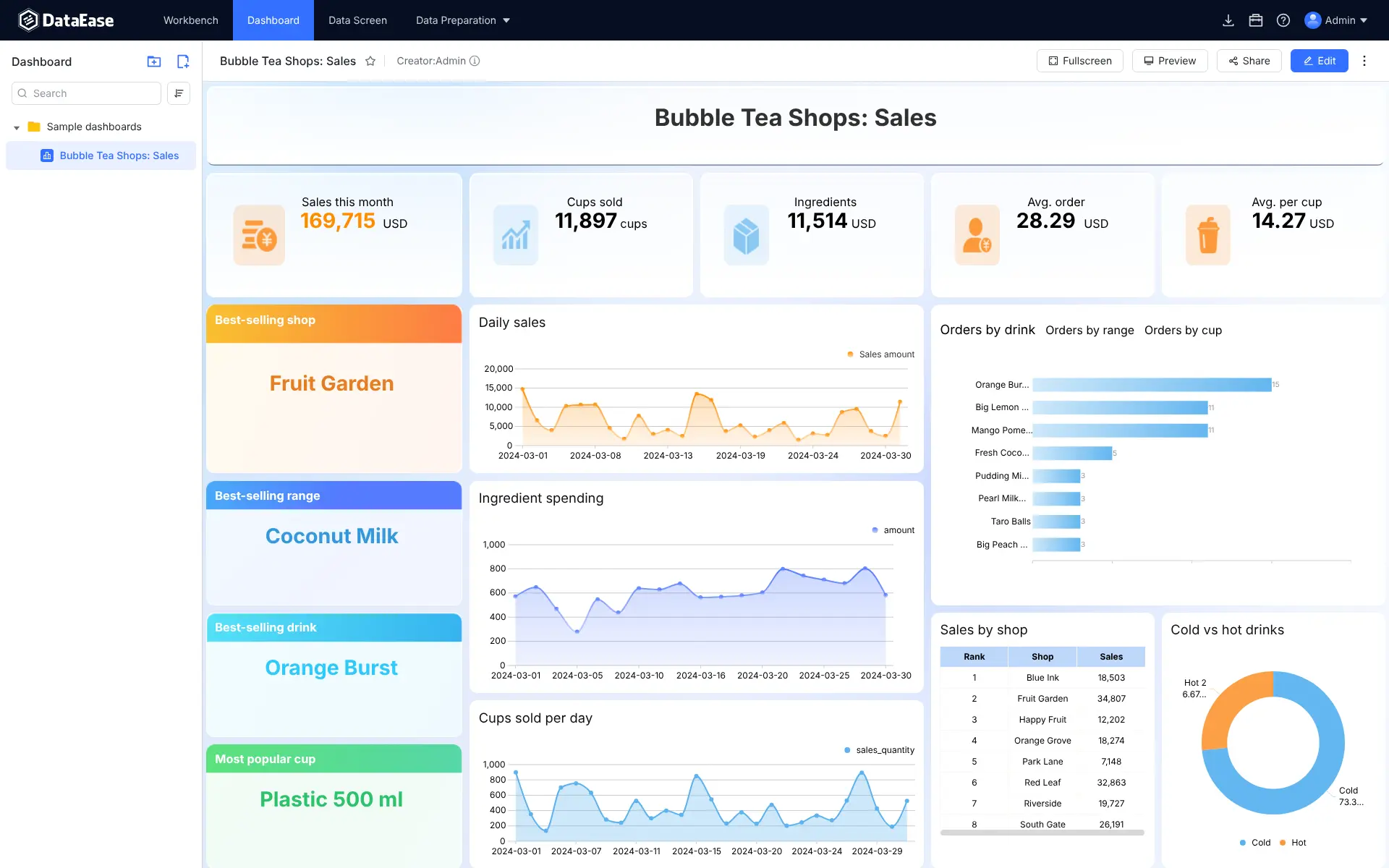
DataEase is an open-source business intelligence tool, and self-hosted DataEase lets you build dashboards and full-screen data displays by drag and drop, as a free alternative to Tableau or Power BI. You connect a database, an Excel file or an API, choose the numbers you care about, and arrange charts on a page without writing code.
Its strength is visual: polished dashboards and "data screens" made for a TV on the wall, with industry templates to start from. A bakery with three shops could upload its weekly sales spreadsheet, build a dashboard of sales per shop and best-selling products, and show it full screen in the back office, while the owner opens the same dashboard by link on a laptop.
DataEase is made by FIT2CLOUD and is popular in China, so the documentation is mostly in Chinese, but the app itself is fully available in English. The free edition has one admin account that builds everything; colleagues view dashboards through shared links. Extra accounts, permissions, scheduled reports and alerts are in FIT2CLOUD's paid editions.
Cloudgate installs the free edition on a server Cloudgate provides or one you connect, with the database it needs, and gives it a secure web address.
What you can do with DataEase
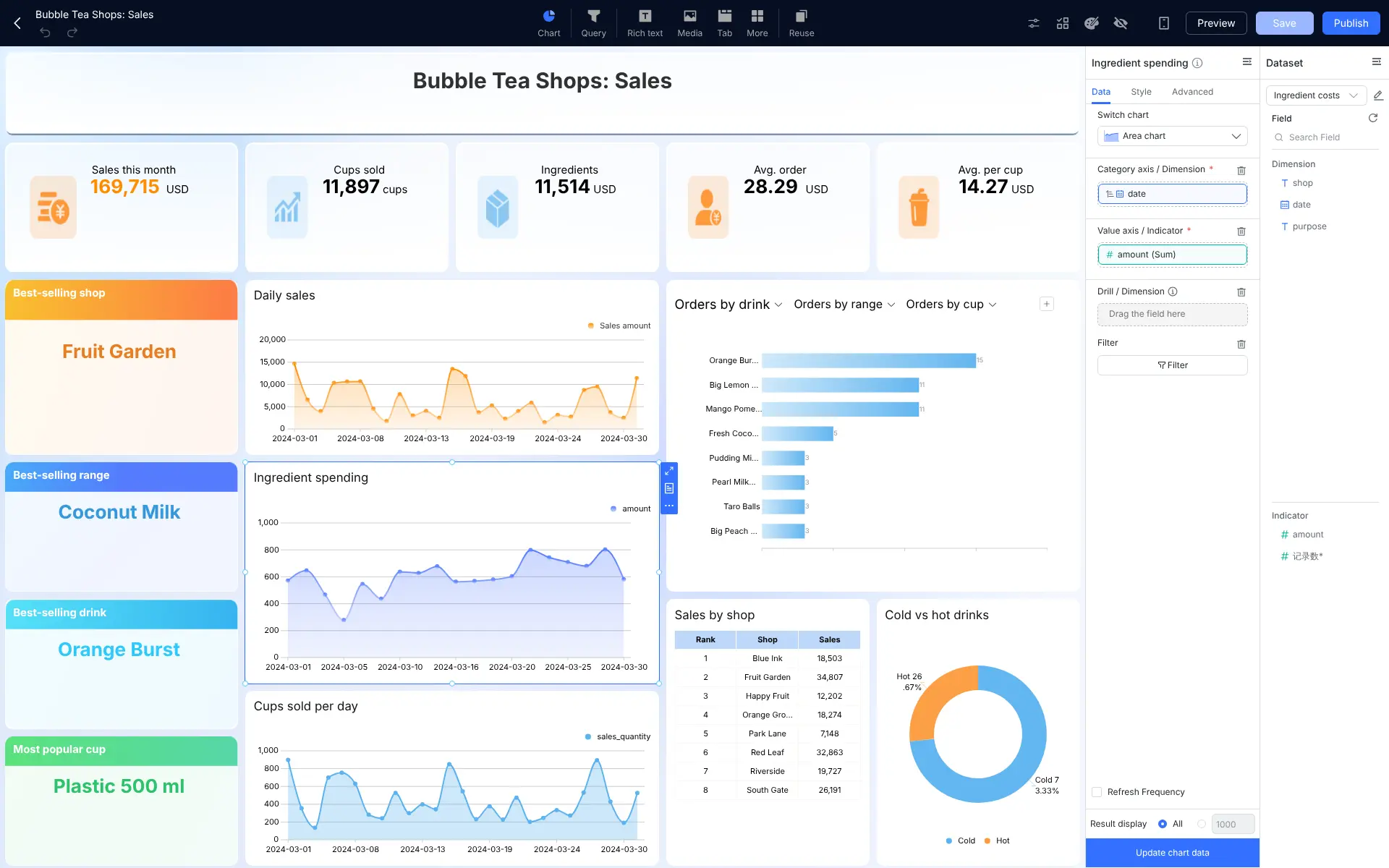
- Build dashboards by drag and drop Drop charts, filters, text and tabs onto a page, then pick the fields to show on each chart.
- Make full-screen data screens Lay out a display made for a big TV on the shop floor, in the warehouse or at reception.
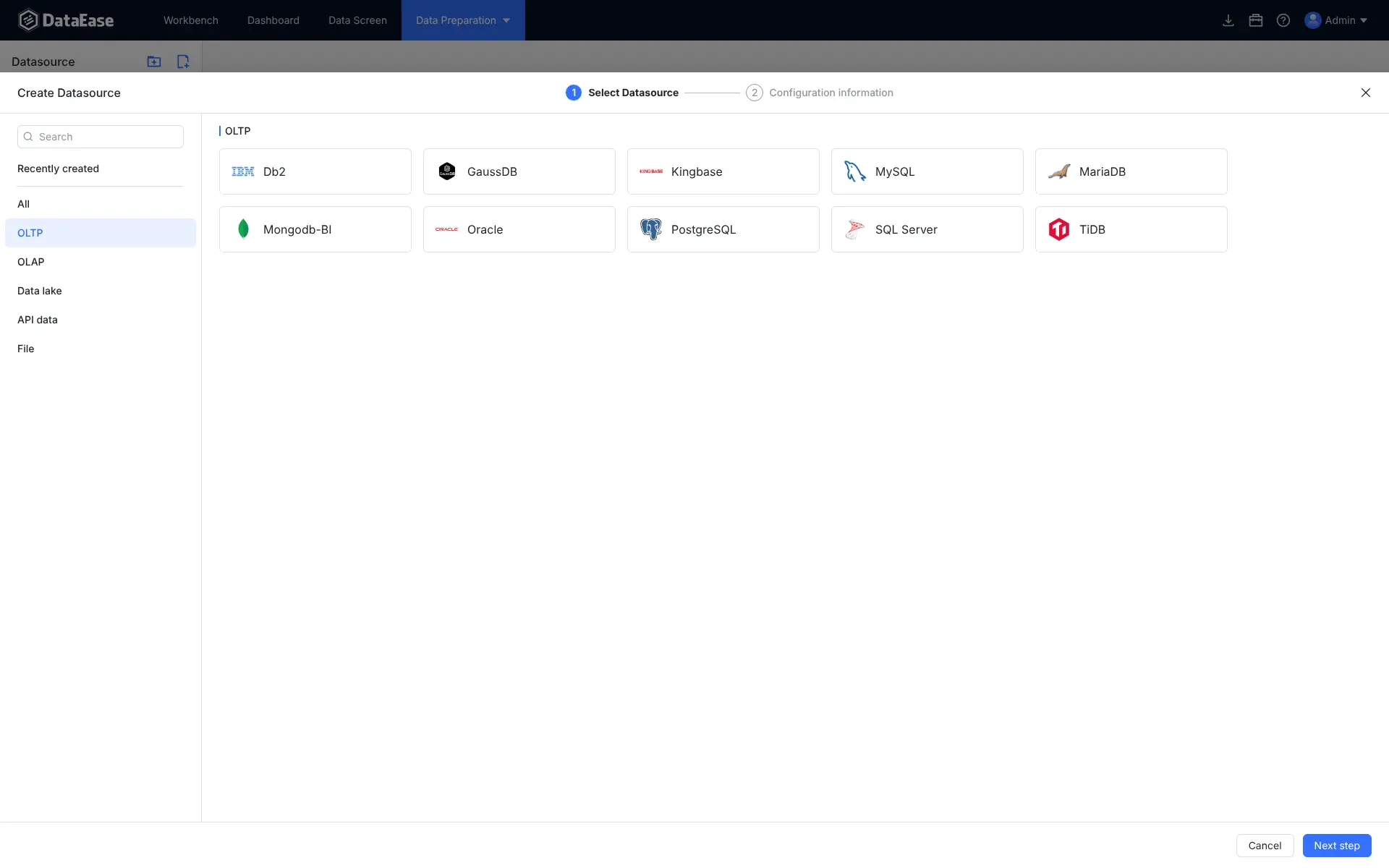
- Connect to your data where it is Read MySQL, PostgreSQL, SQL Server, Oracle, ClickHouse and other databases, an API, or Excel and CSV files.
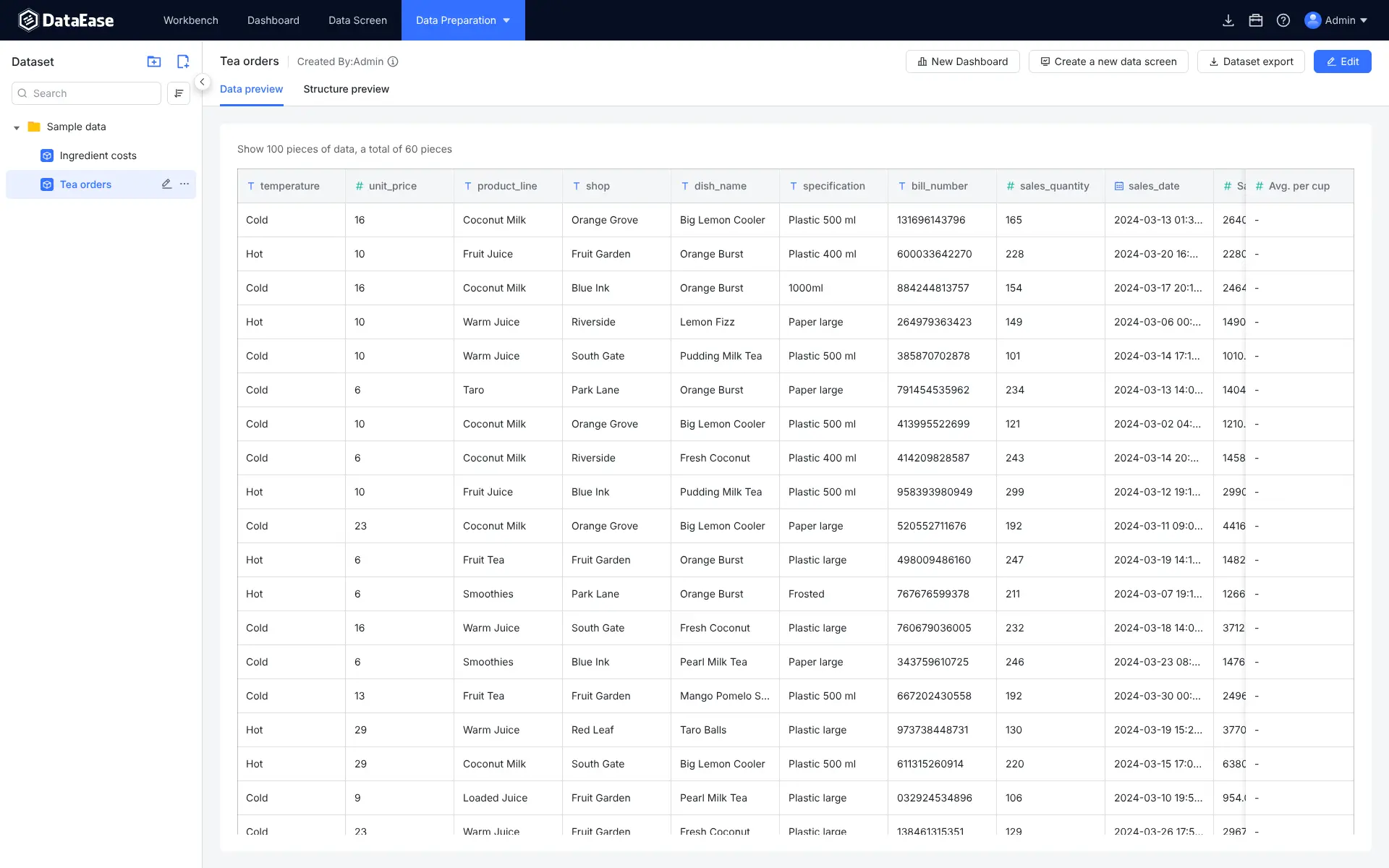
- Prepare data without code Join tables, add calculated fields and preview the rows before you chart them, or write SQL if you prefer.
- Choose from many chart types Number cards, gauges, bar, line and area charts, pivot tables, heat maps and maps, in light or dark themes.
- Share with a link Turn on a public link for any dashboard, with an optional password and expiry date.
- Start from a template Browse ready-made dashboards and data screens for retail, manufacturing and other industries.
Replaces Tableau and Power BI
DataEase does the same job as Tableau and Power BI. Here is what changes when you switch.
- No licence per creator or viewer
- Dashboards and wall screens are built by drag and drop, without SQL
- Excel and CSV files, an API and many databases work out of the box
- Your business data and dashboards stay on your own server
- The free edition has one admin account; others view dashboards through shared links
- Scheduled reports, alerts, user permissions and single sign-on are only in the paid editions
- Much less analysis depth than Tableau, and no Excel-style data modelling like Power BI
- Tableau and Power BI files can't be imported, so you rebuild your dashboards
What happens when you click Deploy?
You do not need a server or any technical knowledge. Four steps, and DataEase is running at its own web address.
- Step 1 Click Deploy and create your account
Deploy takes you to Cloudgate. Create an account, or log in if you have one. DataEase itself is free.
- Step 2 Choose a server
No server? Get one from Cloudgate: pick a size and a country, and Cloudgate gets it ready. Already have one? Connect it instead.
- Step 3 Cloudgate sets up DataEase
It prepares the server, makes the passwords the app needs and starts it. There is nothing to install and nothing to write down.
- Step 4 Open your app and sign in
Your app gets a free web address to start, without https. Add your own domain, like app.yourshop.com, and Cloudgate secures it with https for you.
New to Cloudgate? See what Cloudgate is
Run Cloudgate yourself? Deploy from your own console
In your Cloudgate console, open Templates and choose DataEase.
Questions
Is DataEase free?
Yes, the DataEase community edition is free under GPLv3 with one added condition, that the DataEase logo and copyright notice stay in the app. You pay only for your server. FIT2CLOUD sells paid editions that add extra users and permissions, scheduled reports, alerts, single sign-on, spreadsheets and data entry forms.
Is DataEase a good alternative to Tableau or Power BI?
Yes, for building good-looking dashboards and wall screens from your own data without a licence per viewer. Tableau and Power BI go much further in analysis and data modelling and give every person their own login, which the free DataEase edition does not.
Can everyone on my team have their own DataEase account?
No, the free edition of DataEase has a single admin account and no user management. The admin builds the dashboards and shares them by public link, with a password if you want one. Separate accounts, roles and data permissions need a paid edition.
Should I choose DataEase, Metabase or Apache Superset?
Choose DataEase if you want drag-and-drop dashboards and full-screen displays and one person builds them. Choose Metabase if several people need their own logins, emailed reports or alerts. Choose Superset if your team writes SQL and wants a full SQL editor.
Is DataEase available in English?
Yes, the whole DataEase interface can be switched to English from the account menu, under Language. The admin account starts in Chinese, and most of the official documentation and forum are in Chinese.
How do I sign in to DataEase the first time?
Sign in with the account admin and the password Cloudgate created, which is shown in Cloudgate. DataEase opens with a sample sales dashboard for a chain of tea shops, so you can look around before connecting your own data.
What server size do I need for DataEase?
Cloudgate starts DataEase on a large server with 4 GB of memory, in line with the project's advice of at least 2 CPU cores and 4 GB. The first start takes a minute or two while it sets up its database.
Do I need technical skills to run DataEase?
No. Click Deploy, create your Cloudgate account and choose a server, and Cloudgate sets up DataEase and gives it a web address. You use it in your browser like any other online tool.
Do I need my own server for DataEase?
No. When you deploy DataEase, hosted Cloudgate can provide a server. If you already rent one, you can connect it instead.
Can I move my data from Tableau to DataEase?
Most people export from Tableau and import into DataEase. The official guides at docs.fit2cloud.com walk through it.
Related apps

Dashboards and a SQL editor on your own databases.

Dashboards on your PostgreSQL or ClickHouse data.

Turn your business data into charts your whole team can use.

SQL queries, charts, dashboards and alerts.